---
title: 02.03 Installing a Framework
description: Four paths to add a framework to a SimpleRisk installation — install from the SimpleRisk GitHub content repository, create one by hand, import one from a…
---
[Skip to content](https://support.simplerisk.com/kb/02-03-installing-a-framework#main-content)
English
Show submenu for translations
[Customer portal](https://support.simplerisk.com/tickets?hsLang=en)
[](https://www.simplerisk.com/)
Open main navigation
Close main navigation
- English
Show submenu for translations
- [Customer portal](https://support.simplerisk.com/tickets)
- [Contact us](https://www.simplerisk.com/about-us/contact-us)
[Contact us](https://www.simplerisk.com/about-us/contact-us)
How can we help you?
- There are no suggestions because the search field is empty.
1. [SimpleRisk Knowledge Base](https://support.simplerisk.com/kb?hsLang=en)
2. [User Guide](https://support.simplerisk.com/kb/user-guide?hsLang=en)
3. [02 Compliance Management](https://support.simplerisk.com/kb/user-guide?hsLang=en#02-compliance-management)
# 02.03 Installing a Framework
## Four paths to add a framework to a SimpleRisk installation — install from the SimpleRisk GitHub content repository, create one by hand, import one from a control spreadsheet, or activate the bulk SCF/UCF Extras for whole-catalog imports.
## Why this matters
A fresh SimpleRisk installation comes with no installed frameworks. The compliance module renders, but there's nothing in it until the program adds the framework or frameworks the audit conversation expects. Installing the right framework is the first compliance step a new program takes, and it shapes everything that follows: which controls show up, which tests get scheduled, how reporting groups the work.
There are four paths to install a framework, and the right path depends on the framework. Common public frameworks (NIST CSF, ISO 27001, SOC 2, PCI DSS, the long list) live in the SimpleRisk GitHub content repository and install with one click. A custom or homegrown framework (your organization's internal control catalog) gets created by hand, or imported wholesale from a spreadsheet if you already keep it in one. And for programs running many frameworks at once, the **ComplianceForge SCF Extra** and the **UCF Extra** install large pre-mapped catalogs in bulk. This article walks the first three and points to the Extras for the fourth.
The other reason to read this first: unwinding a framework install is messier than making it. Deleting a framework removes the framework and its control mappings, leaving the controls themselves behind — unmapped if that was the only framework they belonged to. Deleting those controls afterwards is permanent; SimpleRisk has no undelete. The path back from "I installed the wrong version of ISO 27001" is reinstalling and re-mapping, or restoring from backup. Take the install seriously the first time.
## Before you start
Have these in hand before you open the installation page:
- The **Able to Add New Frameworks** permission on your account. Without it, the install attempt returns "You have no permission to add frameworks." (See [Permission Reference](https://support.simplerisk.com/kb/03-03-permission-reference?hsLang=en).)
- A clear answer to *which framework* you intend to install. "We need to do compliance" isn't an answer; "We need ISO 27001:2022 because our enterprise customers are asking for ISO certification" is. The framework is the first commitment that downstream work depends on.
- Network access from the SimpleRisk server to `https://raw.githubusercontent.com/simplerisk/import-content/`. The GitHub install path fetches framework definitions from this URL at install time. An air-gapped install (or one behind a strict outbound firewall) needs the manual creation path or the spreadsheet import instead; neither leaves the server.
- For complex multi-framework programs: a decision on whether to use the **ComplianceForge SCF Extra** or **UCF Extra** rather than installing the frameworks one-by-one. Both Extras install hundreds of frameworks pre-mapped to a common backbone, which saves dramatic amounts of one-by-one install work. See [The ComplianceForge SCF Extra](https://support.simplerisk.com/kb/02-05-the-complianceforgescf-extra?hsLang=en) and [The UCF Extra](https://support.simplerisk.com/kb/02-06-the-ucf-extra?hsLang=en).
## Step-by-step
### Path 1: Install from the SimpleRisk GitHub content repository
The GitHub path is the right answer for most public frameworks. SimpleRisk maintains a content repository of community-contributed framework definitions (NIST CSF, ISO 27001, SOC 2, PCI DSS, HIPAA, and many more) and the install process pulls the framework definition and its controls in one operation.
This path lives in the **Import-Export Extra**, and the way to it is the Extra's own page. **+ Add framework** on Define Control Frameworks doesn't offer it; what the chooser there offers is the spreadsheet import in Path 3. Both this path and Path 3 need the Extra activated and an administrator account, because the Extra's page is administrator-only. If you're not an administrator, the manual path below is your route.
The chooser will still *show* you the spreadsheet route when you don't have the Extra — greyed out and marked **Locked**, with a line naming what it needs. That's deliberate: it's how you find out the capability exists. It isn't a broken button.
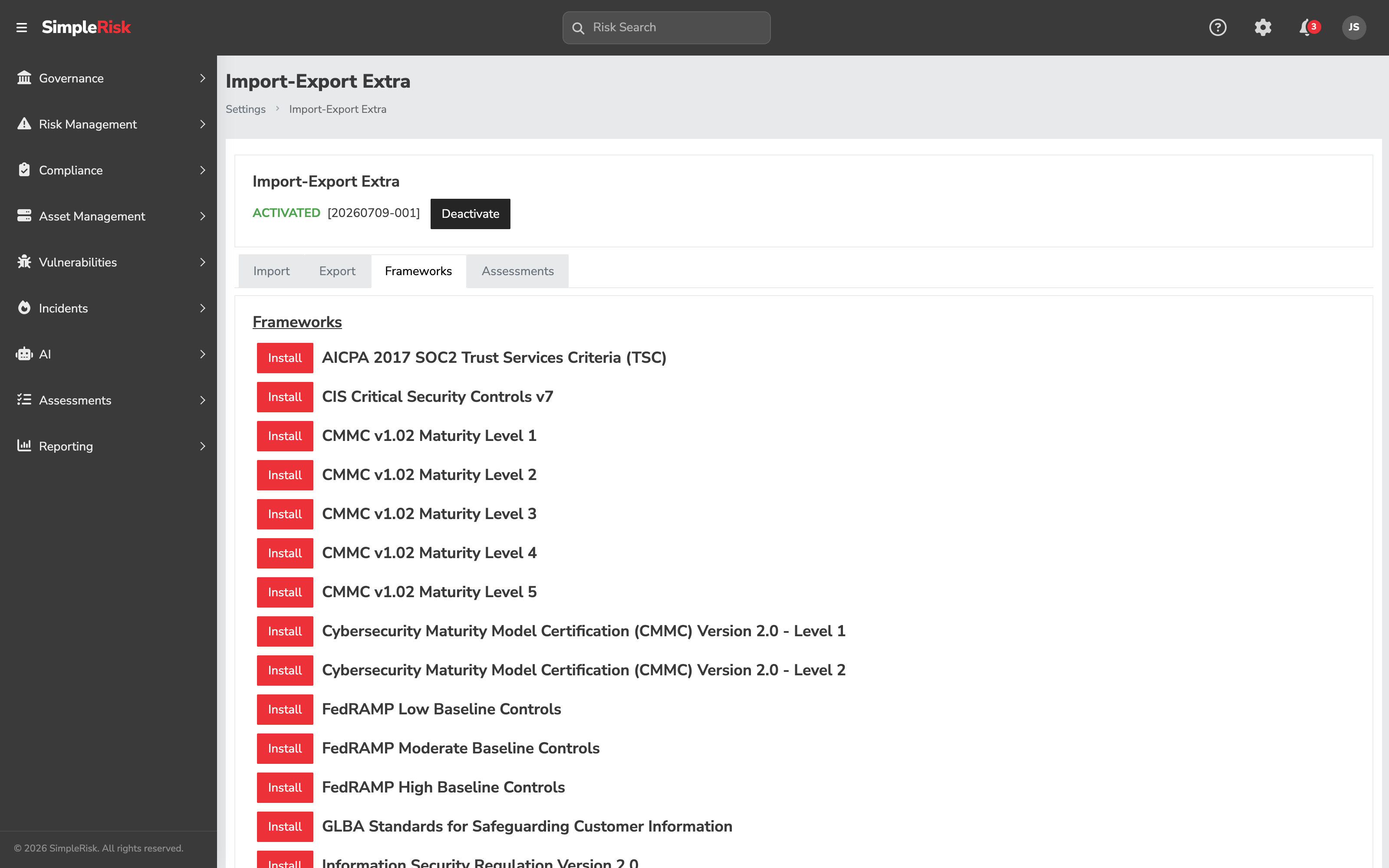
1. **Open the Import-Export Extra.** Sidebar: **Settings**, then the **Import-Export Extra** tile, which opens `/admin/importexport.php`.
2. **Open the Frameworks tab.** The page fetches the catalog of available frameworks from `https://raw.githubusercontent.com/simplerisk/import-content/master/Control%20Frameworks/frameworks.xml` and presents them as a selectable list. The list includes the common public frameworks (NIST CSF v2.0, ISO 27001:2022, SOC 2, PCI DSS, HIPAA Security Rule, FedRAMP, NIST SP 800-171, the long list) plus contributed regional and industry-specific frameworks.
3. **Select the framework version you want.** ISO 27001:2013 and ISO 27001:2022 are different installs; pick the version your audit conversation expects. NIST CSF v1.1 and v2.0 are different installs (v2.0 added the Govern function — see [The GRC Program Lifecycle](https://support.simplerisk.com/kb/00-02-the-grc-program-lifecycle?hsLang=en)); pick the version your stakeholders are reading from.
4. **Click Install.** SimpleRisk fetches the framework definition — its name, description, and full list of controls with their family assignments — and creates the framework and all of its controls in one operation. The same tab carries an **Uninstall** button for reversing a framework you installed here.
5. **Confirm it landed.** Go to **Governance → Define Control Frameworks**. The new framework appears in the rail on the left with its control count beside the name, and selecting it fills the controls table on the right.
The install is synchronous and atomic — either the whole framework lands or nothing does. If the GitHub fetch fails (network issue, missing framework, repo restructuring), the install returns an error and writes nothing.
### Path 2: Create a framework by hand
The manual path is the right answer for custom or homegrown frameworks — your organization's internal control catalog, a regulator-specific control set the GitHub repo doesn't carry, or a "blank" framework you'll populate by importing controls from elsewhere.
1. **Open the page.** Sidebar: **Governance → Define Control Frameworks**, which opens `/governance/index.php`.
2. **Click Add framework.** It's the dashed row at the top of the framework rail on the left. A short menu drops down asking *How do you want to add a framework?* and offers three answers: **Create one manually**, **Get one from the Secure Controls Framework**, and **Import one from a spreadsheet**. **Create one manually** is always the first, and always available. The other two need an Extra and an administrator account, and when your installation can't use one it stays in the menu marked **Locked**, greyed out, with a line explaining what's missing and a link to the one step that would fix it — register the instance, download the Extra, turn it on, or, for Import-Export, find out what the Extra adds. If you're not an administrator, both appear locked with no link, because every one of those steps is an administrator-only page. Click **Create one manually** and you end up in the **New Framework** modal.
3. **Fill in the framework metadata.** The modal is three cards: - **General** — **Framework Name** (required, 100 characters), **Status**, and **Framework Description**, a rich-text field for the framework's scope and purpose. - **Placement** — **Parent Framework**, optional. If this framework is a child of another (sub-frameworks are common in SCF-style hierarchies), pick the parent here. Most installs leave it blank. - **Statement of applicability** — **Scope statement** and **Default inclusion justification**. Both are optional and both are for ISO 27001 programs; see [Control Applicability and the Statement of Applicability](https://support.simplerisk.com/kb/02-08-control-applicability-and-the-statement-of-applicability?hsLang=en). The scope statement starts empty, and it's a rich-text field — most real scopes end up as a short paragraph plus a list of the sites and systems in the boundary. The inclusion justification arrives with a standard sentence already in it — edit it to describe your own program, or clear it if you aren't certifying against ISO.
**Status** offers **Active** and **Inactive**, and lands on Active. Leave it there unless you're staging a framework nobody should be mapping controls to yet. An inactive framework keeps all of its controls and mappings, but it drops out of the default framework list and out of the governance dashboard. One thing to know before you use it on a parent: deactivating a framework deactivates every framework beneath it, and activating one activates its parents.
1. **Click Add.** SimpleRisk writes the framework row and it appears in the rail.
2. **Add controls to the framework.** A blank framework has no controls. Select it in the rail and click **Add Control** in the toolbar above the controls table. Each control needs a **Control Short Name** at minimum; you'll usually also want a **Control Number** (the framework-native identifier, like "AC-2" or "5.1.1"), a **Control Description**, a **Control Owner**, and a **Control Family**. The **Mappings & guidance** section of the same modal is where you attach the control to this framework and any others. See [Control Frameworks and Control Families](https://support.simplerisk.com/kb/02-02-control-frameworks-and-control-families?hsLang=en) for the abstractions.
Adding a control that's a near-copy of one you already have is faster through the **Clone** row action, which opens the same modal pre-filled from the source control (including its framework mappings) and retitles itself so you can see what you cloned.
For frameworks with more than a handful of controls, populating them one by one through the UI is impractical. Bulk-load them from a spreadsheet instead (Path 3 below), or use the v2 API to script the import.
The manual path is also how you'd extend a GitHub-installed framework: install the public framework, then add custom controls to it for organization-specific extensions. Custom controls coexist with public ones in the same framework; reporting treats them identically.
### Path 3: Import a framework from a spreadsheet
If the framework already exists as a spreadsheet — an internal control catalog in Excel, a control set a consultant handed over, an export from another GRC tool — importing it beats retyping it. This path lives in the **Import-Export Extra** too, and it works through a side door. SimpleRisk has no "import frameworks" type. You import **controls**, and any framework your spreadsheet names that SimpleRisk doesn't already have gets created for you.
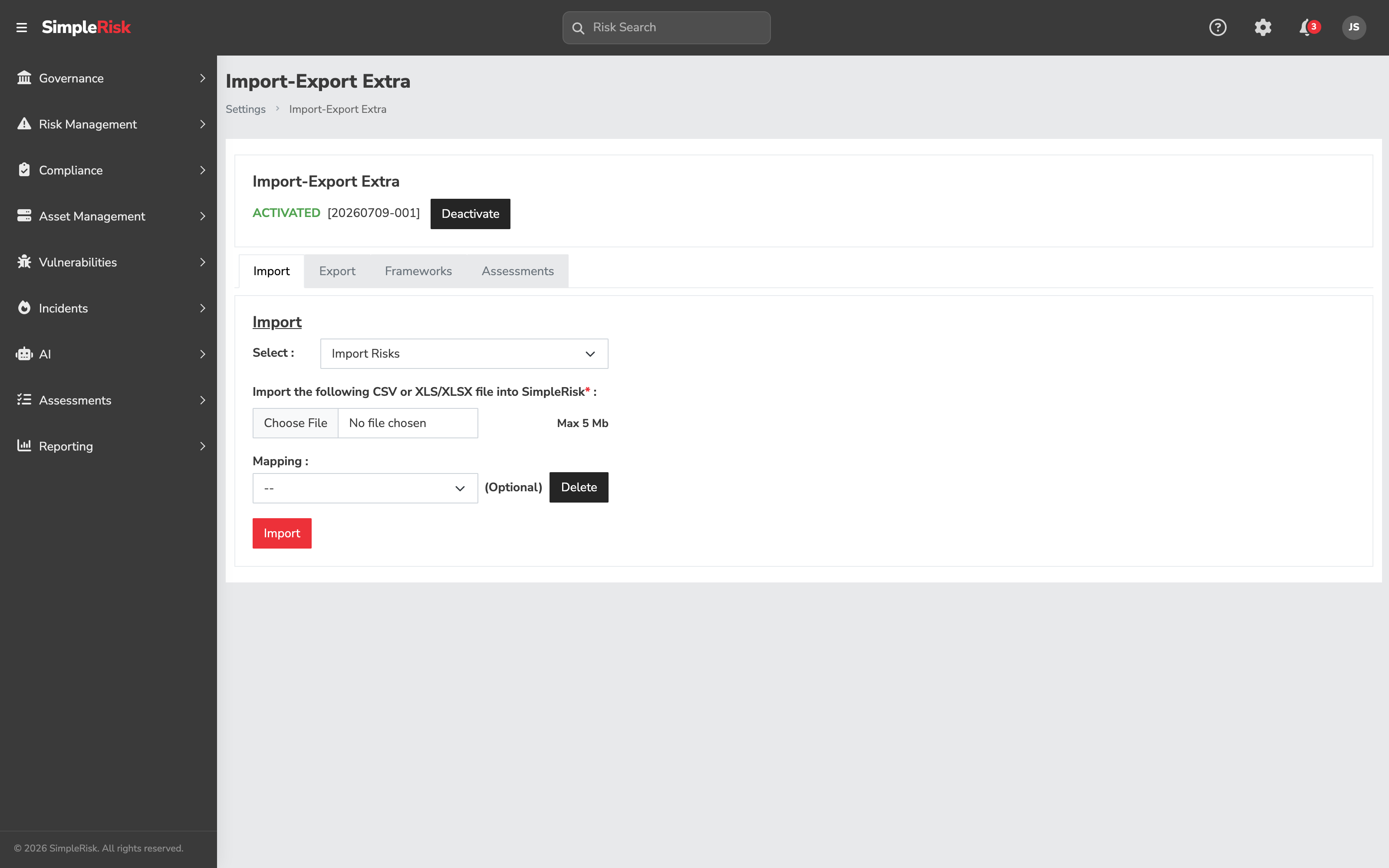
1. **Open the import form.** Sidebar: **Governance → Define Control Frameworks**, then **+ Add framework**, then **Import one from a spreadsheet**. You land on the Extra's **Import** tab with **Import Controls** already chosen. Opening `/admin/importexport.php` yourself works too, but the type selector starts on **Import Risks** and you'll need to change it.
2. **Prepare the spreadsheet.** One row per control, one column per attribute, a header row on top. The column that carries this whole path is the framework name: give each control the framework it belongs to. A control that belongs to several frameworks lists them comma-separated in that one cell. The rest of the columns SimpleRisk can read are the control's own attributes — short name, long name, description, supplemental guidance, owner, class, phase, number, priority, status, family, mitigation percent, current and desired maturity, type, mapped control numbers, mapped assets. Map only the ones you actually have.
3. **Upload the file.** CSV, XLS, or XLSX, under the maximum upload size the form prints beside the file field. Click **Import**.
4. **Map the columns.** SimpleRisk reads your header row and shows a two-column table: **File Columns** on the left, a **Controls Column Mapping** dropdown on the right. Point the framework column at **Control Framework**, and each remaining column at the control attribute it holds. Anything you don't want imported stays on **No mapping selected**. If your file has no header row, tick **Import First Row** so the first line is read as data rather than as headers.
5. **Click Import.** Every row creates or updates a control. A framework name in the mapped framework column that SimpleRisk already has gets the control mapped into it; a name it doesn't have becomes a new framework, created with an empty description.
6. **Finish what the import couldn't.** Go to **Governance → Define Control Frameworks**. The framework is in the rail with its controls attached, and it has no description, no scope statement, and no parent — a spreadsheet of controls carries none of that. Open it and fill those in before the framework goes to work.
Re-running the same file won't duplicate the framework, because a name SimpleRisk already has is reused rather than created again. It *will* duplicate the controls, though, unless the spreadsheet carries a **Control ID** column mapped to it — that column is what tells the importer to update an existing control instead of adding another one. The Export tab's controls export carries it in the first position; a spreadsheet you typed yourself won't. Export first, edit, re-import.
### Path 4: Install via the SCF or UCF Extras
For programs running many frameworks at once with substantial overlap, the **ComplianceForge SCF Extra** and the **UCF Extra** install large pre-mapped catalogs in bulk. Both Extras install 200+ frameworks at activation with all the cross-framework mappings precomputed, which collapses what would otherwise be weeks of one-by-one install work into a single activation.
The SCF and UCF paths are documented in their own articles:
- **ComplianceForge SCF Extra** (free with registration; ships the Secure Controls Framework and 200+ mapped frameworks) — [The ComplianceForge SCF Extra](https://support.simplerisk.com/kb/02-05-the-complianceforgescf-extra?hsLang=en).
- **UCF Extra** (paid; ships the Unified Compliance Framework's regulatory-citation database) — [The UCF Extra](https://support.simplerisk.com/kb/02-06-the-ucf-extra?hsLang=en).
Use the Extras when the framework count is high and the cross-framework mapping is the load-bearing benefit. Use the GitHub, manual, or spreadsheet paths when the framework count is small and the install fits in an afternoon.
### Verifying the install
After any of the four paths, verify the install before relying on it:
- Open **Governance → Define Control Frameworks** and confirm the new framework appears in the rail with the expected name.
- Check the count chip on the rail row against what the framework should contain (NIST CSF v2.0 has 106 subcategories; ISO 27001:2022 has 93 Annex A controls; SOC 2 has the Trust Services Criteria with their points of focus). A control count that's surprisingly low usually means the GitHub fetch was partial or the manual import dropped rows. If the rail row is greyed out, the count is zero and nothing imported.
- Spot-check one or two controls and confirm the control number, name, and description match the framework as published. Differences usually indicate either a stale GitHub repo or a manual edit that overrode the seeded values.
## Common pitfalls
A handful of patterns recur when teams install frameworks.
- **Installing the wrong version of a framework.** ISO 27001:2013 and ISO 27001:2022 share a name and a brand but have substantially different control sets and organization. Customers occasionally install the older version because it's first in the list and discover months later that their audit conversation expects the newer one. The recovery (installing the newer version, mapping every implementation effort to the new control numbers, retiring the old) is several days of work. Pick the version your auditor expects on the first pass.
- **Installing a framework "to see what it has" and forgetting to remove it.** Test installs of frameworks the program isn't actually adopting clutter the controls table, the dashboards, and the test-scheduling surfaces. Mark experimental installs as **Inactive** during the evaluation; delete them when the evaluation is done. Inactive frameworks stay in the database but stop driving reporting noise. Note that the Define Control Frameworks page can filter the rail by status but can't change a framework's status — that's still done from the framework management surfaces described in [Installing and Managing Frameworks](https://support.simplerisk.com/kb/06-04-installing-and-managing-frameworks?hsLang=en).
- **Deleting a framework when only part of it doesn't apply.** If most of a framework fits your program and a slice of it doesn't (no development function, no card data, no physical data center), the answer is per-control applicability, not deletion or deactivation. Mark those controls **Not applicable** for that framework, with a reason and a justification an auditor can read. See [Control Applicability and the Statement of Applicability](https://support.simplerisk.com/kb/02-08-control-applicability-and-the-statement-of-applicability?hsLang=en).
- **Customizing a GitHub-installed framework heavily and then re-installing.** Re-installing a GitHub framework doesn't merge — it overwrites the framework metadata. Heavy customizations (renamed controls, added owners, custom families) get clobbered if the framework gets re-installed for an update. Track customizations separately (a custom framework that *extends* the public one is the cleaner pattern) so re-installs don't lose the local work.
- **Assuming framework deletion is a clean sweep, or that it's a safe one.** Deleting a framework removes the framework row and its control mappings; its child frameworks are re-parented rather than deleted. The controls survive. That means deleting a framework doesn't tidy up after itself — you're left with controls that no longer belong to anything, and cleaning *those* up is a separate, permanent act. Set the framework Inactive instead unless you're certain.
- **Letting a spreadsheet invent frameworks.** The control import creates a framework for every distinct name in the mapped framework column that SimpleRisk doesn't already have. That's the feature, and it's also the failure mode. "ISO 27001", "ISO27001", and "ISO 27001:2022" scattered through one column produce three frameworks, none of them the one you meant, and the import reports success for all of them. Reduce that column to the exact names you intend before you upload, and look at the rail afterwards — three near-identical rows is the tell.
- **Network-dependent install on an air-gapped server.** The GitHub install path requires outbound HTTPS to `raw.githubusercontent.com`. Air-gapped installations need the manual-create path with controls bulk-imported from a spreadsheet (or imported via the API from a local source). Trying to install from GitHub on an air-gapped server returns a network error, which sometimes gets misread as a SimpleRisk bug.
- **Skipping the parent-child relationship on hierarchical frameworks.** When the framework's controls have a natural tree structure (NIST SP 800-53's enhancements, ISO 27001's sub-clauses), the GitHub install captures that hierarchy for you. Building the same framework by hand without setting each control's parent flattens the tree, which loses rollup behavior in reporting. Use parents when the framework has them.
- **Treating the seeded library as exhaustive.** The SimpleRisk GitHub content repo carries common public frameworks but doesn't carry every framework that exists. If your audit conversation references a framework that isn't in the GitHub list, the manual creation path or the UCF Extra (which carries a much larger library, including regulatory citations beyond the standard frameworks) is the answer. Don't rule out the manual path because the GitHub list "should" cover everything.
## Related
- [What is Compliance Management?](https://support.simplerisk.com/kb/02-01-what-is-compliance-management?hsLang=en)
- [Control Frameworks and Control Families](https://support.simplerisk.com/kb/02-02-control-frameworks-and-control-families?hsLang=en)
- [Mapping Controls Across Frameworks](https://support.simplerisk.com/kb/02-04-mapping-controls-across-frameworks?hsLang=en)
- [The ComplianceForge SCF Extra](https://support.simplerisk.com/kb/02-05-the-complianceforgescf-extra?hsLang=en)
- [The UCF Extra](https://support.simplerisk.com/kb/02-06-the-ucf-extra?hsLang=en)
- [Control Tests and Evidence Collection](https://support.simplerisk.com/kb/02-07-control-tests-and-evidence-collection?hsLang=en)
- [Control Applicability and the Statement of Applicability](https://support.simplerisk.com/kb/02-08-control-applicability-and-the-statement-of-applicability?hsLang=en)
- [Permission Reference](https://support.simplerisk.com/kb/03-03-permission-reference?hsLang=en)
- [FAQs](https://support.simplerisk.com/kb/faqs?hsLang=en)
- [SimpleRisk Extras](https://support.simplerisk.com/kb/simplerisk-extras?hsLang=en#main-content)
- [Vulnerability Management Extra](https://support.simplerisk.com/kb/simplerisk-extras?hsLang=en#vulnerability-management-extra)
- [Team Separation Extra](https://support.simplerisk.com/kb/simplerisk-extras?hsLang=en#team-separation-extra)
- [Import-Export Extra](https://support.simplerisk.com/kb/simplerisk-extras?hsLang=en#import-export-extra)
- [Administrator Guide](https://support.simplerisk.com/kb/administrator-guide?hsLang=en#main-content)
- [00 About This Guide](https://support.simplerisk.com/kb/administrator-guide?hsLang=en#00-about-this-guide)
- [01 Installation and Deployment](https://support.simplerisk.com/kb/administrator-guide?hsLang=en#01-installation-and-deployment)
- [02 Upgrades and Maintenance](https://support.simplerisk.com/kb/administrator-guide?hsLang=en#02-upgrades-and-maintenance)
- [03 Users and Permissions](https://support.simplerisk.com/kb/administrator-guide?hsLang=en#03-users-and-permissions)
- [04 Authentication](https://support.simplerisk.com/kb/administrator-guide?hsLang=en#04-authentication)
- [05 Customization](https://support.simplerisk.com/kb/administrator-guide?hsLang=en#05-customization)
- [06 Configuring Risk and Compliance](https://support.simplerisk.com/kb/administrator-guide?hsLang=en#06-configuring-risk-and-compliance)
- [07 Integrations](https://support.simplerisk.com/kb/administrator-guide?hsLang=en#07-integrations)
- [08 The API](https://support.simplerisk.com/kb/administrator-guide?hsLang=en#08-the-api)
- [09 Encryption and Data Security](https://support.simplerisk.com/kb/administrator-guide?hsLang=en#09-encryption-and-data-security)
- [10 Workflows and Automation](https://support.simplerisk.com/kb/administrator-guide?hsLang=en#10-workflows-and-automation)
- [11 Reporting and Auditing](https://support.simplerisk.com/kb/administrator-guide?hsLang=en#11-reporting-and-auditing)
- [12 Operations](https://support.simplerisk.com/kb/administrator-guide?hsLang=en#12-operations)
- [13 Reference](https://support.simplerisk.com/kb/administrator-guide?hsLang=en#13-reference)
- [User Guide](https://support.simplerisk.com/kb/user-guide?hsLang=en#main-content)
- [00 Foundations of GRC](https://support.simplerisk.com/kb/user-guide?hsLang=en#00-foundations-of-grc)
- [01 Risk Management](https://support.simplerisk.com/kb/user-guide?hsLang=en#01-risk-management)
- [02 Compliance Management](https://support.simplerisk.com/kb/user-guide?hsLang=en#02-compliance-management)
- [03 Governance](https://support.simplerisk.com/kb/user-guide?hsLang=en#03-governance)
- [04 Asset and Data Inventory](https://support.simplerisk.com/kb/user-guide?hsLang=en#04-asset-and-data-inventory)
- [05 Threat and Vulnerability Management](https://support.simplerisk.com/kb/user-guide?hsLang=en#05-threat-and-vulnerability-management)
- [06 Assessments](https://support.simplerisk.com/kb/user-guide?hsLang=en#06-assessments)
- [07 Incident Management](https://support.simplerisk.com/kb/user-guide?hsLang=en#07-incident-management)
- [08 Audit and Reporting](https://support.simplerisk.com/kb/user-guide?hsLang=en#08-audit-and-reporting)
- [09 Day-to-Day SimpleRisk](https://support.simplerisk.com/kb/user-guide?hsLang=en#09-day-to-day-simplerisk)
- [10 Continuous Improvement](https://support.simplerisk.com/kb/user-guide?hsLang=en#10-continuous-improvement)
- [SimpleRisk User Guides](https://support.simplerisk.com/kb/simplerisk-user-guides?hsLang=en)
- [Troubleshooting](https://support.simplerisk.com/kb/troubleshooting?hsLang=en)
- [SimpleRisk Hosted](https://support.simplerisk.com/kb/simplerisk-hosted?hsLang=en)
- [How To videos](https://support.simplerisk.com/kb/how-to-videos?hsLang=en)
[](https://www.simplerisk.com)
Copyright © 2026, SimpleRisk, Inc.