
Requires: ComplianceForge SCF Extra
The ComplianceForge SCF Extra ships the Secure Controls Framework's library of 1000+ controls along with pre-built mappings to 200+ industry and regulatory frameworks. The Extra is free with SimpleRisk registration but isn't included in the Core install.
Why this matters
A program running multiple frameworks needs the controls to be mapped across them — one piece of test work generating evidence for many frameworks at once (see Mapping Controls Across Frameworks). Building those mappings by hand for the standard public frameworks is days or weeks of expert work; the result, if you're disciplined about it, is functionally what the Secure Controls Framework (SCF) ships. The SCF is a meta-framework: a single backbone of control objectives with mappings out to most of the major frameworks a program is likely to encounter.
The ComplianceForge SCF Extra is SimpleRisk's productized integration with the SCF. Activating the Extra installs the SCF backbone and the cross-mappings; once installed, the SCF frameworks are selectable from the same UI you'd use for any other framework, and the mappings just work. For a multi-framework program, the SCF Extra collapses what would otherwise be substantial mapping work into a single activation step.
The other thing worth knowing: the install is asynchronous. Activating the Extra queues a background job (scf_install_and_upgrade) that loads the SCF data into the database; the activation page returns immediately, but the data lands over the next minutes-to-hours depending on the server and the amount of SCF content being installed. This is intentional (loading 200+ frameworks synchronously would block the admin UI), but new users sometimes look at the immediately-returned activation page and wonder why the SCF frameworks aren't visible yet. The answer is "give the queue a few minutes."
Before you start
Have these in hand before activating the Extra:
- Admin access to your SimpleRisk installation plus the Able to Add New Frameworks permission. The Extra activation lives in the admin section; framework installation through the SCF backbone uses the same permission gate as any other framework install. (See Permission Reference.)
- A registered SimpleRisk installation. SCF Extra activation requires the install to be registered through
/admin/register.php; the registration is free but the registration step gates the Extra. New installs that haven't gone through registration see the Extra greyed out with a registration prompt. - Network access from the SimpleRisk server to ComplianceForge content distribution. The Extra fetches SCF data through a registered channel during activation; an air-gapped install can't activate the Extra without an alternative content path.
- A clear understanding of what the SCF gives you. SCF is a control-objective-based meta-framework. The 1000+ SCF controls are parent controls; the mapped framework controls (NIST 800-53, ISO 27001, SOC 2, etc.) sit under the SCF backbone. The framework rail on Define Control Frameworks shows this hierarchy after install, with child frameworks listed under their parents. If your mental model is "frameworks are flat catalogs," the SCF tree-shaped layout will look unfamiliar at first.
Step-by-step
1. Register the SimpleRisk installation
The SCF Extra requires a registered install. From the Settings Hub (Settings cog, top-right of any page), the ComplianceForge SCF Extra tile shows a Registration Required badge on unregistered installs — clicking it opens /admin/register.php. The registration form asks for an organization name, a contact email, and a basic install type. Submit the form; SimpleRisk receives a registration token that unlocks the Extra. Registration is free.
If your install is already registered (most are), skip this step.
2. Activate the SCF Extra
Settings cog → Settings Hub → Extras chip. Find the ComplianceForge SCF Extra tile and click Activate.
The activation does two things: it sets the extra_scf configuration setting to true, and it queues an asynchronous job (scf_install_and_upgrade) that loads the SCF backbone, the SCF control library, and the cross-framework mappings into the SimpleRisk database. The activation page returns immediately with a success message; the actual data load runs in the background.
The configuration settings the Extra writes:
extra_scf— boolean; the Extra enabled flag.extra_scf_status— enum;installingduring the async load,activeonce the load completes,uninstallingduring deactivation.extra_scf_version— the SCF version currently loaded (changes when an SCF update is processed).extra_scf_auto_process_updates,extra_scf_add_new,extra_scf_update_existing,extra_scf_delete_removed— update-policy toggles controlling how the Extra handles SCF version updates published by ComplianceForge.
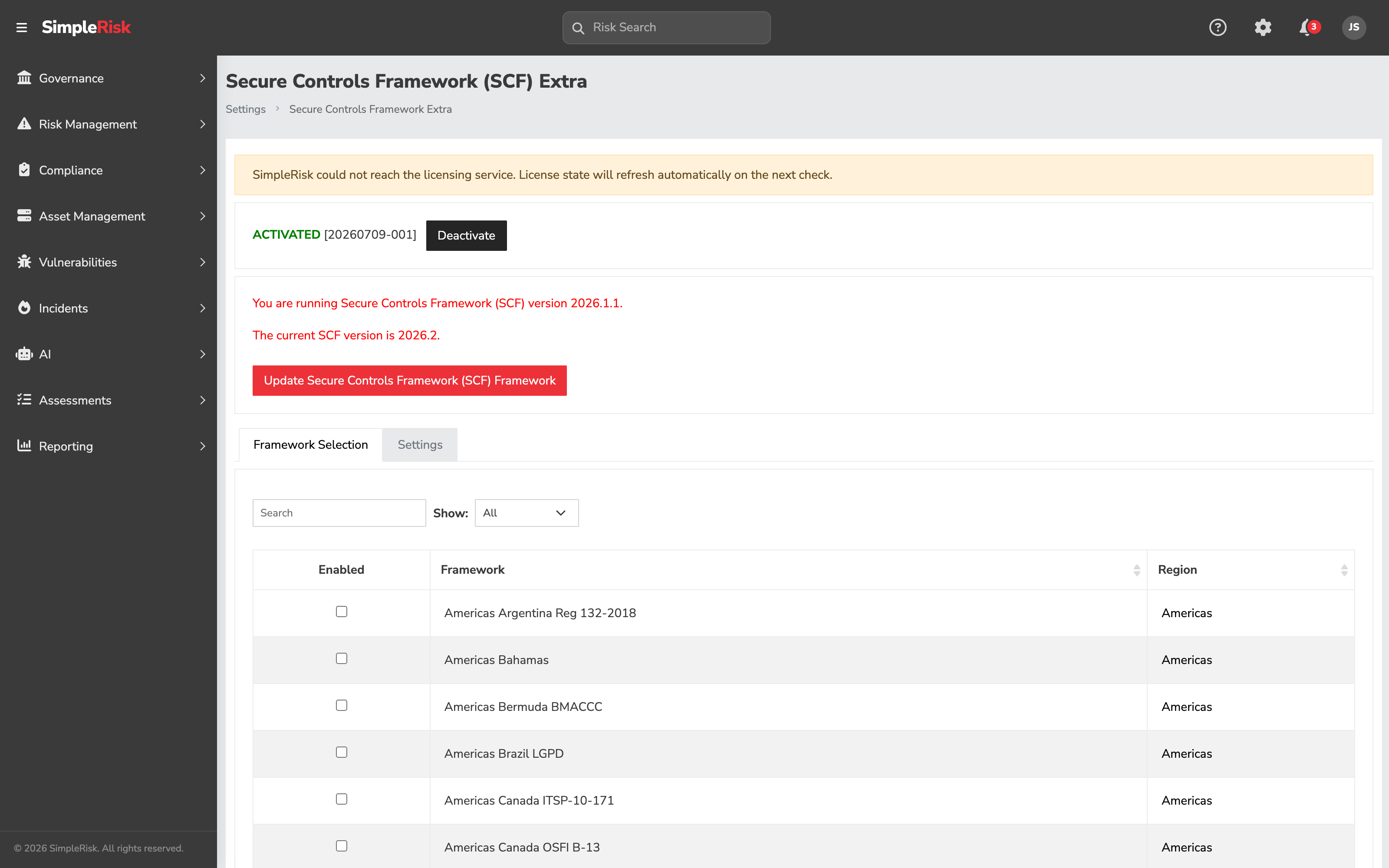
3. Wait for the async install to complete
After activation, monitor the extra_scf_status value (visible on the Extra's status page) — it transitions from installing to active when the queue job finishes. The duration depends on the SCF content size and the server's database write speed; budget tens of minutes for a typical install. Don't navigate away expecting the data to be visible immediately.
The job runs through SimpleRisk's standard async-job system (see the cron jobs documented in the Administrator Guide). If the job runner isn't running, the install will sit in installing status indefinitely. Confirm the cron is healthy if the status doesn't transition.
4. Pick the SCF frameworks to expose
Once the install completes, the SCF backbone is loaded but the individual mapped frameworks aren't yet selected for use. Settings cog → Settings Hub → Secure Controls Framework tile opens /admin/securecontrolsframework.php, which lists the 200+ frameworks the SCF maps to (NIST CSF, ISO 27001, SOC 2, HIPAA, GDPR, FedRAMP, NIST 800-53, NIST 800-171, CMMC, the long list).
Select the frameworks your program runs and confirm. SimpleRisk creates each selected framework and populates the cross-mappings automatically — every framework's controls land already mapped to the SCF backbone, and through it to each other.
5. Verify the install
After the framework selection completes, verify the install end-to-end:
- Open Governance → Define Control Frameworks and confirm the selected frameworks appear in the rail on the left. Frameworks the SCF Extra imported carry an SCF chip beside the name.
- Check the count chip on one of the rail rows against the framework's published catalog size.
- Select a framework, expand a control's row detail, and confirm its mappings to other selected frameworks and the SCF backbone control are present.
- Open the compliance dashboard and confirm the framework's posture indicators render. (Empty posture is expected for a fresh install — no tests have been performed yet.)
If the verification surfaces missing mappings or controls, the async install may not have completed. Re-check the extra_scf_status setting; if it's still installing, give it more time.
6. Use the SCF frameworks like any other framework
Once installed, the SCF-sourced frameworks behave exactly like manually-installed frameworks. Add control owners, schedule control tests (see Control Tests and Evidence Collection), attach evidence, run the test cycle. The cross-framework mappings are the differentiator: a passing test on a control that's mapped to SCF + ISO 27001 + SOC 2 + NIST CSF generates evidence for all four frameworks at once.
The SCF backbone is also visible as its own framework in the rail. Most programs don't run tests directly against the SCF backbone (they run tests against the named frameworks the program is reporting on) but the backbone is what the mappings hang from, so deleting it (or marking it inactive) breaks the cross-framework reporting.
7. Handling SCF updates
ComplianceForge publishes SCF updates periodically (new controls, revised mappings, framework additions). The Extra's update behavior is governed by the extra_scf_* configuration settings:
extra_scf_auto_process_updates— when true, the Extra processes published SCF updates automatically without admin intervention. When false, updates are visible but not applied; an admin clicks Update on the Extra status page to apply them.extra_scf_add_new— when true, new controls in an SCF update are added to the local database. When false, new controls are skipped.extra_scf_update_existing— when true, changed control descriptions and mappings overwrite the local versions. When false, local edits are preserved (and the SCF update is partial).extra_scf_delete_removed— when true, controls removed from the SCF in an update are deleted locally (cascading to test history). When false, removed controls stay in the local database as orphans.
Most programs leave extra_scf_auto_process_updates off and review SCF updates manually, because the update can affect a lot of controls at once. The trade-off is "manual updates produce predictable change windows" versus "automatic updates keep the local content current at the cost of occasional surprise changes."
Common pitfalls
A handful of patterns recur with the SCF Extra.
-
Looking for SCF frameworks before the async install completes. New users activate the Extra and immediately open Define Control Frameworks expecting to see ISO 27001 and SOC 2. The install runs in the background and may take ten to thirty minutes on a busy server. Wait for
extra_scf_statusto transition toactivebefore expecting the data to be visible. -
Assuming the SCF Extra is paid. The SCF Extra is free with SimpleRisk registration; the licensed product is the UCF Extra (which is a different vendor and a different mapping approach). The two get conflated occasionally because both are cross-framework mapping Extras. The SCF Extra is the right starting point for most programs; the UCF Extra is the right answer specifically when regulatory citations (HIPAA, GDPR, SOX) are the primary compliance burden.
-
Selecting every available SCF framework on first install. The framework selector exposes 200+ frameworks; selecting all of them produces an enormous local catalog of mostly-unused frameworks that clutters reporting. Select the frameworks your program actually reports on; you can always add more later. Most programs use 3–6 of the available 200+.
-
Trying to trim a framework by deleting its controls. SCF catalogs are large by design and a lot of what lands won't apply to you. Deleting those controls removes them from every framework they're mapped into, which is exactly the cross-framework structure you activated the Extra to get. Mark them Not applicable for the framework instead — the decision is scoped to that one framework, it carries a reason and a justification, and it leaves the mappings intact. See Control Applicability and the Statement of Applicability. Filtering the controls table down and using Set applicability on the selection makes this tractable at SCF scale.
-
Editing SCF-sourced controls heavily and then taking an update. Local edits to SCF-sourced controls get overwritten when an SCF update is processed (depending on the
extra_scf_update_existingsetting). If you need extensive customization on top of the SCF, create a custom child framework with the customizations and leave the SCF backbone unedited. The custom framework can map to the SCF for cross-framework reporting and accept updates without losing the local work. -
Disabling the Extra and losing test history. Deactivating the SCF Extra cascades the deletion through all SCF-sourced frameworks, controls, and test history. The cascade is intentional but unforgiving; if the program has run tests against SCF-sourced controls, the test results disappear with the deactivation. Take a database backup before deactivating, and only deactivate when the SCF data genuinely isn't needed anymore.
-
Treating the SCF as a substitute for the framework's own audit conversation. SCF mappings are expert judgment about control equivalence; an ISO 27001 auditor still expects ISO-vocabulary evidence even when the underlying test ran against an SCF backbone control. Use the SCF for the test work; translate the evidence into framework-native vocabulary in the audit conversation.
-
Letting auto-process updates run on a production install without monitoring. When
extra_scf_auto_process_updatesis enabled andextra_scf_delete_removedis true, an SCF update that retires a control will delete it (and its test history) from the local install at the next update cycle. This can produce surprise data loss. Most programs leave auto-process off and review updates before applying. -
Forgetting that the
delete_frameworkspermission can't delete the SCF backbone. SimpleRisk explicitly blocks deletion of the SCF backbone framework via the standard delete UI, returning "Can't delete ComplianceForge SCF Framework." This is intentional protection; if you genuinely need to remove the SCF, deactivate the Extra (which cascades correctly) instead.