---
title: 01.09 Importing and Exporting Risks
description: Bulk-import risks (and mitigations, reviews, and scoring) from a spreadsheet, and export the register out to one — using the Import/Export Extra. Covers…
---
[Skip to content](https://support.simplerisk.com/kb/01-09-importing-and-exporting-risks#main-content)
English
Show submenu for translations
[Customer portal](https://support.simplerisk.com/tickets?hsLang=en)
[](https://www.simplerisk.com/)
Open main navigation
Close main navigation
- English
Show submenu for translations
- [Customer portal](https://support.simplerisk.com/tickets)
- [Contact us](https://www.simplerisk.com/about-us/contact-us)
[Contact us](https://www.simplerisk.com/about-us/contact-us)
How can we help you?
- There are no suggestions because the search field is empty.
1. [SimpleRisk Knowledge Base](https://support.simplerisk.com/kb?hsLang=en)
2. [User Guide](https://support.simplerisk.com/kb/user-guide?hsLang=en)
3. [01 Risk Management](https://support.simplerisk.com/kb/user-guide?hsLang=en#01-risk-management)
# 01.09 Importing and Exporting Risks
## Bulk-import risks (and mitigations, reviews, and scoring) from a spreadsheet, and export the register out to one — using the Import/Export Extra. Covers the column-mapping flow, the keyed update behavior, and the recovery cautions.
> **Requires:** *Import/Export Extra*
>
> Bulk import and export of risks (along with associated mitigations, reviews, and scoring) is provided by the Import/Export Extra. Core SimpleRisk supports per-risk submission and review through the standard forms only; the spreadsheet-driven bulk path is gated behind the Extra.
## Why this matters
Most working programs eventually need to move risk data into or out of SimpleRisk in bulk. The recurring scenarios are predictable: an existing register lives in a spreadsheet and needs to land in SimpleRisk to start; a leadership readout needs the register exported to a spreadsheet for a board meeting; a renormalization (new owner field across forty risks, new category taxonomy across the whole register) is too large to do per-risk through the UI. The Import/Export Extra is what makes those scenarios tractable.
The Extra is also what makes spreadsheet-based migration paths into SimpleRisk possible. Customers landing from another GRC tool (or from a homegrown spreadsheet register) usually arrive with their data in some columnar shape, and getting that data into SimpleRisk without re-typing it is the difference between a migration that takes two days and one that takes two months.
The cost of this power is that bulk operations bypass the per-risk visual confirmation that the standard forms provide. A wrong column-mapping in an import affects every row in the spreadsheet at once, and the recovery path is restoring from a backup. The workflow in this article spends real time on the verification step for that reason.
## Before you start
Have these in hand before opening the Extra:
- **Admin access to SimpleRisk and the Import/Export Extra installed and activated.** The page lives at `/admin/importexport.php`, which is admin-permission-gated. If the Extra isn't installed, the page shows an **Activate** button (or a subscription-upgrade message if your install type doesn't include it). See [Installing Extras](https://support.simplerisk.com/kb/01-06-installing-extras?hsLang=en) for the activation flow.
- **A current database backup.** Bulk imports rewrite many rows in one operation, and the recovery path from a misconfigured import is restoring from backup. Take a real backup, not "I'll just keep the export" — the export covers the columns mapped, not the full schema. See [Database Backup and Restore](https://support.simplerisk.com/kb/02-05-database-backup-and-restore?hsLang=en) in the Administrator Guide.
- **A clear spreadsheet shape.** For a fresh import, decide which fields the spreadsheet will populate and which will be left default (the [Submitting a Risk](https://support.simplerisk.com/kb/01-02-submitting-a-risk?hsLang=en) walk-through is the field-by-field reference). For a re-import (bulk update), start with an export so the existing column structure carries through and the `risks_id` keys line up.
- **Microsoft Excel format expected.** The Extra reads and writes XLS spreadsheets, not plain CSV. Open the export in Excel (or a compatible tool that preserves XLS); editing the export in CSV-only tools risks dropping cells or corrupting the format.
## Step-by-step
### 1. Open the Import/Export page
Settings cog (top-right of any page) → Settings Hub → **Import/Export** tile opens `/admin/importexport.php`. The first time you arrive, the page either shows the **Activate** button (Extra installed but not enabled) or the active Import/Export interface. Activating the Extra is a one-click action; once active, the page persists in active state across sessions.
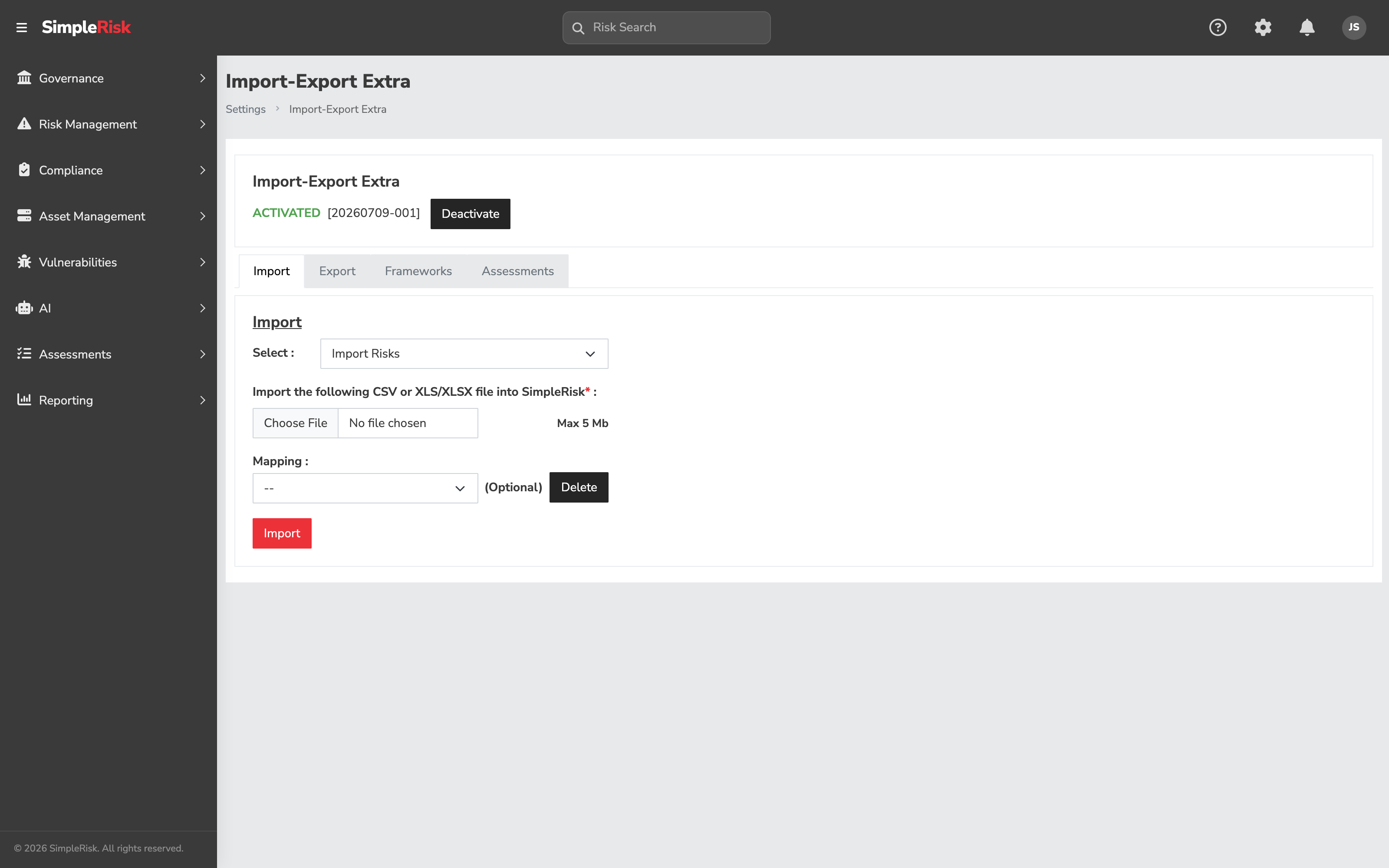
Once activated, the page splits into **Export** and **Import** tabs.
### 2. Export a snapshot before any import
This is non-negotiable. Even when the bulk operation you're planning is a fresh import (no overwrite intended), exporting the current state first gives you something to compare against if anything looks wrong after the import.
On the **Export** tab:
1. Pick the **Export Type**. The dropdown options include **Combined** (risks plus mitigations, reviews, and scoring all joined into one wide spreadsheet), **Risks** (just the risk fields), **Mitigations**, **Reviews**, **Assessments** (if the Assessments Extra is also installed), and **Assets**, **Asset Groups**, **Controls**, **Users**, **Template Groups**, and **Control Tests** for the related entities.
2. Click **Export**. SimpleRisk generates the spreadsheet and downloads it. **Combined** is the right pick when you want the full picture for backup-before-changes purposes.
The downloaded file's columns include the `risks_id` (the SimpleRisk-internal primary key for each risk) on the risk-bearing rows. That ID is what subsequent re-imports use to link the spreadsheet row back to the existing risk. Don't delete the column.
### 3. Decide what you're importing
Two distinct workflows live behind the same **Import** button:
- **Bulk update** — re-importing a previously-exported spreadsheet, possibly with edits. The `risks_id` column links each row back to an existing risk; matching IDs trigger an update of the changed columns. This is the workflow for "renormalize this field across forty rows."
- **Bulk create** — importing a fresh spreadsheet with rows that have no `risks_id` yet. Each row becomes a new risk with the next available SimpleRisk ID. This is the workflow for "land an existing register from another tool."
A single spreadsheet can contain both (some rows with IDs, some without) and the import will handle both in one pass — but verifying the result is harder. Splitting them into two separate imports is usually less stressful.
### 4. Prepare the spreadsheet
The import will accept almost anything and then behave in ways you didn't intend. Most import problems are made here, before the file is ever uploaded, and they're quiet — the import reports success and the data is subtly wrong.
**Formatting rules that apply everywhere:**
- **Resolve formulas to values.** Formulas aren't evaluated. Whatever the cell computes to must be sitting in the cell as a literal before you upload.
- **Multi-value fields** — Tags, Affected Assets, Additional Stakeholders, Team, Site/Location, Technology — take each value double-quoted and comma-separated: `"Servers", "Network", "Database"`.
- **User fields** — Owner, Owner's Manager, Additional Stakeholders — must match a SimpleRisk user's **full name**, not their username or login. A value that matches nobody is **silently ignored**: no error, no warning, just an unassigned risk. This is the single most common way an import looks fine and isn't.
- **Likelihood and Impact** must be the level *names* from your configured scale — `Insignificant`, not `1`. Check the scale under **Settings cog → Risk Configuration → Classic Risk Formula** before you start.
- **Dates** differ by tense. Past dates take `yyyy-mm-dd hh:mm:ss` (`2022-01-30 12:00:00`); future dates take `yyyy-mm-dd` (`2090-01-30`). Don't wrap a single date value in quotes.
- **Existing residual scores** come across through **Mitigation Percent**, which is applied to the inherent score to produce the residual. There's no column for "residual score" itself.
**The rule that surprises everyone: unmatched values get created.**
For most lookup fields — Status, Category, Risk Source, Team, Technology, Site/Location, Risk Mapping, Threat Mapping, Control Regulation — a value that doesn't already exist in SimpleRisk is **added** rather than rejected. That's convenient when you're landing a register from another tool and genuinely want its vocabulary. It's a mess when a typo in one row invents `Operatinal Risk` as a permanent category sitting alongside `Operational Risk` forever.
Sort and de-duplicate each of those columns in the spreadsheet before you upload. Five minutes there saves an afternoon of merging dropdown values afterwards.
Two consequences worth planning for:
- **Control Regulation takes a single value**, and an unmatched one creates a whole new framework. Be especially careful with that column.
- **Mapping Team can send email.** With the Notification Extra active, assigning risks to a team on import can trigger notifications to everyone on it. Importing four hundred risks at 2 a.m. is how you find that out. Consider disabling notifications for the duration of a large import.
**Field-specific behaviour worth knowing:**
- ****Risk ID**:** Mapping this column tells SimpleRisk you are **updating existing risks**. To create new ones, leave it unmapped. IDs are assigned automatically starting at 1001.
- ****Subject**:** Required for new risks.
- ****Status**:** An unmatched value creates a new status. Importing `Closed` also needs a closed date and a close-out reason mapped, or the risk closes without either.
- ****External Reference ID**:** A CVE here triggers a lookup that fills in risk details automatically — provided the instance can reach the CVE data source. Otherwise it's just a reference string.
- ****Control Number**:** Vestigial. It predates mitigations being linkable to controls and is only ever stored as text. To genuinely tie a control to a risk, map the mitigation control column instead.
- ****Risk Assessment / Additional Notes**:** Free text, effectively unlimited for practical purposes.
- ****Custom fields**:** With the Customization Extra, these appear at the *end* of exports and imports. Unmatched values on dropdown and multi-select custom fields create new options, same as the built-in lookups. Date custom fields want `yyyy-mm-dd`.
**If you import the same shape regularly**, save the mapping on the mapping screen and the next run skips straight from prepare to import. A file produced by **Export Combined** arrives with the default mapping already applied.
### 5. Open the Import tab and upload the file
On the **Import** tab:
1. Pick the **Import Type** matching the spreadsheet you're importing (Risks, Mitigations, Reviews, Combined, etc.). The type controls which mapping template the column-mapping modal will preselect.
2. Click **Choose File** and pick the XLS spreadsheet from your local filesystem. The Extra reads the file and parses the column headers.
3. Click **Upload** (or the equivalent button on your install — labeling varies slightly with theme).
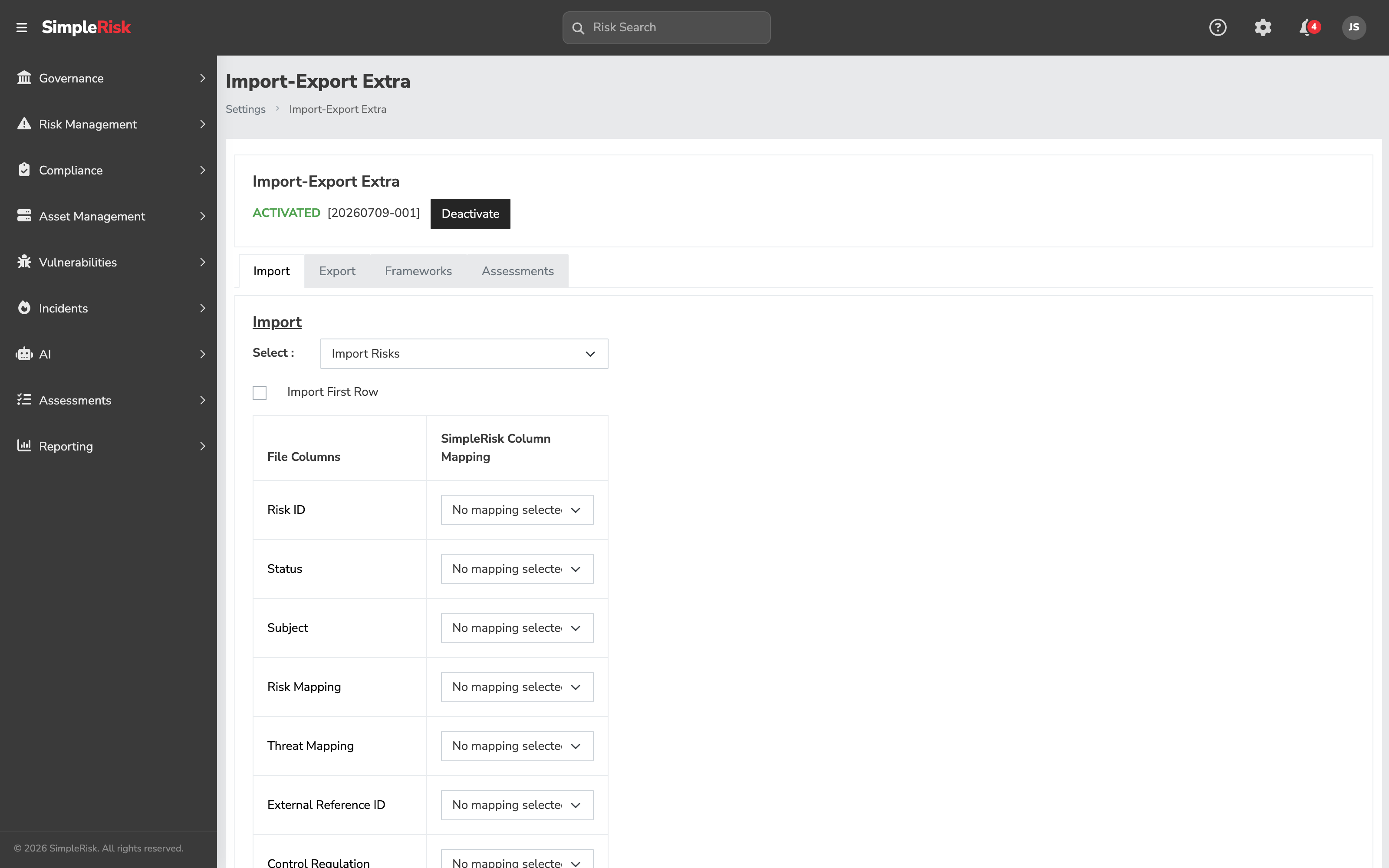
The Extra opens a column-mapping modal showing each column from your spreadsheet on the left and a dropdown on the right offering the SimpleRisk fields each column could map to. The default mapping is the **SimpleRisk Combined Import** template, which assumes the spreadsheet uses the column names from a prior SimpleRisk export.
### 6. Verify the column mapping carefully
This is the step that prevents most disasters. Read each row of the mapping modal and confirm:
- Each spreadsheet column maps to the SimpleRisk field you intend.
- Columns you don't want imported are mapped to **(skip)** rather than to a wrong field.
- The `risks_id` column (if present, for an update workflow) maps to the SimpleRisk `risks_id` field — *not* to a different field with a similar name.
- Date columns are formatted in a way the import understands (ISO `YYYY-MM-DD` is safest; locale-specific date formats sometimes drift).
- Multi-value fields (Affected Assets, Tags, Stakeholders) use the convention the import expects (typically comma-separated within the cell).
If the mapping needs a change, click the dropdown for the row and pick the right field. Save the mapping for reuse if the same shape will be imported again — the Extra supports per-user saved mappings.
### 7. Run the import and verify
Click **Import** to execute. The page reloads to a fresh Import tab, and a toast notification reports the outcome: one summary toast counts how many risks were submitted and how many were updated, and each row that failed validation (typically: invalid date, missing required field, unknown enum value) gets its own toast naming the affected risk ID, up to 25 individual failure toasts — if the import produced more failures than that, one additional toast reports how many further rows had issues. Because the page reloads to a clean form, you can start the next import (or re-run the corrected spreadsheet) right away without navigating away first.
After the import completes:
1. Open the **Risk Management Dashboard** and confirm the headline counts changed by the expected magnitude. A fresh import of fifty new risks should bump the open count by fifty.
2. Spot-check three to five of the affected risks via the detail view. Confirm the imported field values look right and the **Audit Trail** section recorded the import-driven change with your username and the import timestamp.
3. For an update workflow, run a follow-up export of the affected rows and compare against the spreadsheet you imported. The two should now match (modulo any computed fields like residual risk that the Extra didn't write).
The verification is what catches the "wrong column mapped to the wrong field" cases. The longer you wait to verify, the harder the recovery is — discovering the misimport a week later means a week of additional changes have stacked on top of it.
### 8. Programmatic import/export via the v2 API
The Extra registers its own v2 API surface under `/api/v2/...` (the routes are loaded dynamically when the Extra is active). The API endpoints are useful for scripted bulk operations that recur on a schedule — a nightly sync from an external system, for example, that doesn't want to drive the admin UI. The endpoint set mirrors the UI: per-row create, per-row update, full-export, mapping-management. Treat the API path as you would the UI path: with a backup, with verification, with rate-limiting on large batches. (See [Bulk Operations on Risks](https://support.simplerisk.com/kb/01-08-bulk-operations-on-risks?hsLang=en) for the broader API guidance.)
## Common pitfalls
- **Trusting a clean import report.** The import tells you rows landed; it doesn't tell you every column landed. A user name that matches nobody is skipped in silence, and so is a date in the wrong format for its tense. After any import that matters, open three or four of the imported risks and check the fields you care most about — owner, score, dates — against the spreadsheet.
- **Letting typos invent vocabulary.** Unmatched values in Status, Category, Risk Source, Team, Technology, Site/Location and the mapping fields are *created*, not rejected. One misspelling becomes a permanent second category that quietly splits your reporting. De-duplicate those columns before uploading.
A handful of patterns recur when import/export goes sideways.
- **Skipping the backup.** "I'll just take the export — that's basically a backup" is the sentence we hear before the support ticket. The export is a snapshot of the columns mapped; restoring from it doesn't restore fields you didn't export, audit log entries from after the export, or any associated entity (assets, controls, documents) that the export didn't include. Take a real database backup first; the database backup is the actual restore-target if something goes wrong.
- **Editing the export in a CSV-only tool.** Opening an XLS file in a basic CSV viewer can drop cells, mangle multi-line text, or change the column delimiter. The Extra writes XLS, expects XLS, and works most reliably when the round-trip stays in Excel (or a compatible XLS-aware tool). If you need to edit in a CSV environment, export to CSV from Excel after opening the XLS, edit the CSV, then save back as XLS before re-importing.
- **Deleting the `risks_id` column thinking it's metadata.** The `risks_id` column on a re-import is what links each spreadsheet row back to the existing risk. Deleting the column makes every row a *new* submission instead of an update, which produces forty duplicated risks instead of forty updated ones. The recovery is closing the duplicates and starting over. Keep the `risks_id` column on every re-import.
- **Importing without checking the column-mapping modal.** The default mapping is "the SimpleRisk Combined Import template" — accurate when the spreadsheet was exported from SimpleRisk, *probably wrong* when the spreadsheet came from somewhere else. Foreign-spreadsheet imports require you to set every column mapping by hand. Don't rubber-stamp the modal because you're impatient; the modal is the last point at which the import can be redirected before it commits.
- **Importing computed fields.** Residual risk score, calculated risk level, and `mitigation_planned`/`mgmt_review` flag fields are derived from underlying data — setting them in the spreadsheet doesn't actually change anything; the values get recomputed from the source fields after the import. If your spreadsheet has values in these columns, map them to **(skip)** rather than to the field; otherwise the modal misleadingly suggests the values will land.
- **Importing assets-by-name when the asset doesn't exist.** The Affected Assets field accepts asset names as input, but if the named asset doesn't exist in the inventory, the behavior depends on the Extra's auto-create setting (some installs auto-create new assets, some skip the link silently, some error). Verify the asset inventory is complete before bulk-importing risks that reference asset names; otherwise your imported risks land with broken or empty asset links.
- **Importing without telling stakeholders.** A bulk import that creates fifty new risks fires fifty notification emails (if the notification cron is enabled), one per risk, to all configured recipients. The result is an inbox flood at 9 AM the morning after the import. Pause the email-notification cron before a large bulk import, or import outside of business hours.
- **Rerunning the import on a partial-failure spreadsheet without trimming.** When some rows fail validation, re-importing the original spreadsheet runs the successful rows again, creating duplicates. After a partial failure, trim the spreadsheet to just the failed rows before re-running the import.
## Related
- [What is a Risk Register and Why Every Program Needs One](https://support.simplerisk.com/kb/01-01-what-is-a-risk-register?hsLang=en)
- [Submitting a Risk in SimpleRisk](https://support.simplerisk.com/kb/01-02-submitting-a-risk?hsLang=en)
- [Bulk Operations on Risks](https://support.simplerisk.com/kb/01-08-bulk-operations-on-risks?hsLang=en)
- [Tracking Risks Over Time](https://support.simplerisk.com/kb/01-06-tracking-risks-over-time?hsLang=en)
- [Installing Extras](https://support.simplerisk.com/kb/01-06-installing-extras?hsLang=en)
- [Database Backup and Restore](https://support.simplerisk.com/kb/02-05-database-backup-and-restore?hsLang=en)
- [FAQs](https://support.simplerisk.com/kb/faqs?hsLang=en)
- [SimpleRisk Extras](https://support.simplerisk.com/kb/simplerisk-extras?hsLang=en#main-content)
- [Vulnerability Management Extra](https://support.simplerisk.com/kb/simplerisk-extras?hsLang=en#vulnerability-management-extra)
- [Team Separation Extra](https://support.simplerisk.com/kb/simplerisk-extras?hsLang=en#team-separation-extra)
- [Import-Export Extra](https://support.simplerisk.com/kb/simplerisk-extras?hsLang=en#import-export-extra)
- [Administrator Guide](https://support.simplerisk.com/kb/administrator-guide?hsLang=en#main-content)
- [00 About This Guide](https://support.simplerisk.com/kb/administrator-guide?hsLang=en#00-about-this-guide)
- [01 Installation and Deployment](https://support.simplerisk.com/kb/administrator-guide?hsLang=en#01-installation-and-deployment)
- [02 Upgrades and Maintenance](https://support.simplerisk.com/kb/administrator-guide?hsLang=en#02-upgrades-and-maintenance)
- [03 Users and Permissions](https://support.simplerisk.com/kb/administrator-guide?hsLang=en#03-users-and-permissions)
- [04 Authentication](https://support.simplerisk.com/kb/administrator-guide?hsLang=en#04-authentication)
- [05 Customization](https://support.simplerisk.com/kb/administrator-guide?hsLang=en#05-customization)
- [06 Configuring Risk and Compliance](https://support.simplerisk.com/kb/administrator-guide?hsLang=en#06-configuring-risk-and-compliance)
- [07 Integrations](https://support.simplerisk.com/kb/administrator-guide?hsLang=en#07-integrations)
- [08 The API](https://support.simplerisk.com/kb/administrator-guide?hsLang=en#08-the-api)
- [09 Encryption and Data Security](https://support.simplerisk.com/kb/administrator-guide?hsLang=en#09-encryption-and-data-security)
- [10 Workflows and Automation](https://support.simplerisk.com/kb/administrator-guide?hsLang=en#10-workflows-and-automation)
- [11 Reporting and Auditing](https://support.simplerisk.com/kb/administrator-guide?hsLang=en#11-reporting-and-auditing)
- [12 Operations](https://support.simplerisk.com/kb/administrator-guide?hsLang=en#12-operations)
- [13 Reference](https://support.simplerisk.com/kb/administrator-guide?hsLang=en#13-reference)
- [User Guide](https://support.simplerisk.com/kb/user-guide?hsLang=en#main-content)
- [00 Foundations of GRC](https://support.simplerisk.com/kb/user-guide?hsLang=en#00-foundations-of-grc)
- [01 Risk Management](https://support.simplerisk.com/kb/user-guide?hsLang=en#01-risk-management)
- [02 Compliance Management](https://support.simplerisk.com/kb/user-guide?hsLang=en#02-compliance-management)
- [03 Governance](https://support.simplerisk.com/kb/user-guide?hsLang=en#03-governance)
- [04 Asset and Data Inventory](https://support.simplerisk.com/kb/user-guide?hsLang=en#04-asset-and-data-inventory)
- [05 Threat and Vulnerability Management](https://support.simplerisk.com/kb/user-guide?hsLang=en#05-threat-and-vulnerability-management)
- [06 Assessments](https://support.simplerisk.com/kb/user-guide?hsLang=en#06-assessments)
- [07 Incident Management](https://support.simplerisk.com/kb/user-guide?hsLang=en#07-incident-management)
- [08 Audit and Reporting](https://support.simplerisk.com/kb/user-guide?hsLang=en#08-audit-and-reporting)
- [09 Day-to-Day SimpleRisk](https://support.simplerisk.com/kb/user-guide?hsLang=en#09-day-to-day-simplerisk)
- [10 Continuous Improvement](https://support.simplerisk.com/kb/user-guide?hsLang=en#10-continuous-improvement)
- [SimpleRisk User Guides](https://support.simplerisk.com/kb/simplerisk-user-guides?hsLang=en)
- [Troubleshooting](https://support.simplerisk.com/kb/troubleshooting?hsLang=en)
- [SimpleRisk Hosted](https://support.simplerisk.com/kb/simplerisk-hosted?hsLang=en)
- [How To videos](https://support.simplerisk.com/kb/how-to-videos?hsLang=en)
[](https://www.simplerisk.com)
Copyright © 2026, SimpleRisk, Inc.