
Why this matters
The Risk Management Dashboard is the page most working risk owners and risk managers open first when they want a sense of where the program is. It's the answer to "how are we doing?" without requiring the reader to compose a query. A well-tuned dashboard surfaces the four or five questions the program looks at most often (open vs closed, planning coverage, review coverage, recent activity) and puts the answers on one screen.
The dashboard also draws a distinction worth knowing: in SimpleRisk, dashboards are summary views with multiple widgets that together answer "what's the state of the program," and reports are detailed views (usually a single table or chart) that answer a specific question. The same page surfaces both, but the difference matters when you're deciding what to look at: the dashboard is for the daily check-in; a report is for the deep dive into a specific question the dashboard surfaced.
The other thing worth knowing about: SimpleRisk's dashboards are customizable. The default layout is a sensible starting point, not a fixed view. Widgets can be added, removed, and rearranged in a drag-and-drop grid, and the customizations persist per-user. The default is the right place to start; the customization is what makes the dashboard belong to the team that uses it.
Before you start
Have these in hand before you open the dashboard:
- The Risk Management access on your account — sufficient for opening the dashboard. Without it, the dashboard either doesn't appear in the Reports Hub or returns a permission error on direct navigation. (See Permission Reference.)
- A general read on what the program currently tracks. The dashboard will visualize whatever's in the register; if the register is sparse, the dashboard will be sparse too. The dashboard isn't a tool for filling in missing risks — it's a tool for reading the ones that are already there.
- Optional: an idea of the questions you want answered. The default widgets answer "open vs closed," "mitigation planning coverage," "review coverage," and "submission rate over time." If your team's recurring questions are different (open by team, exposure by category, SLA status), the dashboard's customization is what reshapes the page to those questions.
Step-by-step
1. Open the Risk Management Dashboard
Two paths into the dashboard:
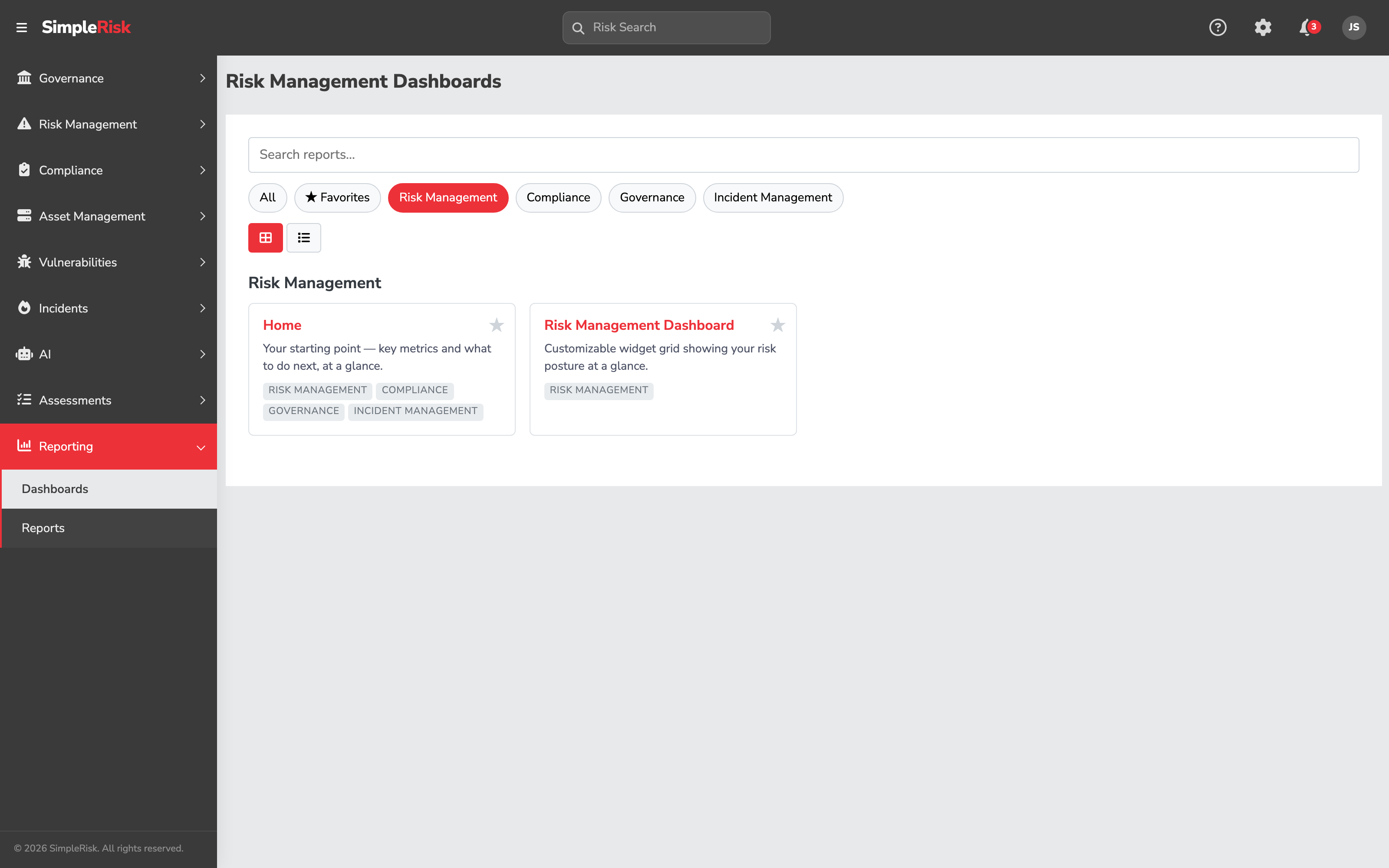
- Reporting → Reports Hub opens the Reports Hub at
/reports/dashboards.php. The hub is the modern entry point that surfaces both dashboards and reports filterable by category. Filter to Risk Management and click the Risk Management Dashboard tile. - Direct URL:
/reports/risk_management_dashboard.php. Same destination; useful when bookmarking or linking from documentation.
The dashboard loads with the default widget layout the first time you open it. Subsequent visits load the layout you customized.
2. Read the default widgets
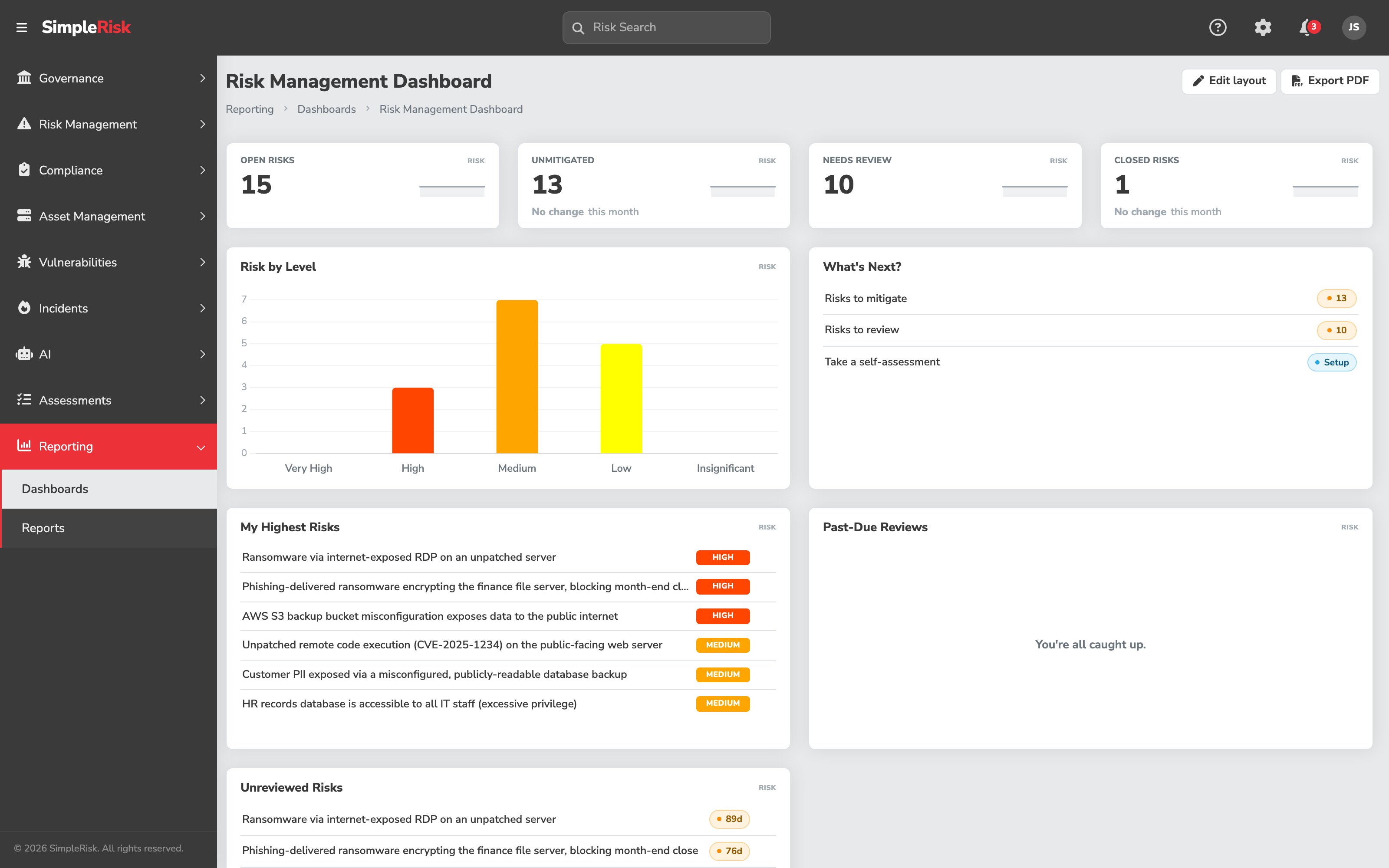
The default Risk Management Dashboard layout has four widgets. Each is positioned on a 12-column grid; the top row holds three charts side-by-side, and the bottom row holds a wider table.
- Open vs Closed (donut chart, top-left) — counts of currently open risks vs closed risks. The headline metric for "is the register growing or being worked through." A growing-open / static-closed ratio means the program is identifying faster than it's resolving; the opposite means closure is keeping up.
- Mitigation Planned vs Unplanned (donut chart, top-center) — among open risks, the split between those with a mitigation plan recorded and those without. The unplanned wedge is the work-not-yet-scheduled queue. Larger than half open and the program has a planning bottleneck; smaller than a quarter and the planning team is keeping pace.
- Reviewed vs Unreviewed (donut chart, top-right) — among open risks, the split between those that have been through management review and those still pending first review. The unreviewed wedge is the new-submission queue waiting for a reviewer. Persistent unreviewed counts indicate either a slow review cadence or a reviewer-permission gap (see Reviewing and Approving Risks).
- Risks by Month (table, full-width bottom row) — submission counts broken down by month. The trend line for "are we submitting more risks lately, or fewer." Useful for spotting submission-rate spikes (a recent assessment, a new vulnerability scanner) and submission-rate troughs (the program has stopped identifying, which usually means the program has stopped looking).
The widgets refresh on page load; there's no live-updating channel, so opening the dashboard in the morning gives you the morning's state.
3. Customize the layout
The layout is a grid-stack: each widget can be moved by dragging its header and resized by dragging its corner. The customization controls are at the top of the page:
- Edit toggle (top-right) — switches the dashboard between read-only and editable. In edit mode, widgets show drag handles and resize controls.
- Add Widget (left of center) — opens a picker of available widgets to add. The default Risk Management Dashboard ships with WYSIWYG (a free-text rich-text widget) as the only custom widget option; additional widgets register dynamically when certain Extras are installed (the Organizational Hierarchy Extra registers business-unit exposure widgets, for example).
- Trash Widget (right of center) — drag any widget into the trash to remove it from the layout.
- Restore Layout (top-right next to edit toggle) — resets the layout to the default. Useful when a customization went badly and starting over is faster than rearranging.
When the edit session ends, the layout saves automatically; there's no separate Save button. The save is per-user, so two users on the same instance can run different layouts on the same dashboard.
4. Drill from a widget to the underlying data
The widgets are summary visualizations; the underlying detail lives in the reports. Clicking a wedge of the Open vs Closed donut filters to that subset and lets you drill to the matching list. Clicking a row in Risks by Month opens the matching submissions list. The pattern is consistent: every widget is a starting point for navigating to the rows it summarizes.
For analyses that need more than a widget can show, the Reporting menu in the sidebar lists the full report library: Risk Charts, Risk Trend, Dynamic Risk Report, Graphical Risk Analysis, Risk Average Over Time, Likelihood vs Impact, High Risk Report, Mitigations By Date, Management Reviews By Date, Closed Risks By Date, and many more. The dashboard surfaces the program's headline metrics; the report library is where the questions get answered in detail.
Common pitfalls
A handful of patterns recur when teams use (or misuse) the dashboard.
-
Treating the donut wedges as targets. "Reviewed vs Unreviewed should be 100/0" is a target that ignores ongoing submissions; new risks land unreviewed by definition. The right reading is "is the unreviewed wedge stable or growing." A small-and-stable unreviewed wedge means the review cadence is keeping pace with submissions; a growing one means it isn't. Aiming for zero unreviewed isn't realistic; aiming for stable-and-small is.
-
Customizing the layout and then forgetting the customization. A dashboard rearranged six months ago by someone who's since left the team is sometimes the layout everyone on the team is now reading from, none of whom remember why it's that shape. Layout decisions are per-user, so this isn't catastrophic — every new user gets the default — but it's worth doing a quarterly "is the layout still answering the right questions" check rather than treating customization as set-and-forget.
-
Reading the dashboard and not the report library. The four default widgets answer four questions; programs have more than four. Customers sometimes treat the dashboard as the only view into the register and miss reports that would answer the question they're actually trying to answer. Risk Trend, Risk Appetite Report, and High Risk Report in particular cover questions the default dashboard doesn't, and they live one click away under Reporting in the sidebar.
-
Confusing "Risk Charts" with the Risk Management Dashboard. Both live under Reporting and both visualize the register, but they're different pages. Risk Charts (
/reports/dashboard.php) is a static report with a configurable team filter. The Risk Management Dashboard (/reports/risk_management_dashboard.php) is the customizable grid-stack page covered in this article. The naming is older than the platform's current dashboard architecture; we recommend the Risk Management Dashboard as the primary view and Risk Charts as a complementary deeper read. -
Not refreshing after a known burst of activity. The dashboard caches the page-load snapshot. After a known event (a bulk import, a batch of mitigations being accepted, a quarterly review push), the open dashboard tab is showing the pre-event state. Refresh the browser to see the post-event view. Customers occasionally chase an apparent dashboard "bug" that turns out to be a stale tab.
-
Treating the dashboard as a report-generation surface. The dashboard's customization is for changing what one user sees, not for producing reports for distribution. For exporting data or producing PDFs for distribution, use the report library; the relevant report has a download button, the dashboard does not.
-
Adding too many widgets. A dashboard with twelve widgets becomes a wall of visualizations no one reads carefully. The default four widgets are four because four is approximately what fits on a screen at a glance. If a fifth widget genuinely earns its place, add it; if a fifth widget is being added because it might be useful sometimes, the report library is a better home for it.