---
title: 01.08 Bulk Operations on Risks
description: How to act on many risks at once in SimpleRisk — drag-and-drop project planning, the Import/Export Extra for bulk updates, scripted iteration over the v2…
---
[Skip to content](https://support.simplerisk.com/kb/01-08-bulk-operations-on-risks#main-content)
English
Show submenu for translations
[Customer portal](https://support.simplerisk.com/tickets?hsLang=en)
[](https://www.simplerisk.com/)
Open main navigation
Close main navigation
- English
Show submenu for translations
- [Customer portal](https://support.simplerisk.com/tickets)
- [Contact us](https://www.simplerisk.com/about-us/contact-us)
[Contact us](https://www.simplerisk.com/about-us/contact-us)
How can we help you?
- There are no suggestions because the search field is empty.
1. [SimpleRisk Knowledge Base](https://support.simplerisk.com/kb?hsLang=en)
2. [User Guide](https://support.simplerisk.com/kb/user-guide?hsLang=en)
3. [01 Risk Management](https://support.simplerisk.com/kb/user-guide?hsLang=en#01-risk-management)
# 01.08 Bulk Operations on Risks
## How to act on many risks at once in SimpleRisk — drag-and-drop project planning, the Import/Export Extra for bulk updates, scripted iteration over the v2 API, and the candid limits of what's available out of the box.
## Why this matters
A register that grows past a hundred risks is a register where one-at-a-time edits start to hurt. The reviewer who needs to retire ten obsolete risks because a system was decommissioned doesn't want to open ten detail pages and click ten **Close Risk** buttons. The risk manager who needs to reassign every risk owned by a departing employee doesn't want to do it row-by-row. Bulk operations are the answer to "I have a list of risks and I want to do the same thing to all of them."
That said, SimpleRisk's bulk-operation capabilities are deliberate rather than expansive. There's no checkbox-and-action-button row of bulk actions on the main risk list — that's working as designed. The supported bulk paths are tighter and more workflow-specific: drag-and-drop project assignment, the Import/Export Extra for bulk field updates via spreadsheet, and the v2 API for scripted operations. This article walks each path and tells you when to reach for which.
The other thing worth knowing: bulk operations bypass the per-risk visual confirmation that makes individual edits forgiving. A bulk close that closes the wrong sixty risks is a worse problem than a single-risk close that closes the wrong one. Every path in this article lands on a "before you commit" step for that reason. Don't skip it.
## Before you start
Have these in hand before reaching for a bulk path:
- A clear, written list of *which* risks you intend to operate on. "All my open Highs" is a starting point; "risks 124, 187, 203, 318, and 412" is operational. The bulk paths assume you can produce the list; the article doesn't help you build the list.
- A clear, written description of *what change* you intend to make. "Reassign owner from A to B" is operational; "clean up the register" isn't. Each bulk path takes a single change at a time; sequencing multiple changes means running the path multiple times.
- The right permissions for the operation type. Bulk close needs **Able to Close Risks**; bulk owner reassignment needs **Able to Modify Risk Details**; bulk import via the Extra needs admin-level access plus the Import/Export Extra installed. Verify the permission first; a bulk operation that fails halfway through because permission ran out partway is worse than a failed permission check at the start.
- A backup of the database, or at minimum a fresh snapshot of the current register state, before any bulk write. The Import/Export Extra in particular can rewrite many rows in one shot; the recovery path from "I imported the wrong column to the wrong field" is restoring from backup. (See the [database backup runbook](https://support.simplerisk.com/kb/02-05-database-backup-and-restore?hsLang=en) in the Administrator Guide.)
## Step-by-step
### Path 1: Bulk project assignment via Prioritize for Project Planning
Project assignment is the workflow with native bulk-via-drag-drop support out of the box.
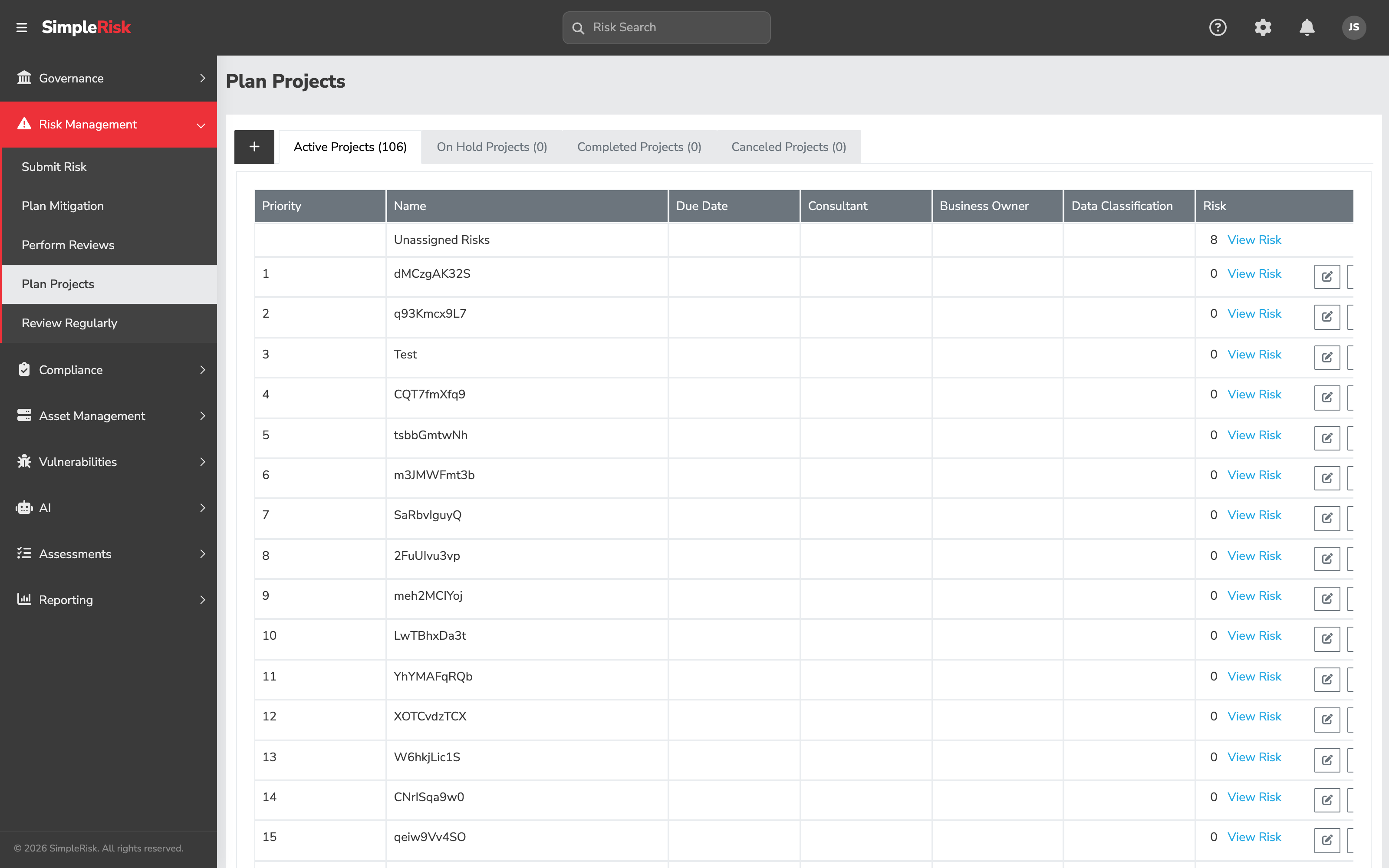
1. **Open the page.** Sidebar: **Risk Management → Prioritize Planning** opens `/management/prioritize_planning.php`. The page is tabbed: **Active Projects**, **On Hold Projects**, **Completed Projects**, **Canceled Projects**.
2. **Confirm you have project-management permission.** The drag-and-drop reordering is enabled only when the session has `manage_projects` set. If the risk lists are visible but not draggable, the permission isn't on the account; ask your administrator (the relevant permission display is in [Permission Reference](https://support.simplerisk.com/kb/03-03-permission-reference?hsLang=en)).
3. **Drag risks between project containers.** Risks not yet assigned appear in an unassigned bucket on the page; existing projects appear as their own containers, with their assigned risks listed inside. Drag a risk from one container into another to move it. Drag-drop is the bulk pattern: drop one risk, pause, drop the next, repeat. Each drop is committed as it lands.
4. **Re-prioritize within a project.** The order within a project container is also drag-droppable; the order is the project plan's working priority order, persisted to the database as you arrange.
This path is bulk in spirit (many risks moved through the same UI in one session) even though each drop commits one row at a time. It's the right tool when project assignment is the operation you're doing on a batch.
### Path 2: Bulk field updates via the Import/Export Extra
When the change is "set field X to value Y on a list of risks," the Import/Export Extra is the right path.
> **Requires:** *Import/Export Extra*
>
> The Extra is a paid add-on; the **Import/Export** tile only appears in the Settings Hub (Settings cog, top-right of any page) when the Extra is installed and activated. The full walk-through is in [Importing and Exporting Risks](https://support.simplerisk.com/kb/01-09-importing-and-exporting-risks?hsLang=en).
The bulk-update workflow is:
1. **Export the current register** (or the subset you intend to update) to a spreadsheet via the Extra's **Export** tab. The export carries the full set of risk fields, mitigation fields, review fields, and scoring fields. Pick the export type matching the data you're updating (combined export, risks-only, mitigations-only, etc.).
2. **Edit the spreadsheet** to set the new value in the target column on the rows you want to change. Leave the rest of the rows unchanged. The risk's primary key (the `risks_id` column on a combined export) is what links the imported row back to the existing risk.
3. **Re-import the spreadsheet** via the Extra's **Import** tab. The import is keyed by `risks_id`; rows whose `risks_id` matches an existing risk are *updated*, rows without a matching ID are created as new risks, and unchanged columns retain their existing values. The column-mapping modal is where you confirm the spreadsheet columns map to the right SimpleRisk fields.
4. **Verify.** After the import completes, spot-check a handful of the affected risks via the detail view to confirm the field updated as intended and the audit trail recorded the change. The audit log entries from a bulk import all carry the importing user's name; the program can trace any individual change back to the import session.
The Extra is the right answer for "set the same field to the same value on this list," "renormalize this column," "reassign these owners," and similar batch field-update workflows. It's the wrong answer for one-off changes (use the detail view) and for cross-field business logic (use scripted API calls or a custom workflow).
### Path 3: Scripted bulk operations via the v2 API
For automation and integration scenarios, the v2 API is the bulk path. The API doesn't expose a dedicated bulk endpoint, but the per-risk endpoints can be called in a loop from any scripting language.
The endpoints worth knowing for bulk work:
- `GET /api/v2/risks` — list all risks (filterable). Use this to enumerate the working set.
- `GET /api/v2/risks/{id}` — fetch one risk's full state.
- `PATCH /api/v2/risks/{id}` — update fields on one risk.
- `POST /api/v2/risks/{id}/mitigations` (and `PATCH`) — create or update a mitigation.
- `POST /api/v2/risks/{id}/reviews` — submit a review.
- `POST /api/v2/risks/{id}/reopen` — reopen a closed risk.
A typical bulk script: `GET /api/v2/risks` filtered to the working set, iterate the response, `PATCH` each one with the change. The API returns per-call success/failure responses; the script logs each one. A failed call doesn't roll back the previous calls (partial completion is possible) so the script needs to handle the partial-failure case by rerunning against just the failed IDs, or rolling back manually.
The API is the right path when:
- The change has logic that can't be expressed as a column-set in a spreadsheet (e.g., "reassign owner if the risk is also tagged X").
- The bulk operation runs on a recurring schedule (the Import/Export Extra is interactive; the API is scriptable).
- The bulk operation is part of an integration with another tool (a ticketing system, a vulnerability scanner, an HR feed for owner-reassignment).
The API doesn't expose a `DELETE /api/v2/risks/bulk` or similar; bulk delete-by-criteria isn't supported and requires per-risk closure or admin-level database operations.
### Verifying any bulk operation
Whichever path you used, verify before walking away:
- Open the **Audit Trail** section on a sample of affected risks and confirm the change shows up with the expected reasoning.
- Open the **Risk Management Dashboard** and confirm the headline counts (open vs closed, mitigation planned vs unplanned, reviewed vs unreviewed) reflect what you expect after the bulk operation.
- For bulk closure, run the **Closed Risks By Date** report (`/reports/closed_by_date.php`) and confirm the closure batch is visible.
The verification is what catches the "I just closed the wrong sixty" cases before they become a multi-week recovery exercise.
## Common pitfalls
A handful of patterns recur when bulk operations go sideways.
- **Treating bulk close as a register-cleanup tool without a recorded reason.** Bulk closing forty stale risks because "they all look obsolete" produces forty audit entries that say "closed by `{user}`" without saying *why*. Six months later the auditor asks "why did you close these forty in one batch on this date" and the answer is reconstructed from memory. Use the **Close Reason** and **Close-Out Information** fields per risk (or per spreadsheet row) to record the rationale; the audit trail is a worse historian than your present-day notes.
- **Importing without a column-mapping verification step.** The Import/Export Extra opens a column-mapping modal before the import runs. Customers click through it without reading carefully and discover the imported `mitigations_owner` column landed on the wrong field. The recovery is restoring from backup. Read the column mapping carefully; the modal exists because the typical recovery is expensive.
- **Scripted operations without rate-limiting.** A loop hammering `PATCH /api/v2/risks/{id}` thousands of times in seconds will hit the application's rate-limiting (or the database's connection-pool limit) before it finishes. Add a small per-call delay (50–200ms is typical) for any script that touches more than a few hundred risks, or batch the operation into multiple sessions.
- **Mixing bulk update and bulk insert in one Extra import.** A spreadsheet with a mix of existing-`risks_id` rows (updates) and blank-`risks_id` rows (new submissions) is supported but confusing — the import runs both operations in one pass and the result is harder to verify. When possible, split the spreadsheet into two passes: one for updates, one for new submissions.
- **Forgetting that `mgmt_review` and `mitigation_planned` columns reflect derived state.** These columns on a risk record are computed from the existence of management reviews and mitigations elsewhere in the schema. Setting them directly in a spreadsheet import doesn't create the underlying review or mitigation; it only updates the cached flag, which then drifts from the actual data. Use the proper API endpoints (or detail-view forms) for review and mitigation creation; reserve the spreadsheet path for fields the risk record genuinely owns.
- **Skipping the backup.** "I'll just take the export — that's basically a backup" is the sentence we hear before the support ticket about restoring the wrong column from the wrong export. The export from the Extra is a snapshot of the columns mapped, not a full database backup. Before any bulk operation that writes, take a real database backup (see the Administrator Guide).
- **Trying to bulk-edit a field the UI doesn't expose.** Some fields are derived, computed, or maintained by triggers — the residual risk score, for example, is computed from the inherent score and the mitigation percent, and "bulk-setting residual to 5.0" via spreadsheet won't actually change anything because the next save recomputes from the inputs. If the bulk operation isn't behaving the way you expect, the field may not be the source of truth. Update the input fields instead.
## Related
- [What is a Risk Register and Why Every Program Needs One](https://support.simplerisk.com/kb/01-01-what-is-a-risk-register?hsLang=en)
- [Submitting a Risk in SimpleRisk](https://support.simplerisk.com/kb/01-02-submitting-a-risk?hsLang=en)
- [Mitigating a Risk](https://support.simplerisk.com/kb/01-05-mitigating-a-risk?hsLang=en)
- [Tracking Risks Over Time](https://support.simplerisk.com/kb/01-06-tracking-risks-over-time?hsLang=en)
- [Importing and Exporting Risks](https://support.simplerisk.com/kb/01-09-importing-and-exporting-risks?hsLang=en)
- [Permission Reference](https://support.simplerisk.com/kb/03-03-permission-reference?hsLang=en)
- [FAQs](https://support.simplerisk.com/kb/faqs?hsLang=en)
- [SimpleRisk Extras](https://support.simplerisk.com/kb/simplerisk-extras?hsLang=en#main-content)
- [Vulnerability Management Extra](https://support.simplerisk.com/kb/simplerisk-extras?hsLang=en#vulnerability-management-extra)
- [Team Separation Extra](https://support.simplerisk.com/kb/simplerisk-extras?hsLang=en#team-separation-extra)
- [Import-Export Extra](https://support.simplerisk.com/kb/simplerisk-extras?hsLang=en#import-export-extra)
- [Administrator Guide](https://support.simplerisk.com/kb/administrator-guide?hsLang=en#main-content)
- [00 About This Guide](https://support.simplerisk.com/kb/administrator-guide?hsLang=en#00-about-this-guide)
- [01 Installation and Deployment](https://support.simplerisk.com/kb/administrator-guide?hsLang=en#01-installation-and-deployment)
- [02 Upgrades and Maintenance](https://support.simplerisk.com/kb/administrator-guide?hsLang=en#02-upgrades-and-maintenance)
- [03 Users and Permissions](https://support.simplerisk.com/kb/administrator-guide?hsLang=en#03-users-and-permissions)
- [04 Authentication](https://support.simplerisk.com/kb/administrator-guide?hsLang=en#04-authentication)
- [05 Customization](https://support.simplerisk.com/kb/administrator-guide?hsLang=en#05-customization)
- [06 Configuring Risk and Compliance](https://support.simplerisk.com/kb/administrator-guide?hsLang=en#06-configuring-risk-and-compliance)
- [07 Integrations](https://support.simplerisk.com/kb/administrator-guide?hsLang=en#07-integrations)
- [08 The API](https://support.simplerisk.com/kb/administrator-guide?hsLang=en#08-the-api)
- [09 Encryption and Data Security](https://support.simplerisk.com/kb/administrator-guide?hsLang=en#09-encryption-and-data-security)
- [10 Workflows and Automation](https://support.simplerisk.com/kb/administrator-guide?hsLang=en#10-workflows-and-automation)
- [11 Reporting and Auditing](https://support.simplerisk.com/kb/administrator-guide?hsLang=en#11-reporting-and-auditing)
- [12 Operations](https://support.simplerisk.com/kb/administrator-guide?hsLang=en#12-operations)
- [13 Reference](https://support.simplerisk.com/kb/administrator-guide?hsLang=en#13-reference)
- [User Guide](https://support.simplerisk.com/kb/user-guide?hsLang=en#main-content)
- [00 Foundations of GRC](https://support.simplerisk.com/kb/user-guide?hsLang=en#00-foundations-of-grc)
- [01 Risk Management](https://support.simplerisk.com/kb/user-guide?hsLang=en#01-risk-management)
- [02 Compliance Management](https://support.simplerisk.com/kb/user-guide?hsLang=en#02-compliance-management)
- [03 Governance](https://support.simplerisk.com/kb/user-guide?hsLang=en#03-governance)
- [04 Asset and Data Inventory](https://support.simplerisk.com/kb/user-guide?hsLang=en#04-asset-and-data-inventory)
- [05 Threat and Vulnerability Management](https://support.simplerisk.com/kb/user-guide?hsLang=en#05-threat-and-vulnerability-management)
- [06 Assessments](https://support.simplerisk.com/kb/user-guide?hsLang=en#06-assessments)
- [07 Incident Management](https://support.simplerisk.com/kb/user-guide?hsLang=en#07-incident-management)
- [08 Audit and Reporting](https://support.simplerisk.com/kb/user-guide?hsLang=en#08-audit-and-reporting)
- [09 Day-to-Day SimpleRisk](https://support.simplerisk.com/kb/user-guide?hsLang=en#09-day-to-day-simplerisk)
- [10 Continuous Improvement](https://support.simplerisk.com/kb/user-guide?hsLang=en#10-continuous-improvement)
- [SimpleRisk User Guides](https://support.simplerisk.com/kb/simplerisk-user-guides?hsLang=en)
- [Troubleshooting](https://support.simplerisk.com/kb/troubleshooting?hsLang=en)
- [SimpleRisk Hosted](https://support.simplerisk.com/kb/simplerisk-hosted?hsLang=en)
- [How To videos](https://support.simplerisk.com/kb/how-to-videos?hsLang=en)
[](https://www.simplerisk.com)
Copyright © 2026, SimpleRisk, Inc.