
Why this matters
Submission gets a risk into the register. Review is what makes the register trustworthy. A risk nobody else has looked at is a risk scored by a single person's gut feel; the score may be right and may not, and there's no second opinion to catch the cases where it's wrong. Review forces a second pair of eyes, locks in the assessment, and produces the timestamp that lets the register prove it's current.
There are two review flows in SimpleRisk and they answer different questions. The management review is the first review of a newly-submitted risk: a reviewer reads the submission, validates or adjusts the score, picks a next step, and signs off so the risk stops being "pending review" and starts being part of the working register. The regular review cycle runs over the life of the risk: every risk has a next-review date, and when that date arrives a reviewer revisits the entry to confirm the assessment is still accurate or to update what's changed. Both flows write to the same review history; the difference is what trigger fires them.
The other reason review matters: SimpleRisk gates review by risk level, not by a generic "reviewer" permission. A user authorized to approve a Low risk isn't necessarily authorized to approve a Very High one. The split is deliberate (high-impact risks need higher-authority sign-off) and it's the part of the permission model that confuses new users most.
Before you start
Have these in hand before you open a review:
- The right level-gated permission on your account. SimpleRisk has five separate review permissions: Able to Review Insignificant Risks, Able to Review Low Risks, Able to Review Medium Risks, Able to Review High Risks, and Able to Review Very High Risks. The reviewer needs the permission matching the risk's calculated level. A user with only "Low" permission who tries to submit a review on a Very High risk gets a "You are not authorized to review this risk level" error. (See Permission Reference.)
- An understanding of what the risk's current score means. Review-as-rubber-stamp doesn't add the second-pair-of-eyes value the workflow exists for. If the methodology, the scoring inputs, or the rationale aren't clear from the submission, push back to the submitter before approving — see Risk Scoring Methodologies.
- A read on the next-review-date basis for your installation. An administrator chooses whether the auto-calculated next-review date is derived from the risk's inherent level (the default in older installs) or its residual level (more common once mitigation is under way). Knowing which your install uses tells you what the suggested date actually means before you accept it.
- For regular reviews specifically: a sense of what's changed about the risk since the last review. If nothing has changed, the review can be quick; if the threat landscape, the controls, or the affected assets have shifted, the score may need updating.
Step-by-step
1. Open the right review page
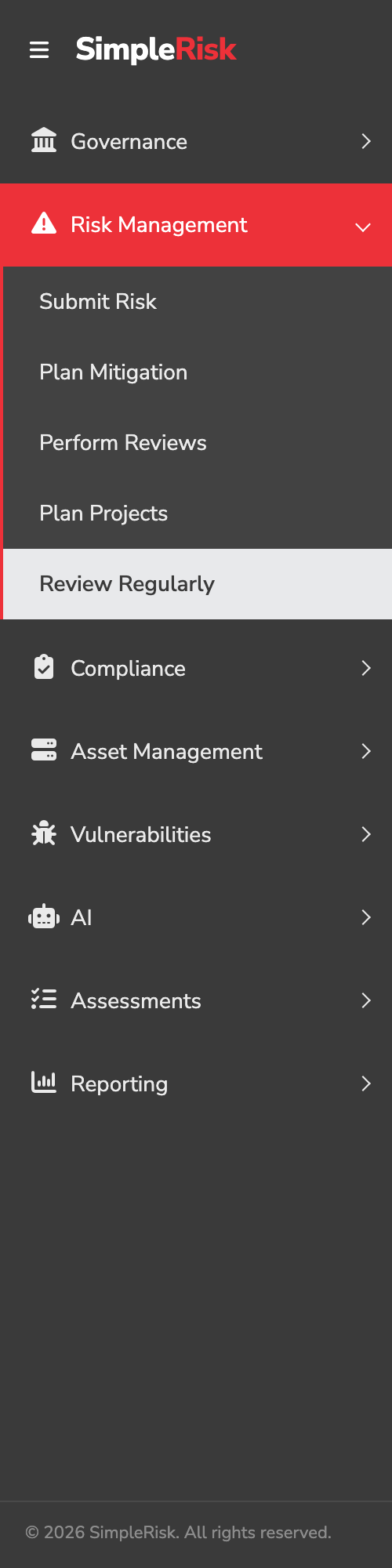
There are two sidebar entries for review work:
- Risk Management → Perform Reviews opens
/management/management_review.php. This is the queue of submitted risks awaiting their first (management) review. Use this page when a risk has just been submitted and hasn't been reviewed yet. - Risk Management → Review Regularly opens
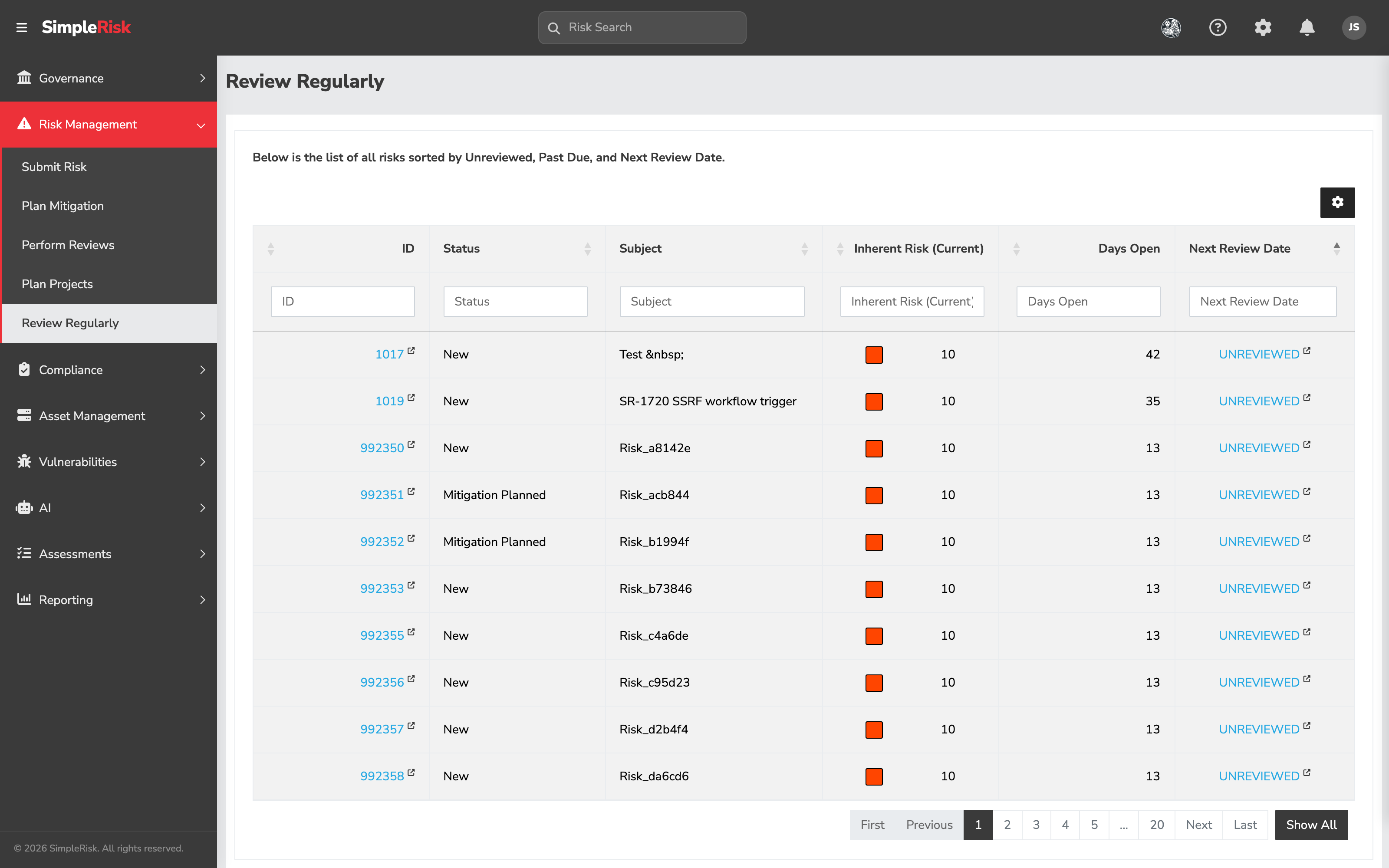
/management/review_risks.php. This is the queue of every risk in the register, sorted by Unreviewed first, then Past Due, then Next Review Date ascending. Use this page for the recurring review cycle on already-approved risks.
The two pages are distinct queues against the same review history. A risk shows up on Perform Reviews until its first review, then it moves to Review Regularly for all subsequent reviews.
2. Pick the risk and open its detail view
Both queues are datatables. Click any row to open the risk's detail view at /management/view.php?id={id}. The detail view has three tabs — Details, Mitigation, and Review. The Review tab shows the review history; the form to record a new review is launched from the Actions menu at the top right of the page — choose Perform a Review — and then renders inside that tab.
3. Review the scoring before you review the review
Expand View Risk Scoring Details and confirm the methodology, inputs, and resulting score make sense for the risk as written. If the scoring inputs don't match the Subject ("Phishing" scored on CVSS, for example), the review is the moment to flag it. Adjusting the methodology or the inputs is the submitter's responsibility most of the time, but the reviewer can change them as part of the review if the existing score is clearly wrong.
4. Fill in the review form
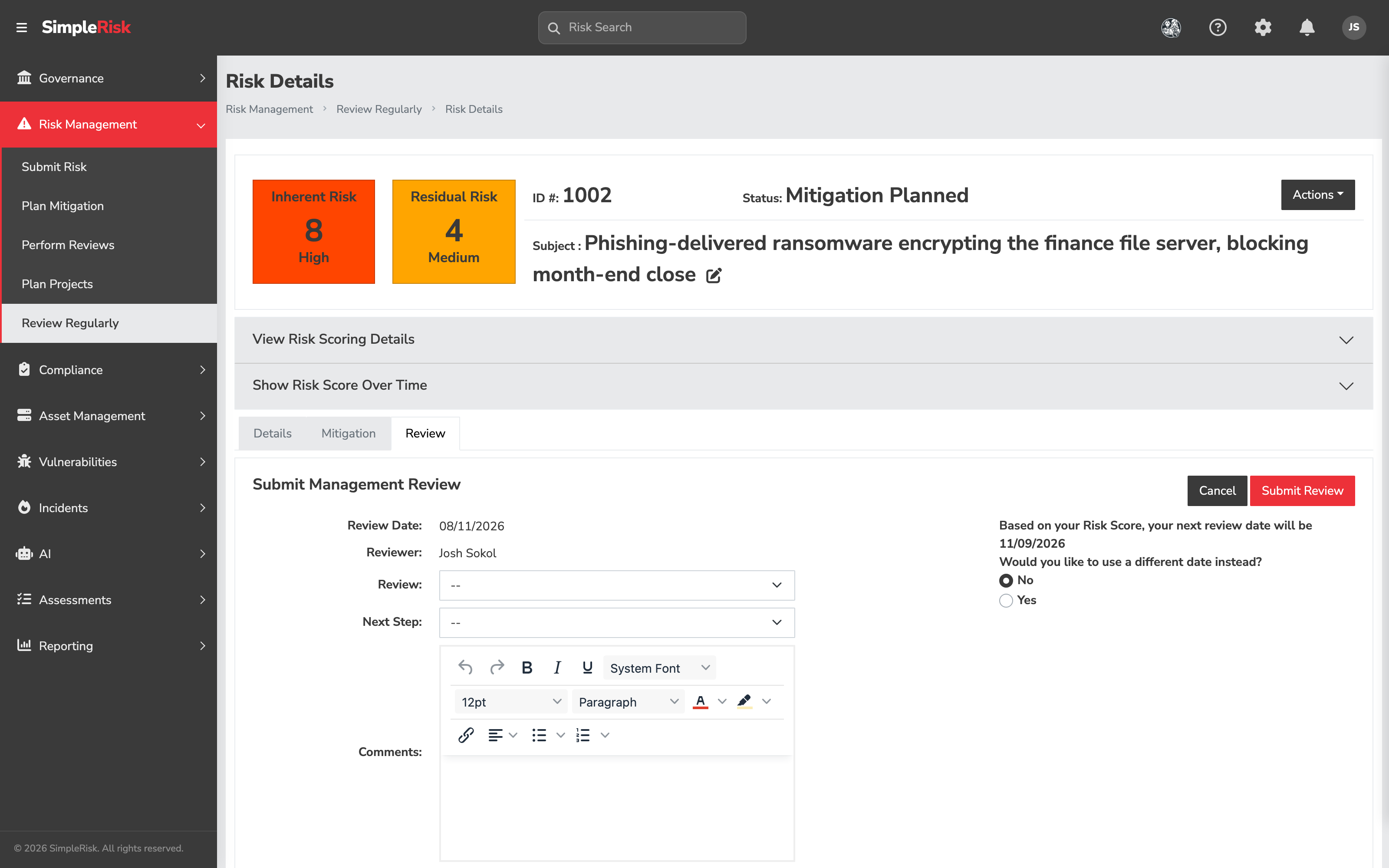
Open the Actions menu at the top right of the detail view and choose Perform a Review. Submit Management Review opens in the Review tab, with Cancel and Submit Review at its top right:
- Review — a dropdown of review classifications (the seeded options are configured per install in admin settings; the defaults are Approve Risk and Reject Risk and Close). The selection is what the dashboards report on as the review outcome.
- Next Step — a dropdown of next-step options (also configurable; the seeded defaults are Accept Until Next Review, Consider for Project, and Submit as a Production Issue). The selection determines what shows up in the risk's "Recommended Next Step" field.
- Comments — a rich-text editor for the rationale behind the review classification and any notes that belong on the audit trail.
- Reviewer and Review Date — both shown read-only at the top of the form, filled with your name and today's date.
- Custom Next Review Date (optional) — a date override. The form tells you the date it has calculated — "Based on your Risk Score, your next review date will be…" — and asks Would you like to use a different date instead? Answering Yes lets you override it with a specific one — useful when a risk needs a tighter cadence than the default for its level, or when an external timeline (audit window, project milestone) drives the next review.
5. Submit the review
Click Submit Review. SimpleRisk records the review against the risk, sets the risk's status to Mgmt Reviewed if this is the first review, updates the Next Review Date field on the risk (either to the custom date or to the auto-calculated one), and writes an entry to the audit trail noting the review submission. The page reloads with the new review visible in the Review History section.
If the level-gated permission check fails, no save happens and the form returns the error described in Before you start.
For programmatic review submission (useful when integrating with an external workflow tool), the v2 API exposes the same operation at POST /api/v2/risks/{id}/reviews (or equivalently POST /api/v2/management/review/add with the risk ID in the body). The request body takes the same fields as the form; the response returns the saved review's ID. The current set of risk reviews can be fetched at GET /api/v2/risks/{id}/reviews.
Common pitfalls
A handful of patterns recur across customers when review goes sideways.
-
Review-as-rubber-stamp. A reviewer who clicks Approved without reading the submission isn't catching anything the submitter missed. The whole point of the second pair of eyes is to catch the cases where the submitter was wrong; a rubber-stamp culture produces a register full of approved-but-unexamined entries that all the downstream reporting treats as authoritative. We've seen this fail loudly in audit conversations, where the auditor asks "who reviewed this and what did they look at," and the answer is some variant of "everyone reviewed everything every quarter, in batch." That isn't review.
-
Confusing Perform Reviews with Review Regularly. Both pages have "review" in the name. The first is for newly-submitted risks awaiting initial sign-off; the second is for ongoing reviews of risks already in the register. A risk that's been reviewed once will never appear on Perform Reviews again — looking for it there is a common confusion. Use Review Regularly for everything after the first review.
-
Hitting the level-gated permission wall. A reviewer authorized to approve Low and Medium risks gets a permission error when they try to submit a review on a High risk that landed in their queue. The fix is administrative: either the reviewer needs the higher-level permission, or the risk needs to be routed to a reviewer who already has it. Don't lower the calculated risk level to make it reviewable; the wrong score is worse than the wrong reviewer.
-
Overriding the auto-calculated next-review date without reason. Answering Yes to the different-date question is a useful escape hatch, but it's overused. Customers routinely set every risk's next-review date to "one year from today" because it feels safe, which produces a register where every risk is reviewed once a year regardless of severity. The auto-calculated frequency exists because High risks should be reviewed more often than Low risks. Override it for a reason; don't override it as a default.
-
Treating "Rejected" as "delete this risk." Rejecting a review doesn't remove the risk from the register; it records that the reviewer didn't accept the submission as written. The risk stays open until someone closes it explicitly via the close workflow (which requires the Able to Close Risks permission). The two are different actions; rejecting a review without a follow-up close leaves a risk in limbo.
-
Submitting a regular review without reading the prior one. The Review History section on the detail view shows every prior review with timestamps, classifications, comments, and the reviewer's name. Skipping it produces inconsistent reviews — one reviewer adjusts the score, the next overrides it without realizing why the earlier change happened, and the audit trail tells a confused story. Read the most recent prior review before writing the next one.
-
Forgetting that a review doesn't change the score. A reviewer who thinks the score is wrong sometimes writes "I'd score this Medium, not High" in the review's comments and submits without actually changing anything. The comment is preserved; the score isn't. To change the score, use Edit Details on the Details tab, adjust the scoring inputs, then reopen Actions → Perform a Review and submit.