---
title: 06.02 Running a Self-Assessment
description: Assess your program against a Secure Controls Framework, answer each control Yes/No/N/A, and let the failing controls become tracked pending risks you…
---
[Skip to content](https://support.simplerisk.com/kb/06-02-running-a-self-assessment#main-content)
English
Show submenu for translations
[Customer portal](https://support.simplerisk.com/tickets?hsLang=en)
[](https://www.simplerisk.com/)
Open main navigation
Close main navigation
- English
Show submenu for translations
- [Customer portal](https://support.simplerisk.com/tickets)
- [Contact us](https://www.simplerisk.com/about-us/contact-us)
[Contact us](https://www.simplerisk.com/about-us/contact-us)
How can we help you?
- There are no suggestions because the search field is empty.
1. [SimpleRisk Knowledge Base](https://support.simplerisk.com/kb?hsLang=en)
2. [User Guide](https://support.simplerisk.com/kb/user-guide?hsLang=en)
3. [06 Assessments](https://support.simplerisk.com/kb/user-guide?hsLang=en#06-assessments)
# 06.02 Running a Self-Assessment
## Assess your program against a Secure Controls Framework, answer each control Yes/No/N/A, and let the failing controls become tracked pending risks you can push into the register — a Core feature, once your instance is registered and the SCF Extra is installed.
> **Core feature — no Extra to buy.** This page is where you *answer* an assessment yourself, inside SimpleRisk, and let the controls you fail become tracked risks. Building your own question sets and emailing them out to vendors or colleagues to collect responses is a separate feature (the Assessments Extra), and that questionnaire workflow is covered in [Third-Party and Vendor Risk Assessments](https://support.simplerisk.com/kb/06-03-third-party-and-vendor-risk-assessments?hsLang=en). The two get confused because they share the **Assessments** menu, but the self-assessment you run here is Core.
## Why this matters
A self-assessment is you holding your own program up against a recognized control set and writing down, honestly, where it falls short. There's no recipient to chase and no email to send. You pick a framework, answer its control questions the way they're actually true today, and mark the run complete. The payoff isn't the score. It's that every control you answer **No** turns into a candidate risk sitting in a queue, ready to push into your register instead of living in your head.
The version of this feature you may remember shipped four fixed questionnaires: Critical Security Controls, NIST 800-171, PCI DSS, and HIPAA. Those are gone. Self-Assessments is now driven by the Secure Controls Framework (SCF), the free control catalog SimpleRisk publishes as an Extra. Instead of four hard-coded sets, you assess against any authoritative source the SCF maps (hundreds of frameworks), and each failing control carries its own risk mapping and weighting, so the risks that come out the other side are pre-scored and pre-linked to the controls that produced them.
## Before you start
- **The Assessments menu permission.** The gate is **Allow Access to "Assessments" Menu**. Without it the **Assessments** entry never appears in the sidebar.
- **Two prerequisites, or you get a setup panel instead of the app.** Self-Assessments only runs once your instance is **registered** *and* the **Secure Controls Framework** Extra is installed. If either is missing, the page shows a two-step guidance panel with a **Go to Registration** and/or **Go to Secure Controls Framework** button. Register first (registration is what lets you download the free SCF), then install the SCF; the install runs in the background and takes a few minutes.
- **The risk-submission permission, to push gaps into the register.** Promoting a pending risk into a real risk needs **Able to Submit New Risks**. You can run an assessment and review its pending risks without it; you just can't finalize them.
- **The modify-controls permission, if you want the answers to update control statuses.** With **Able to Modify Existing Controls**, completing a run writes each answer back to the native control (Yes marks it Pass, No marks it Fail). Without it, the run still completes and still generates risks — the control statuses are simply left alone.
## Step-by-step
### 1. Open Self-Assessments
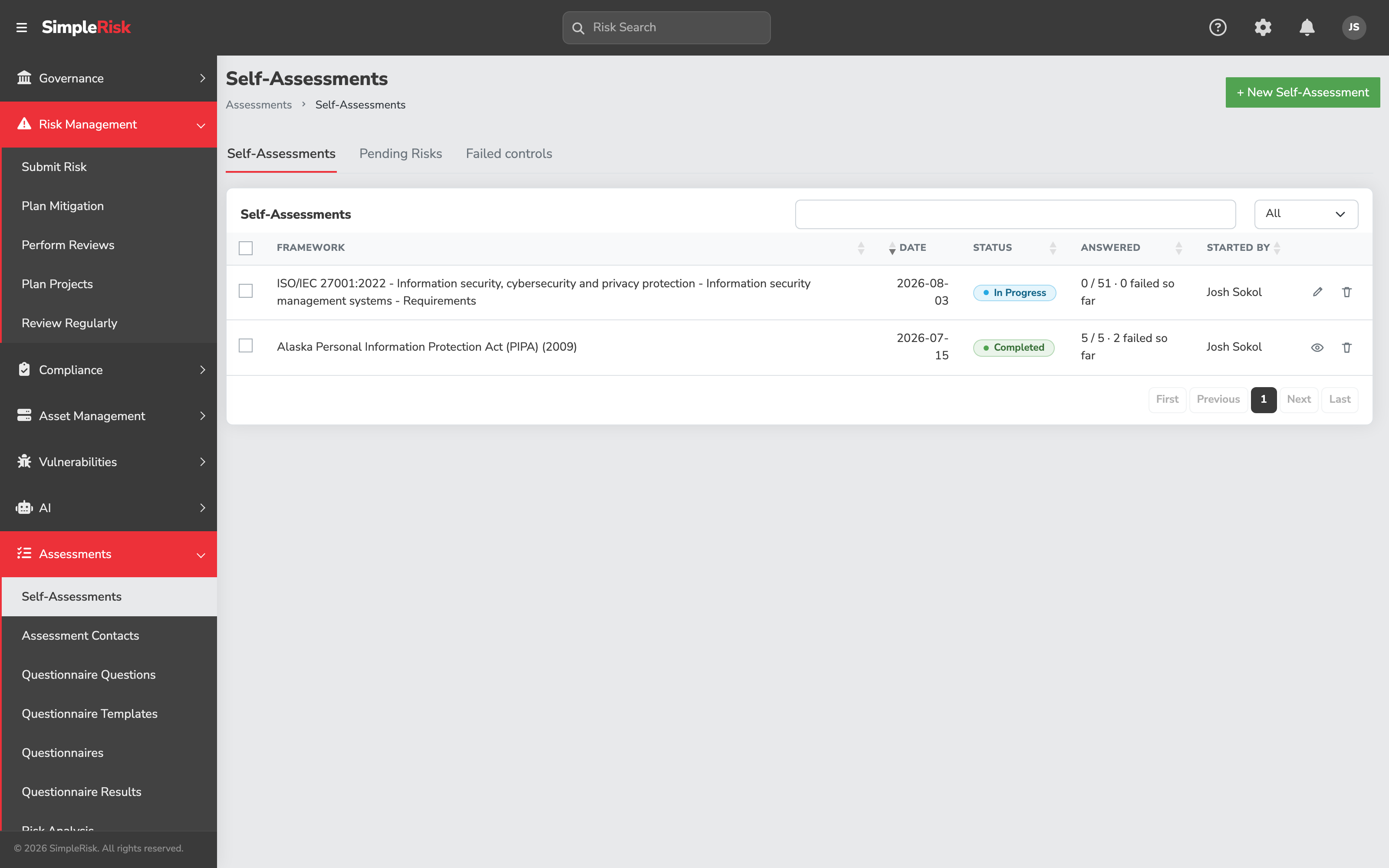
In the sidebar, expand **Assessments** and click **Self-Assessments**. The page opens on three tabs (**Self-Assessments**, **Pending Risks**, and **Failed controls**), with the breadcrumb in the grey title strip at the top. The first tab lists your runs: their framework, date, status (In Progress or Completed), how many controls you've answered, and who started them.
### 2. Start a new run and pick a framework
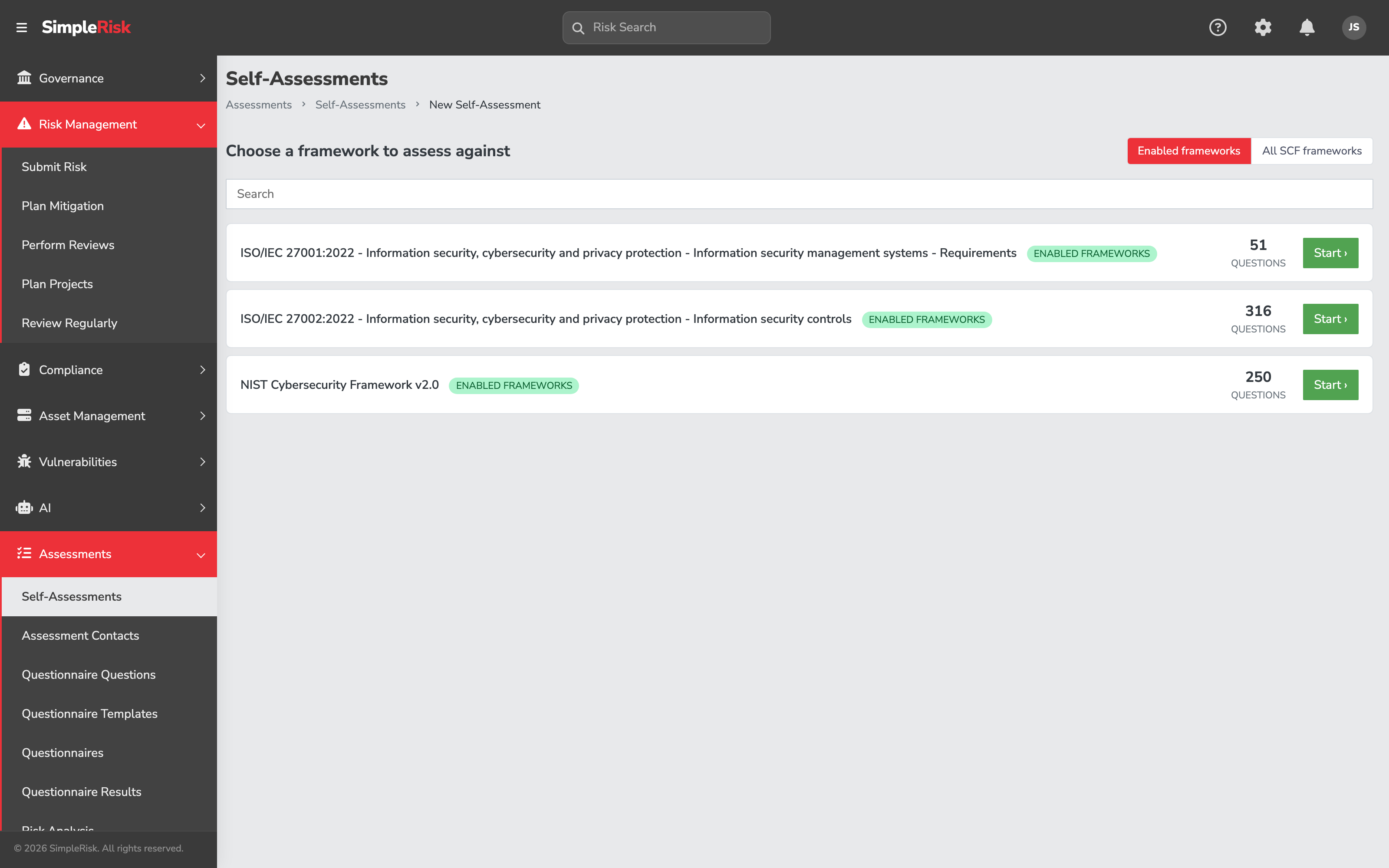
Click **+ New Self-Assessment** at the top-right. The framework picker opens, listing every SCF framework you can assess against, each with its **question count**. Search by name to narrow the list, then click **Start** on the one you want. If you hold the Governance permission, a toggle lets you switch between **Enabled frameworks** (a short curated list an admin has turned on under Governance) and **All SCF frameworks**, the full catalog. Everyone else sees the full catalog directly.
### 3. Answer the questions, domain by domain
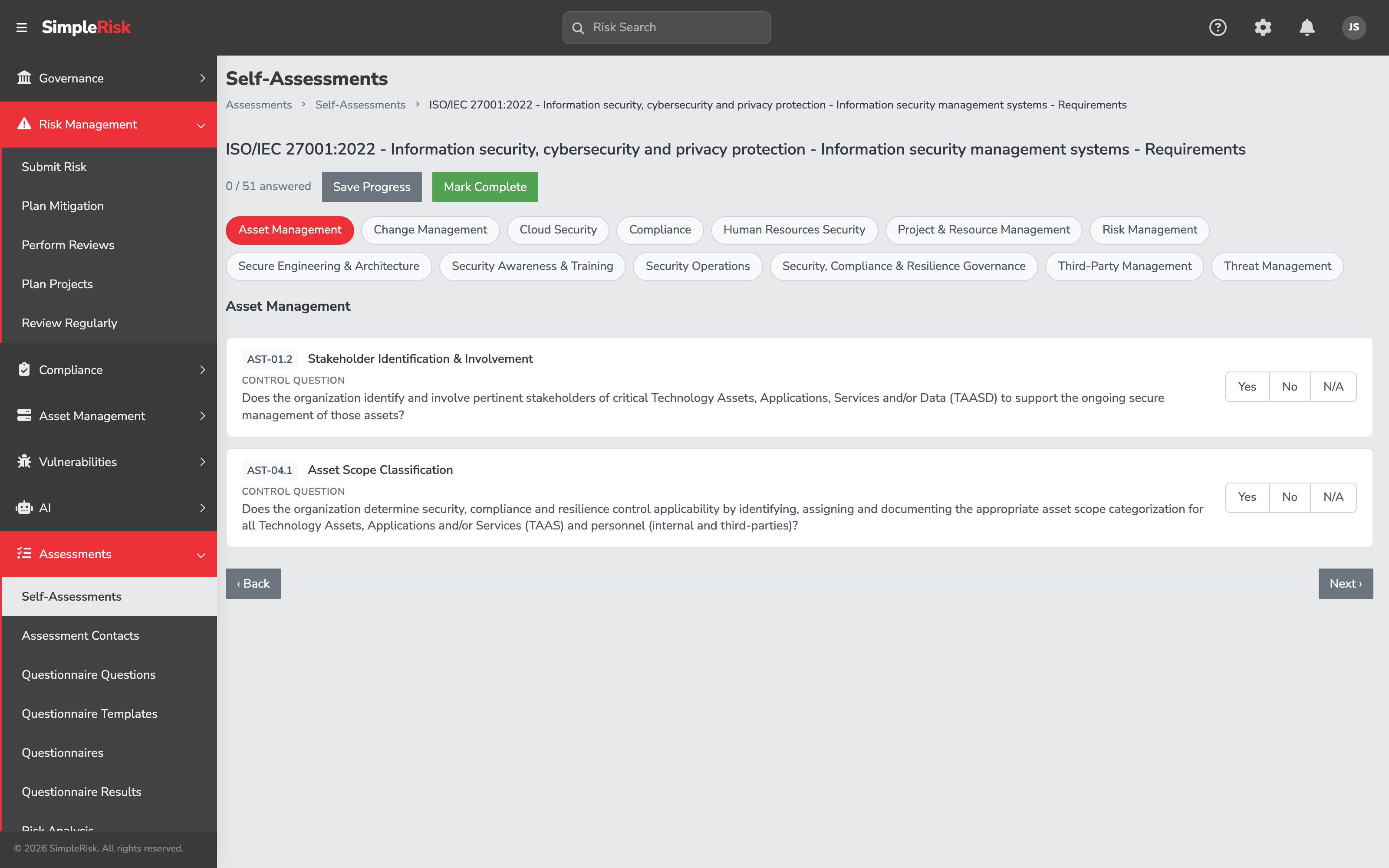
The questionnaire is grouped by SCF domain, with a chip for each domain across the top and one domain's controls shown at a time. Every control states its question ("Does the organization…?") and you answer with one of three buttons: **Yes**, **No**, or **N/A**. Internally Yes is a pass and No is a fail; the risk generation keys on the fails. Use **Save Progress** to persist without finishing, **Back** and **Next** to move between domains, and the domain chips to jump around. An answered counter at the top — "0 / 51 answered" — tracks how far you've come.
Answer honestly rather than aspirationally. A self-assessment whose answers describe the program you wish you had produces risks that don't exist and hides the ones that do.
### 4. Mark the run complete
On the last domain the **Next** button turns into a green **Mark Complete** (there's also a **Mark Complete** at the top throughout). Confirm, and SimpleRisk does two things. For every control you answered **No** that the SCF maps to a risk, it generates a **pending risk** — its subject is the mapped SCF risk-catalog entry's name, and its score is the highest failing control's weighting doubled, so a 1–5 weighting lands as a 2–10 score. And if you hold **Able to Modify Existing Controls**, it writes each answer back to the native control status. The run then shows as Completed on the first tab.
### 5. Review and push the pending risks
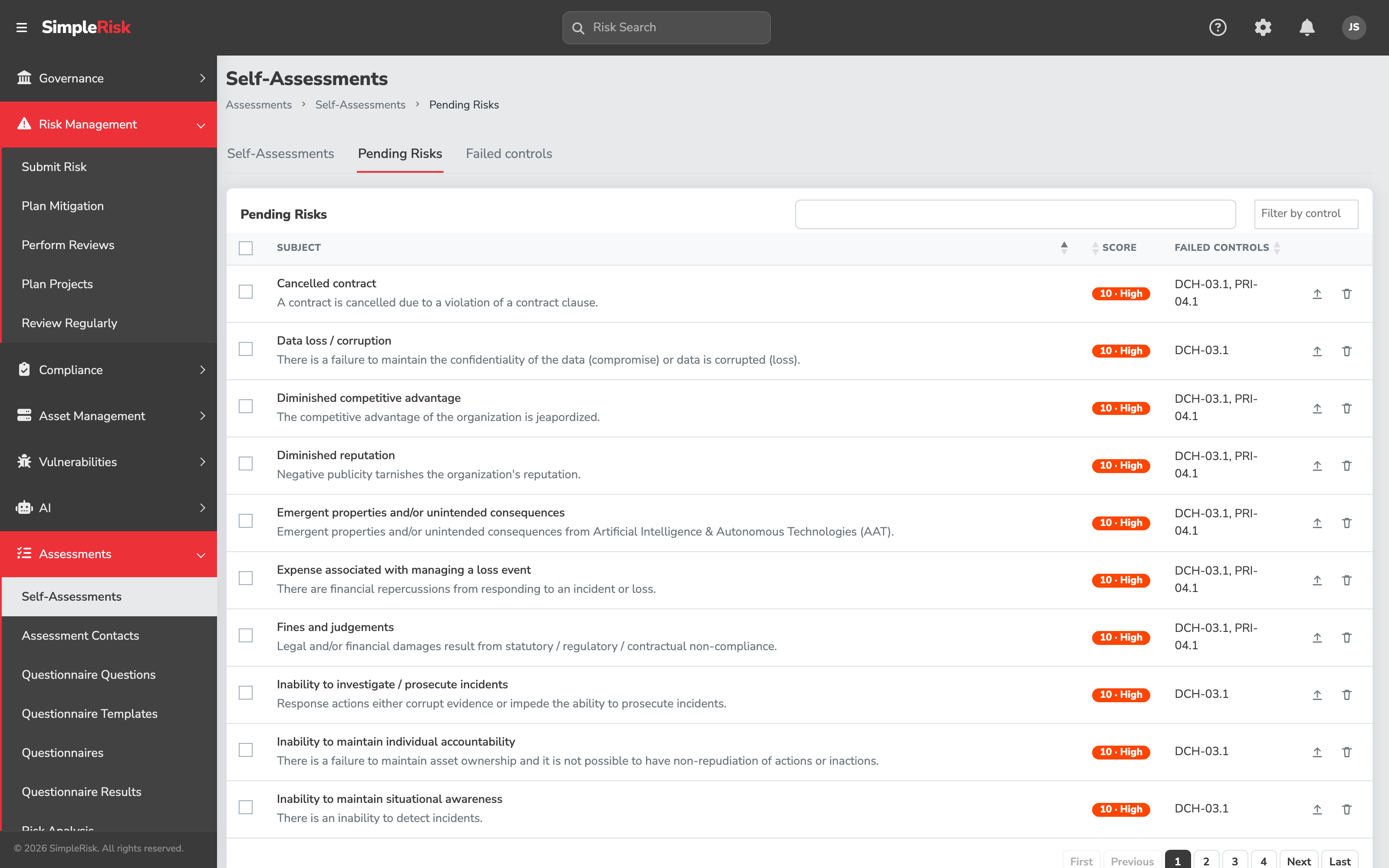
Switch to the **Pending Risks** tab. Each row shows the risk **Subject** with the SCF risk-catalog **description** beneath it, a **Score** rendered as a colored severity chip like "10 · High" (the level name and color come from your Risk Levels under Risk Configuration), and the **failed control** number that drove it. A search box and a **Filter by control** multi-select help you work a long queue. Per-row **Push to Risk** and **Delete** icon buttons sit at the end; tick the checkboxes and a bulk bar offers the same two actions across your selection.
**Push to Risk** promotes the candidate into the live register and pre-populates it: the **Risk Assessment** field from the SCF risk-catalog description, **Additional Notes** with a provenance block (the assessment name, framework, completed date, and the failed controls with their questions), the **Risk Mapping** set to the SCF risk-catalog entry, and a **Mitigation Planned** mitigation that links the failed controls as its mitigation controls. Pushing needs **Able to Submit New Risks**; without it, the rows are read-only.
### 6. Check the Failed controls tab
The **Failed controls** tab is a paginated record of every answered control across your completed runs — columns for Date, Framework, Control ID, Control, Question, Answer, and Control Status. A status filter (**Fail**, **Pass**, **N/A**, or **All**) and a search box let you audit exactly what was answered and when. Back on the first tab, a completed run's **View** (eye) icon opens a read-only, domain-by-domain view of the answers, while an in-progress run shows a **Resume** (pencil) icon that reopens the editable questionnaire.
## Common pitfalls
- **Confusing answering an assessment with sending one.** This is the single most common mix-up, and it's why this article exists. **Self-Assessments** is for answering an assessment yourself, in-app. Building question sets and emailing tokenized questionnaires out to vendors or colleagues is the *Assessments Extra* — a different feature on the same menu. If you're collecting answers from other people, you want [Third-Party and Vendor Risk Assessments](https://support.simplerisk.com/kb/06-03-third-party-and-vendor-risk-assessments?hsLang=en), not this page.
- **Landing on the setup panel.** If you see a two-step guidance card instead of the app, the prerequisites aren't met. Register the instance, then install the Secure Controls Framework Extra. The SCF install runs in the background, so give it a few minutes before you refresh.
- **Leaving pending risks in the queue.** A completed run that surfaces gaps hasn't touched your register yet. The candidates sit on the **Pending Risks** tab until someone with **Able to Submit New Risks** clicks **Push to Risk**. Skip that and the gap you just found never becomes a tracked risk.
- **Reading a clean result as good news.** Only a **No** answer that maps to an SCF risk generates anything. A run that produces no pending risks might mean solid controls — or it might mean the controls you failed have no SCF risk mapping, or you answered around every gap. Zero pending risks is not automatically a passing grade.
- **Treating the generated score as final.** The score is derived from the failing control's weighting; it's a starting point, not your methodology's verdict. Score the resulting risk properly ([Risk Scoring Methodologies](https://support.simplerisk.com/kb/01-03-risk-scoring-methodologies?hsLang=en)) before you rely on it. Likewise, the control-status writeback only happens if you hold **Able to Modify Existing Controls** — without it, your compliance view won't reflect the answers you just gave.
## Related
- [What is a GRC Assessment](https://support.simplerisk.com/kb/06-01-what-is-a-grc-assessment?hsLang=en)
- [Third-Party and Vendor Risk Assessments](https://support.simplerisk.com/kb/06-03-third-party-and-vendor-risk-assessments?hsLang=en)
- [Control Assessments and Evidence Collection](https://support.simplerisk.com/kb/06-04-control-assessments-and-evidence-collection?hsLang=en)
- [Reviewing and Approving Risks](https://support.simplerisk.com/kb/01-04-reviewing-and-approving-risks?hsLang=en)
- [Risk Scoring Methodologies](https://support.simplerisk.com/kb/01-03-risk-scoring-methodologies?hsLang=en)
- [FAQs](https://support.simplerisk.com/kb/faqs?hsLang=en)
- [SimpleRisk Extras](https://support.simplerisk.com/kb/simplerisk-extras?hsLang=en#main-content)
- [Vulnerability Management Extra](https://support.simplerisk.com/kb/simplerisk-extras?hsLang=en#vulnerability-management-extra)
- [Team Separation Extra](https://support.simplerisk.com/kb/simplerisk-extras?hsLang=en#team-separation-extra)
- [Import-Export Extra](https://support.simplerisk.com/kb/simplerisk-extras?hsLang=en#import-export-extra)
- [Administrator Guide](https://support.simplerisk.com/kb/administrator-guide?hsLang=en#main-content)
- [00 About This Guide](https://support.simplerisk.com/kb/administrator-guide?hsLang=en#00-about-this-guide)
- [01 Installation and Deployment](https://support.simplerisk.com/kb/administrator-guide?hsLang=en#01-installation-and-deployment)
- [02 Upgrades and Maintenance](https://support.simplerisk.com/kb/administrator-guide?hsLang=en#02-upgrades-and-maintenance)
- [03 Users and Permissions](https://support.simplerisk.com/kb/administrator-guide?hsLang=en#03-users-and-permissions)
- [04 Authentication](https://support.simplerisk.com/kb/administrator-guide?hsLang=en#04-authentication)
- [05 Customization](https://support.simplerisk.com/kb/administrator-guide?hsLang=en#05-customization)
- [06 Configuring Risk and Compliance](https://support.simplerisk.com/kb/administrator-guide?hsLang=en#06-configuring-risk-and-compliance)
- [07 Integrations](https://support.simplerisk.com/kb/administrator-guide?hsLang=en#07-integrations)
- [08 The API](https://support.simplerisk.com/kb/administrator-guide?hsLang=en#08-the-api)
- [09 Encryption and Data Security](https://support.simplerisk.com/kb/administrator-guide?hsLang=en#09-encryption-and-data-security)
- [10 Workflows and Automation](https://support.simplerisk.com/kb/administrator-guide?hsLang=en#10-workflows-and-automation)
- [11 Reporting and Auditing](https://support.simplerisk.com/kb/administrator-guide?hsLang=en#11-reporting-and-auditing)
- [12 Operations](https://support.simplerisk.com/kb/administrator-guide?hsLang=en#12-operations)
- [13 Reference](https://support.simplerisk.com/kb/administrator-guide?hsLang=en#13-reference)
- [User Guide](https://support.simplerisk.com/kb/user-guide?hsLang=en#main-content)
- [00 Foundations of GRC](https://support.simplerisk.com/kb/user-guide?hsLang=en#00-foundations-of-grc)
- [01 Risk Management](https://support.simplerisk.com/kb/user-guide?hsLang=en#01-risk-management)
- [02 Compliance Management](https://support.simplerisk.com/kb/user-guide?hsLang=en#02-compliance-management)
- [03 Governance](https://support.simplerisk.com/kb/user-guide?hsLang=en#03-governance)
- [04 Asset and Data Inventory](https://support.simplerisk.com/kb/user-guide?hsLang=en#04-asset-and-data-inventory)
- [05 Threat and Vulnerability Management](https://support.simplerisk.com/kb/user-guide?hsLang=en#05-threat-and-vulnerability-management)
- [06 Assessments](https://support.simplerisk.com/kb/user-guide?hsLang=en#06-assessments)
- [07 Incident Management](https://support.simplerisk.com/kb/user-guide?hsLang=en#07-incident-management)
- [08 Audit and Reporting](https://support.simplerisk.com/kb/user-guide?hsLang=en#08-audit-and-reporting)
- [09 Day-to-Day SimpleRisk](https://support.simplerisk.com/kb/user-guide?hsLang=en#09-day-to-day-simplerisk)
- [10 Continuous Improvement](https://support.simplerisk.com/kb/user-guide?hsLang=en#10-continuous-improvement)
- [SimpleRisk User Guides](https://support.simplerisk.com/kb/simplerisk-user-guides?hsLang=en)
- [Troubleshooting](https://support.simplerisk.com/kb/troubleshooting?hsLang=en)
- [SimpleRisk Hosted](https://support.simplerisk.com/kb/simplerisk-hosted?hsLang=en)
- [How To videos](https://support.simplerisk.com/kb/how-to-videos?hsLang=en)
[](https://www.simplerisk.com)
Copyright © 2026, SimpleRisk, Inc.