
Requires: Assessments Extra
External-recipient assessments are gated by the Assessments Extra. Core SimpleRisk has no way to send a questionnaire to someone outside the SimpleRisk install. The Extra activates the Assessments menu and the Assessment Contacts feature this article centers on.
Why this matters
A vendor assessment is the program's instrument for asking "tell us how you handle our data" of someone the program has no direct authority over. The vendor isn't a SimpleRisk user, isn't on the company's intranet, and won't appear in the office on a Tuesday. The assessment has to reach them through email, has to let them respond without a login they don't have, and has to produce an artifact the program can defend in front of an auditor who asks "show me your vendor due-diligence evidence."
The other reason this matters: vendor risk is the part of the program that lives outside your control. You can require strong access controls on your own systems; you can only ask the vendor about theirs. The questionnaire is the asking; the response is the evidence; the program's decision (continue working with the vendor, escalate to a contract review, terminate the engagement) is what closes the loop. Without the assessment, the vendor decision is made on intuition; with it, the decision is made on documented answers to specific questions.
The third thing worth knowing is the SimpleRisk-specific shape: there's no separate Vendor entity. The Extra uses Assessment Contacts as the de facto vendor record — a flat list of external records carrying a company, a name, and an email address, plus optional phone, contact manager, and details fields. Programs needing vendor-tier classification, contract tracking, or recurring-engagement management need to layer that on (Customization Extra for tier fields, an external system for contracts). The Assessment Contacts feature is the questionnaire-recipient half of vendor management; the rest lives elsewhere.
Before you start
Have these in hand before sending an external assessment:
- The Assessments Extra activated with the Assessment Contacts sub-menu visible. Admins turn it on under Settings (gear icon) → Settings Hub → Extras → the Assessments Extra tile (it's labelled "Risk Assessment Extra" on the Extras list but renders as "Assessments Extra" once you're inside its management page — same Extra, two names). Once active, the Assessments menu gains Assessment Contacts, Questionnaire Questions, Questionnaire Templates, Questionnaires, Questionnaire Results, Risk Analysis, Import/Export, and Questionnaire Audit Trail.
- The relevant permissions: Allow Access to "Assessments" Menu for base access, Able to Add Assessment Contacts to create new external recipients, Able to Edit Assessment Contacts to update them, Able to Send Questionnaires to send. The contact-management permissions are separate from the send permission so a junior team member can maintain the contact list without the authority to actually send vendors a questionnaire. (See Permission Reference.)
- A questionnaire template appropriate for vendor scope. The standard public templates (Vendor Security Assessment Questionnaire, Cloud Security Alliance CAIQ, Standardized Information Gathering questionnaire) are good starting points; build your own if you have specific vendor categories that need targeted questions.
- Confirmed vendor email addresses. A typo'd email means the questionnaire goes nowhere and you discover the silence three weeks later. Verify the address against the vendor's contract or against an existing email thread before adding.
- An internal owner for each vendor. The Assessment Contact's Contact Manager field is a SimpleRisk user picker; the manager is the internal coordinator who chases the vendor when responses are late and reviews the responses when they arrive.
- A read on the vendor's security maturity. A small SaaS vendor without a security team will need a different questionnaire than a major cloud provider with their own GRC department. Long questionnaires sent to under-resourced vendors don't get answered; short questionnaires sent to mature vendors are insufficient. Right-size the questionnaire to the vendor.
Step-by-step
1. Add the vendor as an Assessment Contact
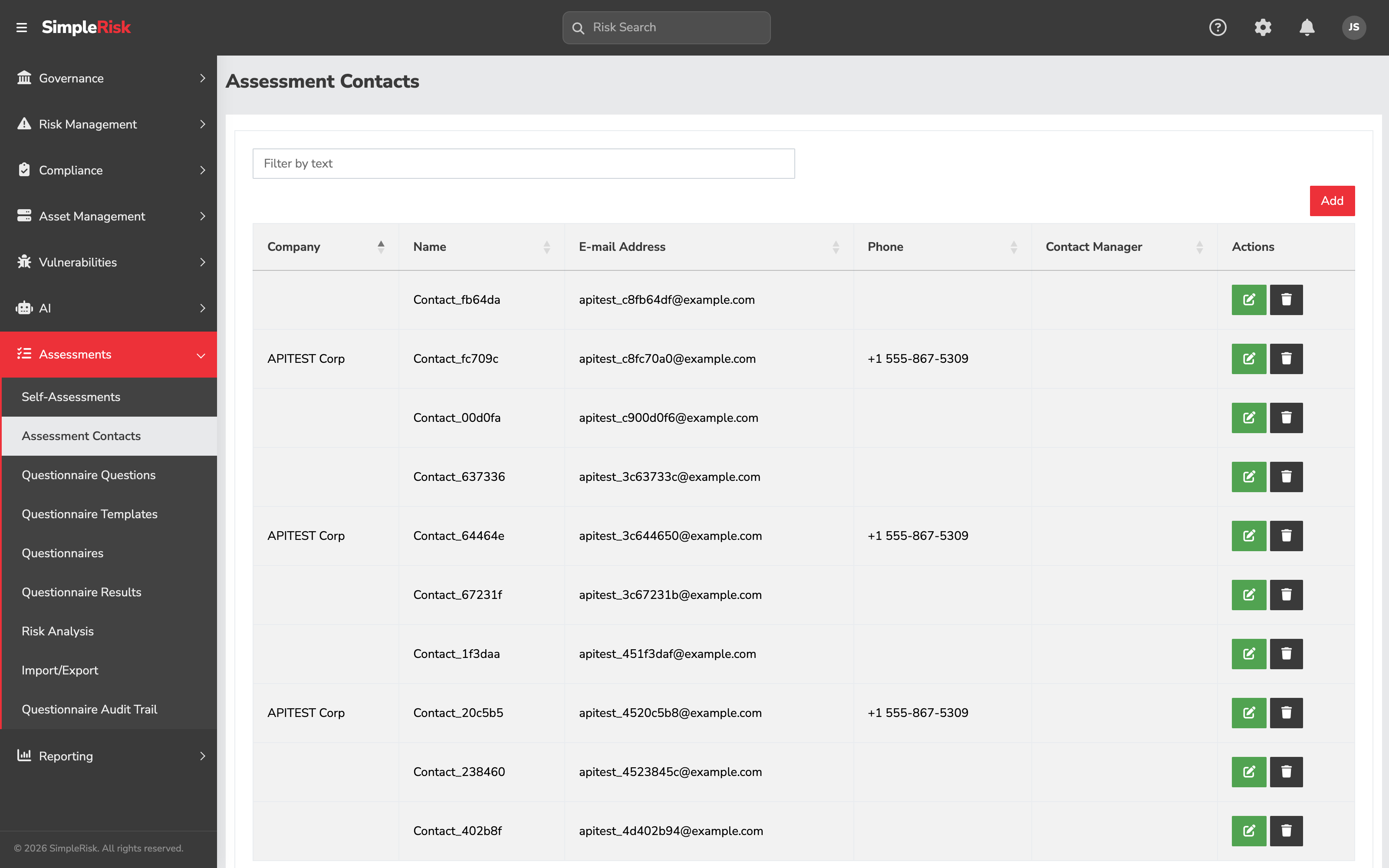
Sidebar: Assessments → Assessment Contacts opens /assessments/contacts.php. Click Add a New Assessment Contact to open the contact form. The fields, in the order they appear:
- Company — the vendor company name. Required. Surfaces on the questionnaire-results page so reviewers know who they're reading.
- Name — the contact person's name. Required.
- E-mail Address — the contact's email address. Required. The token mechanism uses the email as the recipient identifier, so a typo means the questionnaire goes nowhere and you find out three weeks later.
- Phone — optional. Useful for the chase-them-down step when responses are overdue.
- Contact Manager — optional single-user picker, defaulting to Unassigned. The internal SimpleRisk user responsible for this vendor relationship. Drives notifications when the contact's questionnaire status changes.
- Details — optional free text for any additional context (vendor scope, contract reference, notes).
Click save. The contact becomes available as a recipient on any new questionnaire.
Assessment Contact — field reference
Company
- What it captures: Vendor or organization name.
- What you can enter: Free text, up to 255 characters. Required.
Name
- What it captures: Contact person's name.
- What you can enter: Free text, up to 255 characters. Required.
E-mail Address
- What it captures: Where the tokenized questionnaire link is sent.
- What you can enter: A valid email address, up to 200 characters. Required.
Phone
- What it captures: Contact phone number.
- What you can enter: Free text, validated on save. Optional.
Contact Manager
- What it captures: Internal owner of the vendor relationship.
- What you can enter: One SimpleRisk user. Defaults to Unassigned. Optional.
Details
- What it captures: Any extra context.
- What you can enter: Free-form text. Optional.
2. Build (or pick) the questionnaire template
Sidebar: Assessments → Questionnaire Templates opens the template manager. A template is a named, reusable set of questions; the questions themselves are authored under Assessments → Questionnaire Questions (or imported through Assessments → Import/Export). Either build a new template from your question library or open an existing one you'll send to this vendor. The vendor-specific considerations:
- Open with framing. Vendors filling out questionnaires need context about why you're asking. The questionnaire's User Instructions field opens the questionnaire with whatever you put there; one paragraph explaining the audit driver, the deadline, and what happens with the responses sets a much better tone than a blank form does.
- Match the vendor's vocabulary. A vendor whose stack is AWS will read "compute instances" naturally; the same vendor will trip on "VMs in your data center" if that doesn't reflect their reality. Use vendor-shape language; the responses are higher-quality.
- Map the questions you care about to your controls. Use the per-question control-mapping feature (see Control Assessments and Evidence Collection) so the responses produce per-control evidence on your side. The mapping doesn't change anything the vendor sees; it's the bookkeeping that makes the responses useful for your compliance posture.
3. Create the questionnaire and pair it with the contacts
Sidebar: Assessments → Questionnaires opens the questionnaire list. Click Add to open the questionnaire form. The Settings card at the top holds the questionnaire's identity and behavior: Name (required), Team / Additional Stakeholders / Owner (who's accountable on your side), User Instructions (shown at the top of the questionnaire the recipient opens) and Email Instructions (the body of the invitation email), a collapsible Risk Details section of defaults that flow into any generated risk, the Bypass 'Pending Risks' checkbox, and the reminder and recurring-send cadences. The vendor-specific notes:
- Name the questionnaire for the vendor and the cycle. "Q3 2026 Vendor Security Assessment — Acme Corp" is more navigable than "Vendor Assessment 23." The name appears in the email subject as
Risk Assessment Questionnaire - {name}, so the vendor sees it too. - Email Instructions are the email body. Use them to explain the assessment's context, the deadline, and the consequence of not responding (contract review, alternate-vendor consideration). Generic emails get ignored; specific ones get answered.
- Set the reminder cadence. Notify assessment contacts every [N] days until completed drives the automated reminders. Each of these scheduling fields has a toggle checkbox to its left; tick the checkbox to enable the numeric input, then enter the interval in days. Leaving the checkbox unticked disables the field (no reminders or recurring resend). A 7-day cadence is reasonable for high-priority assessments; a 14-day cadence for routine ones. Without reminders, the vendor's response rate drops sharply.
- Decide on the schedule. Schedule and send this assessment every [N] days controls the recurring-send behavior. Tick the checkbox to enable it, then enter the interval. For annual vendor recertification, set this to 365; for higher-priority vendors with a tighter cadence, set it lower. Recurring assessments pre-populate from the prior round so the vendor only confirms or updates.
In the Templates card, pair the questionnaire template with the assessment contact(s). The pairing is many-to-many — one questionnaire can mix multiple template/contact pairings (the legal-vendor template to the legal contacts, the engineering-vendor template to the engineering contacts, all on the same send schedule).
Questionnaire — field reference
Settings card
Name
- What it captures: The questionnaire's label. Appears in the invitation email subject.
- What you can enter: Free text. Required.
Team
- What it captures: The owning team(s) on your side.
- What you can enter: One or more teams.
Additional Stakeholders
- What it captures: People notified about this questionnaire who don't own it.
- What you can enter: One or more users.
Owner
- What it captures: The single accountable owner.
- What you can enter: One user.
User Instructions
- What it captures: Guidance shown at the top of the questionnaire when the recipient opens it.
- What you can enter: Rich text.
Email Instructions
- What it captures: The body of the invitation email.
- What you can enter: Rich text.
Responses to questions with linked controls will update the control type to
- What it captures: Which control type an answer's evidence is filed under when the question maps to a framework control.
- What you can enter: One or more control types.
Bypass 'Pending Risks' and create Risks immediately after Assessment completion
- What it captures: Skips the pending-risk review pass and writes risks straight to the register.
- What you can enter: Checkbox, off by default.
Automatically send assessment results to all assessment contacts upon completion
- What it captures: Emails the results back to the contacts when the assessment finishes.
- What you can enter: Checkbox.
Notify assessment contacts every [N] days until completed
- What it captures: Reminder cadence for incomplete responses.
- What you can enter: Tick the checkbox, then a number of days.
Schedule and send this assessment every [N] days
- What it captures: Recurring-resend cadence. Each round pre-populates from the previous one.
- What you can enter: Tick the checkbox, then a number of days.
Risk Details card — collapsed by default; click Risk Details to expand. These values become the defaults on any pending risk the questionnaire generates: Project Name, Site/Location, Affected Assets, Team, Owner, Owner's Manager, Additional Stakeholders, and Tags. All optional, and each mirrors the same field on the Submit Risk form.
Templates card
Template
- What it captures: The question set to send.
- What you can enter: One or more questionnaire templates. Required to send.
Assessment Contacts
- What it captures: The recipients paired with each template.
- What you can enter: One or more users and/or assessment contacts. Required to send.
There's deliberately no due-date, framework, or sender field. The sender is you; framework association happens at the question-to-control level (see Control Assessments); and a due date is expressed through the two cadence fields above.
4. Send the questionnaire
The questionnaire form has two save buttons at the top right: Save (saves as draft, doesn't send) and Save & Send (saves and immediately fires the email send). Save & Send is gated by Able to Send Questionnaires.
Once a questionnaire has been sent, the form opens in a mostly read-only state. A blue information banner at the top confirms this. Only the scheduling fields — Notify assessment contacts every [N] days until completed and Schedule and send this assessment every [N] days — remain editable, and only the Save button is shown (not Save & Send). If you need to change the questionnaire's name, instructions, templates, or contacts, create a new questionnaire.
When Save & Send runs:
- The Extra generates a unique 40-character token per recipient.
- SimpleRisk records the send — which questionnaire went to which contact, on which token, and when — so the result can be traced back later.
- An email is sent to each contact's address with the subject
Risk Assessment Questionnaire - {questionnaire name}and the body containing the Email Instructions plus the recipient's personalized link to/assessments/questionnaire.index.php?token={their token}. - The token has a configurable lifespan controlled by
ASSESSMENT_MINUTES_VALID(default 43200 minutes / 30 days, which comfortably covers vendor responses that take days or weeks; shorten it only if your program needs a tighter expiry window).
The recipient clicks the link and lands on the questionnaire form. No SimpleRisk login is required; the token is what authenticates the response. They answer at their own pace; auto-save (controlled by ASSESSMENT_AUTOSAVE and ASSESSMENT_AUTOSAVE_INTERVAL) persists partial responses on a timer so a closed browser tab doesn't lose work.
5. Track responses and chase the laggards
Sidebar: Assessments → Questionnaire Results opens /assessments/questionnaire_results.php. Access requires the assessment_view_results permission; users with the base assessments permission but without assessment_view_results see a "no permission" notice instead of the results table. Each questionnaire-recipient pairing shows up as a row with Questionnaire Name, Date Sent, Questionnaire Status (Pending / In Progress / Completed), Completion Date, Approval Status, Last Comment, plus the contact's company and name.
The status column is the chase signal. A vendor whose questionnaire has been Pending for two weeks past the reminder cadence isn't going to respond without an out-of-band nudge. The contact's Contact Manager tells you which internal owner should make the call.
For programs running many vendor assessments, the Risk Analysis sub-menu (Assessments → Risk Analysis) provides aggregate stats per questionnaire — useful for "show me overall vendor-assessment posture this quarter" reporting.
6. Review and approve responses
When a vendor submits, their response moves to the results page. Open the response to see every question, the vendor's answer, and any score the response carries. The reviewer's choices:
- Approve finalizes the response. If the questionnaire is configured to bypass pending risks, generated risks flow into the standard risk register at this point. Otherwise the responses sit in the Pending Risks queue for a separate review.
- Reject sends the response back, optionally with a comment explaining what to revisit. The reject comment is optional; sometimes the reason is captured in the audit trail later.
- Not Approved marks the response as not approved without sending it back to the vendor. Use this when the response fails review but re-sending is not appropriate.
- Reopen returns a previously rejected or not-approved response to pending-review status. Use this when a reviewer acted prematurely or needs to reconsider.
Permission requirements: The Approve, Reject, and Not Approved actions require the assessment_decide_results permission. Reopen requires the assessment_reopen_results permission. Users who have the base assessments permission but lack the relevant action permission will not see those buttons. The upgrade migration automatically grants these permissions to all existing users who already hold assessments, so no manual re-grant is needed after upgrading. For new roles, grant the permissions explicitly in Admin → Roles and Permissions.
For vendor responses, the most common approval pattern is "review the response, approve it, then walk the resulting pending risks separately." The two-step approach lets the response review stay focused on whether the answers make sense, with the risk-management decisions handled in their own discipline.
7. Track the vendor across cycles
For ongoing vendor relationships, the recurring-send setting handles the cadence (annual recertification at 365 days, semi-annual at 180, etc.). Each new round pre-populates from the prior round so the vendor only confirms or updates the changed answers. Year-over-year comparison happens through the response history — open a contact's prior questionnaire results to see what changed.
For vendor offboarding (the vendor relationship is ending), there's no "delete this contact" cascade — the contact's questionnaire history stays in the database for audit purposes. Mark the contact's Details field with the offboarding date so future viewers know not to send new questionnaires; the historical responses stay intact.
Common pitfalls
A handful of patterns recur with vendor assessments specifically.
-
One-size-fits-all questionnaire. A 100-question questionnaire designed to cover every conceivable vendor category produces a low response rate from small vendors and a "we already covered this in our SOC 2" deflection from major ones. Maintain at least two or three vendor templates: a short one for low-risk vendors, a longer one for high-risk ones, and possibly a critical-vendor variant with the deepest questions. Send the right template based on vendor tier.
-
No vendor-tier system. SimpleRisk doesn't ship a vendor classification natively. Programs sometimes operate without one and end up sending the same questionnaire to a payments-processing vendor and a stationery supplier. Either build a tier classification via the Customization Extra (a per-contact field for Tier 1/2/3) or maintain the tiering in your contracts/procurement system and pick the right questionnaire template based on what's there.
-
Sending without context. A blank email arriving from "SimpleRisk" with a link to a questionnaire and no human framing sets off the vendor's "phishing or legitimate?" filter. Send a personal email first (from a real human at your organization, to the real human at the vendor) explaining what's coming. The automated questionnaire email then arrives as expected rather than as suspicious.
-
No reminder cadence. A questionnaire sent without Notify assessment contacts every [N] days until completed depends entirely on the vendor remembering to come back to it. Most vendors won't. Tick the checkbox beside that field to enable it, enter an interval, and set the cadence on every external assessment that matters; 7 days is a reasonable starting point.
-
Treating Assessment Contacts as the vendor management system. The contacts feature stores the basics needed to send a questionnaire. It doesn't track contracts, doesn't track financial relationships, doesn't auto-renew due dates beyond the questionnaire schedule. Treat it as the assessment side of vendor management; pair it with whatever your organization uses for the procurement and contract sides.
-
Not setting the Contact Manager field. Without an internal manager assigned to a vendor contact, no one is accountable for the vendor's response status. The questionnaire sits Pending and nobody notices. Always assign a manager; that's the human who will (eventually) make the call to the vendor.
-
Shortening token expiry below your response window.
ASSESSMENT_MINUTES_VALIDdefaults to 43200 minutes (30 days), which is generous enough for most vendor cycles. The pitfall is lowering it without accounting for how long vendors actually take: set it to 1440 (1 day) and a vendor who opens the link, gathers answers over a long weekend, and comes back finds the token expired and is locked out of the in-progress response. If you shorten the default, keep it comfortably above your real-world response window. -
Acting on the response without confirming the vendor's identity. The questionnaire is tokenized but the token doesn't authenticate the human filling it out — only the email. A questionnaire sent to a generic vendor address (
security@vendor.com) might be answered by anyone on that mailing list. For high-stakes assessments, the response is a first cut; confirm critical answers in a follow-up call with a named contact before treating the answers as authoritative. -
Ignoring the Risk Analysis sub-menu. Programs running many vendor assessments rarely look at the Risk Analysis page, treating each assessment as its own thing. The aggregate view is what shows the trends (vendor-assessment posture quarter-over-quarter, the pattern of which question categories drive the most pending risks) that drive program improvements; it's worth a monthly look.