---
title: 03.02 Managing Policies and Documents
description: Walk a governance document through its lifecycle in SimpleRisk — picking the document type, attaching the file, setting owner and approver, scheduling…
---
[Skip to content](https://support.simplerisk.com/kb/03-02-managing-policies-and-documents#main-content)
English
Show submenu for translations
[Customer portal](https://support.simplerisk.com/tickets?hsLang=en)
[](https://www.simplerisk.com/)
Open main navigation
Close main navigation
- English
Show submenu for translations
- [Customer portal](https://support.simplerisk.com/tickets)
- [Contact us](https://www.simplerisk.com/about-us/contact-us)
[Contact us](https://www.simplerisk.com/about-us/contact-us)
How can we help you?
- There are no suggestions because the search field is empty.
1. [SimpleRisk Knowledge Base](https://support.simplerisk.com/kb?hsLang=en)
2. [User Guide](https://support.simplerisk.com/kb/user-guide?hsLang=en)
3. [03 Governance](https://support.simplerisk.com/kb/user-guide?hsLang=en#03-governance)
# 03.02 Managing Policies and Documents
## Walk a governance document through its lifecycle in SimpleRisk — picking the document type, attaching the file, setting owner and approver, scheduling the review cadence, linking to the controls it justifies, and the audit trail that records every change.
## Why this matters
The document library is where the policies, standards, procedures, and guidelines live. Each one is a recorded statement of what the organization expects of itself, and each one needs an owner, an approver, and a review cadence to stay honest. Documents that nobody owns drift; documents that nobody reviews go stale; documents that aren't linked to the controls they justify produce a governance-and-compliance pair that drifts apart silently. SimpleRisk's document module is built to keep all four legible.
The other reason this matters: the document library is the artifact auditors look at first when they want to evaluate the governance side of the program. A library where every document has a real owner, a recent review date, an approver who signed off, and explicit links to the controls it implements tells the auditor the program is operating. A library where most documents have an owner of "unassigned," a last-review date of three years ago, and no control linkage tells the auditor the program is on paper only. The work of keeping the library honest is small per document and large in aggregate, which is why the workflow surface exists.
The third thing worth knowing: SimpleRisk distinguishes four document types (**Policies**, **Standards**, **Procedures**, **Guidelines**) corresponding to the standard governance hierarchy. Policies set direction (what the organization expects); standards specify requirements (what implementations must satisfy); procedures describe execution (how the work gets done); guidelines suggest practice (recommendations short of requirements). The type field is what surfaces the document in the right rollups; the hierarchy is what makes the library navigable. Mixing types (calling a procedure a "policy" because the word feels weightier) produces a library where the rollups misclassify and the audit conversation gets confused.
## Before you start
Have these in hand before you open the document form:
- The **Able to Add Documentation** permission on your account. Without it, the **+** icon that opens the Add Document modal doesn't appear and the form returns a permission error. (See [Permission Reference](https://support.simplerisk.com/kb/03-03-permission-reference?hsLang=en).) The companion permissions for editing and deleting are **Able to Modify Documentation** and **Able to Delete Documentation** respectively.
- The base **Allow Access to "Governance" Menu** permission to see the menu in the first place. Without it, the Governance section is hidden from the sidebar.
- A clear **document type** decision. Picking the wrong type ("policy" when you mean "procedure") puts the document in the wrong rollup and forces a re-classification later. Default to the looser type if you're not sure: a procedure is a more specific commitment than a guideline, a standard more specific than a policy.
- A **named owner** and a **named approver**. The owner is the person responsible for the document being current; the approver is the person whose signature attests it. The two are usually different — the owner does the work, the approver authorizes it.
- A **review frequency** that matches the document's volatility. Policies that change rarely (a privacy statement, a code of conduct) work on annual cycles. Standards and procedures that depend on technology choices need shorter cycles (quarterly or semi-annually). Pick a cadence the program can sustain; an aggressive cadence the program won't actually meet is worse than a relaxed one it will.
- The **file** itself, in a format that uploads cleanly. SimpleRisk stores the uploaded file against the document record; typical formats are PDF, DOCX, and XLSX, and the size ceiling is set per install by your administrator.
## Step-by-step
### 1. Open the document library
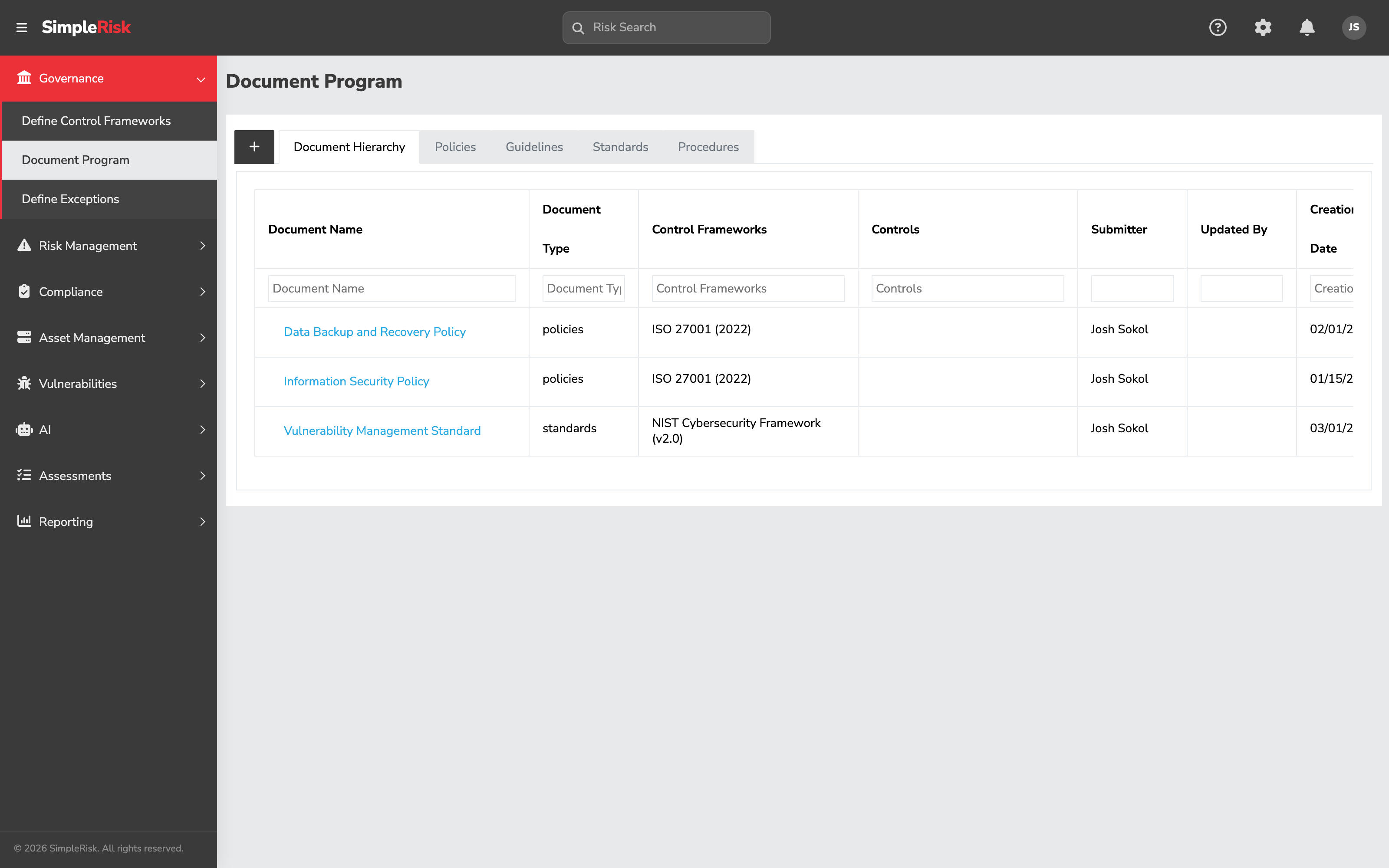
Sidebar: **Governance → Document Program** opens `/governance/documentation.php`. (The URL retains the legacy `documentation` name; the menu and page title now read **Document Program**.) The page renders as a tabbed view with five tabs: **Document Hierarchy** (the default; a parent-child tree across all document types) plus one tab per document type — **Policies**, **Guidelines**, **Standards**, and **Procedures**. Each type tab shows the documents of that type with columns for document name, type, control frameworks, controls, submitter, last update, creation date, and review information.
### 2. Add a new document
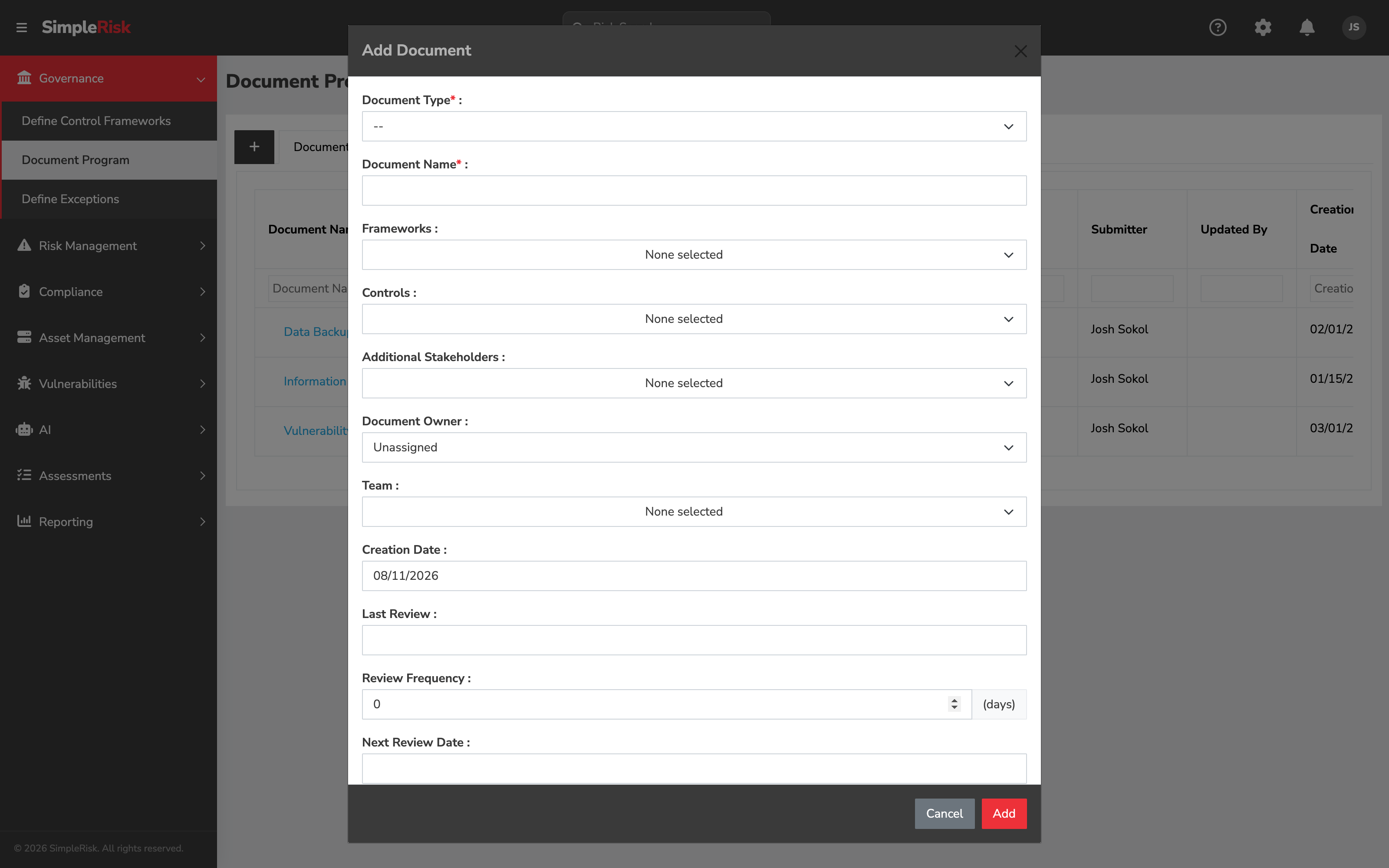
Click the **+** icon to the left of the tab bar to open the **Add Document** modal. The form has the following fields:
- **Document Type** (required) — dropdown with **Policies**, **Standards**, **Procedures**, **Guidelines**. Determines which tab the document lands in and which rollups include it.
- **Document Name** (required) — the display name for the document. Be specific: "Acceptable Use Policy v3" is more useful than "Policy."
- **Frameworks** — multi-select. Pick the control frameworks the document supports. The mapping writes to `document_to_framework`.
- **Controls** — multi-select. Pick the specific framework controls the document justifies. The mapping writes to `document_to_control`. (You can also map controls after creation; see step 3.)
- **Additional Stakeholders** — multi-user picker. People notified about the document but not directly accountable for it. Stored in `document_additional_stakeholders`.
- **Document Owner** — single-user picker. The person responsible for the document being current. Defaults to **Unassigned**; pick a real owner.
- **Team** — multi-select. The team(s) the document is scoped to (drives team-based segregation visibility; see [Team-Based Segregation](https://support.simplerisk.com/kb/03-06-team-based-segregation?hsLang=en)).
- **Creation Date** — auto-populated to today's date; editable if the document existed before SimpleRisk and you're backfilling.
- **Last Review** — date the document was most recently reviewed. Drives the next-review-date calculation.
- **Review Frequency** — number of days between scheduled reviews. Common values: 365 (annually), 180 (semi-annually), 90 (quarterly).
- **Next Review Date** — auto-calculated from Last Review + Review Frequency, but editable if you want a specific date for the next review.
- **Approver** — single-user picker. The person whose authorization the document carries. Often a different person from the owner.
- **Approval Date** — date picker. The date the approver signed off on this version.
- **Parent Document** — optional. If this document is a child of another document (a standard implementing a parent policy, for example), pick the parent here. Used for hierarchical organization in the Document Hierarchy tree.
- **Document Status** — typical values include *Draft*, *In Review*, *Approved*, *Retired*. The list is configurable per install.
- **File Upload** — pick the document file from your local filesystem.
Click **Add** to create the record (or **Cancel** to discard).
### 3. Add or revise control linkage after creation
The **Frameworks** and **Controls** multi-selects on the Add Document modal cover the initial linkage. To add or remove mappings later, open the document's edit modal from the document row and adjust the same fields. The mappings write to `document_to_control` (and to `document_to_framework` for framework-level documents that aren't tied to a specific control).
The links are bidirectional: the control's edit modal in the compliance module also shows the documents linked to it (see [Control Frameworks and Control Families](https://support.simplerisk.com/kb/02-02-control-frameworks-and-control-families?hsLang=en)). When the auditor asks "what policy authorizes this control?", the answer comes from the linkage; when they ask "what controls implement this policy?", the same linkage answers in the other direction.
Most documents map to multiple controls — a single Acceptable Use Policy might justify a dozen access-control and audit-related controls. Map them all; the rollup reporting reads from the linkage.
### 4. Use the parent-child hierarchy when appropriate
For documents organized as a tree (a parent policy with child standards under it, child procedures under those), use the **Parent Document** field to express the relationship. The **Document Hierarchy** tab renders the tree visibly indented across all document types; reporting can roll child documents up to the parent for "all the documentation supporting this policy" views.
Don't force a hierarchy where one doesn't exist. A flat library of independent documents is fine; an artificial hierarchy ("everything is a child of the master policy") clutters the view without producing useful rollups.
### 5. Programmatic document management via the v2 API
For automation (bulk imports from another tool, scheduled review-date updates, integration with a document-management system) the v2 API exposes the document operations:
- `GET /api/v2/governance/documents` — list all documents.
- `GET /api/v2/governance/documents?id={id}` — fetch a single document.
- `GET /api/v2/governance/documents/treegrid` — fetch the hierarchical document tree.
- `POST /api/v2/documents/create` — create a new document.
- `POST /api/v2/documents/update` — update an existing document.
- `DELETE /api/v2/documents/delete` — delete a document.
- `POST /api/v2/governance/documents/controls` — manage document-to-control mappings.
The API path naming is slightly inconsistent (some endpoints under `/governance/documents`, some under `/documents` directly) — this is historical and works identically at the application level. Pick whichever path matches the operation you're doing.
### 6. Run the regular review cadence
The whole library is built around review cadences. Open the documentation page and sort by **Next Review Date** ascending; the documents at the top are the ones due (or overdue) for review. Working from the top of that list is how the library stays current.
For each review:
1. Open the document and read it. Is anything still accurate? Has the technology changed, the org chart changed, the regulatory environment changed in a way that affects what the document says?
2. Update the document body if the answer is "something changed." Bump the version in the document name; re-upload the new file.
3. Update **Last Review** to today's date. The form recomputes **Next Review Date** based on **Review Frequency**.
4. If the document changed substantively, update the **Approval Date** and re-confirm with the approver — substantive changes need re-approval.
5. Save.
The audit-log entry records the review with the user, the timestamp, and the field changes. A program with consistent review cadences produces an audit trail that demonstrates the library is operating, not just sitting.
## Common pitfalls
A handful of patterns recur when teams operate the document library.
- **Document Type as marketing label.** "Procedure for changing passwords" gets called a "policy" because policy sounds weightier. The mis-classification puts the document in the wrong rollups and confuses the audit conversation. Match the type to the actual function: policies say *what*, standards say *how detailed*, procedures say *how*, guidelines say *suggested how*. Resist promoting documents to higher tiers than they earn.
- **Owner who doesn't know they own.** Assigning an owner without telling them is functionally no owner — the next-review notification goes to a surprised person who has to figure out what they're looking at. When you set the owner field, tell the owner. Even better: have the owner do the assignment themselves, in conversation with the approver.
- **Review Frequency set aspirationally.** Setting every document to a 90-day review cycle "because we should review more often" produces a library where every document is past due within a year. Pick a cadence the program will actually meet. A 180-day cadence with consistent execution is more honest than a 90-day cadence with chronic overruns.
- **Last Review never updated.** Reviewing a document but forgetting to update the **Last Review** field leaves the library claiming the document is overdue. The dashboards show overdue counts climbing and the program looks worse than the operations actually are. The fix is small: bump the date when you do the review. The field is the operational record of the review having happened.
- **Documents without control linkage.** A document library that doesn't link to the controls it justifies is half a governance program. The linkage is what makes the policy enforceable: a control exists because a policy required it, and the test for the control is in part the test that the policy is being followed. Without the linkage, the policy and the control evolve independently and drift apart silently. Map every document that justifies controls to the controls it justifies.
- **Approval Date set to "today" reflexively.** A document re-uploaded with no actual content changes shouldn't get a fresh **Approval Date** — the prior approval still stands. Update the approval date only when the change is substantive enough to warrant re-approval. Inflating approval dates on cosmetic changes makes the field meaningless for audit purposes.
- **The Retired status as a delete substitute.** When a policy is no longer in effect, mark its status as *Retired* rather than deleting it. The retired document stays in the database for audit-trail purposes (proving what the policy used to require during a prior period) but is excluded from active reporting. Deleting destroys the audit trail; retiring preserves it.
- **One enormous document.** A single 80-page "Information Security Policy" covering everything from password requirements to incident response is harder to maintain, harder to review, and harder to authorize than several focused documents. Break the long policy into a parent policy with child standards and procedures. The parent-child hierarchy makes the relationships explicit; the smaller per-document size makes the review cycle achievable.
- **Stakeholder list as the entire org.** **Additional Stakeholders** notify on document events. Adding everyone in the company produces inbox noise that everyone learns to ignore. Use the field for the people who actually need to know about changes to this specific document — usually the team operating the controls the document covers.
## Related
- [What is Governance?](https://support.simplerisk.com/kb/03-01-what-is-governance?hsLang=en)
- [Exceptions Management](https://support.simplerisk.com/kb/03-03-exceptions-management?hsLang=en)
- [Control Frameworks and Control Families](https://support.simplerisk.com/kb/02-02-control-frameworks-and-control-families?hsLang=en)
- [Mapping Controls Across Frameworks](https://support.simplerisk.com/kb/02-04-mapping-controls-across-frameworks?hsLang=en)
- [Permission Reference](https://support.simplerisk.com/kb/03-03-permission-reference?hsLang=en)
- [FAQs](https://support.simplerisk.com/kb/faqs?hsLang=en)
- [SimpleRisk Extras](https://support.simplerisk.com/kb/simplerisk-extras?hsLang=en#main-content)
- [Vulnerability Management Extra](https://support.simplerisk.com/kb/simplerisk-extras?hsLang=en#vulnerability-management-extra)
- [Team Separation Extra](https://support.simplerisk.com/kb/simplerisk-extras?hsLang=en#team-separation-extra)
- [Import-Export Extra](https://support.simplerisk.com/kb/simplerisk-extras?hsLang=en#import-export-extra)
- [Administrator Guide](https://support.simplerisk.com/kb/administrator-guide?hsLang=en#main-content)
- [00 About This Guide](https://support.simplerisk.com/kb/administrator-guide?hsLang=en#00-about-this-guide)
- [01 Installation and Deployment](https://support.simplerisk.com/kb/administrator-guide?hsLang=en#01-installation-and-deployment)
- [02 Upgrades and Maintenance](https://support.simplerisk.com/kb/administrator-guide?hsLang=en#02-upgrades-and-maintenance)
- [03 Users and Permissions](https://support.simplerisk.com/kb/administrator-guide?hsLang=en#03-users-and-permissions)
- [04 Authentication](https://support.simplerisk.com/kb/administrator-guide?hsLang=en#04-authentication)
- [05 Customization](https://support.simplerisk.com/kb/administrator-guide?hsLang=en#05-customization)
- [06 Configuring Risk and Compliance](https://support.simplerisk.com/kb/administrator-guide?hsLang=en#06-configuring-risk-and-compliance)
- [07 Integrations](https://support.simplerisk.com/kb/administrator-guide?hsLang=en#07-integrations)
- [08 The API](https://support.simplerisk.com/kb/administrator-guide?hsLang=en#08-the-api)
- [09 Encryption and Data Security](https://support.simplerisk.com/kb/administrator-guide?hsLang=en#09-encryption-and-data-security)
- [10 Workflows and Automation](https://support.simplerisk.com/kb/administrator-guide?hsLang=en#10-workflows-and-automation)
- [11 Reporting and Auditing](https://support.simplerisk.com/kb/administrator-guide?hsLang=en#11-reporting-and-auditing)
- [12 Operations](https://support.simplerisk.com/kb/administrator-guide?hsLang=en#12-operations)
- [13 Reference](https://support.simplerisk.com/kb/administrator-guide?hsLang=en#13-reference)
- [User Guide](https://support.simplerisk.com/kb/user-guide?hsLang=en#main-content)
- [00 Foundations of GRC](https://support.simplerisk.com/kb/user-guide?hsLang=en#00-foundations-of-grc)
- [01 Risk Management](https://support.simplerisk.com/kb/user-guide?hsLang=en#01-risk-management)
- [02 Compliance Management](https://support.simplerisk.com/kb/user-guide?hsLang=en#02-compliance-management)
- [03 Governance](https://support.simplerisk.com/kb/user-guide?hsLang=en#03-governance)
- [04 Asset and Data Inventory](https://support.simplerisk.com/kb/user-guide?hsLang=en#04-asset-and-data-inventory)
- [05 Threat and Vulnerability Management](https://support.simplerisk.com/kb/user-guide?hsLang=en#05-threat-and-vulnerability-management)
- [06 Assessments](https://support.simplerisk.com/kb/user-guide?hsLang=en#06-assessments)
- [07 Incident Management](https://support.simplerisk.com/kb/user-guide?hsLang=en#07-incident-management)
- [08 Audit and Reporting](https://support.simplerisk.com/kb/user-guide?hsLang=en#08-audit-and-reporting)
- [09 Day-to-Day SimpleRisk](https://support.simplerisk.com/kb/user-guide?hsLang=en#09-day-to-day-simplerisk)
- [10 Continuous Improvement](https://support.simplerisk.com/kb/user-guide?hsLang=en#10-continuous-improvement)
- [SimpleRisk User Guides](https://support.simplerisk.com/kb/simplerisk-user-guides?hsLang=en)
- [Troubleshooting](https://support.simplerisk.com/kb/troubleshooting?hsLang=en)
- [SimpleRisk Hosted](https://support.simplerisk.com/kb/simplerisk-hosted?hsLang=en)
- [How To videos](https://support.simplerisk.com/kb/how-to-videos?hsLang=en)
[](https://www.simplerisk.com)
Copyright © 2026, SimpleRisk, Inc.