
Why this matters
A register that doesn't change is a register that's stopped reflecting reality. Risks evolve: the threat landscape shifts, mitigations get implemented, controls degrade, ownership changes, the affected systems get retired. The job of "tracking risks over time" is the discipline of keeping the register honest about all of that — not by re-submitting risks every quarter, but by walking the same risks through a recurring review cycle and recording what's changed.
The other half of tracking is the audit trail. Every change to a risk in SimpleRisk gets logged: scoring adjustments, status transitions, ownership reassignments, mitigation updates, comment additions, review submissions. The trail is read-only (once a change is recorded, it stays recorded) and it's the artifact auditors will ask for first when they want to verify that the program is operating, not just documented. A program with a good audit trail can answer "show me how this risk's score has changed in the last year" in seconds; a program without one is reconstructing it from memory.
The practical question this article answers: once a risk is in the register, what do you actually do to keep it accurate, and how do you know when it's time to close it?
Before you start
Have these in hand before you start working a risk through its lifecycle:
- The Able to Modify Risk Details permission on your account if you'll be editing the risk (changing the score, the owner, the affected assets, etc.). Without it, the detail view loads but the edit controls don't appear or don't save. (See Permission Reference.)
- The Able to Close Risks permission if you'll be closing the risk. Closing is a separate action from modifying; closing is for risks that are no longer applicable (system retired), have been fully treated (residual now within tolerance), or were submitted in error.
- The level-gated review permissions (Able to Review Insignificant / Low / Medium / High / Very High Risks) for whichever risk levels you'll be reviewing on the regular cycle. The same level rules from Reviewing and Approving Risks apply to every review, not just the first one.
- A read on your installation's review-frequency table. The default mapping (Very High = 30 days, High = 60, Medium = 90, Low = 180, Insignificant = 365 — adjustable in admin settings) is what drives the auto-calculated next-review dates. Knowing the default tells you when "next review date" came from the table versus when it came from a custom override.
Step-by-step
1. Open the risk's detail view
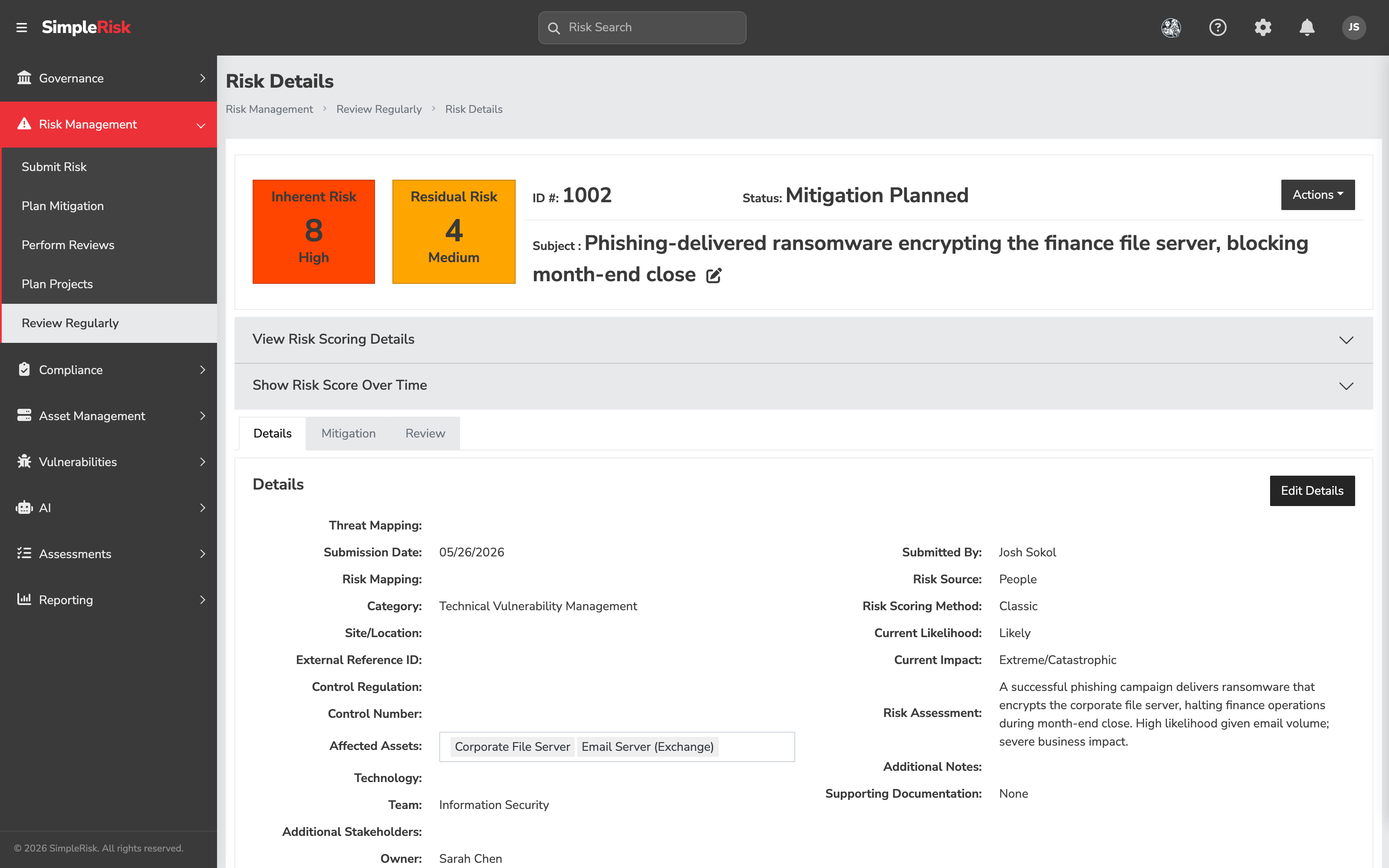
From any list, dashboard, or report, clicking a risk opens its detail view at /management/view.php?id={id}. The detail view is the working surface for everything that happens to a risk after submission — every other action in this article happens from one of its tabs.
The page opens on a header card carrying the risk's Inherent Risk and Residual Risk score chips, its ID #, its Status, and its Subject — with an Actions menu at the right holding the things you do to a risk rather than edit on it.
Below the header sit two collapsible panels and then the tab bar:
- View Risk Scoring Details — expands to show the scoring methodology and the inputs behind the current score.
- Show Risk Score Over Time — expands to the score history chart, which is the surface this article's "tracking over time" is really about.
Three tabs follow:
- Details — everything from the submission form: the mappings, category, location, assets, technology, control references, team, stakeholders, owner, and the Risk Assessment and Additional Notes text. Edit Details opens it for editing.
- Mitigation — the mitigation plan and the accept/reject sign-off (see Mitigating a Risk).
- Review — the risk's review history, and where the review form renders once you open it.
The thing that catches people out: you can't start a review from the Review tab. Opening the tab shows you what has already happened. To record one, go to Actions ▸ Perform a Review — the form then appears in the Review tab as Submit Management Review. Closing a risk works the same way: Actions ▸ Close Risk, not a button on any tab.
2. Update the risk when something changes
Changes happen on the tab that owns the field. Re-scoring and re-assigning ownership both happen on Details, through Edit Details. Updating the mitigation plan happens on Mitigation. Each surface has its own save action; the change is committed when you save, and an audit-trail entry is written at that moment recording the user, the timestamp, and the affected fields.
The exception is the review cycle, which records that the risk has been re-examined even when nothing else has changed. A clean review (no field changes, just a "still accurate as of today" sign-off) is a valid review and updates the Next Review Date the same way a substantive review does.
3. Run the regular review
Risks come due for review based on the per-level frequency table or a custom date set during a prior review. The Review Regularly queue at /management/review_risks.php lists every risk in the register, sorted Unreviewed first, then Past Due, then Next Review Date ascending. Working from the top of that queue is how the program keeps reviews from drifting.
Each review submission resets the Next Review Date to either the auto-calculated date (based on the current risk level and the review-frequency table) or a custom override the reviewer enters. The auto-calculated path uses Inherent Risk or Residual Risk as its basis depending on the install's next_review_date_uses setting; ask your administrator if you're not sure which.
The full mechanics of the review form are in Reviewing and Approving Risks. Same form, same fields — just triggered by the regular cycle instead of by a new submission.
4. Read the audit trail
Every change to a risk is recorded in SimpleRisk's audit log. The log is visible on the risk's detail view under the Audit Trail section (sometimes rendered as a dedicated tab depending on theme), and it shows entries in reverse-chronological order with the user, timestamp, and a short message describing what changed.
What's tracked, in practice:
- Submission of the risk itself.
- Field changes on Risk Details, Scoring, and Mitigation — each save writes one entry per affected field.
- Review submissions, including the review classification, the reviewer's name, and any custom next-review date.
- Mitigation accept/reject events.
- Status transitions (status changes from New to Mgmt Reviewed on first review, to Mitigation Planned on first mitigation, etc.).
- Comments added to the risk.
- Closure and reopening of the risk.
The audit trail is the answer to "what happened to this risk in the last year." Auditors read it; reviewers should read it before doing the next review (so the new review reflects what the prior one did). The trail can also be queried programmatically through the v2 API at GET /api/v2/risks/{id} for the current state of the risk and its associated history.
5. Close the risk
A risk gets closed when it's no longer applicable. The triggering conditions vary:
- Mitigated to within tolerance. The mitigation has been implemented, the residual risk is acceptable, and the risk is no longer something the program needs to track actively.
- System retired. The asset the risk applied to is gone, so the risk is moot.
- Submitted in error. The entry shouldn't have been a risk in the first place, or it duplicates an existing entry that's already being tracked.
- Risk accepted. Leadership has formally accepted the risk at its current level and the program isn't going to do additional treatment work; closing it as accepted records the decision.
Closing happens through the Close Risk action on the risk's detail view (often surfaced as a button or menu item depending on theme), which loads a close form asking for:
- Close Reason — a dropdown of close-reason categories (configurable per install; common seeded values are Risk Closed: System Retired, Risk Closed: Risk Accepted, Risk Closed: Mitigation Implemented, Risk Closed: Submitted in Error). The selection records why the close happened.
- Close-Out Information — free-text textarea for the rationale, the supporting context, and any references that justify the close.
Click Close Risk to commit. SimpleRisk records the close, sets the risk's status to Closed, populates the closed date, writes an audit-log entry, and stops surfacing the risk on the active dashboards (closed risks remain in the database and are visible through the Show Closed Risks views, but they don't count toward the active register).
Closing a risk requires the Able to Close Risks permission. Without it, the Close Risk action either doesn't appear or returns a permission error on click.
6. Reopen a risk if needed
Closed isn't permanent. If circumstances change (a previously-retired system comes back online, an accepted risk's likelihood spikes, a duplicate that was closed turns out to have been the live entry), the risk can be reopened from /management/reopen.php. Reopen restores the risk to the active register, sets its status back to Reopened, and writes an audit-log entry recording the reason. Reopening requires the Able to Modify Risk Details permission.
The audit trail preserves both the close and the reopen as separate events, which is what makes the close-then-reopen path legible to a future reader. A risk that's been closed and reopened twice tells a different story than one that's been continuously open the whole time, and the audit trail is what lets that distinction show up.
Common pitfalls
A handful of patterns recur across customers when tracking goes sideways.
-
Reviews skipped, never made up. A program that misses a quarter of reviews and never goes back to catch up ends up with a register where most risks are stale by definition. The dashboards show this directly (Past Due count climbs and stays high), but the count doesn't fix itself. Block off review time on a recurring calendar and treat it as load-bearing — a register that hasn't been reviewed in six months tells the wrong story to anyone who reads it.
-
Closing too aggressively. Some programs close every risk that's been mitigated, and then have nothing on the active register because every successful treatment removes the risk from view. Mitigation reduces residual; closure removes the risk from active tracking entirely. A mitigated risk that still requires periodic attention belongs open with a tighter next-review cadence, not closed. Close when there's nothing left to track, not when the immediate work is done.
-
Closing too cautiously. The opposite failure: a register where nothing ever closes because the program isn't sure when "done" is. The result is a register with hundreds of stale entries, a Past Due count that no human can keep up with, and a signal-to-noise ratio that decays until reviewers stop looking. Close the obviously-done ones; the discipline of closure is what keeps the active register meaningful.
-
Editing without explaining in the audit trail. A score change shows up in the audit log as "scoring updated by
{user}at{time}" with the new values. If the why lives only in the reviewer's head, future readers can't reconstruct the reasoning. Record the why in a comment on the risk; it's preserved alongside the audit entry and answers the questions an auditor will ask six months later. -
Letting Past Due become wallpaper. Past Due is the dashboard signal that risks aren't being reviewed on cadence. Programs sometimes accept a Past Due count of 20 or 30 as "the way things are" and stop reading the indicator. The fix is operational, not display-side: either bring the cadence back to current or tune the per-level review frequency to match what the team can sustain. A Past Due count of zero on a poorly-tuned frequency is no better than a high count on a reasonable one — the goal is the cadence the program can actually maintain, with the dashboard reflecting reality.
-
Reopening without a recorded reason. Reopen does write an audit-log entry, but the entry doesn't capture why the reopen happened. Add a comment when reopening, explaining what changed. The combination of the audit-log timestamp and the comment is what makes the reopen legible — without the comment, the audit trail says "this got reopened" without saying "here's what changed in the world that justified it."
-
Treating the audit trail as immutable when it isn't quite. Most actions write audit entries. A small number of administrative operations (manual database edits performed outside SimpleRisk, for example) won't appear in the trail because they bypass the application layer entirely. Don't assume the audit trail is a perfect history without knowing what the operations team has done at the database level; the trail covers the application, not the database.