
Why this matters
Every entry in the risk register starts with a submission. The submission is where the discipline of "scope a risk you can score, own, and treat" gets enforced — or quietly skipped, which is what produces the spreadsheet of sixty cybersecurity-shaped non-risks that auditors flag every time. The downstream review, scoring, and mitigation work all read what you wrote here.
The form is short. What takes time isn't filling it out; it's having the right answers to type into it.
Before you start
Have these in hand before you open the form:
- The Able to Submit New Risks permission on your account. If you don't have it, the sidebar entry won't appear and the form will refuse to save — ask your administrator. (See Permission Reference.)
- A specific subject. Not "ransomware." Not "third-party risk." A scenario you can describe in one sentence — see Common pitfalls below for examples.
- A name to put in the Owner field. One human, accountable for the risk. If you can't name one, the conversation about ownership comes before the submission, not after.
- The scoring methodology your program uses. Classic is a sensible default if you don't have a strong reason otherwise. The full picture is in Risk Scoring Methodologies.
- For risks tied to specific systems, the asset names or asset groups in your inventory. The form can attach them, and that linkage is what makes asset-level reporting work later.
Step-by-step
1. Open the Submit Risk form
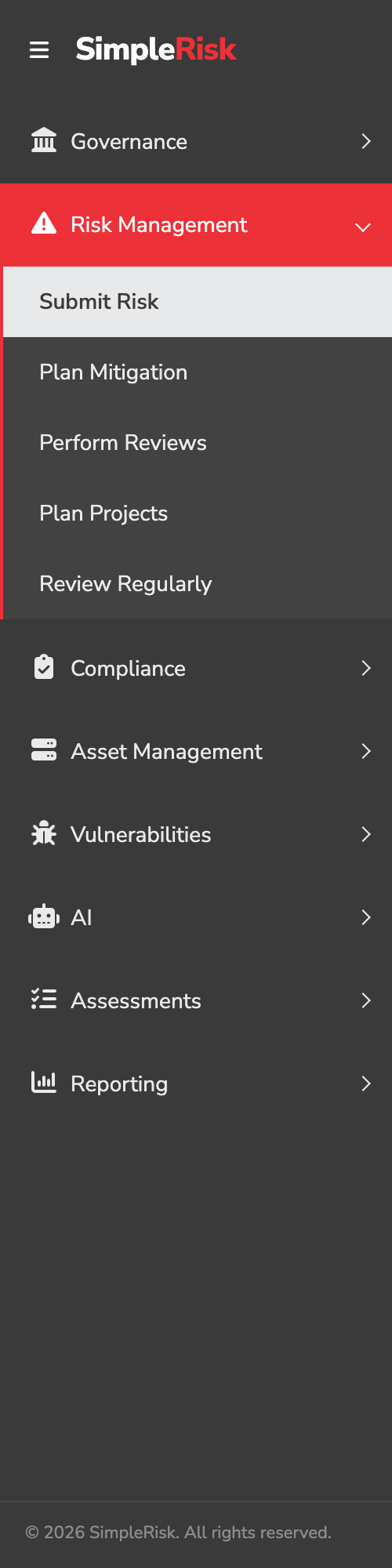
In the sidebar, expand Risk Management and click Submit Risk. The form loads on /management/index.php. If the Submit Risk entry isn't visible, your account doesn't have the Able to Submit New Risks permission — the sidebar hides what the role doesn't grant.
2. Write the Subject
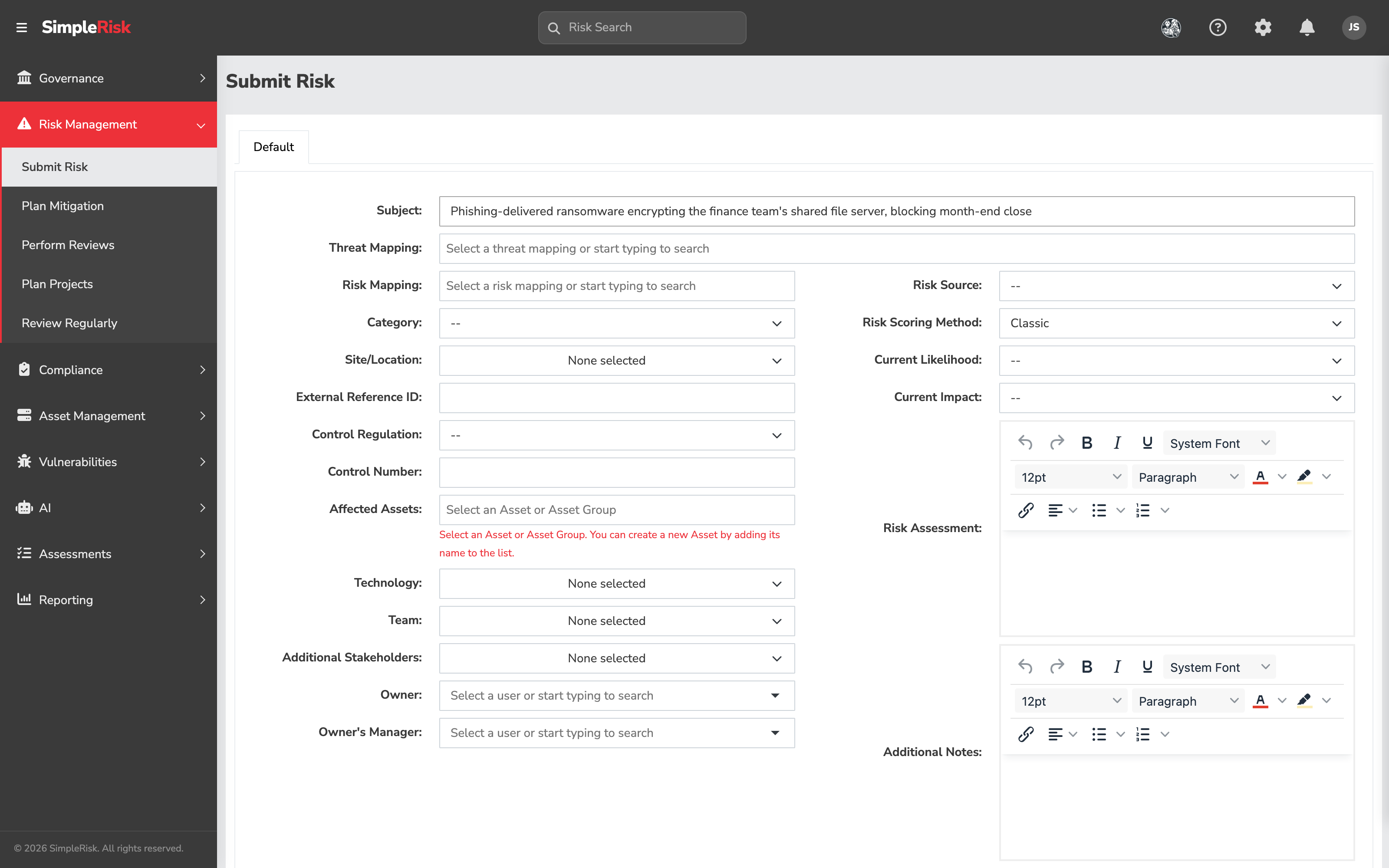
Subject is the only field SimpleRisk requires. The default character limit is 300, and an administrator can change it per install. An empty Subject blocks save and shows "The subject of a risk cannot be empty."
Treat the Subject as the one thing your future self, the reviewer, and the auditor will see on every dashboard and export. A useful pattern is threat exploiting vulnerability against asset, with consequence:
- Bad: Ransomware — Third-party risk
- Better: Phishing-delivered ransomware encrypting the finance team's shared file server, blocking month-end close
- Better: Vendor X loses SOC 2 attestation, forcing a contract-clause renegotiation under tight timing
If your draft Subject describes a topic rather than a scenario, you have a category, not a risk. Break it down before submitting.
3. Map the risk and the threat (optional)
The Threat Mapping and Risk Mapping fields sit at the top of the form, directly under Subject and in that order. They link the entry to your risk and threat catalogs so cross-cutting reporting can group risks that share an underlying driver. Both are optional by default — though an administrator can make Risk Mapping mandatory for every submission, in which case the form won't save without it. If you've adopted a catalog, populate them; if not, leave them blank and revisit later.
4. Fill in the Details panel (left column)
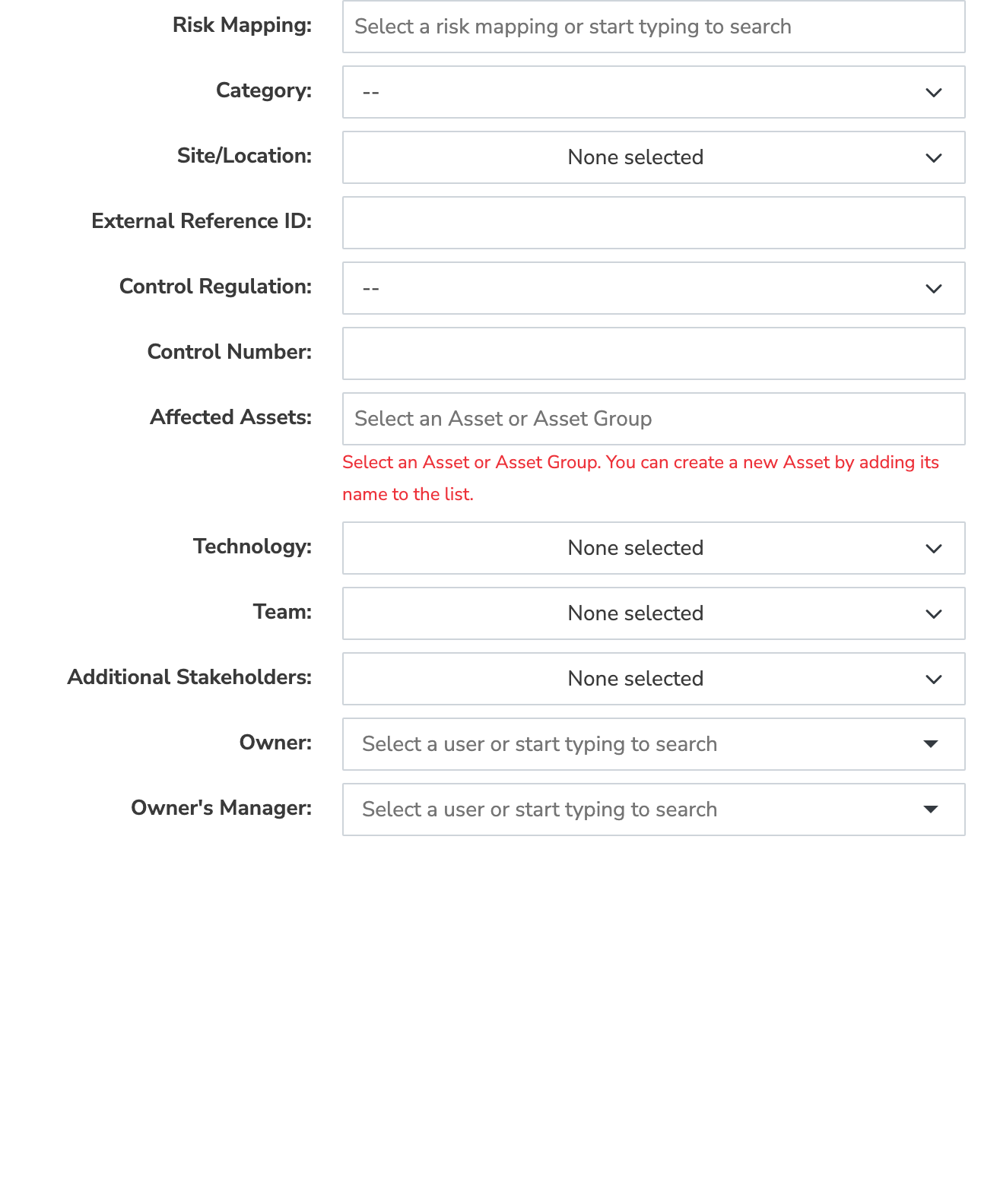
The left column holds the descriptive fields. None are required, but we recommend filling Category, Owner, and Affected Assets on every submission — those three make the entry searchable, accountable, and tied to the inventory.
- Category — dropdown of your configured risk categories. Editable in admin configuration.
- Site/Location — multi-select. Useful when a risk only affects one office, region, or environment.
- External Reference ID — free text, max 20 characters. Park a ticket number or audit finding ID here.
- Control Regulation and Control Number — link the risk to a regulation and a specific control. Control Number is free text, max 50.
- Affected Assets — search and select assets or asset groups from your inventory; you can also create a new asset by typing a name that doesn't yet exist. For high-impact risks, this linkage is what makes the impact real to a reader who wasn't in the room when the risk was identified.
- Technology — multi-select; the stack the risk touches.
- Team — multi-select; the team or teams responsible for the affected work.
- Additional Stakeholders — multi-user picker. People who need to be in the loop but don't own the risk. Notifications surface here when enabled.
- Owner — single-user picker. The one person accountable.
- Owner's Manager — single-user picker. Routes reviews up the chain when the owner isn't available.
5. Pick a Risk Source and a Scoring Method (right column)
The right column is the scoring side.
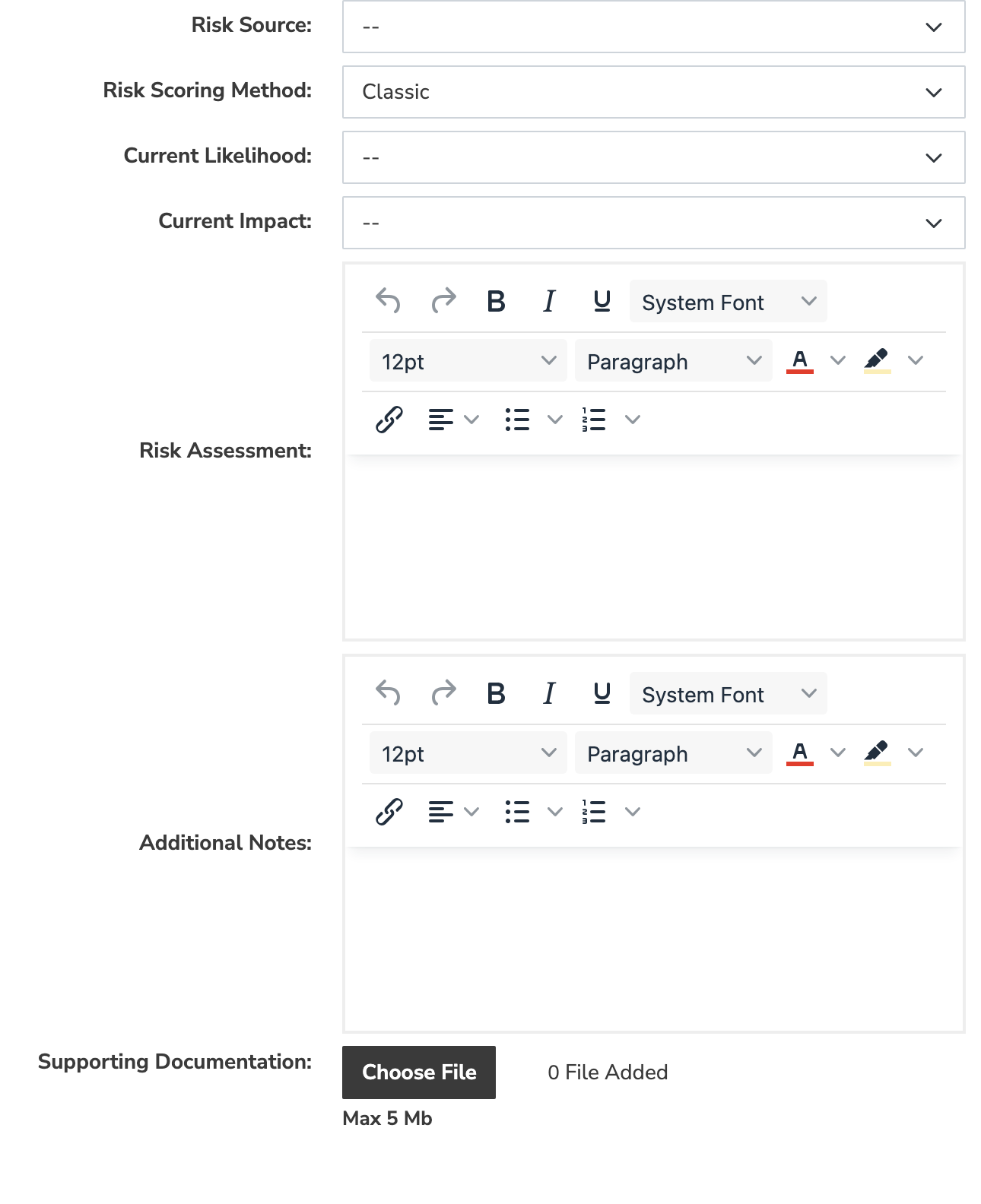
- Risk Source — dropdown for where the risk surfaced. A stock install ships External, People, Process, and System; administrators usually replace these with the channels their programme actually uses (audit, self-assessment, scanner, incident, threat intel). Useful for reporting on which channels really feed the register.
- Risk Scoring Method — six seeded options: Classic, CVSS, DREAD, OWASP, Custom, and Contributing Risk. Default is Classic; the choice determines which scoring inputs appear next.
- Methodology-specific inputs — Classic reveals Current Likelihood and Current Impact dropdowns on the form itself, and Custom reveals a single Custom Value field. CVSS, DREAD, OWASP, and Contributing Risk each show a scoring button that opens their own modal. The full breakdown is in the field reference below.
- Risk Assessment — a rich-text editor, two or three sentences: what could happen, to whom, with what consequence. The Subject is the headline; this is the abstract.
- Additional Notes — a second rich-text editor, for context that didn't fit elsewhere.
- Supporting Documentation — file upload for the audit finding, scanner report, policy document, or whatever else supports the risk being on the register.
Pick the methodology that matches the risk shape: Classic for the bulk of risks, CVSS when you're scoring a known CVE, DREAD or OWASP for application-security work, Custom or Contributing Risk when the program has its own rubric. The deep dive is in Risk Scoring Methodologies.
6. Tag the risk and submit
Below the two columns, attach Tags — free-text labels that surface in search, filtering, and reporting. Each tag is capped at 255 characters.
When everything's filled in, click Submit Risk. SimpleRisk saves the entry, redirects you to the risk's view page at /management/view.php?id={id}, and shows a success alert with the subject text. From there the risk is in the register and ready for review. Clear Form resets every field and snaps Risk Scoring Method back to Classic. The browser will also prompt you before navigating away if Subject has any text — that's intentional, and the warning has saved more than one half-finished submission.
Field reference
Every field on the form, what it captures, and what you can put in it. Only Subject is always required; everything else is optional unless your administrator has configured otherwise.
Subject
- What it captures: The risk's headline — the one line shown on every dashboard, report, and export.
- What you can enter: Free text, up to 300 characters by default (an administrator can change the limit). Required.
Threat Mapping
- What it captures: Links the risk to your threat catalog.
- What you can enter: One or more threat-catalog entries.
Risk Mapping
- What it captures: Links the risk to entries in your risk catalog so cross-cutting reports can group risks that share a driver.
- What you can enter: One or more risk-catalog entries, grouped by risk grouping. Can be made required by an administrator.
Category
- What it captures: Classifies the risk for filtering and reporting.
- What you can enter: One value from your administrator-managed category list.
Site/Location
- What it captures: The site(s) or location(s) the risk affects.
- What you can enter: One or more locations from the administrator-managed list.
External Reference ID
- What it captures: A ticket number, audit finding ID, or other external reference.
- What you can enter: Free text, up to 20 characters.
Control Regulation
- What it captures: The regulation or framework the risk relates to.
- What you can enter: One framework from those installed on your instance.
Control Number
- What it captures: The specific control within that regulation.
- What you can enter: Free text, up to 50 characters.
Affected Assets
- What it captures: The assets or asset groups the risk impacts — the linkage that drives asset-level reporting later.
- What you can enter: One or more existing assets or asset groups; type a name that doesn't exist yet to create a new asset.
Technology
- What it captures: The technology stack the risk touches.
- What you can enter: One or more values from the administrator-managed technology list.
Team
- What it captures: The team or teams responsible for the affected work.
- What you can enter: One or more teams.
Additional Stakeholders
- What it captures: People who need to be kept in the loop but don't own the risk.
- What you can enter: One or more users. Surfaces in notifications when enabled.
Owner
- What it captures: The single person accountable for the risk.
- What you can enter: One user.
Owner's Manager
- What it captures: Who reviews when the owner isn't available.
- What you can enter: One user.
Risk Source
- What it captures: Where the risk surfaced (audit, self-assessment, scanner, incident, threat intel, etc.).
- What you can enter: One value from the administrator-managed source list.
Risk Scoring Method
- What it captures: The methodology used to score the risk; the choice changes which scoring inputs appear (see below).
- What you can enter: One of Classic, CVSS, DREAD, OWASP, Custom, or Contributing Risk. Defaults to Classic.
Risk Assessment
- What it captures: The short abstract: what could happen, to whom, with what consequence.
- What you can enter: Free-form text.
Additional Notes
- What it captures: Any context that didn't fit the other fields.
- What you can enter: Free-form text.
Jira Issue Key
- What it captures: Links the risk to a Jira issue, or creates one on submit.
- What you can enter: A Jira issue key, validated when you save. Appears only with the Jira Integration Extra.
Supporting Documentation
- What it captures: Evidence backing the risk — the audit finding, scanner report, or policy document.
- What you can enter: One or more file uploads, each within your instance's maximum upload size.
Tags
- What it captures: Free-form labels that surface in search, filtering, and reporting.
- What you can enter: One or more tags, up to 255 characters each; you can create new tags inline.
Scoring inputs by method
The Risk Scoring Method you pick determines the inputs that appear beneath it:
- Classic — two dropdowns right on the form, Current Likelihood and Current Impact, each drawn from your configured likelihood and impact scales.
- CVSS — a Score Using CVSS button that opens a modal for the base, temporal, and environmental metrics.
- DREAD — a Score Using DREAD button opening a modal with five factors: Damage, Reproducibility, Exploitability, Affected Users, and Discoverability.
- OWASP — a Score Using OWASP button opening the OWASP Risk Rating modal, which covers the likelihood and impact factor groups.
- Custom — a single Custom Value field on the form. Any number from 0 to 10, in steps of 0.1; it opens at your instance's default risk score.
- Contributing Risk — a Score Using Contributing Risk button opening a modal with one overall likelihood plus an impact value for each contributing risk your program has defined.
Only Classic and Custom put their inputs directly on the form. The other four sit behind a button, so if you pick one of them and see no new fields appear, look for the scoring button rather than assuming the form is broken.
The methodology deep dive is in Risk Scoring Methodologies.
Two things that change the field set
- The Customization Extra replaces the fixed layout above with template-group panels and can add administrator-defined custom fields, or hide fields you don't use. If your form looks different from this reference — extra fields, a different arrangement — that Extra is why, and the exact field set depends on the template group applied to the risk.
- The Encrypted Database Extra, when enabled, stores the free-text fields (Subject, Risk Assessment, Additional Notes) encrypted at rest. The form behaves identically; the difference is only in how the data is held.
Common pitfalls
A handful of patterns show up over and over on submissions, and most are best caught here rather than in review.
-
Subject too generic. Ransomware, insider threat, third-party risk, cloud security. Each is a topic, not a risk. The Subject should describe a scenario specific enough that two people who weren't in the room interpret it the same way. If two reasonable people would disagree on what the entry refers to, rewrite it.
-
Trying to mitigate at submission time. New submitters often fill Risk Assessment or Additional Notes with the mitigation plan they've started thinking about. Don't. Mitigations belong on the mitigation tab after review; conflating "what's the risk" with "what are we doing about it" skews scoring before anyone's pushed back. There's a separate workflow for mitigation.
-
Picking the wrong scoring methodology for the risk type. CVSS for a "vendor goes out of business" risk is a misfit — there's no attack vector to score. Classic for a known CVE throws away the NVD data the vendor already published. Match the methodology to the data you have, not to a house preference. We've watched programs adopt CVSS as a house standard, then quietly score most non-vulnerability risks at "Medium / Medium" because the form doesn't have anything more useful to ask.
-
Assigning to a team instead of a person. IT doesn't own a risk. The security team doesn't own a risk. A named human owns a risk, and that human is the one who gets the review reminder. Use Team for which team is involved; use Owner for the accountable person.
-
Leaving Risk Assessment blank. Zero sentences forces every reviewer to ping the submitter for context, and review queues already move slowly enough.
-
Not linking Affected Assets when the risk is asset-shaped. If the risk is "the database server in the colocation facility loses power," Affected Assets should reference that server. Without the link, asset-level reporting won't show the risk, and the inventory you spent six months building stops paying you back on this entry.
-
Submitting a vulnerability or a threat as a risk. "Server is missing a patch" is a vulnerability. "Nation-state actors target our industry" is a threat. A risk is a threat exploiting a vulnerability against an asset, with a likelihood and an impact you can score. Confusing the three produces inconsistent scores and confusing reports — see What is a Risk Register and From Vulnerability to Risk.