
Requires: Business Continuity and Disaster Recovery Extra
Control links to the Secure Controls Framework also need the Secure Controls Framework (SCF) Extra. The AI features also need the Artificial Intelligence Extra, and your administrator must switch each one on.
Why this matters
You've built the BIA, written the plans and run the exercises. The reports answer the questions someone senior will ask next: what isn't covered, what is overdue, and which compliance controls this work supports. The answers come from the data you've already entered, so a report that looks bad is usually telling you something true.
Before you start
- Reports need Allow Access to Business Continuity and Disaster Recovery.
- Linking a plan to a control needs Able to Manage Continuity and Recovery Plans; a process, Able to Manage Business Impact Analysis; an exercise, Able to Run Plan Exercises.
- Opening a risk from the BIA Completeness report needs both Able to Manage Business Impact Analysis and permission to submit risks.
Step-by-step
1. Read the BCP / DR Dashboard
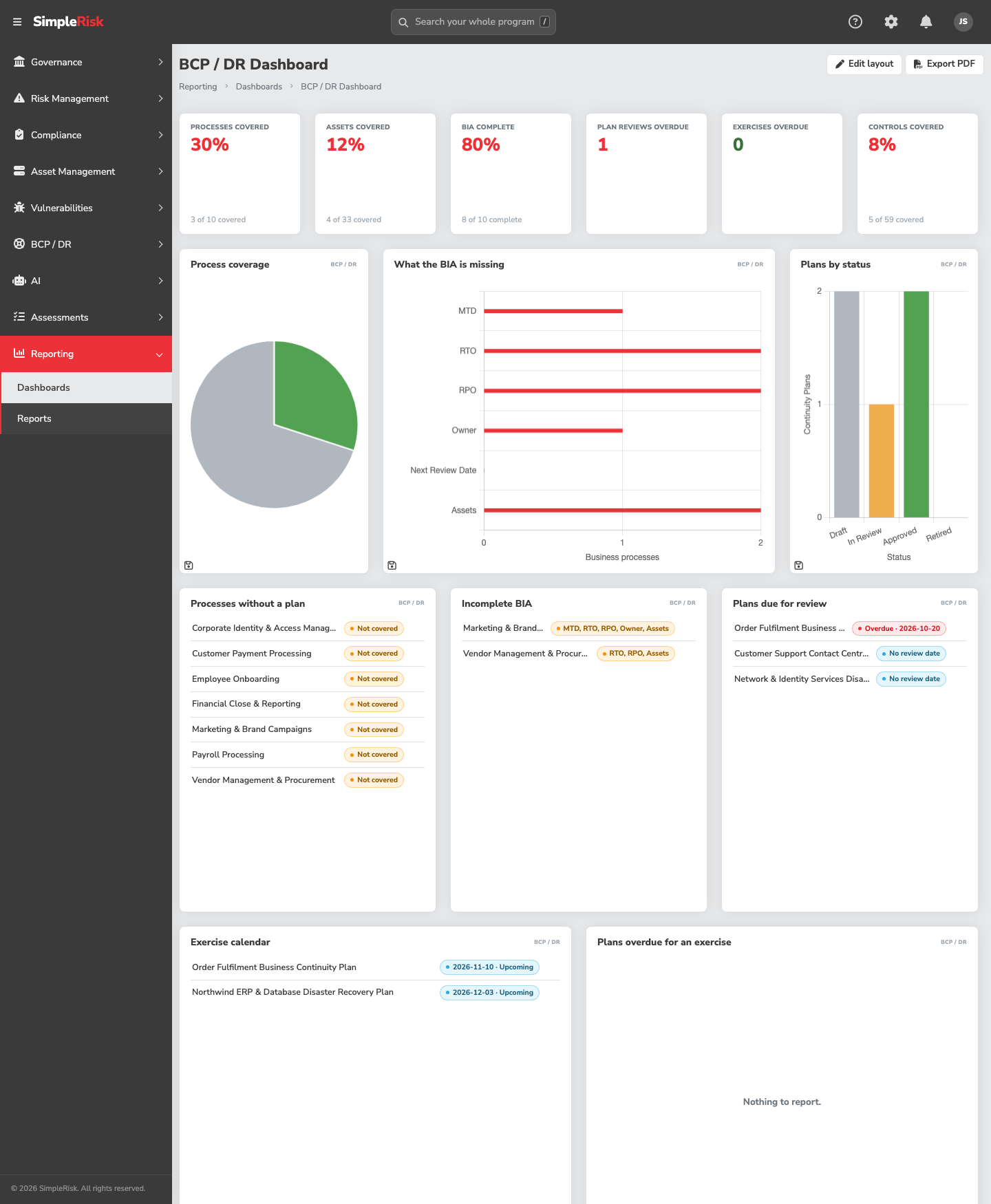
Open Reporting, then Dashboards, choose the BCP / DR filter and open BCP / DR Dashboard. It appears there only while the Extra is on, for people who hold the permission to view business continuity. From the top it shows:
The dashboard is a grid of widgets, like the Governance and Compliance dashboards, and it is read-only: it needs only the permission to view business continuity, and nothing on it changes data. Across the top, six tiles show the coverage and overdue counts. Below them are lists:
- Plan coverage: what an approved plan in force covers. A draft, a plan in review or a retired plan covers nothing. A process is covered when a plan in force names it in its scope. An asset is covered when a plan names it or an asset group it belongs to. The tiles show Processes covered and Assets covered as percentages with a "{n} of {total} covered" line, and the lists show Processes without a plan, Assets without a plan and Asset groups without a plan. Assets you can't see are left out, as everywhere else.
- BIA completeness: a process is complete with an MTD, an RTO and an RPO, an owner, a next review date and at least one mapped asset or asset group. Incomplete BIA shows what each process is missing. RTO not shorter than MTD lists processes saved that way, for example by an import, and links each to its risk if one was opened or to the process if not. The dashboard itself never opens a risk.
- Plans due for review: plans whose review date has passed, falls within the next week, or hasn't been set. Retired plans are left out.
- Exercise calendar and Plans overdue for an exercise: scheduled exercises, those whose date has passed without a result, and plans past their annual exercise.
- SCF business continuity controls and the Controls covered tile: see the next step.
- Charts: Process coverage (covered against not covered), What the BIA is missing (how many processes lack each of MTD, RTO, RPO, owner, review date and assets) and Plans by status.
- Recovery order and Availability Mismatches: the first ten processes in recovery order, and the assets whose Availability doesn't match what depends on them.
- Continuity gaps: the rule-based gaps list, described in step 5. It needs no AI and no switch.
With the Customization Extra, Edit layout lets you move, resize, add and remove widgets and save the arrangement as your own. Administrators can also set it as the default for everyone. With the Import-Export Extra, Export PDF downloads the dashboard as it is on screen. Without either Extra the buttons are there, marked as locked.
The Recovery Priority and Availability Mismatches reports are under Reporting, then Reports, with the BCP / DR filter. The dashboard's Recovery order and Availability Mismatches widgets are their headlines.
2. Link controls
On a plan's Compliance Controls card, on a business process, or on an exercise, click Link Control and choose from the Secure Controls Framework's Business Continuity and Disaster Recovery (BCD) controls. Links belong to the plan, not to a version, so approving a new version keeps them. Deleting a process or an exercise removes its links. A retired plan keeps its links as history but they become read-only and no longer count.
Without the SCF Extra there are no controls to pick, and the picker explains why.
A plan also has a Link Risk action for the risks it addresses. Only the risks you're allowed to see are shown.
3. Read the control coverage
SCF BCD Control Coverage lists each BCD control as Covered or Not covered, with Linked from showing the counts: "Plans: n, processes: n, exercises: n". A control is covered when:
- an approved plan in force links to it, or
- a business process links to it, or
- an exercise with a recorded result links to it.
A scheduled exercise with no result, a draft plan and a retired plan don't count. Note the middle one: a process link counts by itself, whether or not any plan exists. That makes it the cheapest cover to claim and the easiest to over-claim, so link controls to a process only where its BIA really supports the control.
Below it, Coverage in other frameworks uses your framework mappings to show, for each framework, how many BCD controls map to it and how many of those are covered.
4. Use AI suggestions (optional)
If your administrator has switched it on, you can ask for AI help with drafting. The rule is the same everywhere: AI proposes, a person decides.
Suggest with AI appears on a business process, for drafting BIA values from its description, dependencies and mapped assets, and in an AI suggestions card on a plan's draft, for section text and recovery steps. It's only available on an open draft version of a plan, and you need the matching edit permission.
- Click Suggest with AI. The suggestion is drafted in the background; the card says "Drafting a suggestion…" and the result appears for review when it's ready. There is at most one open suggestion per process or plan draft.
- Review it. You see the current values next to the Suggested ones, the Reasoning, and for a plan the Steps to add. The note "Drafted by AI. Check it before you accept it." means what it says.
- Click Accept suggestion to apply it, or click Reject to close it without changing anything. Accepting replaces the current values shown. For a plan, it replaces the text of the sections shown and adds the suggested steps, then reloads the draft, so save any edits on the page first.
Suggestions that don't pass checks (a duration that isn't whole minutes, an RTO that isn't shorter than the MTD, markup in the text) are discarded. The prompt contains names and descriptions, but never contacts, owners, the call tree, findings, activation reasons or the written text of your impact narratives and plan sections.
5. Read the continuity gaps
Continuity gaps are found by rules inside SimpleRisk, not by AI, so there is nothing to switch on and no provider is involved. The Continuity gaps widget on the dashboard lists them, each with a High or Medium severity:
- High: a process with no MTD, RTO or RPO; a process whose RTO isn't shorter than its MTD; a plan whose most recent exercise failed or overran its RTO; and a plan whose scope needs a shorter RTO than its recovery tier can usually achieve.
- Medium: a process missing some of its MTD, RTO and RPO; an asset that business processes depend on but no plan in force covers; a plan overdue for an exercise; and a call tree with no backup contact.
Common pitfalls
- Reading "covered" as "tested". Plan Coverage means an approved plan names it. Only the exercise reports say whether anyone tried it.
- Chasing a process with no assets. A process with no mapped assets is incomplete, and it also can't contribute to the recovery order of any asset.
- Accepting a suggestion unread. Drafted values look plausible. That is the risk.