
Requires: Business Continuity and Disaster Recovery Extra
Exercises, recorded results and findings are part of this Extra.
Why this matters
SP 800-34 asks for a test at least annually, and the Extra holds you to that. But the schedule isn't the point. The point is the list of things that didn't work, because there always is one. The first exercise of any plan finds the contact who left, the runbook step that assumed access nobody has, the restore that took nine hours instead of two. A plan nobody has exercised is a hypothesis.
Before you start
- You need Able to Run Plan Exercises to schedule or record. Anyone with view access can read them.
- An exercise is scheduled against a plan. If the plan has an approved version, the exercise runs against that version.
- Open a risk from a finding only if you also hold the permission to submit risks.
Step-by-step
1. Schedule an exercise
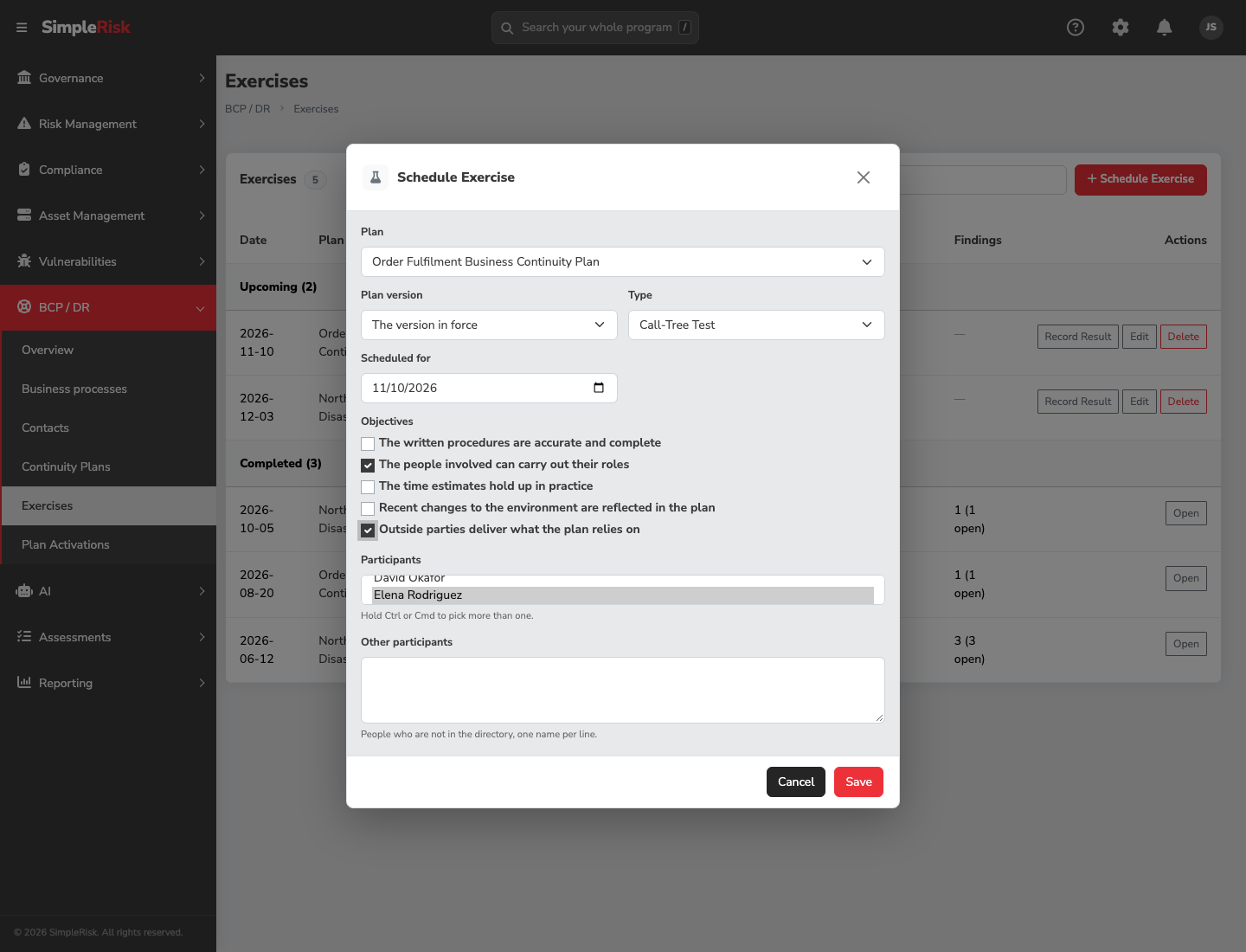
Open Exercises and click Schedule Exercise. Fill in:
- Plan, and Plan version. The default is The version in force. A plan with no approved version shows No approved version yet.
- Type: Tabletop / Rehearsal, Failover Test, Live Failover or Call-Tree Test.
- Scheduled for: the date.
- Objectives: what the exercise sets out to prove. Pick from the list: the written procedures are accurate and complete; the people involved can carry out their roles; the time estimates hold up in practice; recent changes to the environment are reflected in the plan; outside parties deliver what the plan relies on.
- Participants: pick directory contacts (hold Ctrl or Cmd to choose more than one), and add anyone who isn't in the directory under Other participants, one name per line.
Until you record a result, you can edit the exercise or delete it. The upcoming exercises appear under Upcoming, and the person who scheduled it and any directory participants get a reminder once the date is within a week.
Clicking an exercise in the list opens it, and the address bar follows: ?exercise= and the exercise's number for its details, with &mode=edit while the scheduling form of a scheduled exercise is open. Copy the address to send a colleague straight to that exercise.
2. Record the result
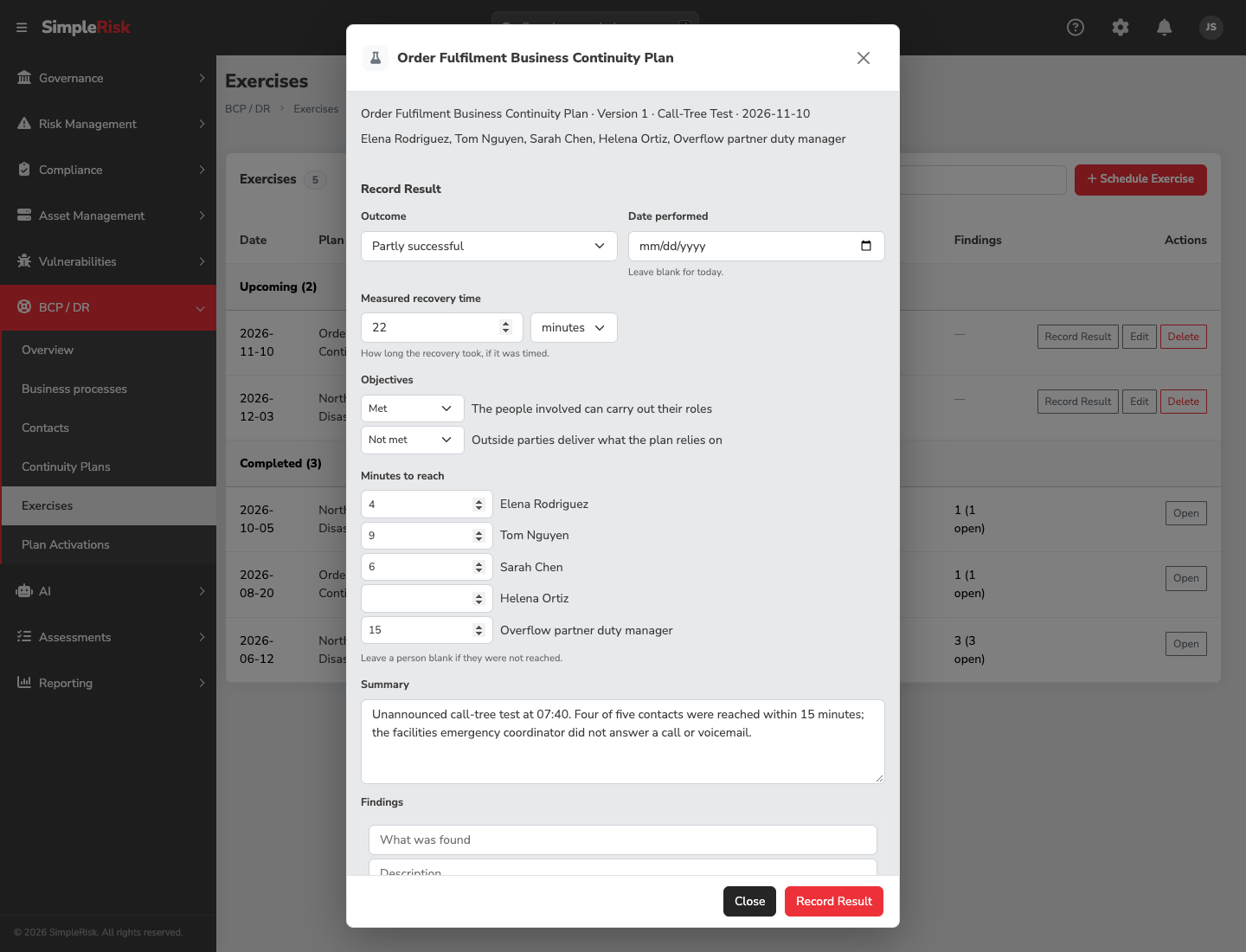
After the exercise, open it and click Record Result.
- Set the Outcome: Pass, Partly successful or Fail.
- Enter the Date performed. Leave it blank for today; a future date is refused.
- If you timed it, enter the Measured recovery time in minutes, hours or days.
- Mark each objective Met, Not met or Not assessed.
- For a call-tree test, enter Minutes to reach for each participant. Leave a person blank if they were not reached. The result then reads like "4 of 6 people reached".
- Write a summary, and add findings (next step).
Once recorded, the exercise can't be rescheduled or deleted. If you got something wrong, click Correct Result; the correction is written to the audit log.
SimpleRisk compares the measured time with the tightest RTO among everything in the plan's scope, and shows Within the RTO, Over the RTO, or No RTO to compare when nothing in scope has an RTO or you didn't time it. Finishing in exactly the RTO counts as within it. The RTO is fixed when you first record the result, so a later change to the BIA doesn't rewrite history.
3. Capture findings
Click Add Finding. Give it a title under What was found and, if useful, a description. A finding is the unit of follow-up: one problem, one entry.
To turn a finding into a tracked risk, either tick Open a risk for this finding before saving or click Open Risk on the saved finding. SimpleRisk creates an ordinary risk with the subject "BCP/DR exercise finding" and a note naming the plan, and records the link on the finding. One finding opens one risk; a second click tells you it already has one. If you don't hold the permission to submit risks, the result is still saved, and you're told no risk was opened. The finding shows if the risk is later deleted. When the measured time was over the RTO, the screen reminds you to open a risk from a finding to keep track of it.
4. Watch what's overdue
The Exercises page flags two kinds of plan:
- Plans due for an exercise: an approved plan is due 365 days after its last exercise, or after its approval if it has never been exercised. It counts as overdue from the day after. Your administrator can change the 365 days.
- Last exercise failed or ran over the RTO: the most recent recorded exercise had a Fail outcome or ran Over the RTO.
The same lists appear on the Exercise Calendar in the reports, and the gap report counts both. Daily reminders also go out for an exercise whose date has passed with no recorded result.
Common pitfalls
- Recording only passes. An exercise that finds nothing usually wasn't hard enough.
- Timing the test but not the scope. The comparison uses the tightest RTO in the plan's scope. A plan that scopes in one very demanding process will show Over the RTO against it.
- Putting everything in the summary. Findings you want fixed belong as separate findings, where they can become risks.