
Requires: Business Continuity and Disaster Recovery Extra
Plan activations, notices and the recovery checklist are part of this Extra. Linking an activation to an incident also needs the Incident Management Extra.
Why this matters
An activation turns the plan from a document into a record of what happened: who declared the event and why, who was told and when, which steps were done by whom, and when it ended. That record is what you'll want for the post-incident review, and what an auditor asks for.
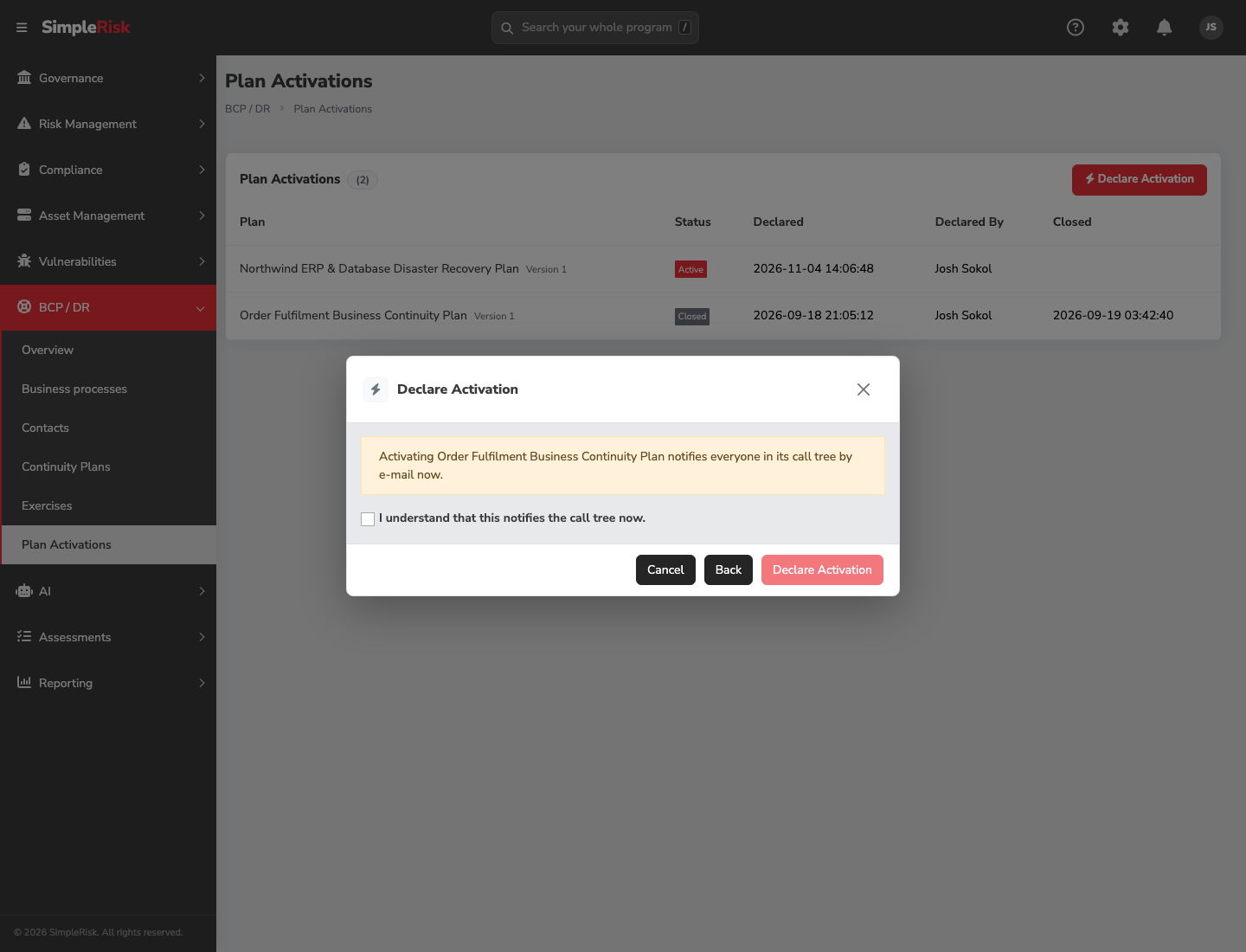
Declaring is deliberately a two-step action. It sends e-mail to everyone in the call tree straight away, and there is no recall.
Before you start
- Able to Activate Plans is required to declare, log, check off steps, retry notices and deactivate. Anyone with view access can read activations.
- The plan needs an approved version. A draft, a plan whose only version is in review, and a retired plan are refused. A plan with an approved version and a newer draft in review can be declared; the approved version is what's in force.
- The call tree should have contacts with working e-mail addresses. If it has none, you're told The call tree of this plan version has no contacts.
- Outbound mail has to work. Ask your administrator if you're unsure.
Step-by-step
1. Declare the activation
Open Plan Activations and click Declare Activation.
- Choose the plan. Only approved plans are listed. If there's none, the dialog says There is no approved plan to activate.
- Enter the Reason, required, up to 4,000 characters. It goes in the notice.
- Click Continue. The next screen reads "Activating {plan} notifies everyone in its call tree by e-mail now." Tick I understand that this notifies the call tree now.
- Click Declare Activation.
SimpleRisk pins the version that was in force at that moment. Approving a newer version during the incident changes nothing for the open activation. A plan can have only one open activation at a time; a second attempt is refused until the first is deactivated. If two events need the same plan, treat them as one response and log both on the one activation.
2. Check who was told
Each distinct contact in the call tree receives an e-mail with the plan name, who declared the activation, the reason, and a link back to SimpleRisk. The e-mail carries none of the plan's content: steps and the call tree are read in SimpleRisk, not in someone's inbox.
On the activation, the notification table lists each recipient with columns Name, Notice, Status, Delivery Attempts and Last Attempt. Status says Sent, or Not sent with a reason (No usable e-mail address. or The linked SimpleRisk user is disabled.), or that the message couldn't be sent. A notice that didn't go straight away shows as Queued to be sent shortly. and is retried automatically over about three days.
If notices have failed, click Retry Failed Notices to queue them again immediately. Only failed notices are touched, and only while the activation is open. Nothing here tracks whether a person read or acknowledged the notice, so ring the people who matter.
3. Work the recovery checklist
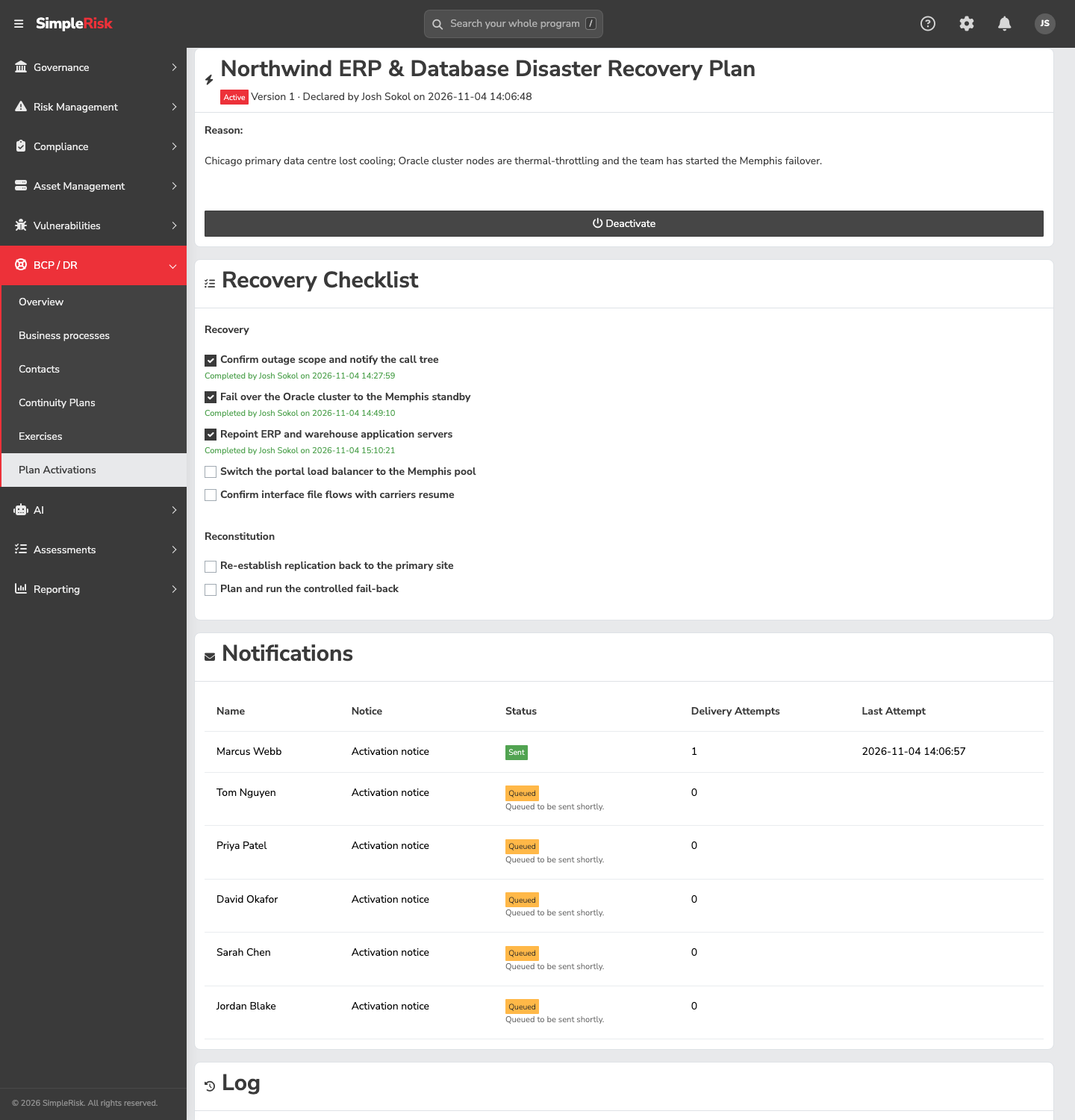
The Recovery Checklist shows the recovery and reconstitution steps of the pinned version. Tick a step as it's done and SimpleRisk records who and when ("Completed by {name} on {date}"). Untick it to reopen it; that is logged too. Steps not marked as checklist items in the plan appear as "For reference; not a checklist item."
4. Keep the log
Under Log, Add Note records anything that isn't a checklist step: a decision, a call to a vendor, a change of plan. Notes are limited to 4,000 characters. The log also fills itself with the declaration, each delivery attempt, step completions and reopenings, incident links, retries and the deactivation, each with a timestamp. You can't edit or delete log entries.
5. Link an incident
If the Incident Management Extra is active and you can view incidents, enter an Incident ID and click Link Incident. The activation then shows "Incident {id}" as a link. This links an existing incident only. It doesn't open one, because an incident needs a classification, source, owner and impact ratings that an activation can't sensibly supply. Open the incident in the Incident Management Extra first.
6. Deactivate
When recovery is complete, click Deactivate. The confirmation reads "Deactivating {plan} closes the activation and notifies its call tree. It cannot be reopened." Tick the confirmation and proceed. Deactivation sends a notice the same way the declaration did. The closed activation stays readable, with who deactivated it and when, but it can't be changed.
Common pitfalls
- Declaring to test the plan. An activation e-mails real people. Use an exercise.
- Assuming the notice holds the plan. It doesn't. Anyone who needs the steps has to open SimpleRisk or hold an exported copy; see Continuity plans.
- Expecting an acknowledgement. There isn't one in this release.
- Deactivating to reopen. There's no reopening. If the event restarts, declare again.