
Why this matters
The profile page is where you manage the parts of your SimpleRisk account that belong to you — password, MFA enrollment, language preference, API keys (if the API Extra is active), and the reset-to-default action for any custom display settings you've accumulated. Most of the operational pages assume you've completed the basic profile setup once; the rare visit to the profile page after that is to update a password, enroll in MFA when the policy changes, or rotate an API key.
The honest story about the profile page in Core: most of your profile is read-only to you. Username, email address, last-login date, manager assignment, team membership, role, and admin flag all display on the profile page but can't be edited there. Changes to those fields require an administrator (the user-management workflow lives in the Administrator Guide; see Managing Users, Teams, and Roles). The fields you can edit yourself are language preference, password, MFA settings, and API keys.
The other thing worth knowing: the profile page has separate sub-pages for the multi-step actions. The main profile view at /account/profile.php shows your information and the editable language picker. Password changes happen on /account/change_password.php. MFA enrollment happens on /account/mfa.php. API key management happens on the profile page itself (when the API Extra is active). This split keeps each operation focused but means the "manage my account" experience is several distinct pages, not one.
Before you start
Have these in hand:
- Login credentials for your SimpleRisk account.
- For password change: your current password (required to set a new one).
- For MFA enrollment: an authenticator app (Google Authenticator, Authy, 1Password, Bitwarden, etc.) installed on a device you'll have available when you log in.
- For API key generation: a clear destination for the key. API keys are credentials that authorize programmatic access to SimpleRisk through the v2 API. Treat them like passwords — store securely, don't share, rotate periodically.
Step-by-step
1. Open your profile
The user account dropdown in the top-right of any page links to the profile. Or navigate directly to /account/profile.php.
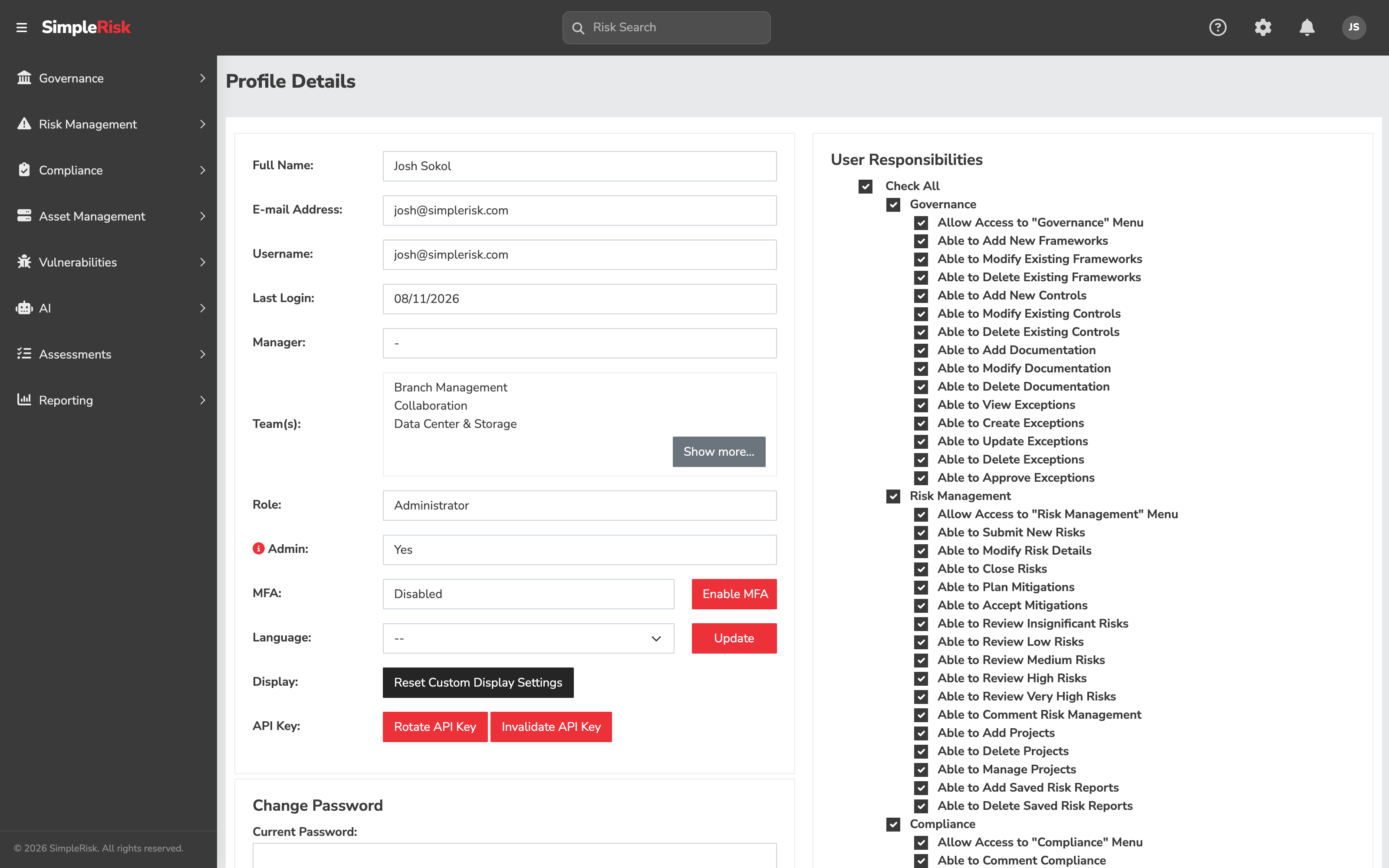
The page renders your account information in a single view:
- Username — read-only.
- Full Name — read-only on the profile page; an admin changes it from the user-management UI.
- Email Address — read-only on the profile page.
- Last Login — read-only display of your most recent login timestamp.
- Manager — read-only display of the manager assigned to you (if any).
- Teams — read-only list of teams you belong to.
- Role — read-only display of your assigned role.
- Admin — read-only flag indicating whether you have admin rights.
- Language — editable dropdown of supported languages (SimpleRisk supports 39+ locales via Crowdin). Changing the language is saved to your account; the new locale takes effect on the next page load.
Below the read-only/editable fields, the profile page surfaces the action buttons for Change Password, Enable/Disable MFA, Reset Custom Display Settings, and (if the API Extra is active) the API key management section.
2. Change your password
Click Change Password on the profile page (or navigate directly to /account/change_password.php). The form asks for:
- Current Password — your existing password.
- New Password — the password you want to set.
- Confirm New Password — the same new password, retyped.
Submit the form. The new password is checked against the install's configured password complexity rules and against your password history (SimpleRisk stores prior passwords in the pass_history table to prevent reuse — the lookback window is admin-configurable). If the new password is rejected, the form returns the specific reason; fix and resubmit.
On successful change, you stay logged in (the change doesn't invalidate the current session) but future logins use the new password.
For lost-password recovery (you can't log in to access this page), the password-reset workflow goes through the login page's "Forgot Password" link or through an admin reset.
3. Enroll in MFA
Multi-factor authentication uses Time-based One-Time Password (TOTP) codes from an authenticator app. SimpleRisk's MFA support is built on the Google2FA library; any TOTP-compatible authenticator works.
To enroll:
- Click Enable MFA on the profile page (or navigate directly to
/account/mfa.php). - The MFA page shows a QR code and a base32 secret. Scan the QR code with your authenticator app (or manually enter the secret).
- The authenticator app starts generating 6-digit codes that rotate every 30 seconds.
- Enter the current 6-digit code from your authenticator into the verification field on the page.
- Submit. SimpleRisk verifies the code against the secret; if valid, MFA is enabled on your account.
From the next login forward, after entering your username and password, you'll be prompted for the current 6-digit MFA code.
To disable MFA (if your installation's policy allows it), click Disable MFA on the profile page. Some installations require MFA for all users (mfa_required setting in admin); on those installations, the disable action is unavailable.
4. Manage API keys (when the API Extra is active)
The API Extra adds the API key management section to your profile page. The section appears only when:
- The API Extra is installed and activated by an admin.
- Your account has the necessary permissions to use the API.
When visible, the section offers:
- Generate API Key — creates a new API key for your account. The key is shown once immediately after generation; copy it to your password manager or other secure storage immediately, because it can't be retrieved later (only the hash is stored).
- Rotate API Key — invalidates the current key and generates a new one. Use this when a key may have been exposed or as part of routine credential rotation.
- Invalidate API Key — removes the key without generating a replacement. Use when you no longer need API access from your account.
SimpleRisk stores only a hash of your API key, so the key itself is never recoverable from the application. Each user's keys are scoped to that user's permissions — a key has the same access as the user who generated it.
For programmatic use, include the API key in the X-API-KEY header on requests to /api/v2/* endpoints.
5. Reset custom display settings
As you use SimpleRisk, you accumulate per-user customizations: column orderings on datatables, dashboard widget arrangements, and similar UI personalizations. These are saved against your account (see Favorites and Personalization).
If your customizations have gotten messy or you want to start fresh, click Reset Custom Display Settings on the profile page. The button clears all your custom_*_display_settings values back to defaults. The action is global across all your customizations — it doesn't let you reset just one table's columns; it resets all of them.
The reset returns a confirmation: "Your custom display settings was reset successfully." (Note: the message has a singular-verb quirk in the source string.) The reset takes effect immediately; the next datatable you visit shows default columns.
6. Logout
The user account dropdown in the top-right offers Logout. Logout invalidates the current session; future access requires re-authentication (with MFA if enrolled).
For shared workstations, explicit logout is the safe pattern. SimpleRisk's session timeout is admin-configurable; users on long-lived sessions should still log out explicitly when stepping away from the device.
Common pitfalls
A handful of patterns recur with profile management.
-
Trying to change your own name or email and finding the field read-only. This is the most common surprise. The profile page displays your name and email, but you can't edit them yourself — those fields are administrative. If you need a name correction (legal name change, typo) or an email update, ask your admin via whatever process your organization uses for user-management requests.
-
Forgetting to copy the API key after generation. API keys display once at generation time and are stored only as hashes afterward. If you click away from the generation page without copying the key, it's lost — you'll need to rotate to get a new one. Copy to a password manager immediately.
-
Enrolling in MFA without confirming the authenticator works. A common failure mode: scan the QR code, get distracted, navigate away from the page without entering the verification code, then discover at the next login that MFA is enrolled but the authenticator's secret was never confirmed. The verification step is the confirmation; complete it before leaving the MFA page.
-
MFA secret on a single device that gets lost. A single authenticator on a single device that gets lost or wiped means you can't log in. Either store the base32 secret in your password manager when enrolling (so you can re-create the authenticator on a new device), or rely on the admin's MFA-reset capability for recovery. Don't enroll MFA without a recovery plan.
-
Treating the language change as immediate everywhere. The language change takes effect on next page load — pages already open in other tabs continue rendering in the previous language until refreshed. For consistent rendering across tabs, refresh after changing the language.
-
Resetting all custom display settings to fix one table. The reset is global. If you want to fix one table's columns but keep your customizations on other tables, customize the affected table's columns directly (most tables have a column-customization modal accessible via a Settings cog or similar control). The Reset button is the nuclear option; use the per-table customization for surgical changes.
-
Generating API keys for accounts that don't need them. Every API key is a credential that grants access at the user's permission level. Generating keys for accounts that don't actually use the API expands the credential surface for no benefit. Generate keys only for accounts that genuinely use the API; rotate or invalidate keys you no longer need.
-
Ignoring the password-history rule. SimpleRisk's password history rejects passwords you've recently used. A common mistake is trying to "rotate" by setting the password back to a recent prior one; the history check rejects the change. Pick a genuinely new password each rotation.
Related
- Navigating the UI
- Favorites and Personalization
- Notifications and Email Preferences
- Managing Users, Teams, and Roles (Admin Guide — for the side of user management you can't do yourself)
- Permission Reference