
Why this matters
SimpleRisk's access model is three layers. Users are the people who log in. Teams group users for ownership and reporting. Roles are reusable bundles of permissions assigned to users. The three are independent: identity doesn't change with role, and team membership doesn't grant permissions. Admins who collapse the layers — putting permissions on teams, or using roles as departmental groupings — end up rebuilding the access model six months later.
The discipline maps onto NIST SP 800-53's access-control family. AC-2 Account Management governs the user lifecycle. AC-3 Access Enforcement is what role and permission bindings enforce at every page render. AC-6 Least Privilege is the test you apply when deciding which permissions a role gets. The three admin pages — User Management, Team Management, Role Management — each map to one of those concerns.
Users
A user record is the prerequisite for everything else: nothing to attach a role to and nothing to put on a team without one. A user carries a username (the login) and an administrator flag (on = superuser, off = permissions come from their role and any per-user grants). The page is the Settings Hub's User Management tile (Settings cog, top-right of any page → User Management), gated by the admin permission.
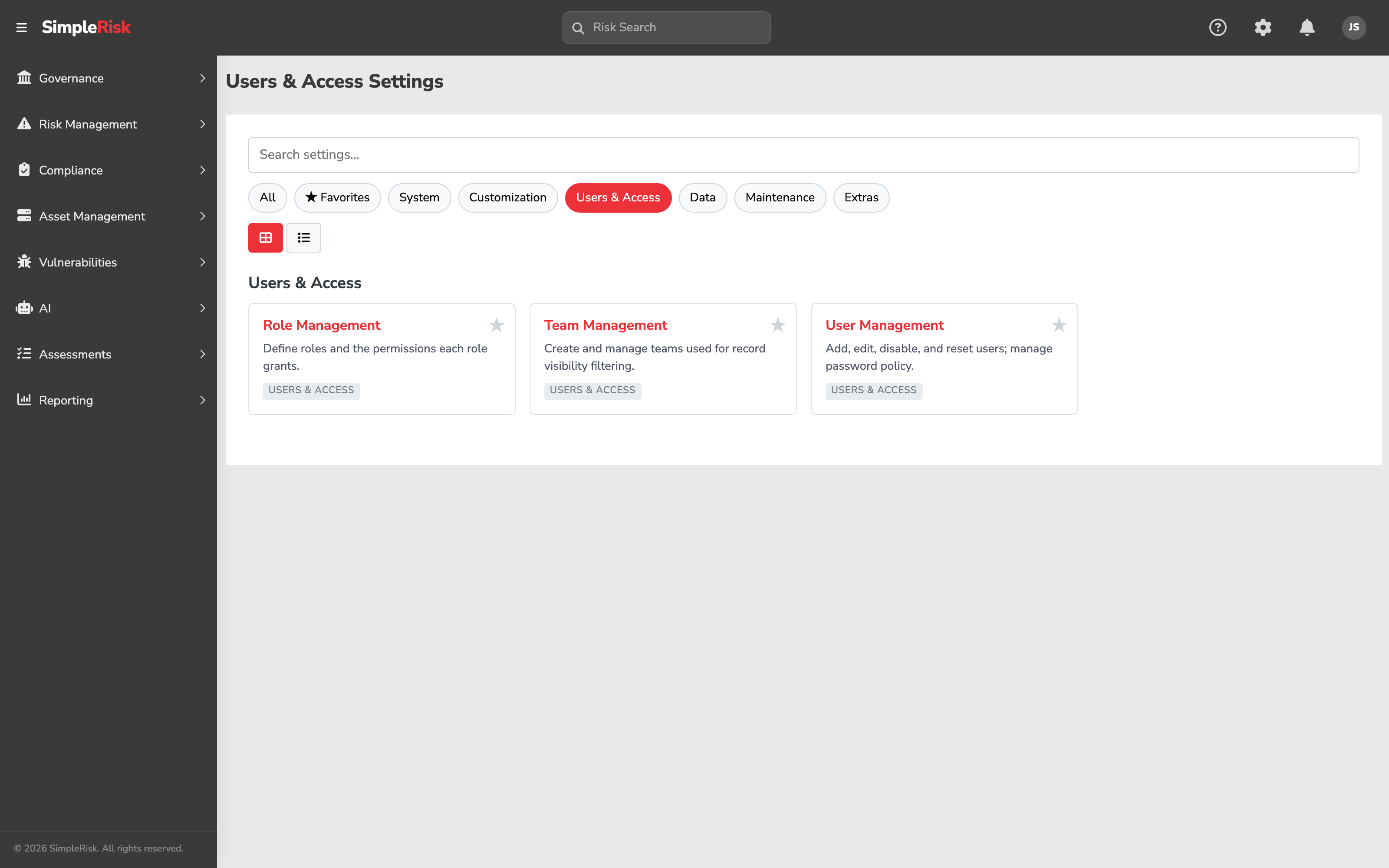
Adding a user
The Add Users tab is where new accounts come in. Most installs only use the SimpleRisk account type; the LDAP and SAML options only appear when the Authentication Extra is active and indicate authentication delegated to an IdP rather than a local password.
The form fields:
- Type —
SimpleRisk,LDAP, orSAML. Pick the one matching how the user will authenticate. - Full Name — display name, max 50 characters. Surfaces in dropdowns, audit-trail entries, and notifications.
- E-mail Address — must be unique and must validate as an email. Used for password resets and notifications.
- Username — the login. Must be unique. The
Use Case Sensitive Validation of Usernamesetting on the User Settings tab controls whetherjsmithandJSmithare treated as the same user; default is on. - Password / Repeat Password — only meaningful for SimpleRisk-typed users. Validated against the password policy on User Settings.
- Multi Factor Authentication — toggles TOTP MFA. If
mfa_requiredis set system-wide, the box is checked and read-only. - Require password change on login — the next sign-in prompts for a new password. Useful for handing off temporary credentials.
- Manager — single-user picker; used by review-routing when the direct owner is unavailable.
- Teams — multi-select; which teams the user belongs to. See Teams below for what membership actually does.
- Role — single-select of every role on the system. Picking a role auto-checks the permissions that role grants in the User Responsibilities tree below; the tree stays editable so you can grant or remove permissions for this user specifically. The per-user delta belongs to that user alon_to_user`.
- Grant Admin button — toggles the
adminflag. Granting Admin selects every team, locks the team multiselect, and locks every permission checkbox — admins inherit all permissions and team visibility, so role and team assignments are meaningless for them. SimpleRisk shows a warning banner to that effect.
Click Add to save. SimpleRisk shows: A new user with username "{username}" was added successfully. Username and email collisions are reported with specific error messages.
The Administrator role (role.value = 1) is the only role SimpleRisk ships with on a fresh install. Every other role you see in the dropdown was created on this instance. Plan your role design before you onboard the second user.
Editing or deactivating a user
The Manage Users tab is the maintenance side. View Details for User is the editing entry point: pick a user, click Select, and the per-user form opens with every field editable. Same fields as Add (minus the passwords) plus three:
- Account Locked Out — toggled automatically by the failed-login policy; an admin can flip it back off without resetting the password.
- Status — read-only
EnabledorDisabled. Changed by the Enable/Disable buttons on the previous tab. - Last Login — read-only timestamp. The first thing to check when an offboarding ticket lands.
Disabling is what most offboarding tickets actually need. The Enable and Disable Users card: pick the user from the Disable user dropdown, click Disable. SimpleRisk marks the account disabled, terminates the user's active sessions, and they can no longer sign in. Their record stays, and their attribution on every risk they submitted, owned, or commented on stays. The audit trail is intact.
We recommend disabling rather than deleting in nearly every offboarding case. The team has been telling customers this for years on the support side: deletion severs the user from every risk, mitigation, comment, and audit-trail entry that referenced them, with no undo. Disabled accounts give you the same effective result — they can't log in — without the data loss. Reach for delete only when the account was created in error.
Deleting a user
If deletion is the right answer, the Delete an Existing User card is where it happens. Pick the user, click Delete, confirm "Are you sure you want to delete this user?". SimpleRisk removes the account and everything hanging off it — team memberships, stakeholder assignments, per-user permissions, and the MFA secret — and terminates any active sessions.
What survives: existing audit-trail entries, which keep pointing at the now-orphan user_id. What doesn't: the user's appearance in dropdowns going forward, and any junction-table associations. Risks the user owned still exist, but the Owner field can no longer resolve to a name.
The only built-in safeguard is that an admin can't delete themselves — the form rejects the attempt with "An admin can't delete itself." There's no guard against deleting the last other admin, so leaving exactly one admin in your org is risky: if that one account gets locked out, you're recovering from the database.
For a planned offboarding where you want both the audit trail intact and the leaver's risks reassigned, the pattern most customers use is: disable the user, bulk-reassign their risks via export-edit-import using the Import/Export Extra, then leave the disabled record in place.
Teams
A team is just a name. Users join teams, and risks, mitigations, and tests can each be tagged with one or more teams of their own. The page is the Settings Hub's Teams tile (Settings cog → Teams).
In Core SimpleRisk, team tags act as filters on reports and dashboards — useful for "show me the risks Finance owns" — but they don't by themselves restrict who can see what. The Team-Based Separation Extra turns the same membership into actual data segregation. Without it, every user with the relevant view permission sees every risk regardless of team.
Creating a team
The top card stacks three forms: Add new item named with an Add button, Change … to … for renaming, Delete item named with a confirm dialog. Names are capped at 50 characters.
Creating a team assigns it to every existing administrator, since admins see every team by definition. If the Organizational Hierarchy Extra is installed, the team is also assigned to the default business unit.
Assigning users to teams
The Manage users in team card is the membership editor. Pick a team; the page reloads with Available Users on the left, Team Members on the right. The arrow buttons (>>, >, <, <<) move users between the lists. Click Update to save.
Two behaviors worth knowing. The editor doesn't list admin users — they're members of every team by definition, so listing them would be noise. And you can't delete a team currently tagged on a risk while Team-Based Separation is active; SimpleRisk blocks with "Cannot delete this team, because there are risks that are currently using it." to prevent the silent disappearance of a team's risks from the views of the people who could see them. Reassign first, then delete.
The same membership data is editable from the user side: the Teams multi-select on Add Users and on View Details for User edits the same membership. Use whichever side is convenient.
How team membership affects visibility
This is the part admins frequently misunderstand. Team membership in Core SimpleRisk does not gate what a user can see. A user with the Risk Management permission sees every risk on the system, regardless of team. Team tags are a filter dimension on reports and dashboards, not an access control.
What turns membership into segregation is the Team-Based Separation Extra. With it activated, risk lists and dashboards filter each record's team assignment against the viewer's own team membership: users see only risks tagged to teams they belong to, plus untagged risks (treated as universally visible). Admins still see everything.
This explains a recurring confusion in support: "I added the user to the Finance team and they still see Engineering's risks." The answer in nearly every case is that Team-Based Separation isn't installed, and the team tag on its own does no gating.
Roles
A role has a name, an admin flag (does this role grant superuser?), and a default flag (do new SAML/LDAP users land here under just-in-time provisioning?). Its permissions are the responsibility name is the permission's key. The page is the Settings Hub's Role Management tile (Settings cog → Role Management).
The default roles that ship with SimpleRisk
A fresh install has exactly one seeded role: Administrator (role.value = 1, admin = 1). That's it. Every other role on a running system was created either by an admin or by an Extra at activation time.
This shapes the rollout. The first thing most admins do is build a small set of role bundles that match how they actually run access — a Risk Manager role for risk-management work, a Compliance role for assessment and framework permissions, a Read-Only role for view-only auditors. There's no shipped catalogue. Every customer's permission discipline differs, and a shipped catalogue would be wrong for every customer in slightly different ways.
The Administrator role itself can't be deleted ("Administrator Role can not be deleted.") and its admin flag is read-only.
Creating a custom role
The Add a New Role card has one field: Role Name. Names must be unique (UNIQUE index on the role's name). Click Add; SimpleRisk inserts the role with no permissions, no admin flag, no default flag. The new role is selectable in the Edit Role card immediately.
If two admins try to add the same name simultaneously, the UNIQUE constraint catches the race and the second add returns "The role name already exists." rather than producing a duplicate.
Assigning permissions to a role
Pick the role from the dropdown in Edit Role. SimpleRisk fetches its current permissions via GET /api/role_responsibilities/get_responsibilities and renders them as checkboxes in the User Responsibilities widget — a tree grouped by permission group. Three controls sit above the tree:
- Default User Role — when set, this role becomes the default landing role for new SAML/LDAP users created via JIT provisioning. Only one role at a time can hold this flag.
- Grant Admin / Remove Admin — toggles the role's
adminflag. When set, every permission checkbox is auto-selected and read-only ("User responsibilities cannot be edited when the user is an admin."). Admin roles are unrestricted by definition. - Update — saves the flags and the checked permissions to the role.
The full catalogue of permissions — what each grants, which UI section it gates — lives in Permission Reference. When in doubt, lean toward not granting. AC-6 Least Privilege is what auditors look for; "we gave everyone Risk Manager because it was easier" is not a defence.
Saving propagates to every user assigned to that role. SimpleRisk recomputes each affected user's effective permissions and refreshes their active sessions in place, so a user whose role gained or lost a permission sees the change on their next page load without having to log out and back in.
Assigning roles to users
A role only affects access once it's assigned. Assignment happens on the user side: the Role dropdown on Add Users for new users, the same dropdown on View Details for User for existing users. The tree stays editable, so you can grant the user one extra permission their role doesn't include without creating a new role for the difference. That per-user delta belongs to that user alone and doesn't touch the role.
When you delete a role with users assigned, SimpleRisk doesn't drop those users into a void. It reassigns each of them to the current default role and recomputes their permissions as the union of (existing per-user permissions, minus the deleted role's responsibilities) plus (the default role's responsibilities). Active sessions refresh in place. If no default role is set, users land on role 0 with only their per-user permissions — usually nothing — so set a default role before you start deleting.
How the three layers compose
The cleanest way to understand the model is a worked example. Suppose Alice belongs to the Finance team and holds the Administrator role.
She can do everything. Administrator is admin (role.admin = 1), and the admin flag is the superuser bit: every permission check returns true, every team is implicitly hers, every page renders. The Finance membership is decorative — she'd see every team's risks regardless. This is why the Add User form locks the team multi-select when you grant Admin: there's no practical difference between "a team" and "all teams" for an admin user.
Now change Alice's role to a custom Risk Manager role you've created — one that grants the Risk Management, Submit Risks, Modify Risks, Plan Mitigations, and Close Risks permissions, with no admin flag. Each layer pulls its weight:
- User: Alice authenticates as
alice. The account exists, she's enabled, MFA's on. That gets her past the login. - Role: Risk Manager. The five permissions her role grants are bound onto her at session creation. Pages enforcing a permission she doesn't hold (the Configure menu, framework administration, the user-management pages) redirect or 403. Pages enforcing one she does (the risk register, mitigation planning) render normally.
- Team: Finance. With Team-Based Separation off (Core), that membership only filters her dashboard saved-views; she still sees every risk her permissions allow. With the Separation Extra on, the same row gates her view: Alice sees only risks tagged to Finance, plus untagged risks. Other teams' risks are filtered out of every list, every report, every dashboard.
Each layer does one job. The user record is "who you are." The role is "what kinds of operations you can perform." The team is "which records those operations apply to" — but only when the Separation Extra promotes membership from a label into a control. Conflating the layers fights the model and produces brittle results.
Common pitfalls
-
Granting Risk Manager (or worse, Admin) to everyone "to keep it simple." This shows up in small teams that grew. Six months later the audit conversation asks who can approve a risk and the answer is "everyone" — not what auditors are looking for. Build the smallest role that does the job. AC-6 Least Privilege is testable; "we gave them all admin" is not.
-
Role sprawl. The opposite trap. Every department asks for a custom role; the product manager wants a Product role, the legal reviewer wants a Legal role, and a year later there are 40 roles nobody can keep straight. Build roles around what someone does, not what team they belong to. Risk Reviewer, Risk Submitter, Compliance Analyst — those scale. Marketing-Manager-Role-V2 doesn't.
-
Deleting users instead of disabling them. Deletion is permanent and severs attribution on every record. Disabling stops the login while preserving the audit trail. Disable as the default; reach for delete only when the account was created in error.
-
Treating teams as roles. "Put the security analysts in a Security team and grant the team some permissions." Teams don't carry permissions. Every attempt ends in confusion when the next admin tries to read the access model. If the analysts need different permissions, build a role.
-
Treating roles as teams. "Create a Finance role that scopes data to Finance's risks." Roles don't scope data. Every attempt ends in either over-broad access or wildly over-engineered roles the codebase doesn't support. If you need data segregation by team, the Team-Based Separation Extra is the right answer.
-
The single-admin org. One admin, no backup, no documented recovery plan. The admin leaves on a Friday, IT disables their IdP account on Monday, and nobody on the remaining team can get into Configure. Always have at least two admin accounts on a production instance, with at least one a service-style account whose credentials live in the org's privileged-access tooling rather than in one human's head.