---
title: 08.05 The Compliance Dashboard
description: Reading and customizing the Compliance Dashboard — the three default widgets (controls-by-framework bar chart, pass-rate trend line chart, pass/fail pie…
---
[Skip to content](https://support.simplerisk.com/kb/08-05-the-compliance-dashboard#main-content)
English
Show submenu for translations
[Customer portal](https://support.simplerisk.com/tickets?hsLang=en)
[](https://www.simplerisk.com/)
Open main navigation
Close main navigation
- English
Show submenu for translations
- [Customer portal](https://support.simplerisk.com/tickets)
- [Contact us](https://www.simplerisk.com/about-us/contact-us)
[Contact us](https://www.simplerisk.com/about-us/contact-us)
How can we help you?
- There are no suggestions because the search field is empty.
1. [SimpleRisk Knowledge Base](https://support.simplerisk.com/kb?hsLang=en)
2. [User Guide](https://support.simplerisk.com/kb/user-guide?hsLang=en)
3. [08 Audit and Reporting](https://support.simplerisk.com/kb/user-guide?hsLang=en#08-audit-and-reporting)
# 08.05 The Compliance Dashboard
## Reading and customizing the Compliance Dashboard — the three default widgets (controls-by-framework bar chart, pass-rate trend line chart, pass/fail pie chart), the framework-filter dropdown that scopes the view, and the relationship to the rest of the compliance module.
## Why this matters
The Compliance Dashboard is the page most working compliance practitioners open first when they want a sense of where the program is. It's the answer to "how is our compliance posture doing?" without requiring the reader to compose a query. A well-tuned compliance dashboard surfaces the three or four questions the program looks at most often (control coverage, recent test pass rates, framework-by-framework distribution) and puts the answers on one screen.
The other reason this matters: the dashboard is where the *gap* between intention and reality shows up. The compliance module's underlying data (frameworks installed, controls defined, tests scheduled, evidence attached) is the truth of the program; the dashboard is what makes that truth legible at a glance. Programs whose dashboards show "100% passing" are either operating exceptionally well or aren't testing rigorously; programs whose dashboards show systematic failures are either operating poorly or have honest test cycles. The dashboard is the diagnostic, not the verdict.
The third thing worth knowing: the Compliance Dashboard is **scoped by framework**. The page surfaces a multi-select dropdown at the top that filters all the dashboard's widgets to the selected framework(s). Programs running multiple frameworks (most programs of any size) use the filter to view per-framework posture; programs running one framework can ignore the filter (it defaults to All Frameworks).
The fourth thing: the dashboard is *customizable* via the same UILayout widget framework as the Risk Management Dashboard (see [The Risk Dashboard](https://support.simplerisk.com/kb/01-07-the-risk-dashboard?hsLang=en) for the customization mechanics, which apply identically here). The default three-widget layout is a starting point, not a fixed view.
## Before you start
Have these in hand before opening the dashboard:
- **The Compliance permission on your account** (`compliance` permission key, displayed as **Allow Access to "Compliance" Menu** or equivalent). Without it, the Compliance Dashboard tile doesn't appear in the Reports Hub and direct navigation returns a permission error. (See [Permission Reference](https://support.simplerisk.com/kb/03-03-permission-reference?hsLang=en).)
- **At least one framework installed.** A fresh install with no frameworks shows an empty dashboard — the widgets need framework data to render anything meaningful. See [Installing a Framework](https://support.simplerisk.com/kb/02-03-installing-a-framework?hsLang=en) for the install paths.
- **Some completed control tests.** The pass-rate trend and pass/fail widgets need test history to render usefully. A program that's installed frameworks but hasn't yet started the test cycle will see empty widgets; that's expected and changes as the test cycle accumulates data. See [Control Tests and Evidence Collection](https://support.simplerisk.com/kb/02-07-control-tests-and-evidence-collection?hsLang=en).
- **Optional: a clear audience for the dashboard view.** The Compliance Dashboard is good for the compliance team's daily check-in and for executive readouts of overall posture. It's less good for the audit conversation itself (which usually wants the Compliance reports and the per-control detail).
## Step-by-step
### 1. Open the Compliance Dashboard
Two paths into the dashboard:
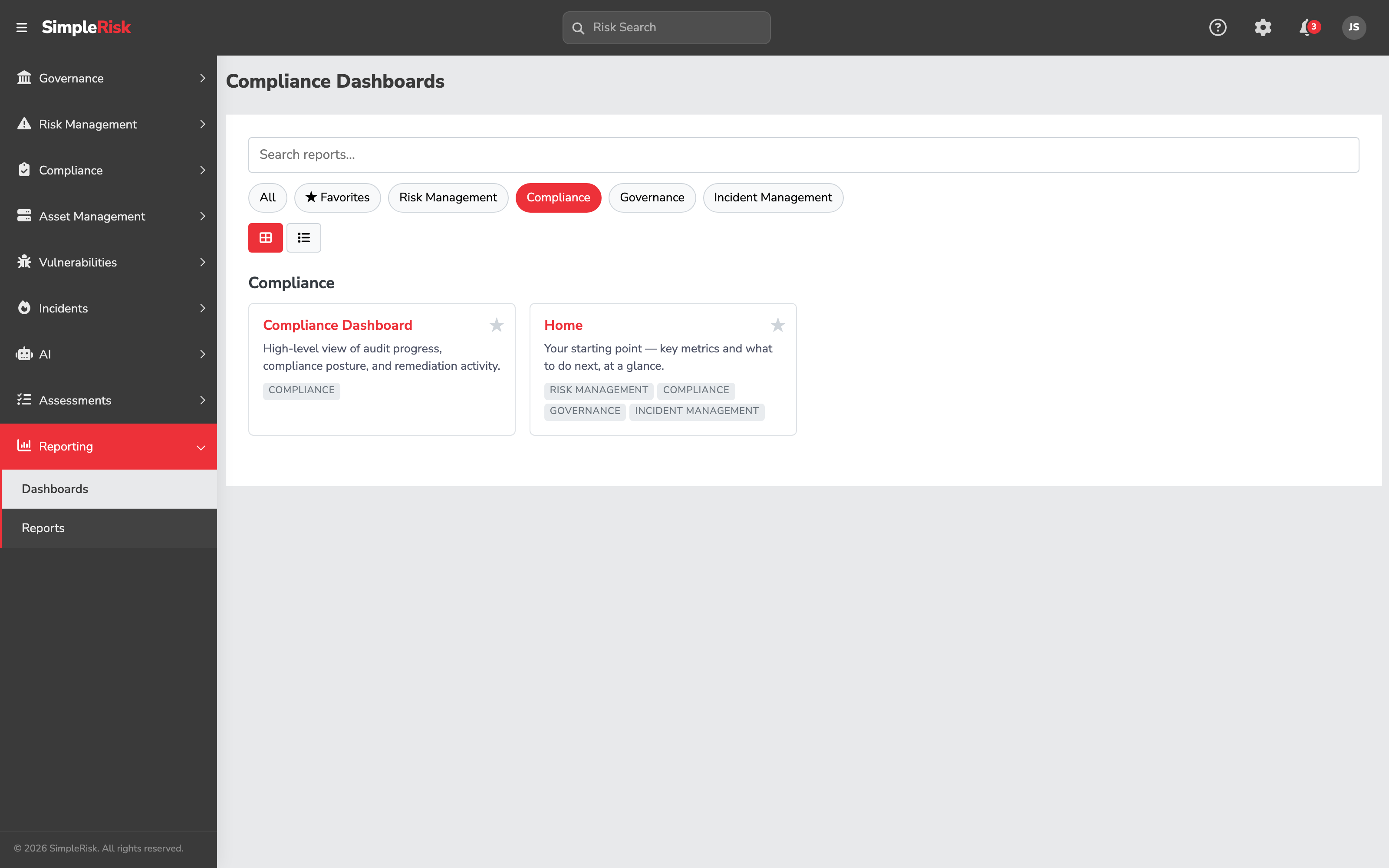
- **Reporting → Reports Hub** opens the Reports Hub at `/reports/dashboards.php`. Filter to **Compliance** category and click the **Compliance Dashboard** tile.
- **Direct URL**: `/reports/compliance_dashboard.php`. Same destination; useful when bookmarking or linking from documentation.
The dashboard loads with the default widget layout the first time you open it. Subsequent visits load any layout customizations you've made (saved per user).
### 2. Use the framework filter to scope the view
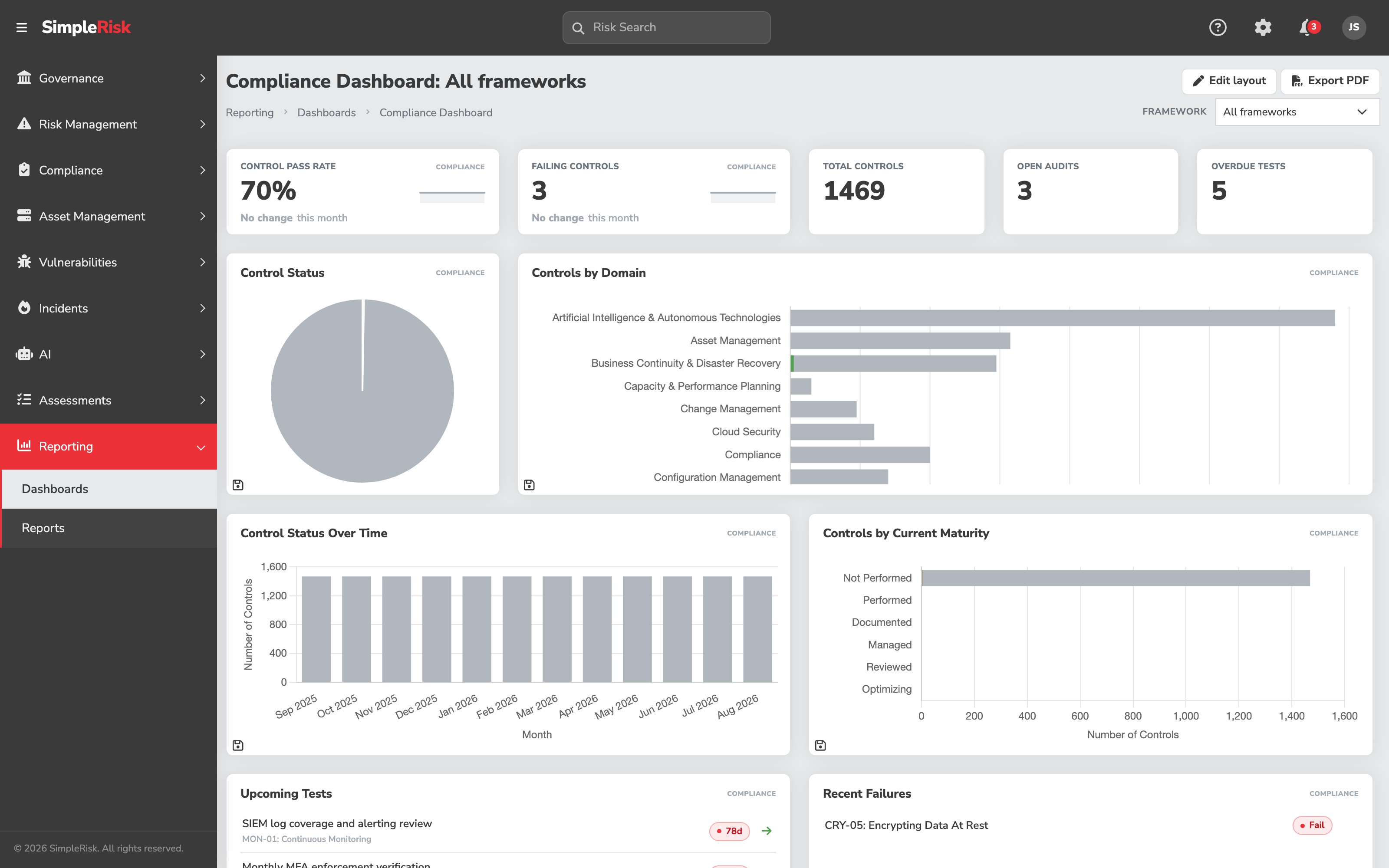
At the top of the dashboard, a multi-select dropdown labeled **Framework** (or **All Frameworks**) lists the active frameworks installed in the system. The first load selects **all frameworks** by default, meaning the widgets aggregate across every framework.
To scope to specific frameworks:
1. Click the dropdown to open the framework list.
2. Deselect frameworks you want to exclude, or select only the framework(s) you want to focus on.
3. The dashboard widgets refresh automatically to reflect the filter.
The filter writes to the URL as `?frameworks=id1,id2,...` — useful for bookmarking specific framework views (e.g., a "SOC 2 only" bookmark, an "ISO 27001 only" bookmark for different audiences).
The dropdown lists only **active** frameworks (frameworks whose status is set to active in admin configuration). Frameworks marked Inactive are hidden; this is what makes the filter manageable for installations with many frameworks (typically those running the ComplianceForge SCF Extra or the UCF Extra).
The filter is *not* persistent across sessions — each fresh load starts at All Frameworks. For per-user persistent scoping, bookmark the URL with the desired filter parameters.
### 3. Read the default widgets
The default Compliance Dashboard layout has three widgets, configured in `$ui_layout_config['compliance_dashboard']` in `simplerisk/includes/functions.php`:
- **Controls by Framework** *(horizontal bar chart, full-width)* — distribution of controls across the frameworks selected by the filter. Each bar shows a framework's control count. Useful for "where is our compliance work concentrated?" — programs installing many frameworks see how the population breaks down.
- **Pass Rate Trend** *(line chart, full-width)* — pass rate over time. Each point on the line is the percentage of completed test audits that resulted in a Pass for the period. Useful for "is our control posture improving or degrading?" — a flat line at 100% is suspicious (probably under-testing); a declining line is a signal that controls are failing more often.
- **Pass/Fail Distribution** *(pie chart, smaller)* — split between Pass, Fail, and Inconclusive results across the dashboard's filtered scope. Useful for "what's our current pass mix?" at a glance. The Inconclusive wedge is the one to watch — see [Control Tests and Evidence Collection](https://support.simplerisk.com/kb/02-07-control-tests-and-evidence-collection?hsLang=en) for why Inconclusive isn't a soft Pass.
The widgets refresh on page load and on framework-filter change; there's no live-updating channel, so opening the dashboard in the morning gives you the morning's state.
### 4. Customize the layout
The Compliance Dashboard uses the same UILayout widget framework as the Risk Management Dashboard. Customization works the same way — drag widgets to rearrange, resize via corner handles, add/remove widgets via the toolbar at the top, restore the default layout if a customization went badly.
The default Compliance widget set is small (three widgets); the available custom-widget options out of the box are limited (typically just the WYSIWYG widget for free-text annotations). Programs needing more compliance-specific widgets either build them via the Customization Extra or rely on the dedicated compliance reports for the questions the dashboard doesn't answer.
The customization is per-user, so two compliance team members on the same instance can run different layouts on the same dashboard.
### 5. Drill from a widget to the underlying detail
Like the Risk Management Dashboard, the Compliance Dashboard widgets are summary visualizations; the underlying detail lives in the compliance reports and the per-control views. Click into a chart segment (where supported) to filter the underlying data; for analyses the dashboard doesn't surface, the Compliance reports cover the gaps:
- **Audit Timeline** (`/reports/audit_timeline.php`) — chronological view of audit activities and findings.
- **Audit Remediation Cycle Time** (`/reports/audit_remediation_cycle_time.php`) — average time from finding to remediation, by framework.
- **Dynamic Audit Report** (`/reports/dynamic_audit_report.php`) — configurable audit-progress report builder.
- **Control Gap Analysis** (`/reports/control_gap_analysis.php`) (under Governance) — controls missing tests, owners, or that are out of date.
See [The Built-In Reports](https://support.simplerisk.com/kb/08-02-the-built-in-reports?hsLang=en) for the full report library.
For per-framework drill-down, **Governance → Define Control Frameworks** at `/governance/index.php` is where you read which controls a framework has, who owns each, and which tests are scheduled. That page carries its own insights band across the top, so it summarizes too — the difference is scope. The compliance dashboard answers "how is the program doing"; the framework page answers "how is this framework doing, and which rows do I need to open."
## Common pitfalls
A handful of patterns recur with the Compliance Dashboard.
- **Treating 100% pass rate as good news.** A flat line at 100% pass rate often means the test cycle isn't rigorous enough — tests with vague Expected Results that pass by default, or test definitions that aren't really exercising the controls. Investigate the test definitions if the pass rate stays at 100%; the rigor question is more important than the number.
- **Not filtering by framework when running multiple.** The default All Frameworks view aggregates across everything, which is useful for the executive summary but unhelpful for the working-program view ("how is our SOC 2 doing specifically?"). Use the filter to scope to the framework that matches the question you're asking.
- **Reading the dashboard without the report library.** The three default widgets answer three questions. Compliance programs have more than three questions. The Audit Timeline, Audit Remediation Cycle Time, and Dynamic Audit Report cover questions the default dashboard doesn't; they live one click away in the Reports Hub.
- **Customizing the layout without understanding the widget set.** The default layout exists because three widgets is approximately what fits usefully on a screen. Adding additional widgets when the available widget set is small often produces a dashboard with redundant widgets (the WYSIWYG content widget can show the same chart from the dedicated reports, but as an embedded version). Stick close to the default unless you have a specific question the default doesn't answer.
- **Confusing dashboard scope with audit scope.** The dashboard filter scopes the *visible widgets*, not the underlying data. An audit conversation about SOC 2 needs SOC 2-scoped data through the audit reports, not the dashboard view. Don't substitute the dashboard for the per-control evidence the audit conversation requires.
- **Reading once, never returning.** The dashboard's value comes from regular reading — daily for active compliance teams, weekly for steady-state programs. A program that opens the dashboard once a quarter for the executive readout misses the trends that the in-between visits would have surfaced.
- **Ignoring the Inconclusive segment of the pass/fail pie.** Inconclusive results often get treated as "soft passes" — the test couldn't determine, so the program assumes the control is operating. The Inconclusive segment is the signal that something needs attention: either the test is poorly designed (can't produce a determination) or the operational reality is genuinely uncertain. Either way, growing Inconclusive over time is a problem; treat it as a follow-up signal.
- **Sharing the dashboard externally without the Pass Rate Trend context.** A snapshot of the Pass/Fail pie shared with leadership shows a moment in time. The Pass Rate Trend line shows whether things are getting better or worse. For external distribution, share both — the snapshot answers "where are we now?", the trend answers "where are we going?"
- **Forgetting that the customization is per-user.** A team member who customizes their dashboard doesn't change anyone else's view. Programs that want a *standardized* dashboard view across the team have to either accept that each user runs their own layout, or document the recommended layout and have each user reproduce it.
## Related
- [What Makes a Good GRC Report?](https://support.simplerisk.com/kb/08-01-what-makes-a-good-grc-report?hsLang=en)
- [The Built-In Reports](https://support.simplerisk.com/kb/08-02-the-built-in-reports?hsLang=en)
- [Sharing the Risk Dashboard with Stakeholders](https://support.simplerisk.com/kb/08-03-sharing-the-risk-dashboard-with-stakeholders?hsLang=en)
- [Exporting Data and Evidence](https://support.simplerisk.com/kb/08-04-exporting-data-and-evidence?hsLang=en)
- [The Risk Dashboard](https://support.simplerisk.com/kb/01-07-the-risk-dashboard?hsLang=en)
- [What is Compliance Management?](https://support.simplerisk.com/kb/02-01-what-is-compliance-management?hsLang=en)
- [Control Tests and Evidence Collection](https://support.simplerisk.com/kb/02-07-control-tests-and-evidence-collection?hsLang=en)
- [Installing a Framework](https://support.simplerisk.com/kb/02-03-installing-a-framework?hsLang=en)
- [Permission Reference](https://support.simplerisk.com/kb/03-03-permission-reference?hsLang=en)
- [FAQs](https://support.simplerisk.com/kb/faqs?hsLang=en)
- [SimpleRisk Extras](https://support.simplerisk.com/kb/simplerisk-extras?hsLang=en#main-content)
- [Vulnerability Management Extra](https://support.simplerisk.com/kb/simplerisk-extras?hsLang=en#vulnerability-management-extra)
- [Team Separation Extra](https://support.simplerisk.com/kb/simplerisk-extras?hsLang=en#team-separation-extra)
- [Import-Export Extra](https://support.simplerisk.com/kb/simplerisk-extras?hsLang=en#import-export-extra)
- [Administrator Guide](https://support.simplerisk.com/kb/administrator-guide?hsLang=en#main-content)
- [00 About This Guide](https://support.simplerisk.com/kb/administrator-guide?hsLang=en#00-about-this-guide)
- [01 Installation and Deployment](https://support.simplerisk.com/kb/administrator-guide?hsLang=en#01-installation-and-deployment)
- [02 Upgrades and Maintenance](https://support.simplerisk.com/kb/administrator-guide?hsLang=en#02-upgrades-and-maintenance)
- [03 Users and Permissions](https://support.simplerisk.com/kb/administrator-guide?hsLang=en#03-users-and-permissions)
- [04 Authentication](https://support.simplerisk.com/kb/administrator-guide?hsLang=en#04-authentication)
- [05 Customization](https://support.simplerisk.com/kb/administrator-guide?hsLang=en#05-customization)
- [06 Configuring Risk and Compliance](https://support.simplerisk.com/kb/administrator-guide?hsLang=en#06-configuring-risk-and-compliance)
- [07 Integrations](https://support.simplerisk.com/kb/administrator-guide?hsLang=en#07-integrations)
- [08 The API](https://support.simplerisk.com/kb/administrator-guide?hsLang=en#08-the-api)
- [09 Encryption and Data Security](https://support.simplerisk.com/kb/administrator-guide?hsLang=en#09-encryption-and-data-security)
- [10 Workflows and Automation](https://support.simplerisk.com/kb/administrator-guide?hsLang=en#10-workflows-and-automation)
- [11 Reporting and Auditing](https://support.simplerisk.com/kb/administrator-guide?hsLang=en#11-reporting-and-auditing)
- [12 Operations](https://support.simplerisk.com/kb/administrator-guide?hsLang=en#12-operations)
- [13 Reference](https://support.simplerisk.com/kb/administrator-guide?hsLang=en#13-reference)
- [User Guide](https://support.simplerisk.com/kb/user-guide?hsLang=en#main-content)
- [00 Foundations of GRC](https://support.simplerisk.com/kb/user-guide?hsLang=en#00-foundations-of-grc)
- [01 Risk Management](https://support.simplerisk.com/kb/user-guide?hsLang=en#01-risk-management)
- [02 Compliance Management](https://support.simplerisk.com/kb/user-guide?hsLang=en#02-compliance-management)
- [03 Governance](https://support.simplerisk.com/kb/user-guide?hsLang=en#03-governance)
- [04 Asset and Data Inventory](https://support.simplerisk.com/kb/user-guide?hsLang=en#04-asset-and-data-inventory)
- [05 Threat and Vulnerability Management](https://support.simplerisk.com/kb/user-guide?hsLang=en#05-threat-and-vulnerability-management)
- [06 Assessments](https://support.simplerisk.com/kb/user-guide?hsLang=en#06-assessments)
- [07 Incident Management](https://support.simplerisk.com/kb/user-guide?hsLang=en#07-incident-management)
- [08 Audit and Reporting](https://support.simplerisk.com/kb/user-guide?hsLang=en#08-audit-and-reporting)
- [09 Day-to-Day SimpleRisk](https://support.simplerisk.com/kb/user-guide?hsLang=en#09-day-to-day-simplerisk)
- [10 Continuous Improvement](https://support.simplerisk.com/kb/user-guide?hsLang=en#10-continuous-improvement)
- [SimpleRisk User Guides](https://support.simplerisk.com/kb/simplerisk-user-guides?hsLang=en)
- [Troubleshooting](https://support.simplerisk.com/kb/troubleshooting?hsLang=en)
- [SimpleRisk Hosted](https://support.simplerisk.com/kb/simplerisk-hosted?hsLang=en)
- [How To videos](https://support.simplerisk.com/kb/how-to-videos?hsLang=en)
[](https://www.simplerisk.com)
Copyright © 2026, SimpleRisk, Inc.