
Importing data into SimpleRisk involves three primary steps:
-
Preparation: Formatting your data in a spreadsheet according to SimpleRisk requirements.
-
Mapping: Associating the columns in your spreadsheet with the corresponding fields in SimpleRisk.
-
Import: Uploading your prepared and mapped data into SimpleRisk.
For recurring imports that follow a consistent format, SimpleRisk enables you to save your mappings, simplifying the process to just two steps: preparing your data and importing it. You can also take advantage of default mappings that are provided for data exported from SimpleRisk using the "Export Combined" option.
Preparation
The preparation stage plays a vital role in facilitating a seamless import process. It's important to ensure that your data is accurately formatted and structured for the best results. Please keep in mind that any formulas within the spreadsheet will not be supported, so all values should be finalized prior to uploading.
General Formatting Rules
The following rules apply to all import fields unless otherwise specified:
-
Multiple Values: For fields accepting multiple values (e.g., Tags, Assets, Additional Stakeholders), enclose each value in double quotes and separate them with commas. Example: "Servers", "Network", "Database"
-
User Fields: Fields referencing SimpleRisk users (e.g., Owner, Owner’s Manager, Additional Stakeholders) require that the users have existing SimpleRisk accounts. Import values must match the user’s full name as it appears in SimpleRisk. If a value does not match an existing full name, no action is taken. Users can be batch-imported via spreadsheet or created via custom authentication.
-
Risk Levels and Scores:
-
SimpleRisk uses various scoring methods, with "Classic Risk Score" (Likelihood x Impact) being the most common. When importing risks scored using this method, the values for Likelihood and Impact must match the levels defined in your SimpleRisk instance.
-
Refer to your SimpleRisk risk matrix (Configure > Configure Risk Formula > Classic Risk Formula) to ensure your import data aligns with the configured levels (e.g., "Insignificant" rather than "1"). Use level names, not numerical values.
-
To import risks with existing residual risk scores due to prior mitigations, map the "Mitigation Percent" field. The mitigation percentage will be applied to the inherent risk score to calculate the residual risk score.
-
-
Date Fields: Dates must adhere to specific formats:
-
Past dates: "yyyy-mm-dd hh:mm:ss" (e.g., "2022-01-30 12:00:00")
-
Future dates: "yyyy-mm-dd" (e.g., "2090-01-30")
-
Do not use surrounding quotes for single date values.
-
-
Custom Fields: If using the Customization Extra, custom fields will appear at the end of risk exports and imports. For dropdown or multi-select custom fields, new entries will be created if an imported value does not match an existing one. Date type custom fields expect the "yyyy-mm-dd" format.
Risk Fields and Import Logic
Below are the descriptions and import logic for default SimpleRisk fields:
-
Risk ID: When mapping this field, SimpleRisk assumes you are updating existing risks. To create new risks, do not map the Risk ID field. SimpleRisk generates Risk IDs starting from 1001.
-
Status: New status entries will be created if the imported status does not exist in SimpleRisk. When importing a "Closed" status, provide and map a closed date and close-out reason.
-
Subject: This is a required field for importing new risks and serves as the risk title and a short form description.
-
Risk ID – This is one of the key fields of the import process. SimpleRisk creates Risk IDs starting at 1001 counting up by 1. When we map the Risk ID field the import logic of SimpleRisk assumes we are attempting to update risks with a matching ID to the values of the other columns mapped in our import. Since that is not the case, we shouldn’t import it there but if it is something that is relevant, we can create a field or add it into the risk details elsewhere.
-
Status - This field maps the current status of a risk. This field will create new Status entries if the column contains a status that does not currently exist in SimpleRisk. If the status is “Closed” users should provide and map a closed date as well as close-out reason.
-
Subject - This is a required field for new risks being imported. The subject is what is most referenced to as the title of a risk and should be descriptive in nature. It doesn’t have an
-
Risk Mapping - This field will create a new value if no matching value already exists in the SimpleRisk database. You may associate multiple values with a single import.
-
Threat Mapping - This field will create a new value if no matching value already exists in the SimpleRisk database. You may associate multiple values with a single import.
-
External Reference ID - This field is for referencing CVE’s or can be used as any other reference id you need. If a CVE is entered in this field the system will update the risk details accordingly as long as the instance can connect to olbat.github.io.
-
Control Regulation - This field is a dropdown in SimpleRisk that will contain the currently defined Governance Frameworks in the system and allows you to associate those frameworks with the risk. Inputting a value here that is not the name of a currently defined framework will result in a new framework with that name being created. This field only supports a single value.
-
Control Number - This is a free text field that is not logically used but is left over functionality from before mitigations could be associated with controls. You may enter valid control numbers but it is not required and is only tracked as text in reporting. For a better experience the best practice is to map using the mitigation control column if you wish to track a control with a risk.
-
Site/Location - This field accepts multiple values and will define new values if they do not already exist.
-
Risk Source - This field accepts a single value. If the risk source given does not already exist a new one will be added.
-
Category - This field accepts a single value. If the Category given does not already exist a new one will be added.
-
Team - This field accepts multiple values and will create new teams if the supplied team in the import does not already exist. If the Notification Extra is in use mapping this field to an existing team could trigger emails to be sent depending on the notification extra configuration.
-
Additional Stakeholders - This field will accept multiple values and expects user Full Names as values this is the name that is most displayed and associated with users in SimpleRisk. This is not their username or the name used to login into SimpleRisk. This is a field mapped to a user and with the use of the Notification Extra can trigger emails to be sent when an import is made depending on the configuration.
-
Technology - This field accepts multiple values and will add new values if they do not exist.
-
Owner - This field accepts a single user value. This represents the risk owner and one responsible for the risk. This user can be notified via the Notification extra on various actions and reports based on occupying this field. Please see Notification Extra documentation for more details.
-
Owner’s Manager - This field contains a single user selected from a dropdown list in SimpleRisk. When importing it must follow all the rules of user fields for import described above. This field can be used for the Notification Extra to notify based on various actions and reports. Please see Notification Extra documentation for more details.
-
Risk Assessment - This is a free text field and saves to a blob type column in the database. This should allow for 65,000 characters under normal circumstances although not common based on the maximum upload size there are other factors that can prevent using the entirety of this field.
-
Additional Notes - This is a free text field and saves to a blob type column in the database. This should allow for 65,000 characters under normal circumstances although not common based on the maximum upload size there are other factors that can prevent using the entirety of this field.
-
Submission Date - A date field expecting a date prior to the current time when importing. This requires a yyyy-mm-dd hh:mm:ss date format. This will be used as the reported submission date, if a submission date is not mapped or is left blank in the import the current time of import will be used as the submission date as all risks are required to have one.
-
Project - This field allows users to map a project to the importing risk, if a matching project name does not already exist a project will be created. One one project may be associated with a risk at a time, many risks can be associated with one project.
-
Submitted By - This is to denote the user who will be recorded as submitting the risk. This field expects a user as defined above. If a user is not mapped or this field is blank the user executing the import will be recorded as the submitting user. This field will always be populated with all Risks although it is not required for users to map and supply this information.
-
Date Closed - This field should only be populated on risks that are currently closed. This field expects a date from the past. This field requires a yyyy-mm-dd hh:mm:ss date format.
-
Affected Assets - This field allows you to associate one or more assets with a risk during import. This field follows the above mentioned method of separating multiple items. If a name of an asset given does not match a currently existing asset a new one will be created with the default asset valuation.
-
Risk Scoring Method - This field allows you to set the risk scoring method. If one is not mapped or given the system will default to a custom risk score of 10. The options are Classic, Custom, CVSS, DREAD, OWASP, and Contributing Risk. Only one scoring type may be set. All other scoring values for methods that are not currently in use for the import do not need to be mapped when importing or updating risks.
-
Inherent Risk - While this field appears in exports and can be mapped this is more to simplify import export and the inherent risk is not saved during import even though it can be mapped instead imports should name their scoring method and the attributes that make up that intended inherent risk score.
-
Residual Risk - This field is also for ease of use. To adjust the residual risk score of imported risks users should rely on the Mitigation Percent field. The Mitigation Percent will be applied to the calculated inherent risk score to determine the residual risk score.
-
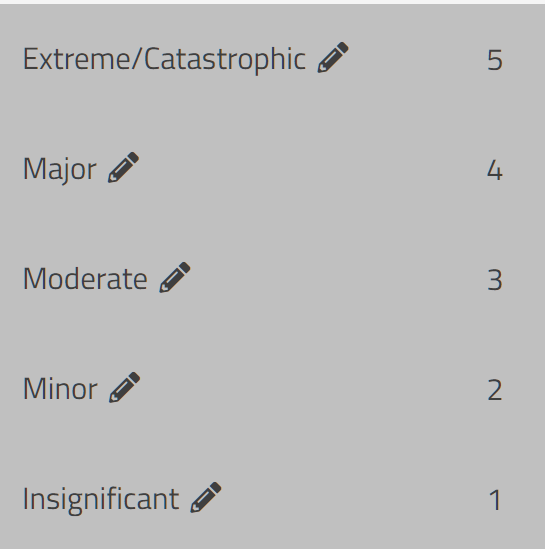
Classic Likelihood - This value is for use with the Classic risk scoring method. This field uses the displayed names of the levels of likelihood in your SimpleRisk instance. If you have adjusted them away from their defaults you will need to refer to the Configure Risk Formula menu to determine the corresponding values. For default installations you may refer to the screenshot below for the names of the levels of likelihood.

-
Classic Impact - This value is for use with the Classic risk scoring method. This field uses the displayed names of the levels of Impact in your SimpleRisk instance. If you have adjusted them away from their defaults you will need to refer to the Configure Risk Formula menu to determine the corresponding values. For default installations you may refer to the screenshot below for the names of the levels of Impact.
-
CVSS Scoring - Importing CVSS scoring requires using the first letter of each word in the attribute. For example if you wanted the value to be “Complete” you would import a “C” in that cell. Another example would be “Temporary fix” would be entered as “TF”. This is continued for all CVSS scoring attributes. If in doubt it is suggested to have the Risk Submission page open with the CVSS score editor to ensure an accurate import.
DREAD Scoring Attributes - DREAD scoring simply expects values of 1-10 for each of the attributes that make up the score. -
OWASP Scoring Attributes - OWASP scoring uses 1-10 values for each of the imported attributes.
-
Custom Value - This is for use with the Custom scoring method. This field expects a number value of 1-10 that will be used as the risk score when the Custom scoring method is mapped.
-
Contributing Likelihood - This field is for use with the Contributing Risks scoring method. This value shares all description with the Classic Likelihood field. This field expects the name of a level of likelihood found in the instance you are importing into.
-
Contributing Impacts - This field is for use with the Contributing Risks scoring method. This value shares all description with the Classic Likelihood field. This field expects the names of the levels of impact found in the instance you are importing into separated by a “_” then the name of the subject then “,” then the next subject/impact combination. An example of this would be:
-
Financial_Moderate,Reputation_Minor,Safety_Minor,SLA_Moderate
-
Mitigation Submission Date - This field expects a date in the past. It requires the usual yyyy-mm-dd hh:mm:ss date format.
-
Planning Strategy - This field is for the planning strategy. Only one value may be imported for this field. If the imported entry does not match an existing entry one will be created.
-
Planned Mitigation Date - This field expects a date in the future in the yyyy-mm-dd date format. Notifications can be triggered based on the date set here and can be configured in the Notification Extra settings page in the Configure menu.
-
Mitigation Effort - This field is used to record the amount of effort the mitigation of the risk will require. This field can only accept a single value. If the value given does not already exist in the system it will be created.
-
Mitigation Cost - This field expects a currency symbol and range of value that aligns with a range defined. This field can also accept a currency symbol and single value or simply the value alone. Once imported it will be determined which value range it belongs to and that value range will be recorded with the mitigation, if one does not contain the amount given the default asset valuation will be used.
-
Mitigation Team - This field expects a team or teams. They must be separated as shown above if multiple are given. If a team does not exist currently that matches the import a new team will be created.
-
Current Solution - This is a free text field accepting any amount of text to be saved with the mitigation as the currently defined solution for the risk.
-
Security Requirements - This is a free text field accepting any amount of text to be saved with the mitigation as the security requirements for the mitigation. Security requirements are generally the definition of the required actions surrounding the risk and may not actually contain a solution.
-
Security Recommendations - This is a free text field accepting any amount of text to be saved with the mitigation as the security recommendations for the mitigation. Recommendations tend to be in the form of possible solutions.
-
Mitigated By - This field expects a single user already defined in the system. This field is also tied to the Notification Extra and users who are assigned to the mitigated by field can be notified based on actions or timed reports.
-
Review Date - This field is the date a review was most recently done on this risk. This field expects a date in the past in the yyyy-mm-dd hh:mm:ss date format.
-
Review - This field denotes if the review resulted in an approved risk moving forward or if the risk will be rejected and closed. The values available for use here are: Approve Risk or Reject Risk and Close.
-
Reviewer - This field expects a user and can only have one assigned. This is the user performing the review. This field follows the guidance above for user field imports.
-
Next Step - This field is for recording the next steps following the review. Options for this field by default are: Accept Until Next Review, Consider for Project, Submit as a Production Issue. If the imported content does not match an existing next step a new one will be created.
-
Comments - This free text field allows you to record a comment into the review with the import.
-
Next Review Date - This is the next date the risk will be due for review. This field expects a date in the future in the yyyy-mm-dd format.
-
Tags - This field is for importing tags, if a tag does not exist it will be created. Risks may have any number of tags associated and must present multiple values as described above.
-
Mitigation Percent - This field is used to calculate the residual risk score. The field expects just a number between 1 and 100 and will apply this percentage to the inherent risk score. Entering a value of “30” for a risk with a score of “10” will result in a residual risk score of “7”.
-
Close-Out Information - This free text field is for storing information regarding the closing of the risk.
-
Close Reason - This field expects a single value that matches a currently defined Close Reason in the SimpleRisk instance. If one does not match a new one will be created.
-
Closed By - A user field used for recording the user that closed the risk.
-
Mitigation Controls - Using the control short name users can attach a control to the mitigation for the mitigation. You can attach multiple controls to a single mitigation separated as described above. If one of the assigned controls contains the highest mitigation percentage associated with the mitigation the residual risk will use the that controls mitigation percentage instead of the one contained in the base mitigation.
The following and final stock fields for import are for the details of the Risk Mapping. These fields do not need to be populated or mapped unless you are creating a risk mapping that does not already exist in the system with the import. Each of these fields are free text fields with the exception of the function field described below. A screenshot example of these fields usage:

-
Risk Grouping
-
Risk
-
Risk Event
-
Risk Mapping Details: These fields (Risk Grouping, Risk, Risk Event, Description, Function) are for creating or updating Risk Mappings. The "Function" field accepts single values (Identify, Protect, Detect, Respond, Recover), and new values will be added if necessary.
This concludes the field description and preparation section, once you have completed preparation of your import material you may move on to the next step.
Importing into SimpleRisk
From the Configure menu, you will need to scroll down to Extras and click Yes. This is typically found on the far left navigation panel of the screen.
In this section, you'll find the tools needed to upload your CSV file. To ensure that you have all the required fields, I recommend exporting a risk first and using that spreadsheet as a template. This approach will help minimize import errors and guarantee that your data is seamlessly integrated into the SimpleRisk system. After selecting your file, simply follow the prompts to complete the import process without any hassle.
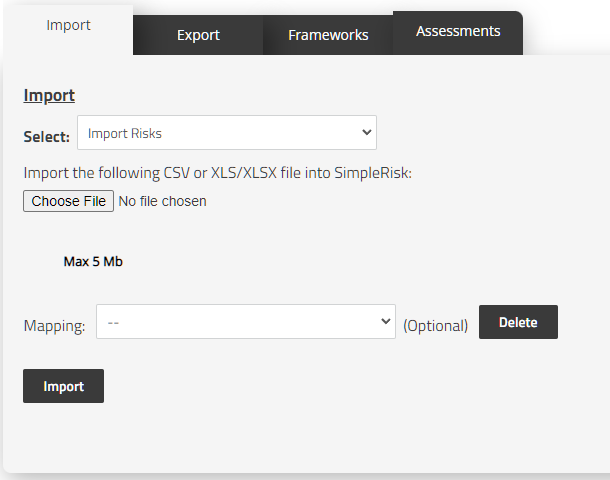
First we will make sure that we have selected Import Risks from the dropdown menu pictured above. If you are importing a file that was created using the headers from a SimpleRisk Combined Export as the base then you may also use the Mapping dropdown to select SimpleRisk Combined Import. This will automatically map all fields for import in the next step assuming you have not edited the number of columns or changed their order.
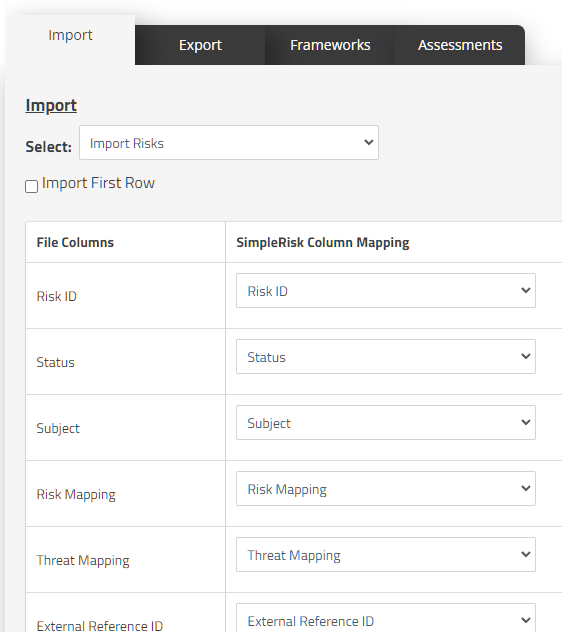
The example above shows what you should see when using the SimpleRisk Combined Import mapping. The column on the left represents the columns contained within the file that was uploaded. The dropdowns on the right represent the field that column is mapped to.
It should be noted that if for some reason your import does not contain labeled headers in the first row you can elect to import the first row as well by clicking the checkbox labeled “Import First Row”. This is seldom used and when possible headers make the mapping process much smoother.
It should be noted before proceeding again that if the Risk ID column is mapped the system will update the risks with matching ID with the values from the import. If the Risk ID is not mapped the system will add all rows as new risks with new Risk IDs.
You do not have to update and map all columns with every import. As a bare necessity the system requires a Subject and a Risk ID if you are attempting to update information. As described above some mappable fields can be omitted if they are irrelevant to the imported information, not used, or not relied upon by another piece of information for another displayed value.
After all precautions and checks have been made you may proceed to scroll to the bottom of the page and click the “Import” button. Once completed you should see a list of the updated risks and a few details about what was updated. For a more in depth list you can look to the Audit Trail in the Configure menu.
This will have concluded the process necessary for importing risks into SimpleRisk.
Summary
This will have concluded the process necessary for importing risks into SimpleRisk. In this guide we covered the details and specifics of importing risks into SimpleRisk and all of the default fields available for risk imports. If you have any questions or run into issues please contact us at support@simplerisk.com