
Installation
All SimpleRisk Extras are made available through the SimpleRisk services feature, which is automatically activated when you register your SimpleRisk instance. To initiate the registration process, navigate to Configure 🡪 Register & Upgrade. Here, you will need to input your organization’s details and save the information. This action will generate a unique instance ID for your SimpleRisk setup and establish a connection with our servers to create a services API key. Once your instance is successfully registered, SimpleRisk will automatically download and install the Upgrade Extra for you. This Upgrade Extra includes convenient buttons for upgrading the application, backing up your data, and installing additional Extras. If you encounter any issues, please verify that the “simplerisk” directory has write permissions for the web server user (usually “www-data”). Additionally, if your system operates behind a dynamic NAT pool, you may need to reach out to our support team to remove the IP restrictions for your instance.
Activation
This next step is what tells Simplerisk that the Team Based Separation Extra is installed and ready to use. Log in to your Simplerisk instance and select “Configure” from the Navigation menu on the left. Then, select “Extras” from the configuration menu. You will see a list here of each of the Extras that are available for purchase. Find the row for the “Team-Based Separation” Extra and click where it says “No” in the enabled column. Click on the “Activate” button. Once activated, you should see the word “ACTIVATED” under the extra name in green.
Configuration
We have several options to customize the functionality of Team-Based Separation. Below, you will find a screenshot of the configuration page, which you can access by clicking “Configure” on the left, then selecting “Extras,” and finally pressing the “Yes/No” button on the far right for Team-Based Separation.
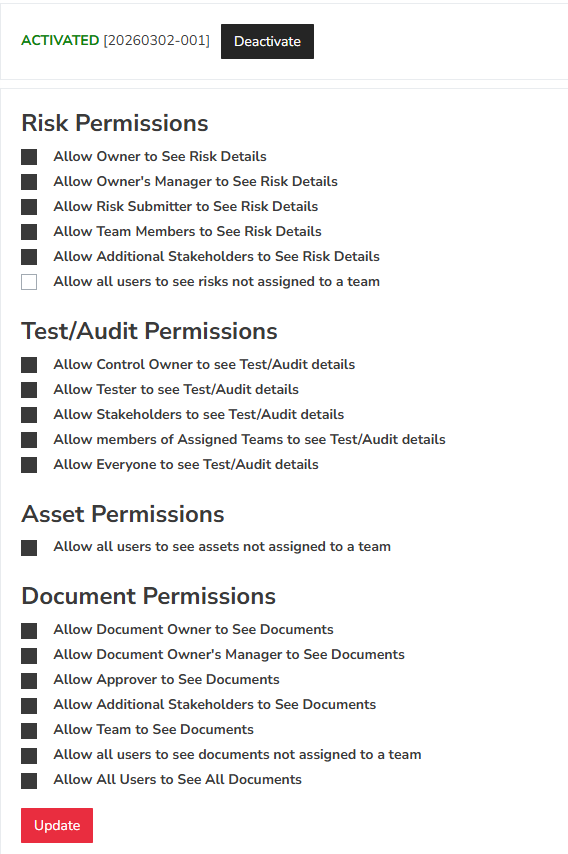
Each of these permissions is designed so that if you meet just one specific condition, you will be granted access to view the associated risks. The ability to view takes precedence over any restrictions that might otherwise suggest you cannot access a particular risk or test.
For instance, a user who is not part of the team to which a risk is assigned can still view that risk with the current permissions if they have submitted the risk themselves or are listed as the Owner, Owner’s Manager, or an Additional Stakeholder. Meeting any one of these criteria will suffice, and you do not need to fulfill all of them to gain access to the risk.
Features
You won't notice any changes in SimpleRisk’s user interface once this Extra is activated, except for seeing it labeled as “Enabled” when you navigate to “Configure” at the top and then select “Extras” from the left menu. However, once activated, risks that have a designated “Team” will only be accessible to users who are part of that team.
To determine which “Team” a risk is associated with, simply click on the risk ID of the desired risk from any report view. Then, check the “Details” section for an entry labeled “Team.” Please note that each risk can only be assigned to one team.
To view the teams that a user has access to, go to “Configure” in the left navigation menu and then select “User Management.” Scroll down to the “View Details for User” section. Choose the user you want to check and click the “Select” button. You will see the “Team(s)” configuration for that user, where any currently enabled teams will be highlighted. If the highlighted team name corresponds with the team assigned to a risk, the user will have access. If a team is not highlighted, you can add the user to multiple teams through this configuration and click “Update” to save your changes.
Summary
This guide has covered the configuration, installation, and management of the Team-Based Separation Extra. If you still have questions or something is not functioning as expected, please contact us at: support@simplerisk.com