
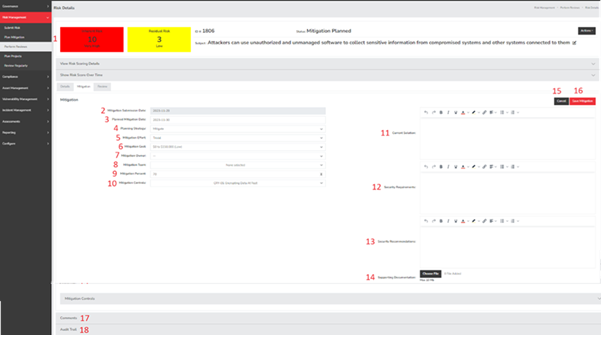
- Risk Scores** - These represent your Inherent and Residual Risk scores. As the mitigation percentage increases, the Residual Risk will decrease accordingly. If multiple mitigation percentages are present, only the highest one will be taken into account for the calculation.
- Mitigation Submission Date** - This field records the date when the mitigation was submitted. Please note that this date will not change if the mitigation is edited or modified.
- Planned Mitigation Date** - Use this field to indicate the date you intend to implement your mitigation efforts.
- Planning Strategy** - This field allows you to specify the name of your mitigation approach. You can modify this field by selecting “Configure” at the top, followed by “Add and Remove Values” on the left.
- Mitigation Effort** - Here, you can define the level of effort required to implement your mitigation. This field is also modifiable through “Configure” at the top, followed by “Add and Remove Values” on the left.
- Mitigation Cost** - This section enables you to assign a cost range for a specific mitigation. The ranges are sourced from the same categories as Asset Valuation and can be adjusted by going to “Configure” at the top and selecting “Asset Valuation” on the left
- Mitigation Owner** - This field allows you to designate an owner for the mitigation. It can be utilized by the Notification feature to alert the assigned mitigator regarding specific actions or notifications.
- Mitigation Team** - Here, you can select and name the teams responsible for the mitigation. This field fosters shared responsibility for mitigations and enhances reporting on groups of risks.
- Mitigation Percent** - This field is used to indicate the percentage of risk being mitigated by the current approach. It is one of the two methods to reduce residual risk. If both a mitigation percentage and a control mitigation percentage are specified, only the higher percentage will be factored into the residual risk calculation.
- Mitigation Control** - This dropdown menu allows you to select one or more controls to mitigate the risk. When multiple controls with mitigation percentages are chosen, only the highest percentage will be applied to the residual risk calculation. Once added, any selected control will be displayed in the mitigation details.
- Current Solution - This section provides a space for you to describe the existing solution for a specific mitigation or how you are currently addressing the associated risk.
- Security Requirements - In this field, you can specify any security requirements needed to align the risk with acceptable levels. This could range from implementing a specific control, process, or standard to detailing unique requirements related to the risk that may exceed standard mitigation controls.
- Security Recommendations - This section is intended for outlining additional controls that are not mandatory but could enhance your defense-in-depth strategy for improved risk management.
- Supporting Documentation - Here, you can upload relevant supporting documentation. This feature is tailored to the mitigation you are currently examining, allowing for file uploads that will be accessible for download by anyone with permission to view the mitigation.
- Cancel - This button enables you to cancel the current mitigation entry or revert any modifications made to an existing mitigation.
- Save Mitigation - Use this button to save the information you have entered regarding the mitigation.
- Comments - This section is designated for any information that doesn’t neatly fit into the predefined fields or for providing updates specific to this risk or mitigation.
- Audit Trail - The audit trail feature allows you to track all changes made to a specific risk, including who made the changes and when they occurred.
Summary
The Mitigation details page in SimpleRisk is where you store your effective solution to a given risk. This page should have served to answer all questions related to planning a mitigation but if you feel anything has been missed or just seek further clarification please reach out to us at support@simplerisk.com.