
Creating Frameworks
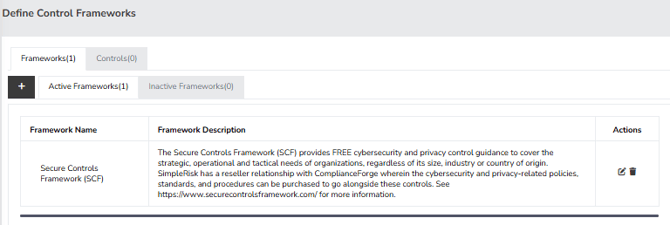
To start the process of creating a Framework, please click on the “Governance” menu located on the left side of your screen. This will direct you to the “Define Control Frameworks” page, where you will have the tools to effectively manage your frameworks and controls. Below the screenshot, you will find clear steps to guide you through the creation of a new framework.
-
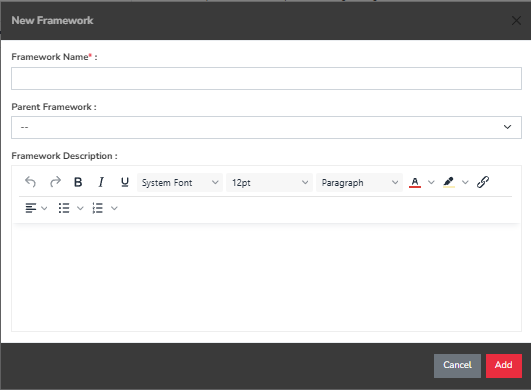
To begin, click the “+” button located to the right of “Define Control Frameworks.” This action will open a pop-up menu where you can enter the details of the new framework.
-
You will need to provide a name for your framework.
-
While you have the option to select a parent framework from the dropdown menu, please note that this step is not mandatory.
-
In the new “Framework Description” field, please define a description for your framework.
-
Finally, to complete the process of adding your new framework, click the red “Add” button located at the bottom right of the pop-up menu.
Modifying Frameworks
To start modifying a Framework, click on the “Governance” menu located on the left side of the screen. This will take you to the “Define Control Frameworks” page, where you can manage both frameworks and controls. Follow these steps to make your changes:
- Locate the row that contains the name of the framework you want to modify.
- In that row, click the “Edit” button positioned to the left of the “Trashcan” icon.
- Here, you can make any adjustments you need.
- Once you have finished editing, be sure to click the red “Update” button to save your changes. Additionally, please remember that you can easily drag and drop frameworks between the “Active” and “Inactive” tabs to manage which frameworks are currently available for use.
Deleting Frameworks
To remove frameworks from the system, go to the “Define Control Frameworks” page. Once there, locate the framework you want to delete and click the “Trashcan” icon in that row. A pop-up will appear asking you to confirm the deletion; click the red “Yes” button to proceed. Please keep in mind that while deleting a framework will not affect any associated controls, any control that previously referenced the deleted framework will no longer show its name.
Creating Controls
Next, we will discuss the process of creating controls in SimpleRisk. These controls can serve dual purposes: they can be used for mitigations as well as compliance audits, the latter of which will be detailed in separate documentation. Below the screenshot, you will find the step-by-step instructions for creating a new control in SimpleRisk.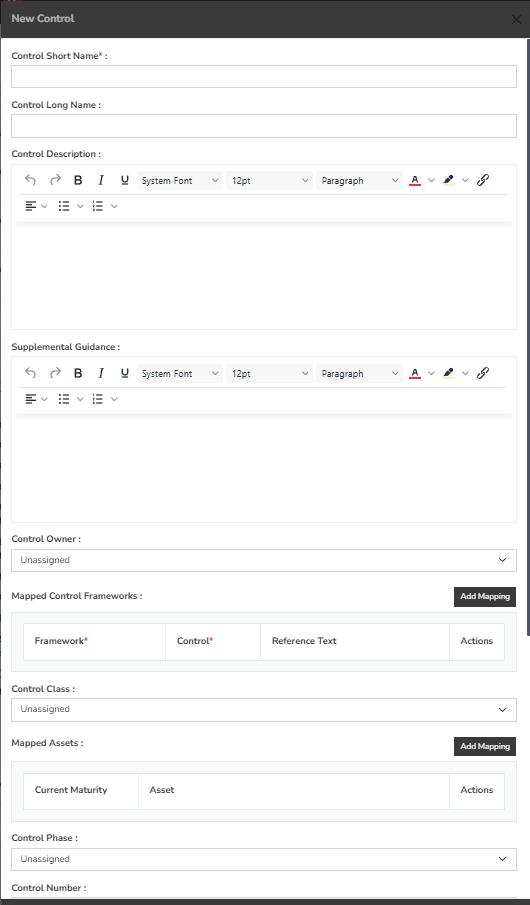
-
Click on "Create Controls," as indicated in the screenshot above.
-
A pop-up menu will appear, allowing you to enter various details for the control. Please note that only the “Control Short Name” is mandatory.
-
To assign a control framework, click on "Add Mapping" under the section labeled "Mapped Control Frameworks" and select your desired framework.
-
You can also include additional information you wish to record, such as the “Control Long Name,” “Control Description,” “Supplemental Guidance,” and “Control Number.”
-
If you wish to modify or add options to the dropdown fields (including “Control Class,” “Control Phase,” “Control Priority,” and “Control Family”), navigate to the “Configure” menu at the top. From there, select “Add and Remove Values” on the left. The dropdown fields will be displayed at the top, where you can utilize the “Add/Remove/Modify” options to customize the controls you have created.
-
By assigning a “Mitigation Percent,” you will automatically apply the entered percentage to the Inherent Risk Score associated with a risk. Once this percentage is applied, a Residual Risk score will be automatically calculated and displayed next to the Inherent Risk score, indicating the extent to which a given control will impact the mitigation.
Modifying Controls
To edit a control, simply click on the “Edit” button located at the top right corner of the “Control” box. This button is the green one among the three small icons. After clicking it, you will have the ability to change any of the details that were previously set for the control. Once you have finished making your changes, be sure to save them by clicking the “Update” button at the bottom of the pop-up menu.
Deleting Controls
Deleting controls in SimpleRisk is a simple process. To start, go to the “Governance” menu on the left side of your screen, then select the “Controls” tab. Next, click on the “Trashcan” icon found at the top right corner of the box that contains the control you wish to remove. After that, you will need to confirm your decision in the pop-up menu that appears.
Summary
This guide has covered the creation, modification, and deletion of frameworks and controls in
SimpleRisk. If you still have questions or something is not functioning as expected, please
contact us at support@simplerisk.com