
Add New Asset
-
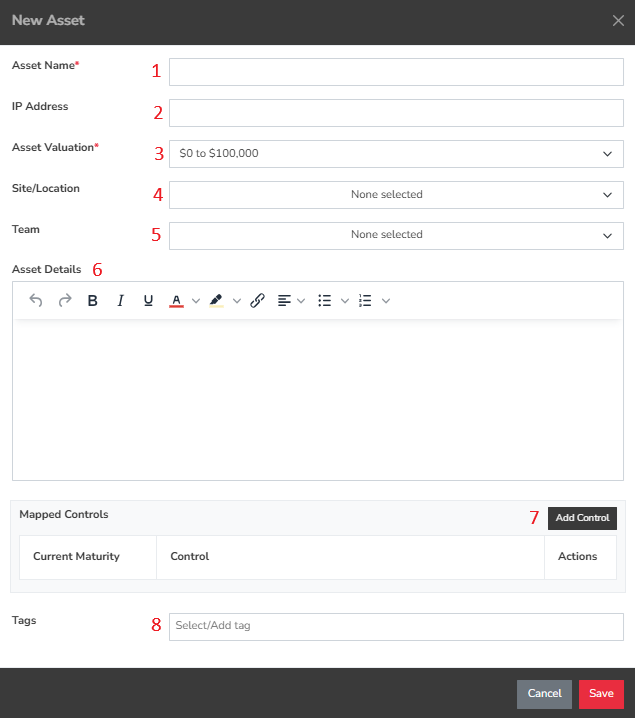
Asset Name - The designated name for the asset in question.
-
IP Address - This field captures the IP address of the asset, applicable only if it is a networked device.
-
Asset Valuation - This represents the current market value of the asset.
-
Site/Location - This indicates where the asset is physically located. It’s important to note that this may differ from the site or location associated with any risks, which could occur elsewhere.
-
Team - This refers to the team responsible for the asset. You can manage team assignments through the Configure menu at the top, followed by the Add & Remove values option on the left.
-
Asset Details - While this information is optional, it can be beneficial for documenting various aspects of the asset and its applications.
-
Add Control - This dropdown menu enables you to select any pertinent controls related to this asset.
-
Tags - The Tags section is designed for entering searchable terms that apply to the asset. Tagging offers a flexible way to help users find and categorize assets and risks using relevant and meaningful keywords.
Verified Asset
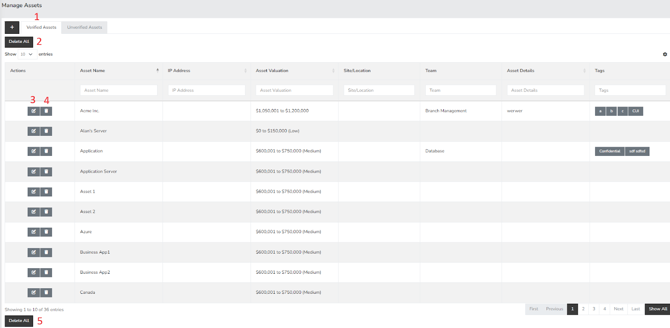
1. Verified Assets Tab – This section displays all assets that have been successfully verified.
2. Delete All – This button enables you to remove all assets listed under the verified assets tab.
3. Edit – This option allows you to modify the details of a specific asset, including assigning an IP address or changing the associated teams.
4. Delete – This button permits you to remove an individual asset from the list.
5. Delete All – This functionality allows for the removal of all assets within the verified assets tab.
Unverified Asset
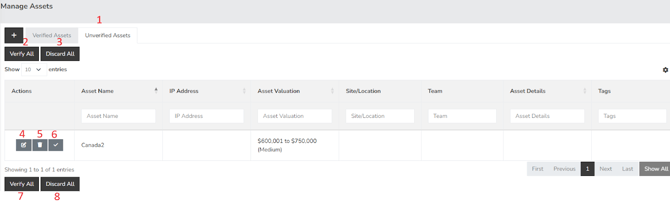
1..Unverified Assets Tab – This section displays all assets that have yet to be verified.
2. Verify All– Click this button to approve all assets at once and transfer them to the Verified Assets tab.
3. Discard All– Use this button to permanently delete all unverified assets.
4. Edit – This option allows you to modify the details of specific assets, such as assigning an IP address or changing team assignments.
5. Delete – This button enables you to remove an individual asset from the list.
6. Approve– Clicking this button will approve a specific asset and add it to the Verified Assets tab.
Summary
The manage asset page is where you manage all the assets which have been approved or unverified. This page should have served to answer all questions related to the managing asset but if you feel anything has been missed or just seek further clarification, please reach out to us at support@simplerisk.com.