
To begin, log in to your Ubuntu system using the username and password you set during the installation process. Next, access the Unity menu located at the top of the left sidebar and type “terminal” into the search field that appears. This action will display a shortcut to the terminal application. You can click on this shortcut to open the terminal. For easier access in the future, consider dragging the terminal icon to the Unity bar on the left side.
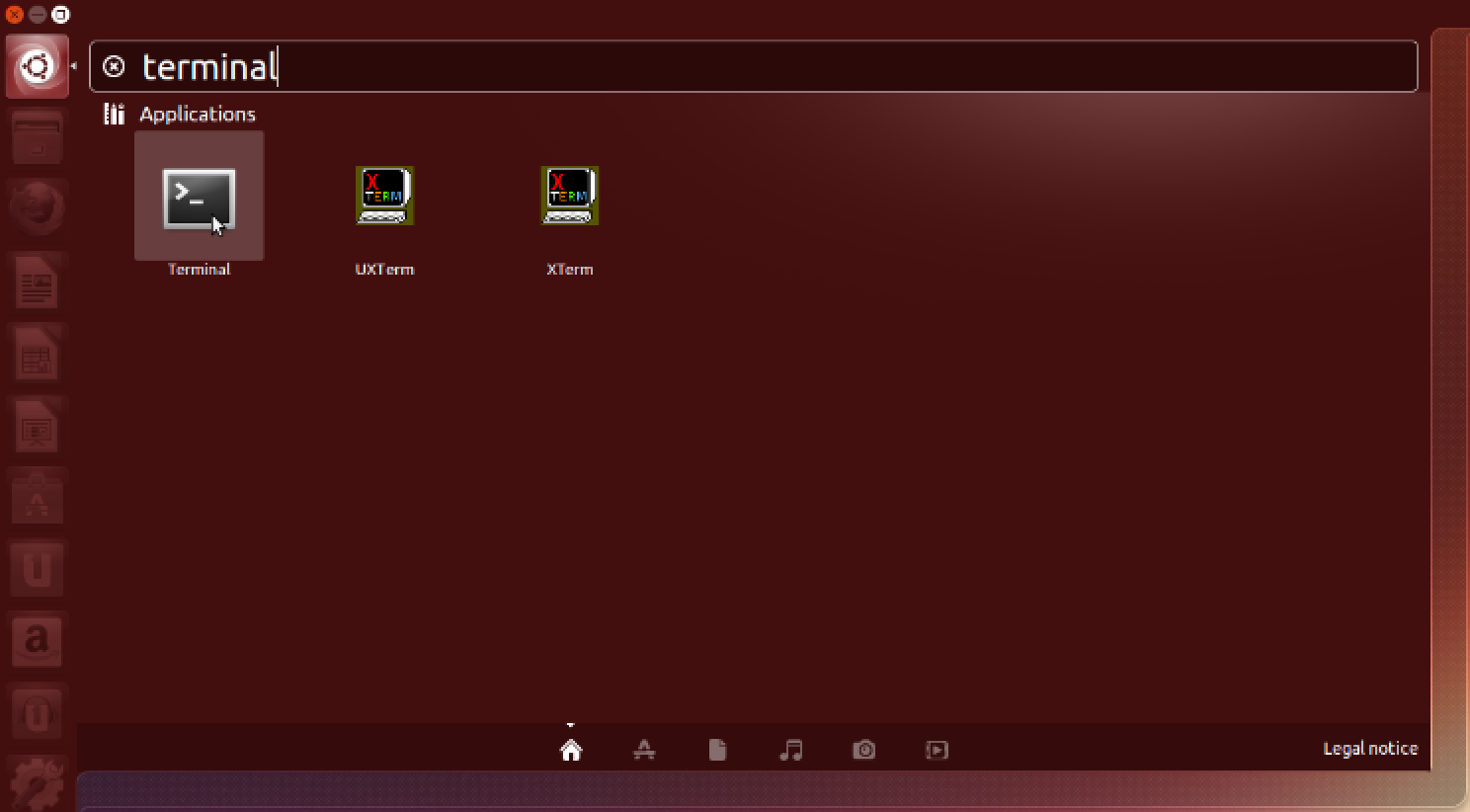
After launching the terminal, it's essential to ensure that your operating system is updated to the most recent software versions. To accomplish this, simply enter the command “sudo apt-get update” and provide your password when asked.
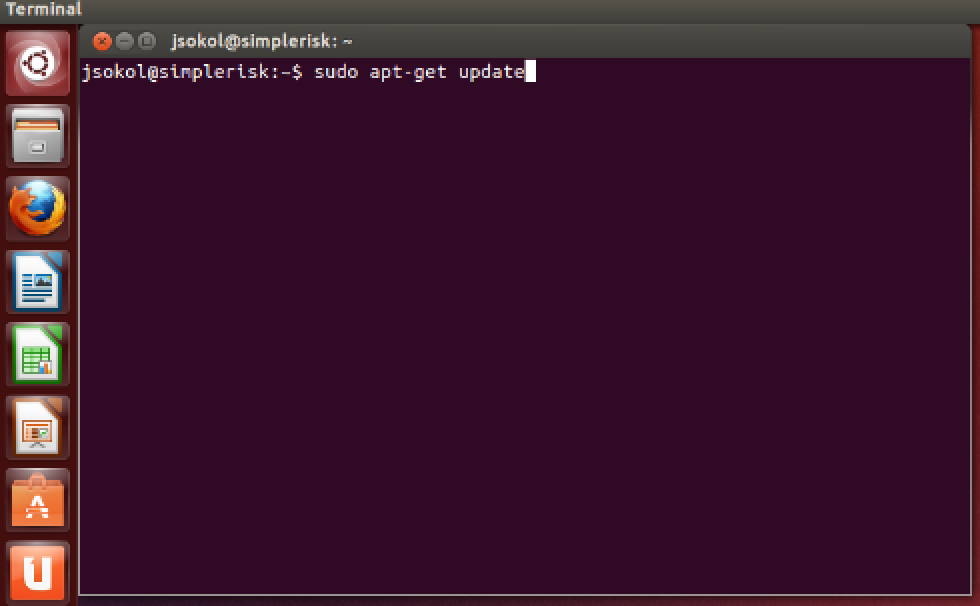
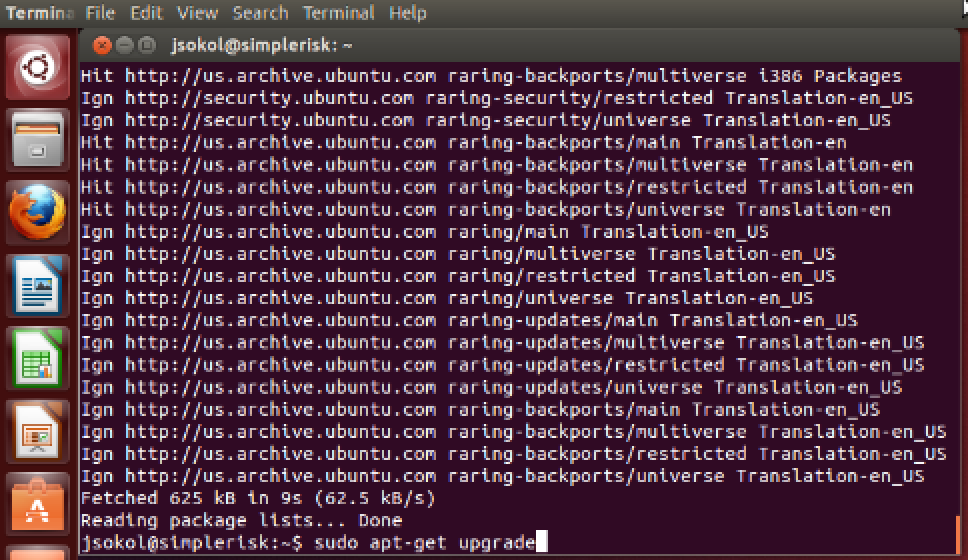
This will pull down the latest version information for all of the installed operating system files. Now run “sudo apt-get dist-upgrade” and answer “y” when it asks if you would like to continue.
Installing Apache, PHP, and MySQL
The next step is to install the necessary files in order to run Apache with PHP and MySQL on this system. To do this, run the command “sudo apt-get install lamp-server^”.
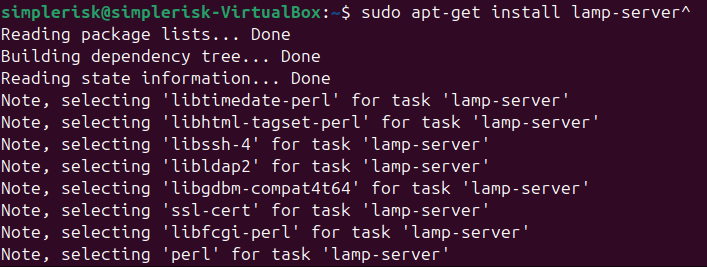
You should now see the terminal change into a package configuration application that downloads and installs the applications necessary in order to run a LAMP stack on the server. You will know that this installation process is complete when the package configuration screen goes away and you are back at the terminal shell.
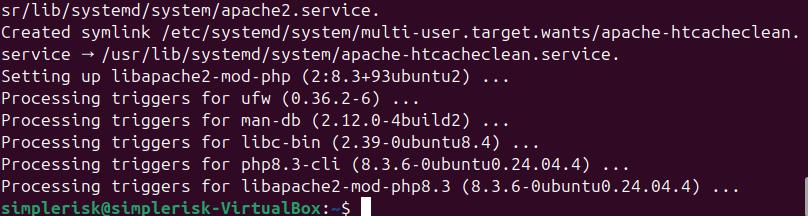
Next we will need to install a few extensions to ensure SimpleRisk will run properly using the following:
sudo apt-get php-dev
sudo apt-get php-ldap
phpenmod ldap
Now to go ahead and setup the memory_limit for PHP we need to open the php.ini with the following:
sudo nano /etc/php/8.X/apache2/php.ini (update X for your version of apache or “ls” the /etc/php/ directory)
With the php.ini open search for “memory_limit” in vi “/memory_limit” should show you where the variable is stored. Update the value to 512MB. Next we need to edit “max_input_vars” and set this to 3000. If there is a preceding “;” remove it. Now save and quit (ctrl x, Y, enter).
Now we need to do a little setup of MySQL for the install to go smoothly, this will change the ROOT MySQL user password and we suggest making this password strong and recording it elsewhere just in case.
First login to the MySQL console using “sudo mysql -u root -p”. The terminal will then ask for a password which should be blank on a fresh install, so just hit enter/return.
Now in the console use the following to set the root password and confirm the plugin / change the plugin used for password authentication.

use mysql;
ALTER USER 'root'@'localhost' IDENTIFIED WITH mysql_native_password BY 'MyNewMySQLPassword';
flush privileges;
note: in this screenshot this has already been done hence 0 rows affected your should show 1 row affected.

The next step of setting up MySQL for a SimpleRisk install will be to set the sql-mode. To do this use the following steps:
1) use “nano /etc/mysql/mysql.conf.d/mysqld.cnf”
2) At the bottom of the config file add the following to set the sql-mode.
sql-mode="NO_ENGINE_SUBSTITUTION"
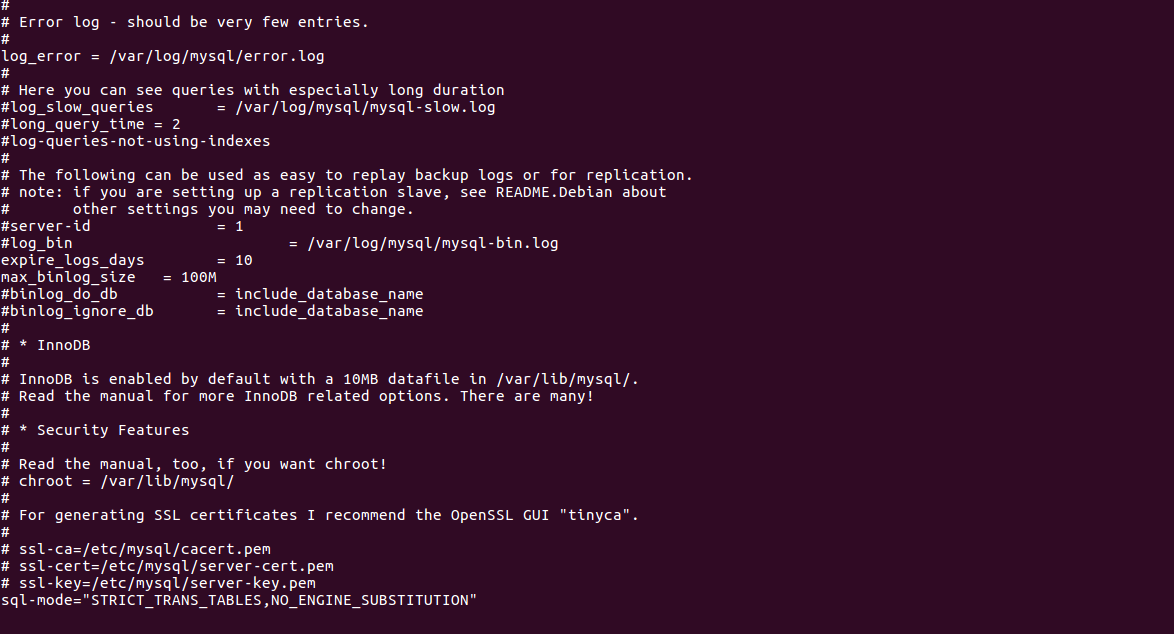
3) Now write the file out (ctrl X, Y, enter).
Now we will configure Apache for the SimpleRisk API
1) Run the command “sudo a2enmod rewrite ssl” to enable mod_rewrite & ssl for Apache.
2) Run the command “sudo rm /etc/apache2/sites-enabled/000-default.conf” to delete the default apache2 configuration file thin.
3) Now we will create the virtualhost configuration for SimpleRisk create new text file by using:
sudo nano /etc/apache2/sites-enabled/simplerisk.conf
4) Now using the following as an example you can copy edit the virtualhost configuration like so (Note, spacing of different lines matters):
<VirtualHost *:80>
ServerName simplerisk
DocumentRoot "/var/www/simplerisk"
<Directory "/var/www/simplerisk">
Options -Indexes
AllowOverride All
allow from all
</Directory>
</VirtualHost>
5) Save the file and close your text editor.
Generating an SSL certificate
Enabling HTTPS is necessary to secure the connection between your web browser and the SimpleRisk instance you’re creating. If you already have a certificate from your organization you may skip this section but you will need to have it readily available to continue the installation as the virtualhost configurations we provide enforce HTTPS. You can always generate one for now and change it to another one later. Continue on in the terminal to generate your cert and key.
1) First, we need to choose a directory to store our cert and key pair, in this example we will create the directory “/root/certs” and work from there.
sudo bash
mkdir /root/certs && cd /root/certs
2) Create the certificate using the following command:
sudo openssl req -new -newkey rsa:4096 -x509 -sha256 -days 9999 -nodes -out simplerisk.crt -keyout simpleriskkey.key
3) You’ll be prompted to enter some certificate details and when you have entered all of the required prompts we will change the file permissions of the key to be accessible only by root. This is an important step and should not be skipped.
sudo chmod 400 /root/certs/simpleriskkey.key
4) Backup your certificate and key to an external storage that can be secured. This completes the process of generating a new self-signed key.
Configuring the Virtual Hosts for HTTPS
Next we will configure the virtual hosts to use HTTPS. In this section we will tell apache to use our SSL certificate and redirect any port 80 traffic to 443.
1) Open /etc/apache2/sites-enabled/simplerisk.conf using
sudo nano /etc/apache2/sites-enabled/simplerisk.conf
We’ll need to add a few new lines to your virtualhost to enable the http to https redirect. Lines being added are in green If this was configured as shown in the ubuntu install guide it should look like the following. If you are using a cert from a CA then you will need to also add the following line just under the orange lines in the example below.
“SSLCertificateChainFile /path/to/insertcerthere.crt “
<VirtualHost *:80>
ServerName simplerisk
DocumentRoot "/var/www/simplerisk"
<Directory "/var/www/simplerisk">
Options -Indexes
AllowOverride All
allow from all
</Directory>
SSLEngine on
SSLCertificateFile /root/certs/simplerisk.crt
SSLCertificateKeyFile /root/certs/simpleriskkey.key
</VirtualHost>
2) Write the file out and close it. (ctrl X, Y, enter)
3) Create a new file using
sudo nano /etc/apache2/sites-enabled/ssl-simplerisk.conf
This file will contain the actual configuration for the https page.
<IfModule mod_ssl.c>
<VirtualHost _default_:443>
ServerAdmin webmaster@localhost
DocumentRoot /var/www/simplerisk
SSLEngine on
SSLCertificateFile /root/certs/simplerisk.crt
SSLCertificateKeyFile /root/certs/simpleriskkey.key
<FilesMatch "\.(cgi|shtml|phtml|php)$">
SSLOptions +StdEnvVars
</FilesMatch>
<Directory /usr/lib/cgi-bin>
SSLOptions +StdEnvVars
</Directory>
<Directory "/var/www/simplerisk">
AllowOverride all
allow from all
Options -Indexes
</Directory>
</VirtualHost>
</IfModule>
4) The final step is to save your apache configuration, close the file and restart apache using:
sudo systemctl restart apache2..
Obtaining the SimpleRisk Files
Click on the FireFox logo in the Unity bar on the left. Once FireFox loads, enter https://www.simplerisk.com/ into the URL bar to go to the SimpleRisk site. Click on the “Download” link at the top.
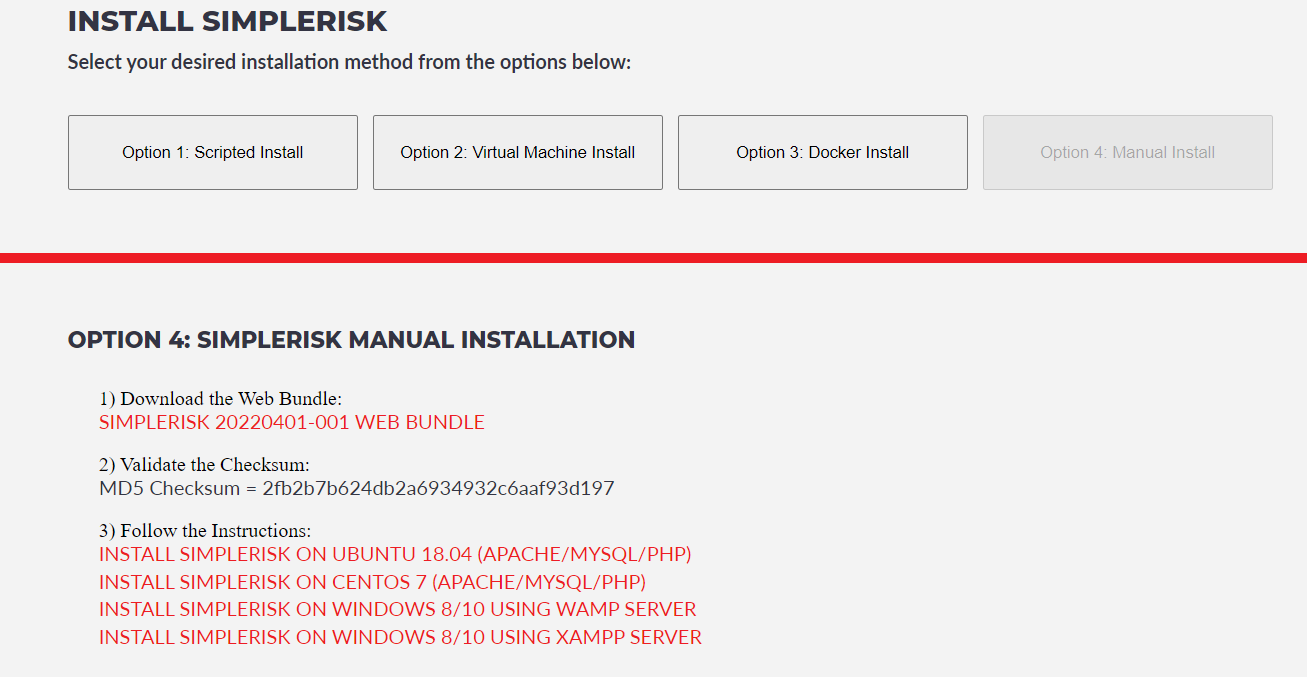
Click to download and save the Web Bundle there is no longer a separate database installer script to be downloaded and is now included with the core download. Once you have the files downloaded, you can close the browser.
Change to the new Apache web root by running the command “cd /var/www/”.
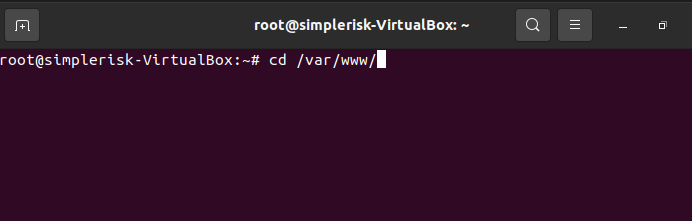
Remove the html folder using the command “sudo rm -r html”. Extract the web bundle into the web directory using the command “sudo tar xvzf ~/Downloads/simplerisk-20220527-001.tgz” (or the newest available version).
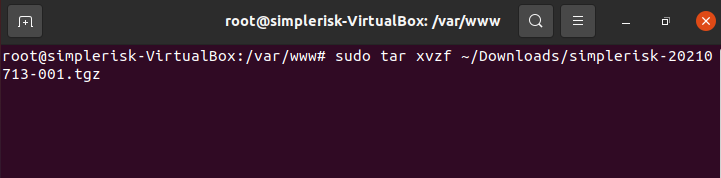
This will extract the files into a directory into the directory /var/www/.
Now we change the ownership permissions of the “simplerisk” directory and all its sub-directories to be owned by the www-data user (or whatever user Apache is running as) using the command “sudo chown –R www-data: /var/www/*”.
Installing the Database
To access the installer to complete the installation navigate to http://localhost in your browser. If you have followed all steps up to this point correctly you should see the following.
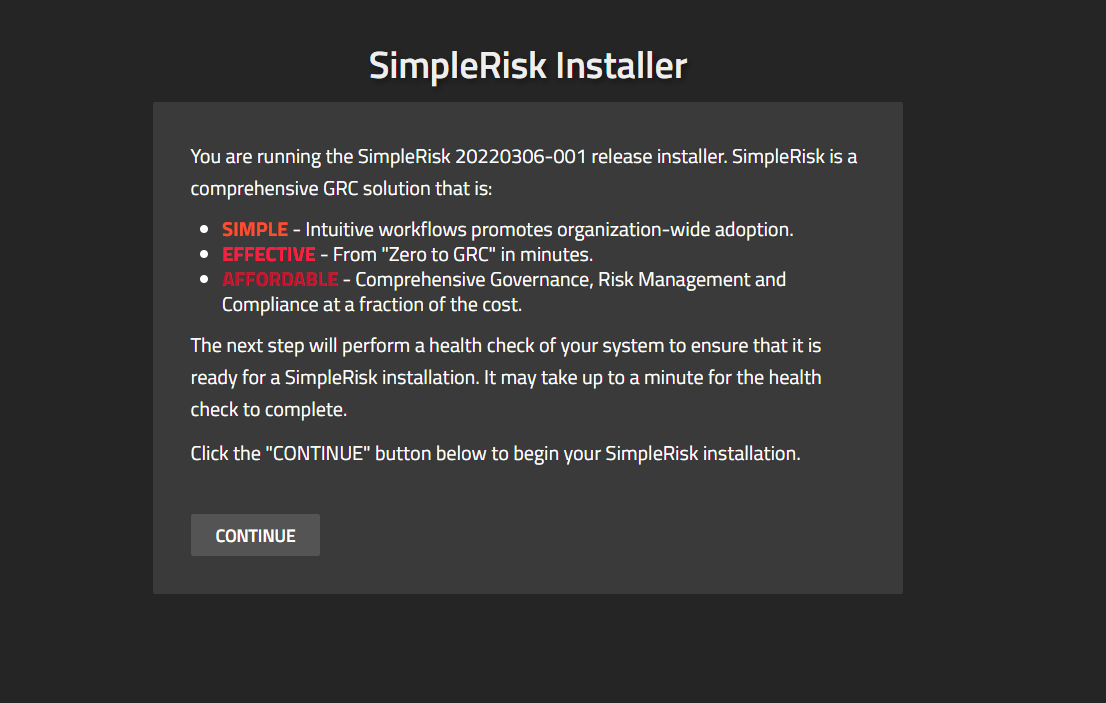
Click “continue” to access the health check page. It's important to ensure that all items on the list show a green status for Ubuntu installations. If everything appears green, you can confidently proceed by clicking continue.
Next, you will be directed to the database configuration page. Here, you will need to enter the credentials for the MySQL root user that you set up in a previous step. An example of this page is shown below.
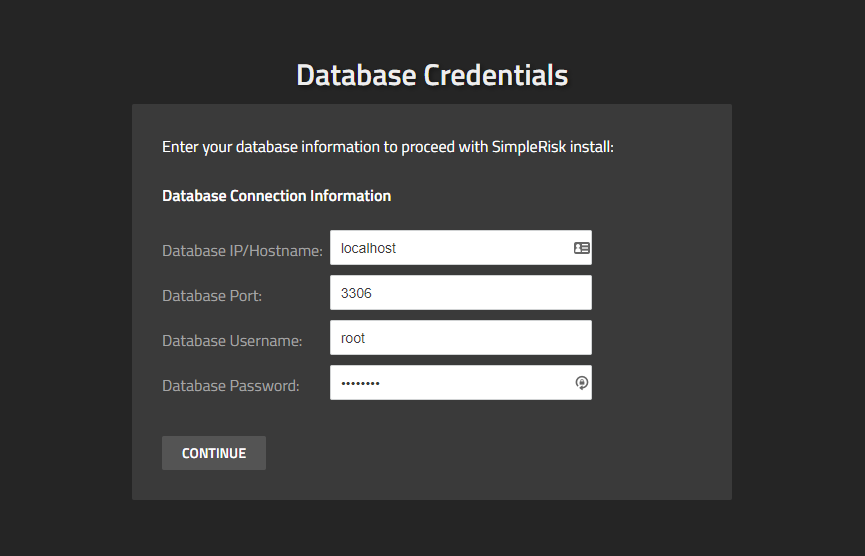
Please keep in mind that if you are setting up a MySQL instance that is not hosted locally on your web server, you will need to specify the Database IP/Hostname and port. For basic installations, this step is unnecessary, and you can leave these values at their default settings. Once you have entered the credentials to access the MySQL server, click “continue.” This will allow you to proceed with configuring the details of the SimpleRisk database. In most cases, you can accept the default settings for all of these options.
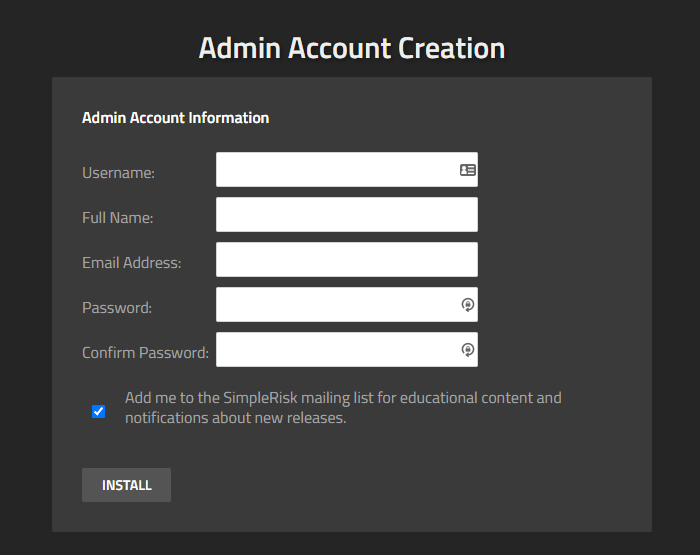
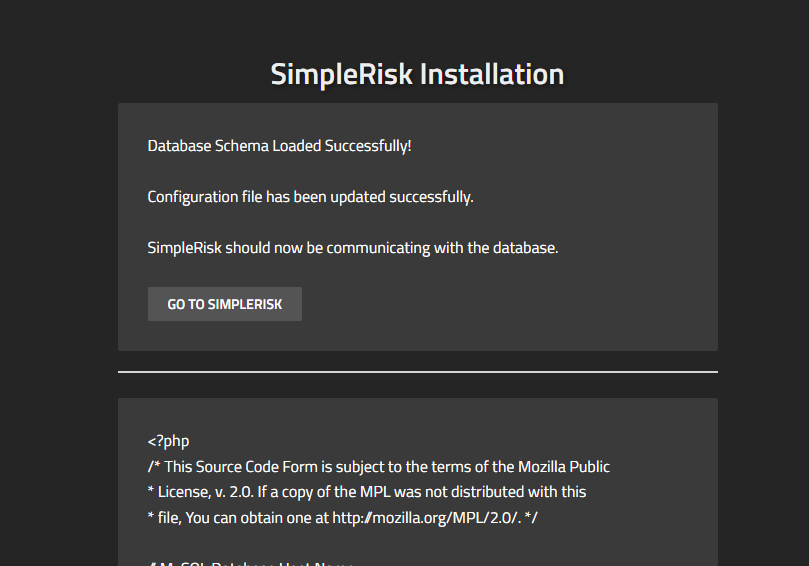
We have now reached the final setup screen, as shown above. Here, you will set up your admin account and provide the details you will use to log in to SimpleRisk. It is highly recommended to use a valid email address, as this will be where you receive password recovery emails. You also have the option to join our mailing list by checking the box at the bottom. By doing so, you will receive updates about product releases and educational content related to the SimpleRisk platform. Once you see the image below in your browser, you can click the “Go to SimpleRisk” button to log in and start using the application.
Registering SimpleRisk
This step is completely optional; however, if you choose not to complete it, future upgrades of SimpleRisk will require a series of manual tasks. This includes downloading the new version, backing up your configuration file, extracting the new files, restoring the configuration file, and performing a database upgrade. While this process may seem daunting, it is actually quite manageable. We have streamlined it significantly, but we need you to register your SimpleRisk instance first. To do this, simply select “Configure” from the menu at the top, and then click on “Register & Upgrade” from the left menu.
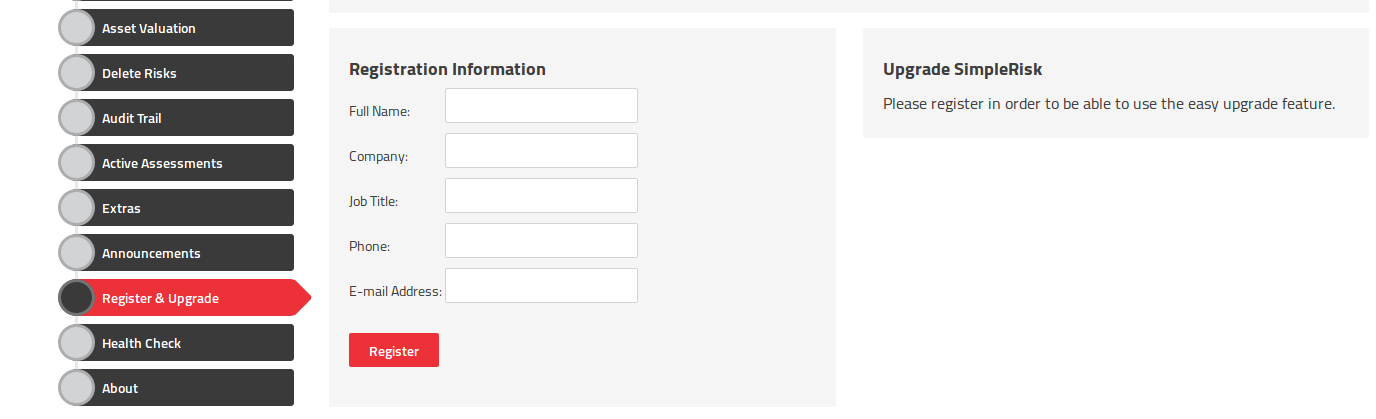
Please fill in your details and click the “Register” button. This action will generate a unique Instance ID for your SimpleRisk setup and download the Upgrade Extra, which provides the convenient features of one-click backups and upgrades. If you encounter any difficulties during the registration process, we suggest verifying that the “simplerisk” directory and its subdirectories have write permissions for the www-data user (or the user under which Apache is operating).
** This completes your installation of SimpleRisk **
SimpleRisk Paid Support and Extras
Everything that you’ve seen up to this point is completely free for you to install and use, forever. That said, we offer a number of ways for you to enhance your SimpleRisk instance with even more functionality. If you like what you see, and find it useful, please consider purchasing one of our inexpensive Paid Support plans or Extra functionality so that we can continue to offer you the best open source risk management tool available. Thank you!