---
title: Importing Risks into Simplerisk using Import/Export Extra
description: Importing Risks into Simplerisk using Import/Export Extra
---
[Skip to content](https://support.simplerisk.com/kb/importing-risks-into-simplerisk-using-import/export-extra#main-content)
English
Show submenu for translations
[Customer portal](https://support.simplerisk.com/tickets?hsLang=en)
[](https://www.simplerisk.com/)
Open main navigation
Close main navigation
- English
Show submenu for translations
- [Customer portal](https://support.simplerisk.com/tickets)
- [Contact us](https://www.simplerisk.com/about-us/contact-us)
[Contact us](https://www.simplerisk.com/about-us/contact-us)
How can we help you?
- There are no suggestions because the search field is empty.
1. [SimpleRisk Knowledge Base](https://support.simplerisk.com/kb?hsLang=en)
2. [FAQs](https://support.simplerisk.com/kb/faqs?hsLang=en)
# Importing Risks into Simplerisk using Import/Export Extra
## This guide provides a brief step-by-step set of instructions on how to import risks into Simplerisk using the import/export extra functionality. By following these instructions, you will be able to efficiently transfer risk data from external sources into Simplerisk, ensuring that your risk management processes are seamless and up-to-date. We will walk you through each stage of the import process, from preparing your data file to successfully uploading it into the system. This will help you save time and reduce errors, allowing you to focus on analyzing and mitigating risks effectively. Whether you are new to Simplerisk or looking to enhance your existing workflow, this guide will equip you with the knowledge you need to make the most of our import/export features.
To import your risks into SimpleRisk in CSV format, please follow the instructions outlined below.
To import risks, the user must first ensure they have administrator privileges, as this access is essential for navigating to the necessary configuration settings. Once you have confirmed your administrator status, locate the “Configure” menu in the toolbar on the left side on the page. Click on this menu to reveal additional options.
From the Configure menu, you will need to scroll down to Extras and click Yes. This is typically found on the far left navigation panel of the screen.
In this section, you'll find the tools needed to upload your CSV file. To ensure that you have all the required fields, I recommend exporting a risk first and using that spreadsheet as a template. This approach will help minimize import errors and guarantee that your data is seamlessly integrated into the SimpleRisk system. After selecting your file, simply follow the prompts to complete the import process without any hassle.
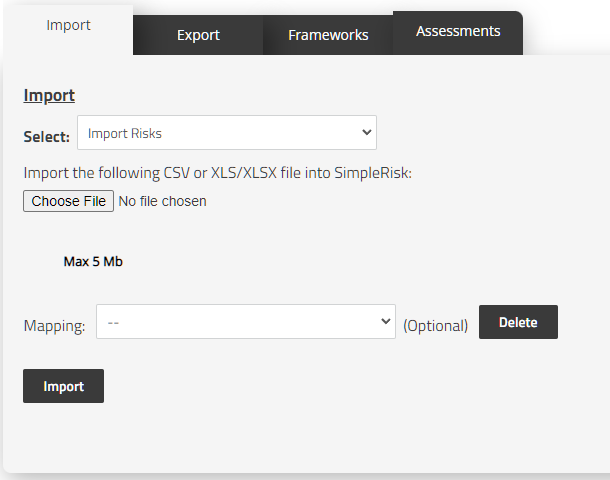
First we will make sure that we have selected Import Risks from the dropdown menu pictured above. If you are importing a file that was created using the headers from a SimpleRisk Combined Export as the base then you may also use the Mapping dropdown to select SimpleRisk Combined Import. This will automatically map all fields for import in the next step assuming you have not edited the number of columns or changed their order.
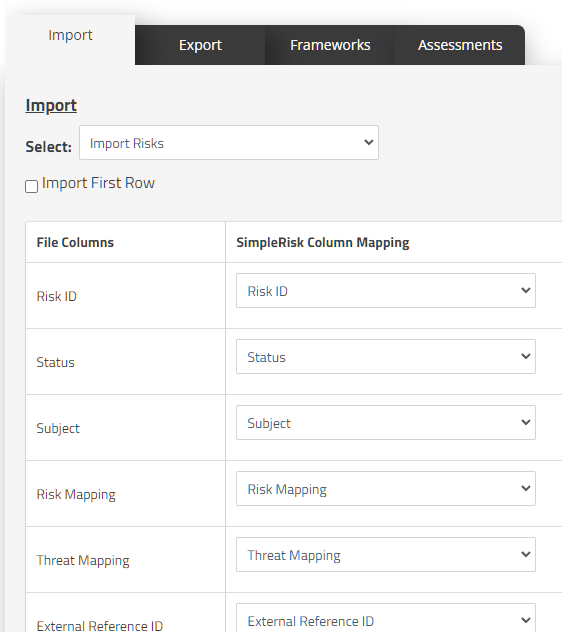
The example above shows what you should see when using the SimpleRisk Combined Import mapping. The column on the left represents the columns contained within the file that was uploaded. The dropdowns on the right represent the field that column is mapped to.
It should be noted that if for some reason your import does not contain labeled headers in the first row you can elect to import the first row as well by clicking the checkbox labeled “Import First Row”. This is seldom used and when possible headers make the mapping process much smoother.
It should be noted before proceeding again that if the Risk ID column is mapped the system will update the risks with matching ID with the values from the import. If the Risk ID is not mapped the system will add all rows as new risks with new Risk IDs.
You do not have to update and map all columns with every import. As a bare necessity the system requires a Subject and a Risk ID if you are attempting to update information. As described above some mappable fields can be omitted if they are irrelevant to the imported information, not used, or not relied upon by another piece of information for another displayed value.
After all precautions and checks have been made you may proceed to scroll to the bottom of the page and click the “Import” button. Once completed you should see a list of the updated risks and a few details about what was updated. For a more in depth list you can look to the Audit Trail in the Configure menu.
This will have concluded the process necessary for importing risks into SimpleRisk.
### Summary
This will have concluded the process necessary for importing risks into SimpleRisk. In this guide we covered the details and specifics of importing risks into SimpleRisk and all of the default fields available for risk imports. If you have any questions or run into issues please contact us at support@simplerisk.com
- [FAQs](https://support.simplerisk.com/kb/faqs?hsLang=en)
- [SimpleRisk Extras](https://support.simplerisk.com/kb/simplerisk-extras?hsLang=en#main-content)
- [Vulnerability Management Extra](https://support.simplerisk.com/kb/simplerisk-extras?hsLang=en#vulnerability-management-extra)
- [Team Separation Extra](https://support.simplerisk.com/kb/simplerisk-extras?hsLang=en#team-separation-extra)
- [Import-Export Extra](https://support.simplerisk.com/kb/simplerisk-extras?hsLang=en#import-export-extra)
- [Administrator Guide](https://support.simplerisk.com/kb/administrator-guide?hsLang=en#main-content)
- [00 About This Guide](https://support.simplerisk.com/kb/administrator-guide?hsLang=en#00-about-this-guide)
- [01 Installation and Deployment](https://support.simplerisk.com/kb/administrator-guide?hsLang=en#01-installation-and-deployment)
- [02 Upgrades and Maintenance](https://support.simplerisk.com/kb/administrator-guide?hsLang=en#02-upgrades-and-maintenance)
- [03 Users and Permissions](https://support.simplerisk.com/kb/administrator-guide?hsLang=en#03-users-and-permissions)
- [04 Authentication](https://support.simplerisk.com/kb/administrator-guide?hsLang=en#04-authentication)
- [05 Customization](https://support.simplerisk.com/kb/administrator-guide?hsLang=en#05-customization)
- [06 Configuring Risk and Compliance](https://support.simplerisk.com/kb/administrator-guide?hsLang=en#06-configuring-risk-and-compliance)
- [07 Integrations](https://support.simplerisk.com/kb/administrator-guide?hsLang=en#07-integrations)
- [08 The API](https://support.simplerisk.com/kb/administrator-guide?hsLang=en#08-the-api)
- [09 Encryption and Data Security](https://support.simplerisk.com/kb/administrator-guide?hsLang=en#09-encryption-and-data-security)
- [10 Workflows and Automation](https://support.simplerisk.com/kb/administrator-guide?hsLang=en#10-workflows-and-automation)
- [11 Reporting and Auditing](https://support.simplerisk.com/kb/administrator-guide?hsLang=en#11-reporting-and-auditing)
- [12 Operations](https://support.simplerisk.com/kb/administrator-guide?hsLang=en#12-operations)
- [13 Reference](https://support.simplerisk.com/kb/administrator-guide?hsLang=en#13-reference)
- [User Guide](https://support.simplerisk.com/kb/user-guide?hsLang=en#main-content)
- [00 Foundations of GRC](https://support.simplerisk.com/kb/user-guide?hsLang=en#00-foundations-of-grc)
- [01 Risk Management](https://support.simplerisk.com/kb/user-guide?hsLang=en#01-risk-management)
- [02 Compliance Management](https://support.simplerisk.com/kb/user-guide?hsLang=en#02-compliance-management)
- [03 Governance](https://support.simplerisk.com/kb/user-guide?hsLang=en#03-governance)
- [04 Asset and Data Inventory](https://support.simplerisk.com/kb/user-guide?hsLang=en#04-asset-and-data-inventory)
- [05 Threat and Vulnerability Management](https://support.simplerisk.com/kb/user-guide?hsLang=en#05-threat-and-vulnerability-management)
- [06 Assessments](https://support.simplerisk.com/kb/user-guide?hsLang=en#06-assessments)
- [07 Incident Management](https://support.simplerisk.com/kb/user-guide?hsLang=en#07-incident-management)
- [08 Audit and Reporting](https://support.simplerisk.com/kb/user-guide?hsLang=en#08-audit-and-reporting)
- [09 Day-to-Day SimpleRisk](https://support.simplerisk.com/kb/user-guide?hsLang=en#09-day-to-day-simplerisk)
- [10 Continuous Improvement](https://support.simplerisk.com/kb/user-guide?hsLang=en#10-continuous-improvement)
- [SimpleRisk User Guides](https://support.simplerisk.com/kb/simplerisk-user-guides?hsLang=en)
- [Troubleshooting](https://support.simplerisk.com/kb/troubleshooting?hsLang=en)
- [SimpleRisk Hosted](https://support.simplerisk.com/kb/simplerisk-hosted?hsLang=en)
- [How To videos](https://support.simplerisk.com/kb/how-to-videos?hsLang=en)
[](https://www.simplerisk.com)
Copyright © 2026, SimpleRisk, Inc.