
This section will be divided into clear steps, and it's crucial that you follow each one precisely for the process to be successful.
1) To begin, open your terminal and enter the command “ip addr” to identify the name of your adapter. Look for the interface name highlighted in the screenshot provided below.

2) Next, we will configure Netplan to assign a static IP address. To do this, please open the Netplan configuration file by entering the following command in your terminal:
“sudo vi /etc/netplan/01-netcfg.yaml”
3) You should now see the following:
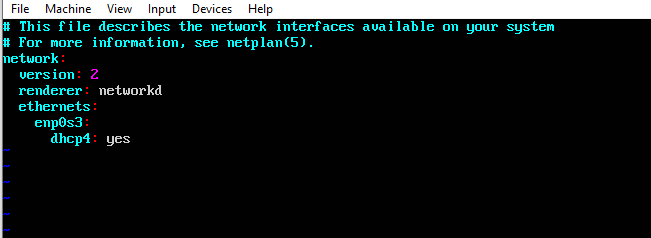
You will need to update your netplan configuration with the following details:
network:
version: 2
renderer: networkd
ethernets:
ens3:
dhcp4: no
addresses:
- 192.168.121.199/24 -> This will be your selected static IP
gateway4: 192.168.1.1 -> This is the IP address used by this machine to connect to the internet.
nameservers:
addresses: [8.8.8.8, 1.1.1.1]
Please refer to the below example for guidance on how your configuration should look once completed. Make sure to maintain consistent spacing and indentation as shown.
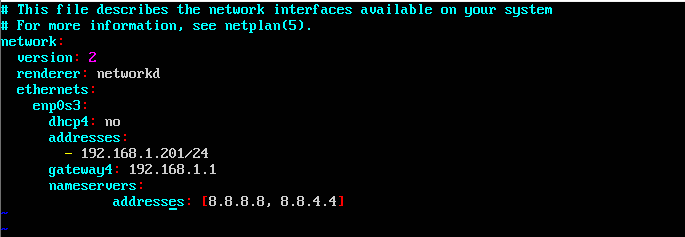
4) The last step is to implement the netplan configuration by entering “sudo netplan apply” in the terminal. If you do not see any error messages and the cursor simply moves to the next line, you can verify that your IP address has been successfully updated by executing the command “ifconfig.” Your new IP address should now be displayed.
Summary
These steps will have guided you through setting a static IP on a SimpleRisk provided VM. If you have found any instructions to be incorrect or lacking detail please contact us at support@simplerisk.com