
Securing MySQL:
1) Begin by logging into the virtual machine (VM) through the console, or alternatively, enable SSH access for a remote login. Use the username "simplerisk" and the password "simplerisk" to gain access.
2) Once logged in, elevate your privileges by typing "sudo bash" and enter the password "simplerisk" when prompted.
3) To retrieve the current root password that was generated when the VM was first booted, navigate to the root directory by executing "cd /root". Then, list the files present by using the command "ls" and open the file containing the root password with "vi root_mysql_password.txt" or the name of the file currently used for the root password.
4) Next, change the root password by running the command "mysqladmin -u root -p password MyNewRootPass". You will need to enter the original password, which you can find in your passwords.txt file.
5) To log into MySQL as the root user, use the command "mysql -u root -p" and provide the new root password when prompted.
6) Once logged in, switch to the MySQL database by executing "use mysql;".
7) Update the password for the 'simplerisk' user by running the command "ALTER USER 'simplerisk'@'localhost' IDENTIFIED BY 'newPass';".
8) To ensure that the changes take effect, run the command "flush privileges;".
9) Exit MySQL by typing "quit".
10) Return to the command line by running "sudo bash" again.
11) Navigate to the includes directory with the command "cd /var/www/simplerisk/includes".
12) Open the config.php file for editing. Locate the line that specifies "DB_PASSWORD" and update it to reflect the new password you set for 'simplerisk'.
Setting up Your VM Disk Encryption:
Virtual Box:
1) To enable encryption for your VM, you will first need to download the VM VirtualBox Extension Pack if you haven't done so already. You can find it on their official website here: https://www.virtualbox.org/wiki/Downloads. After downloading, simply double-click the file to start the installation process in VirtualBox.
2) Ensure that your VM is powered off and that VirtualBox is open. Right-click on the name of the VM located on the left side, and select the Settings option from the menu.
3) In the Settings window, navigate to the General section and click on the Disk Encryption tab, as illustrated in the accompanying image. Fill in the required fields as shown in the screenshot. Remember, the password you set here will be needed each time you start the VM.
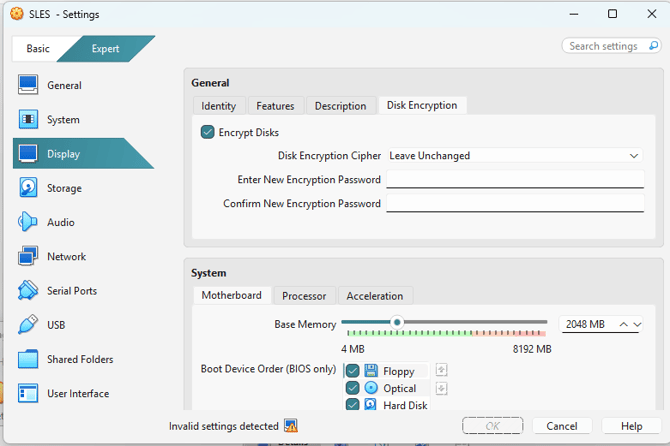
4) Click "Ok," and you will see a progress bar indicating the status of your disk encryption. Once the progress bar completes, the encryption process for VirtualBox will be finalized.
VMWare:
1) First, ensure that your VMware application is completely shut down. To do this, navigate to the list of your virtual machines (VMs) within the VMware interface. Once you have confirmed that the VM you wish to encrypt is powered off, right-click on the name of the VM in the list. A context menu will appear; from this menu, select the "Settings" option. This action will open a new window where you can modify various configurations for your virtual machine.
2) In the settings window, you will notice several tabs at the top. Begin by clicking on the "Hardware" tab to view the current hardware configuration of your VM. After reviewing the hardware settings, locate and click on the "Options" tab. Within this section, you will find a comprehensive list of options that pertain to the VM's settings. Scroll down until you come across the "Access Control" option. This option is crucial as it pertains to the security settings of your virtual machine.
3) Once you have located the "Access Control" option, click on it to expand the available settings. Within this section, you will see an option labeled "Encrypt." Click on this "Encrypt" button to initiate the encryption process. A series of prompts will guide you through the necessary steps. During this process, you will be required to define a strong password that will be used to encrypt the virtual machine. It is essential to choose a password that is both secure and memorable, as you will need to enter this password each time you start the VM. After you have defined your password and completed the prompts, you will have successfully encrypted your VMware-based virtual machine. This encryption will help protect your data and maintain the integrity of your virtual environment.
Securing Ubuntu SimpleRisk User/Root Passwords:
1) Begin by logging into the virtual machine (VM) through the console or by enabling SSH access. Use the username "simplerisk" and the password "simplerisk" to gain access.
2) After successfully logging in, enter the command “passwd”. This will prompt you first for the current password, which is "simplerisk," and then ask you to enter your new password twice for confirmation. Be sure to store this new password securely, as you will need it for the upcoming steps.
3) To change the root password, type “sudo passwd root” and enter your user password, which should now be the new password you set in the previous step.
4) Finally, create a strong password for the root account and confirm it by entering it a second time.
Securing the Admin account in SimpleRisk:
1) To begin changing the SimpleRisk "admin" password, please log in to your SimpleRisk account using the following credentials:
Username: admin
Password: admin
2) Once logged in, click on "Admin" located in the upper right corner, and select "My Profile" from the drop-down menu.
3) Scroll down to the bottom section of the page, where you will find fields to enter your current password (which is "admin").
4) Next, input your new strong password in the designated field and confirm it by entering it again.
5) Finally, click the "Update" button to successfully change your SimpleRisk Admin password.
Congratulations! You have taken an important step towards enhancing the security of your SimpleRisk VM.
If you have any questions about these steps or any concerns in general please contact us using support@simplerisk.com. Thank you.