
To initiate a mitigation plan, start by navigating to the “Risk Management” menu located on the left side of your screen. Expand this menu and click on the “Plan Mitigation” panel. Here, you will find a list of all risks assigned to the teams you are part of or have access to. This view displays the “Risk ID#” for each risk, along with relevant details such as “Status, Subject, Inherent Risk, Submission Date, Mitigation Planned,” and “Management Review” by default. Additionally, you can review any existing risk mitigation plans or check if any mitigation reviews have been conducted.
To create and submit a new mitigation plan, select the corresponding “No” in the row of the risk you wish to address. Please be aware that once a mitigation plan is added to a risk, it will no longer appear in this panel. After clicking the “No” option, the Mitigation Planning menu will automatically open, providing you with a structured template to outline your approach to mitigating the identified risk. A screenshot of the Mitigation Planning Menu is included below for your reference.
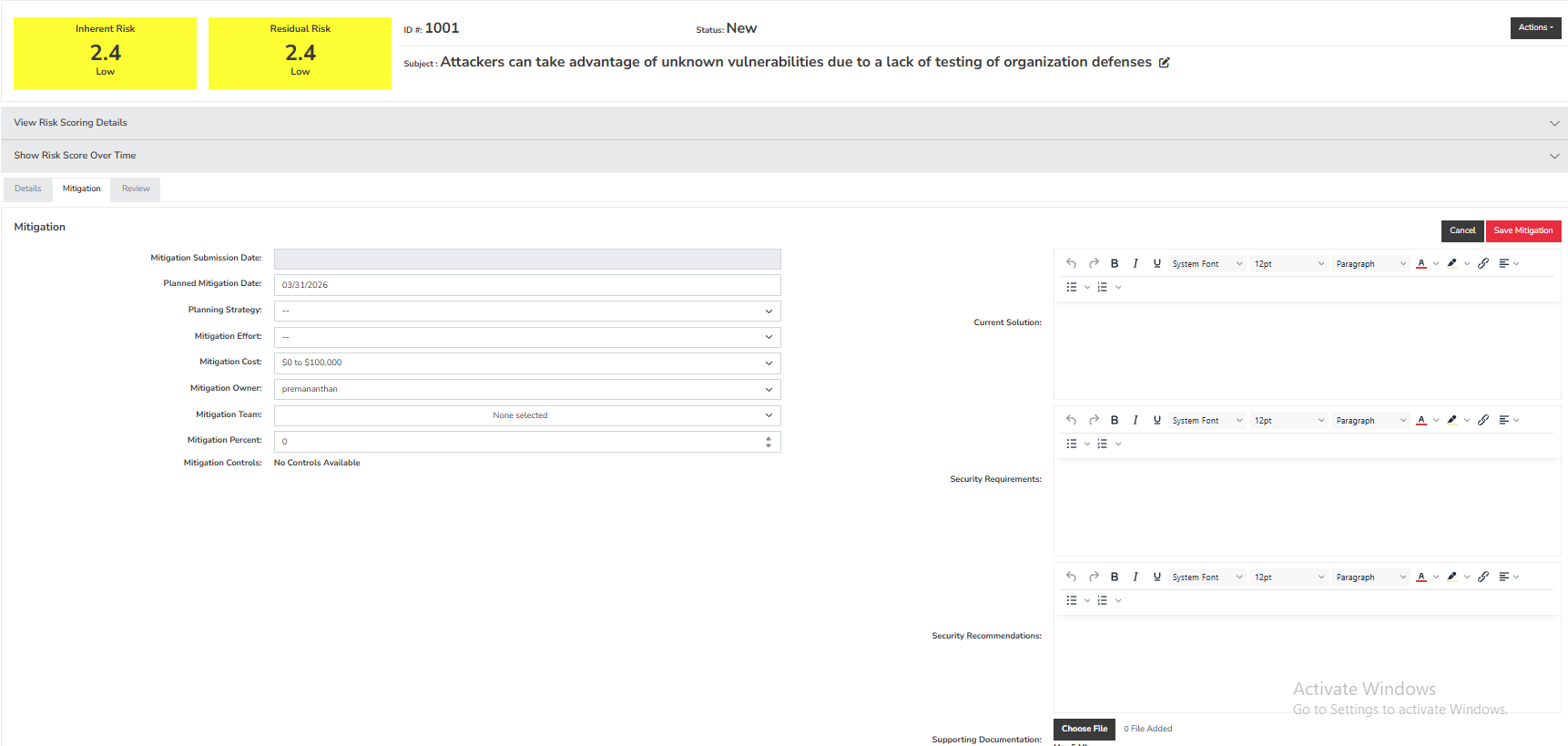
The Plan Mitigation panel features several input fields, including dropdown menus that allow you to add new values easily. You can also remove any unused values through the “Configure” menu at the top and the “Add and Remove Values” panel on the left.
Most input fields operate on an “as used” basis and are not saved, except for those specifically associated with a planned mitigation for a particular risk. Additionally, this panel offers the option to upload any supporting documentation for your mitigation plan by clicking the “Choose File” button located at the bottom right. After finalizing your proposed mitigation plan, you can save it by selecting the “Save Mitigation” button.
Once saved, the plan will be available for review by management or other key stakeholders. During the review process, the plan can either be approved or rejected and closed. If the review status is marked as "Approve Risk," you will then have the option to select whether it is “accepted” until the next review, considered for a project, or submitted as a production issue.
This concludes a brief overview on “How to Perform a Backup” in SimpleRisk. If any questions were left unanswered or could use more in-depth descriptions, please submit your feedback to our Customer Support email address which is support@simplerisk.com