
This guide explains how to remove the SimpleRisk MySQL database and clean up related user permissions.
1. Open the terminal in your linux machine and type out the following command. mysql -u root -p
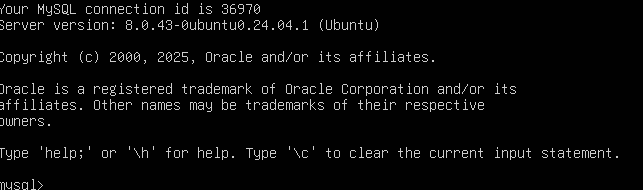
Enter the root password that was set during MySQL installation. Once connected, you should see the MySQL prompt:
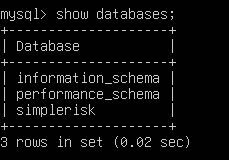
2. Before making changes, confirm the database name. show databases; This will display all databases on the MySQL server. Confirm that the simplerisk database exists in the list.
3. Run the following command to remove the database: drop database simplerisk;
4. Next, clean up the MySQL user and permissions created during installation.
-
Switch to the MySQL System Database. use mysql;
delete from user where user='simplerisk';
delete from db where user='simplerisk';
flush privileges;

5. Confirm that the database has been removed. Run the following command, show databases;
6. Confirm that the user and permission has been removed as well. select * from user;
select * from db;
If simplerisk database does not appear in show databases;and simplerisk user does not appear in the user or db tables, then you have successfully removed the SimpleRisk database and its permissions.