
Step 1: Expanding the Size of the VM VDD
This process is straightforward if you haven't completed it yet. First, ensure that the VM is powered off. Then, right-click on the VM and select "Settings." Next, navigate to the Hard Disk (SATA) section, as indicated in the screenshot below, and click the “Expand” button located at the bottom right corner.
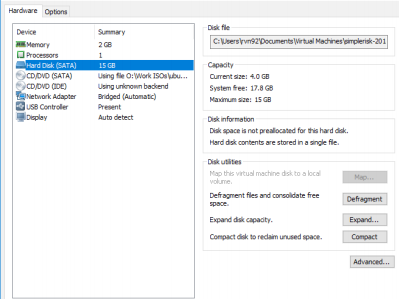
In the dialog box that appears, please specify the desired new size for the SimpleRisk VM.
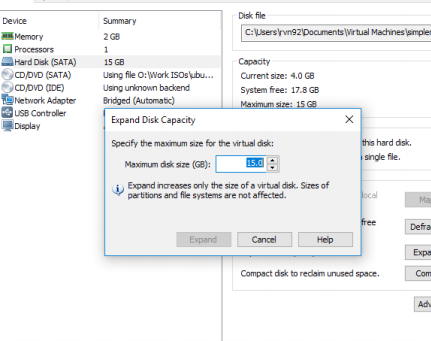
Now, click on “Expand” and then “OK” to exit the settings menu.
Step 2: Booting from Live ISO
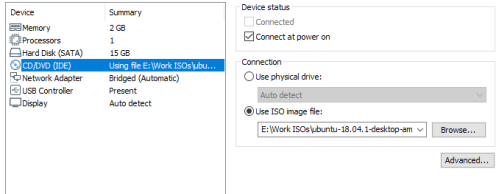
Right-click on your virtual machine (VM) again and select “Settings.” In the Hardware tab, check if a CD/DVD drive is already listed. If it is, simply click on it. If you don't see one, click the “Add” button located at the bottom center of the menu and choose the CD/DVD drive option.
With your drive now prepared, it's time to load it with the ISO file; for this example, we will be using Ubuntu 24.04, as previously mentioned. Click on the CD/DVD drive in the list, then on the right side, select the “Use ISO image file:” option. Now, browse to the location where you downloaded the ISO file and select it. Once completed, it should appear as shown here.
Step 3: Booting from the Live ISO
I found this step to be a bit challenging, but it's certainly manageable. To begin, start the SimpleRisk VM as you normally would. As soon as the VMWare BIOS splash screen appears, press "F2" right away. It may take a few attempts to get it just right, but once you succeed, you should see a page that looks like this.
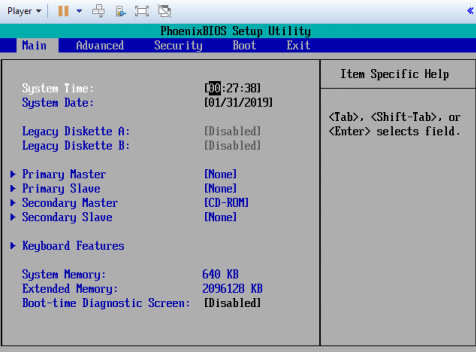
At this point, please press the right arrow key repeatedly until you reach the boot menu. Once there, select the CD-ROM Drive and press the “+” key to enable it, ensuring it appears as shown below.
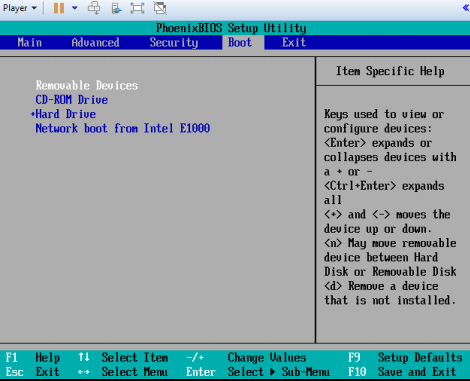
To proceed, press the right arrow key and navigate to the “Exit” tab, where you can restart the system while ensuring that changes are saved.
Step 4: Expanding the Partition Using Ubuntu
Your virtual machine (VM) should now initiate the boot process from the Ubuntu ISO. Select the “Try Ubuntu” option to enter the Ubuntu 24.04 environment. It's crucial to follow the next steps carefully, so I'll break down the process into smaller, manageable parts.
1) Launch the Terminal by searching for it in the Applications menu, as we did previously.
2) In the Terminal, enter the command “sudo fdisk /dev/sda” to begin managing your disk partitions.
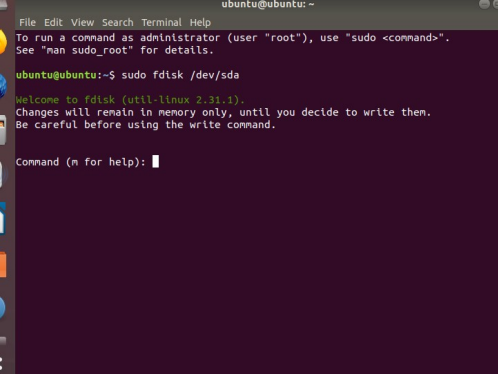
3) To view the current partition layout, press “p.” Take note of the starting point for sda5.
4) Next, press “d” to initiate the deletion process, starting with sda5 and then proceeding to sda2.

5) To create a new partition, press “n” and then select “e” to designate it as an extended partition, numbering it as 2. The default values for both the start and end sectors should be suitable for your needs.
6) Next, press “n” again to create logical partition 5. For the first sector, input the value you noted in step 8 (which is likely 1501184). The end sector should remain at its default, extending as far as possible. When prompted with “Do you want to remove the signature?”, choose “N”.
7) Now, press “p” to display the partition table and confirm that all entries look correct.
8) Finally, press “w” to save the changes you have made.
Summary
These steps will have guided you through expanding the disk space on a SimpleRisk VM using Vmware. If you have found any instructions to be incorrect or lacking detail please contact us at support@simplerisk.com