
This page will explain the various fields involved in uploading documents to the Document Program. You can upload any document type while navigating through the different tabs.

- The “Add (+)” button enables users to create new documents effortlessly. When you click this button, you will be prompted to specify the Document Type, Name, and Description. Additionally, you can select the relevant controls and frameworks, linking them to any existing controls and frameworks already established in the system.
- Column Header - This row presents the names of the various fields being displayed. By clicking on these headers, you can sort the table according to the selected column.
Creating New Document
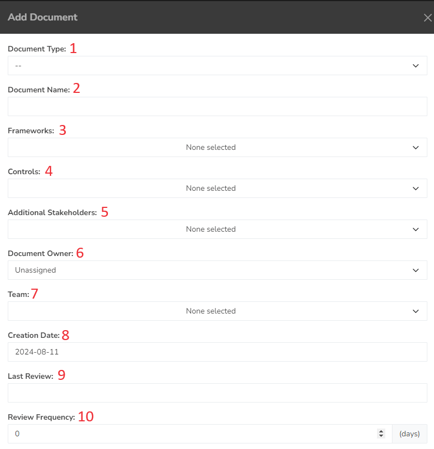
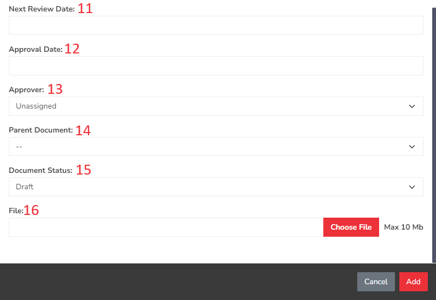
-
Document Type - Use the dropdown menu to select the type of document you are creating, which may include policies, guidelines, standards, or procedures.
-
Document Name - Enter a title for the document in this field.
-
Frameworks - Choose the relevant frameworks linked to this document from the dropdown options.
-
Controls - Select the applicable controls for this document from the dropdown list.
-
Additional Stakeholders - Pick other users from the dropdown who will receive notifications about any updates made to the document.
-
Document Owner - This field indicates the individual responsible for managing the document. You can select from users already defined in the system.
-
Team - Record the team associated with the new document in this field.
-
Creation Date - This field captures the date when the document is created.
-
Last Review - Document the most recent date the document was reviewed or modified in this field.
-
Review Frequency - Specify how often the document should be reviewed in this field.
-
Next Review Date - Indicate the upcoming due date for the document's review in this field.
-
Approval Date - The date when the document receives approval will be recorded here.
-
Approver - Identify the user responsible for approving the document after its creation.
-
Parent Document - The primary document that has been created or uploaded to simplerisk.
-
Document Status - This field shows whether the document is currently in draft, review, or approved status.
-
File - Attach any relevant additional files related to the document using this field.
Summary
The Governance Define Frameworks page allows you to add and manage your Control Frameworks in SimpleRisk. This page should have served to answer all questions related to the Define Frameworks page but if you feel anything has been missed or just seek further clarification please reach out to us at support@simplerisk.com.