
This page features three distinct tabs: Policy Exceptions, Control Exceptions, and Unapproved Exceptions. You can click on each tab to view its specific content. To add new entries, simply click the “plus” icon located to the left of the tabs.
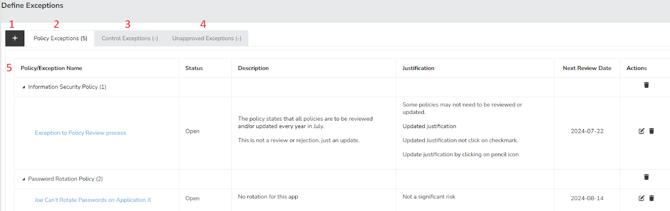
- Add (“+”) - This button enables users to initiate the creation of a new exception.
- Policy Exceptions - This section displays any existing policy exceptions.
- Control Exceptions - Here, you can view any control exceptions that are currently in place.
- Unapproved Exceptions - This tab reveals any exceptions that are pending approval or have not yet been accepted.
- Column Header - This row outlines the names of the various fields available.
Creating New exception
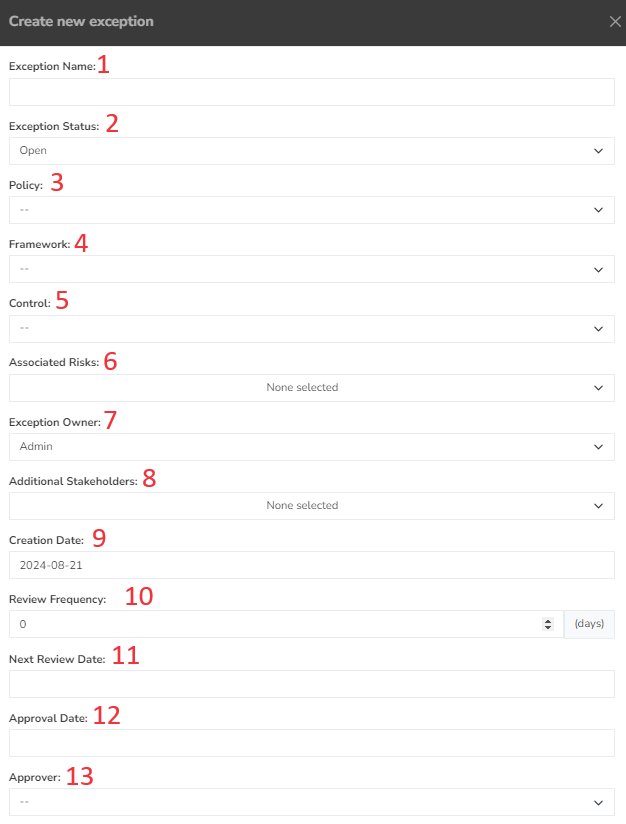
- Exception Name - This field enables you to assign a unique name to the exception for easy identification.
- Exception Status - Use the dropdown menu to indicate whether the exception is currently open or closed.
- Policy - This field allows you to select the relevant policy linked to this exception from a dropdown list.
- Framework - This field allows you to select the relevant frameworks linked to this exception from a dropdown list.
- Control - You can choose the controls associated with this exception from the dropdown menu.
- Associated Risks - This field enables you to select the risks related to this exception from the dropdown options.
- Exception Owner - This field designates the exception owner, usually the user responsible for managing the exception. You can select any user already defined in the system through the dropdown.
- Additional Stakeholders - Here, you can select other users from the dropdown list who will receive updates whenever there are changes to the exception.
- Creation Date - This field records the date when the exception was created.
- Review Frequency - Use this field to specify how often the exception should be reviewed.
- Next Review Date - This field is for noting the next scheduled date for reviewing the exception.
- Approval Date - This field captures the date the exception was approved.
- Approver - This is the user responsible for approving the exception once it has been created.
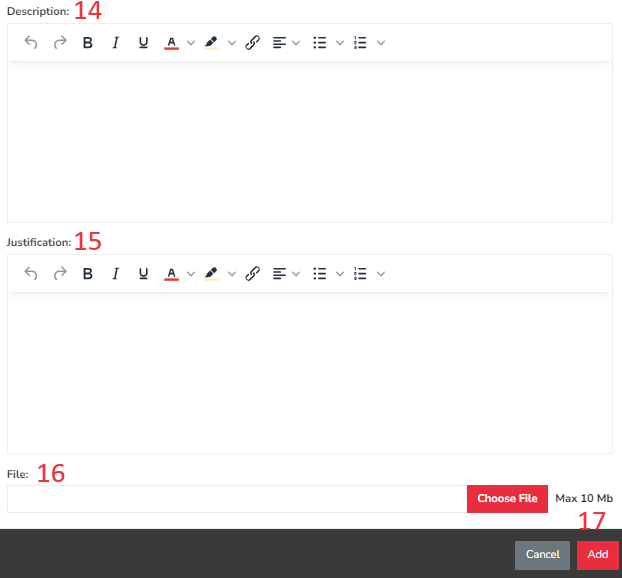
- Description - This field is designated for providing a detailed description of the exception and its criteria.
- Justification - Here, you can record the rationale behind the creation of this exception.
- File - This field allows you to attach any relevant files related to the exception.
- Add - Click this button to create the exception in the system.
Summary
The Governance Define Frameworks page allows you to add and manage your Control Frameworks in SimpleRisk. This page should have served to answer all questions related to the Define Frameworks page but if you feel anything has been missed or just seek further clarification please reach out to us at support@simplerisk.com.