
This page is divided into two sections Frameworks and Controls. Frameworks govern the status, usage, and descriptions of frameworks while the controls side.
Frameworks
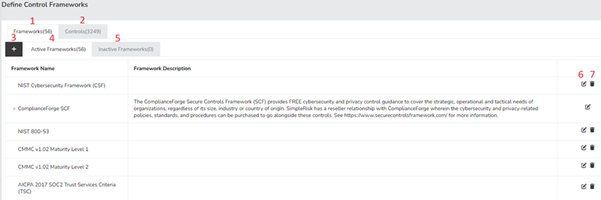
- Frameworks - This tab provides an overview of the Frameworks established within the system. Currently, it serves as a view-only section since we are already within the Frameworks area of the Define Frameworks page.
- Controls - Clicking on this tab will direct you to the controls section, where you can define, manage, and delete controls. We will explore this section in more detail later in the document.
- Add (“+”) - This button enables you to create a new framework. You will be prompted to provide a Name, a Description, and any relevant parent associations with other frameworks that are already defined in the system.
- Active Frameworks - This tab lists the frameworks that are currently active. These frameworks can be utilized in the Compliance section, and any notifications related to ongoing tests will be sent as long as the framework remains active. You have the ability to click and drag frameworks between the active and inactive tabs as needed.
- Inactive Frameworks - This tab displays the frameworks that have been marked as inactive. These frameworks and their associated controls will not be visible in any other section of SimpleRisk while they remain inactive. Additionally, no notifications will be dispatched for any tests linked to them prior to their deactivation. You can move frameworks back to the active tab from here by clicking and dragging.
- Edit Framework - By clicking this button, you can modify the details of an existing framework. Please note that the controls tied to this framework will not be available for editing in this section; those can be adjusted in the Controls tab, which we will cover later in the document.
- Delete Framework - This button allows you to remove a framework from the system. It's important to note that deleting a framework does not automatically delete its controls; the linkage between that framework and its controls will simply be severed.
Controls
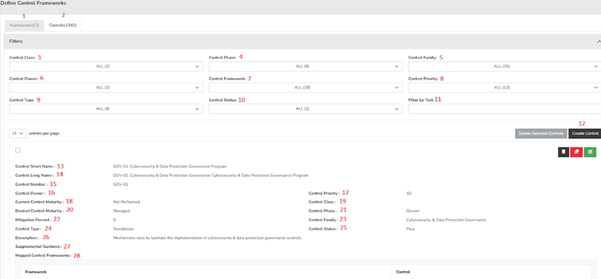
- Frameworks Tab - This tab navigates you back to the frameworks section where you can create and manage your frameworks.
- Controls Tab - This tab takes you to the Controls section, enabling you to create and manage controls effectively.
- Control Class Filter - Use this filter to select one or more control classes to display. Only the chosen control classes will appear once a selection is made.
- Control Phase Filter - This filter allows you to select one or more control phases to view. Only the selected control phases will be displayed after your selection.
- Control Family Filter - With this filter, you can choose one or more control families to display. Once selected, only those control families will be visible.
- Control Owner Filter - This filter lets you select one or more control owners to view. Once a selection is made, only the selected control owners will be shown.
- Control Framework Filter - This filter allows you to select one or more control frameworks to view. Please note that only active frameworks will be displayed after making your selection.
- Control Priority Filter - Use this filter to choose one or more control priority levels for viewing. Only the selected priority levels will be shown after your selection.
- Control Type Filter - This dropdown menu allows you to filter displayed controls by type. The default options are Standalone, Project, and Enterprise.
- Control Status Filter - Narrow your results based on the current pass/fail status of a control using this filter.
- Filter By Text - This feature enables you to search across all fields associated with any control.
- Create Control - Click here to open a menu for entering the details of a new control. Remember, any information entered will not be saved until you click the save button.
- Control Short Name - This field is for storing a short form name for a control, which you will frequently reference.
- Control Long Name - This field accommodates a full-length name, which is less commonly displayed in SimpleRisk references.
- Control Number - Typically used as a section ID or identifier, this helps locate detailed information for a specific control.
- Control Owner - This field identifies the party responsible for the knowledge and execution of a given control.
- Control Priority - Use this field to assign a priority level to a control.
- Current Control Maturity - This field allows your organization to document its current control maturity using the
- Control Class - This field enables you to define and categorize your controls more precisely by class. You can update the available values through the Add & Remove Values page located in the Configure menu at the top.
- Desired Control Maturity - This field allows your organization to record its desired level of control maturity, with options including Not Performed, Performed, Documented, Managed, Reviewed, or Optimizing.
- Control Phase - This field allows you to designate a control phase. The default options include Physical, Procedural, Technical, and Legal & Regulatory. Additional options can be added via the Add & Remove page in the Configure menu at the top.
- Mitigation Percent - This field lets you store a percentage that, when applied to a risk mitigation, will adjust the inherent risk to produce a residual risk score. Only the highest mitigation percentage will be considered in this calculation.
- Control Family - This field helps you categorize your control according to its family.
- Control Type - SimpleRisk offers three types of controls: Standalone, which operate independently; Project, which are designed to keep projects on track and within budget; and Enterprise, which enables integration of information across multiple processes. When the Enterprise type is selected, it will track the control's status during audits or compliance tests. If a compliance assessment fails, the mitigation percentage from this control will be set to 0. Conversely, if the assessment passes and the control is designated as both “Project” and “Enterprise,” the Control Validation Mitigation Percent in the Mitigation will be adjusted to half of this control's Mitigation Percent.
- Control Status - This field captures the current pass/fail status of a control, which will be updated based on the outcomes of compliance assessments, particularly for Enterprise controls.
- Description - This field is designated for detailing the control and its requirements.
- Supplemental Guidance - Users can upload any supporting documents related to the control here. The supported file formats are determined by the settings in Configure → Settings → File Upload tab.
- Mapped Control Frameworks - In this section, you can use the create control button to associate the control with an existing framework. The system allows for multiple frameworks to be linked to a single control, making it easier to manage controls across various frameworks by assigning a control number for cataloging purposes.
Summary
The Governance Define Frameworks page allows you to add and manage your Control Frameworks in SimpleRisk. This page should have served to answer all questions related to the Define Frameworks page but if you feel anything has been missed or just seek further clarification please reach out to us at support@simplerisk.com.