
Requires: Business Continuity and Disaster Recovery Extra
Contacts, business processes and the Recovery Priority report are part of this Extra.
Why this matters
Every later step leans on two things you set up here. Plans name people, so they need a directory to draw from. Plans also need to say what comes back first, and that answer comes from the business impact analysis (BIA), not from whoever shouts loudest during the outage.
Do the BIA as a conversation with the process owners, not as a form someone fills in alone. The numbers you want are the ones the business will accept, and they only exist after someone has said "four hours of that is fine, a day is not" out loud.
Before you start
- Permissions. Reading needs Allow Access to Business Continuity and Disaster Recovery. Editing the directory needs Able to Manage Plan Contacts. Editing processes needs Able to Manage Business Impact Analysis.
- Assets. Mapping assets to processes only offers verified assets, and only the ones you're allowed to see. If a server you expect isn't in the picker, check that it is verified and that you're on the team that owns it. The ones you can't see are kept when you save.
- Asset Availability ratings. The cross-check on the Recovery Priority report uses the Availability rating on each asset. Rate the assets first if you want that check to say anything. Asset Management → Availability counts the assets that still have no rating, so it's a quick place to start. It's covered in Managing Assets in SimpleRisk.
Step-by-step
1. Build the contact directory
Open Contacts and click Add contact. A contact is entered once and reused in every plan's call tree and in notifications.
- Optionally pick a SimpleRisk user. Linking a user fills a blank name or e-mail address from that user's profile. Leave it as Not linked (external contact) for a vendor, a regulator or anyone without an account.
- Enter the name, title and company, and the e-mail address. A contact needs a name, either typed or taken from the linked user.
- Under Phone numbers, enter one number per line, up to five.
- Save.
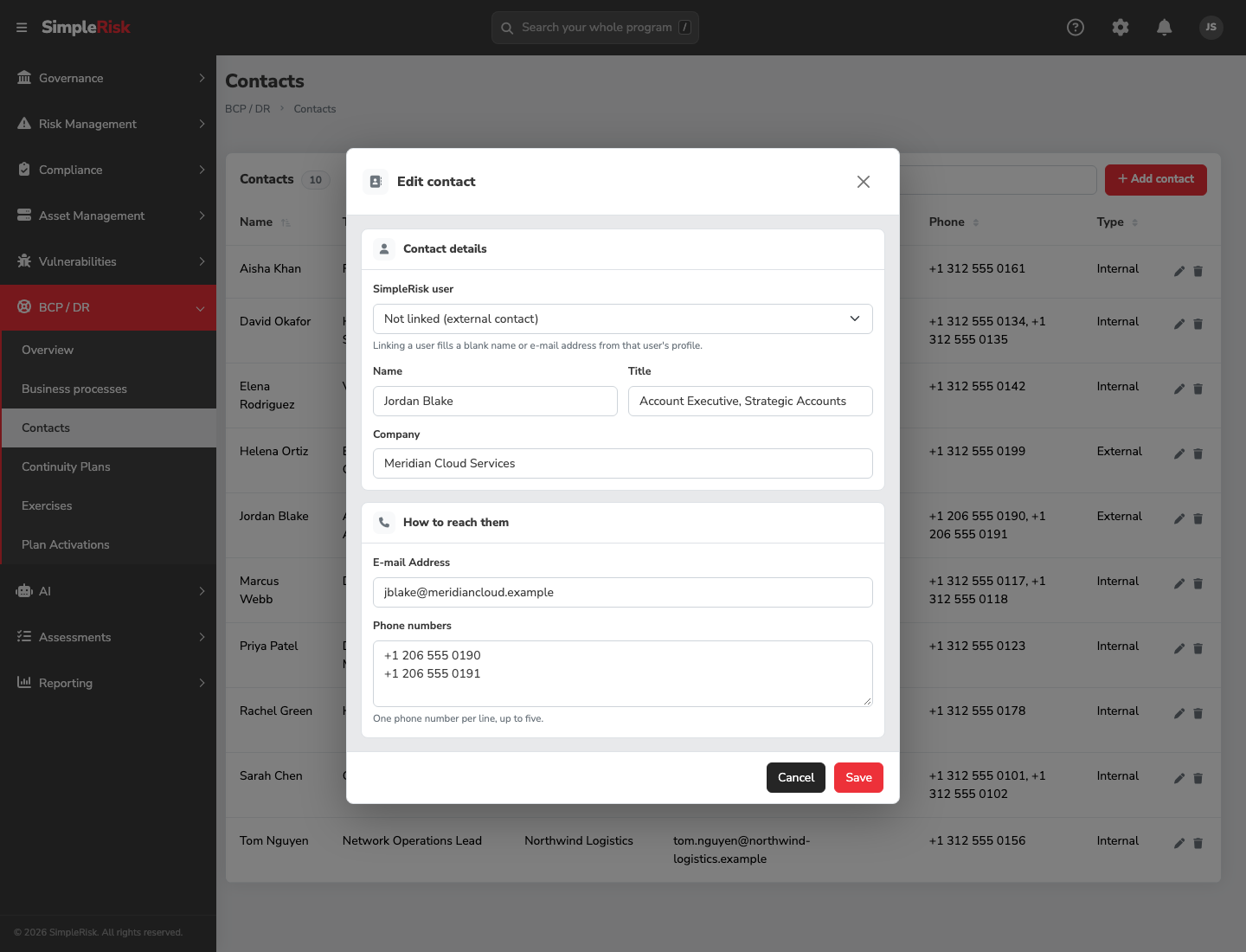
Click a contact in the list to see its details. People who can manage the directory get an Edit button there, or can use the pencil in the row to go straight to the form. The address bar follows the dialog: it gains ?contact= and the contact's number, plus &mode=edit while the form is open. Copy it to send a colleague straight to that contact, and the Back button steps between the view and the form.
A contact can't be deleted while an approved plan or an open activation uses it. That is deliberate: the person is still someone you would need to reach.
2. Add a business process
Open Business processes and click Add process. Use a process, not a system: "Order fulfilment", not "ERP". Systems come in through mapping, below.
Fill in:
- Name, a description, an owner and a team. The owner receives the review reminders.
- Priority rank. 1 is the most important; leave it blank if the process isn't ranked yet.
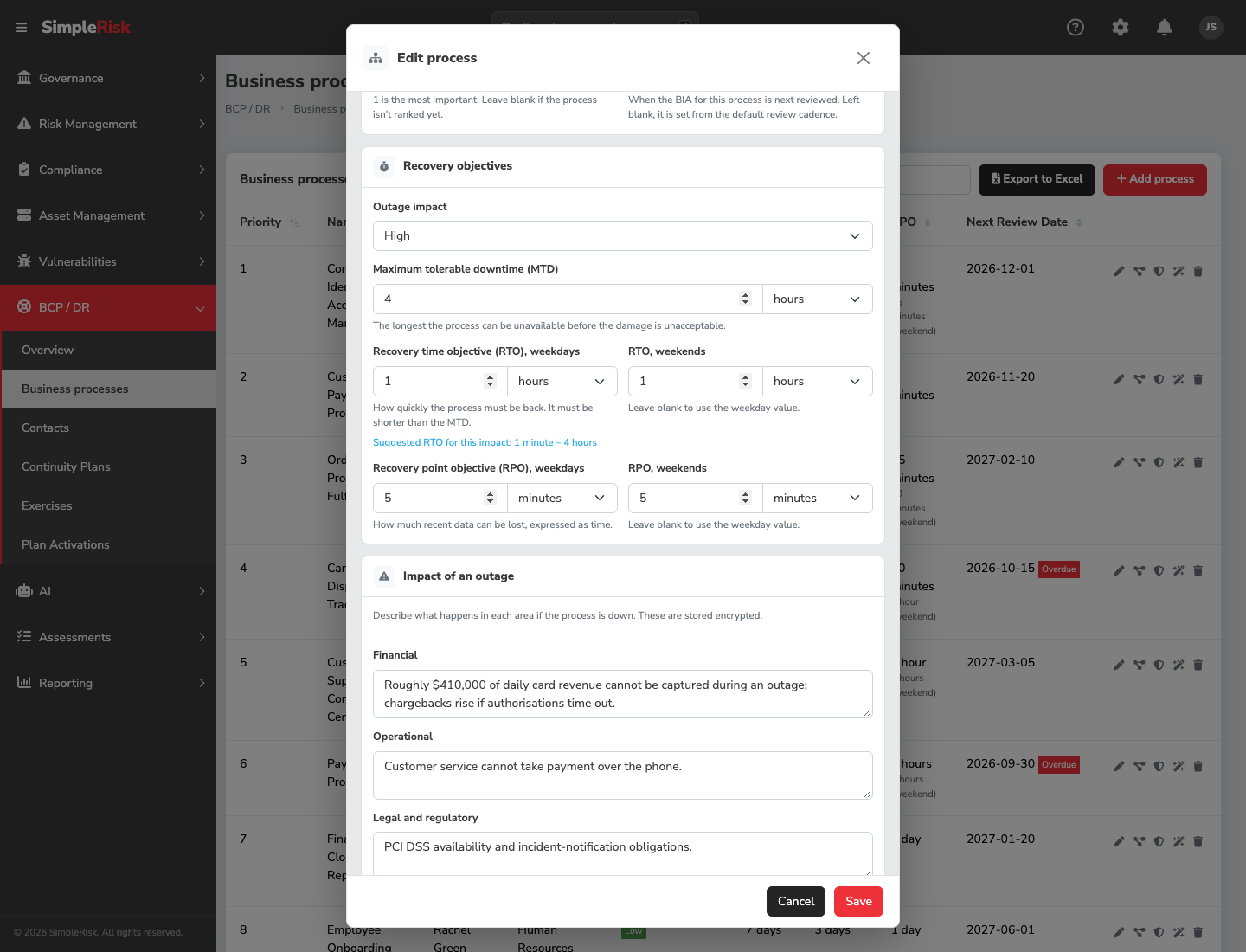
- Recovery objectives, each a whole number with a unit:
- Maximum tolerable downtime (MTD): the longest the process can be unavailable before the damage is unacceptable.
- Recovery time objective (RTO), weekdays and RTO, weekends: how quickly it must be back.
- Recovery point objective (RPO), weekdays and RPO, weekends: how much recent data can be lost, expressed as time.
- Outage impact: Low, Moderate or High, on the FIPS 199 scale. Beside the field, Suggested RTO for this impact shows the range your administrator's thresholds imply. With the shipped defaults, High suggests up to 4 hours, Moderate up to 24 hours, and Low anything longer.
- Impact of an outage: a short narrative each for Financial, Operational, Legal and regulatory, Reputational and Safety.
- Manual workaround: tick A manual workaround exists, then say How the work is done manually and How long the workaround can be kept up.
- Next review date. Left blank, it is set from the default BIA review cadence.
Leave a weekend value blank and the weekday value applies. The RTO must be shorter than the MTD in each window; the form refuses a save where it isn't, and says so. If you can't meet the MTD, that isn't a data-entry problem, it's a risk.
3. Map what the process depends on
Open the process and go to Resources and dependencies.
- Mapped assets and asset groups. The assets and groups the process runs on. A group counts as all of its member assets.
- Processes this one depends on. If order fulfilment needs the payment service, add it here. A process that is needed must recover at least as fast as the one that needs it, so its required RTO and RPO are tightened to match. Circular dependencies are refused. The page also lists Processes that depend on this one.
- Other resources. Vendors, facilities, staff roles, vital records and equipment, each with a type (Vendor or supplier, Facility, Staff role, Vital record, Equipment or supplies), a description and Contact notes. These are for the plan author to draw on; they aren't linked to assets.
Click a process in the list to see all of its values without changing anything. Edit in that dialog, or the pencil in the row, opens the form. As with contacts, the address carries ?process= and the process's number (and &mode=edit for the form), so a copied link opens the same dialog.
A process can't be deleted while a plan or another process depends on it.
4. Read the recovery order
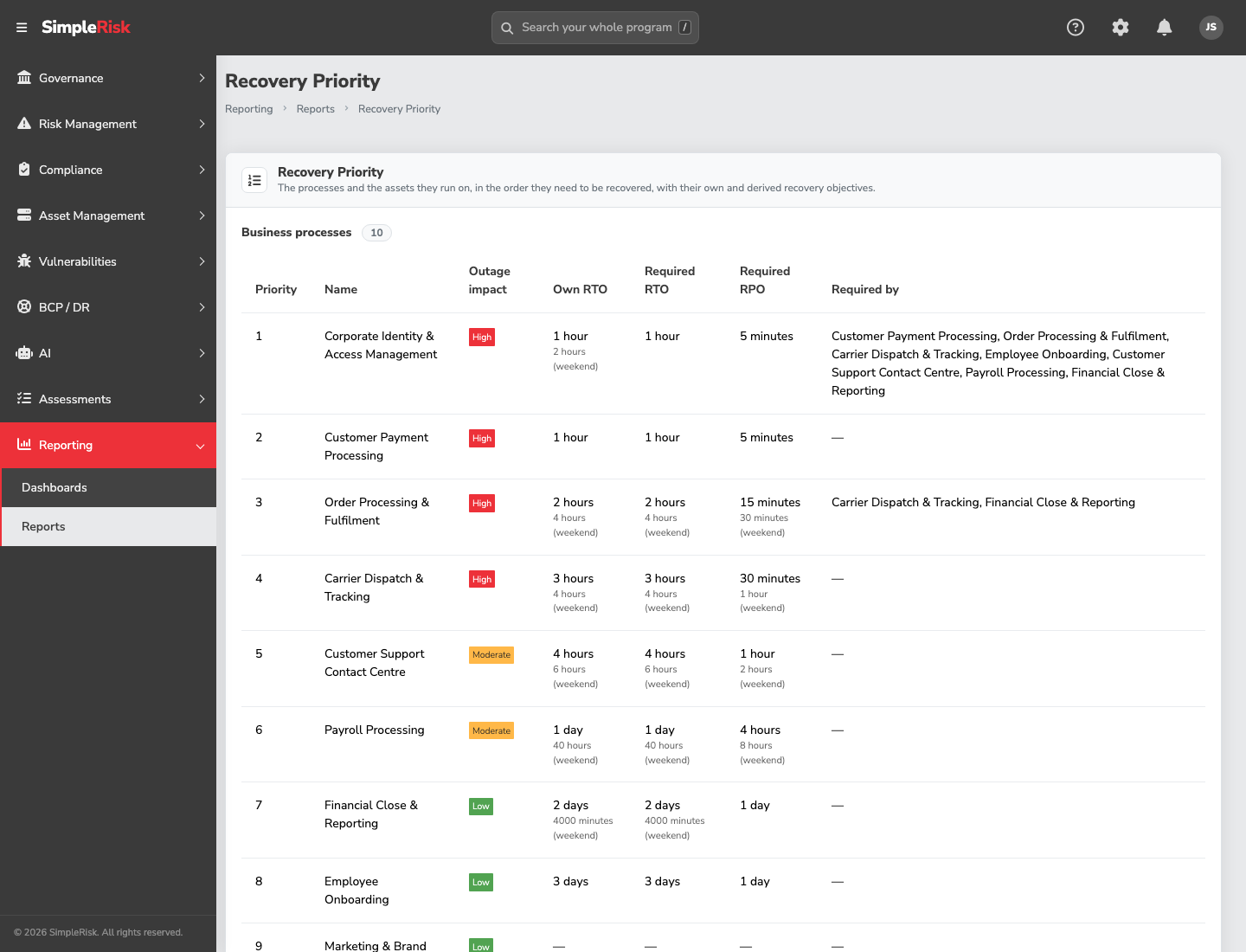
Open Reporting, then Reports, choose the BCP / DR filter and open Recovery Priority. It lists processes and assets in the order they should come back: the most demanding RTO first, then RPO, then your priority rank, then name. Anything without a value comes after everything that has one. Columns show Required RTO, Required RPO, Own RTO and Required by, so you can see when an asset's requirement comes from a process that depends on it rather than from its own entry.
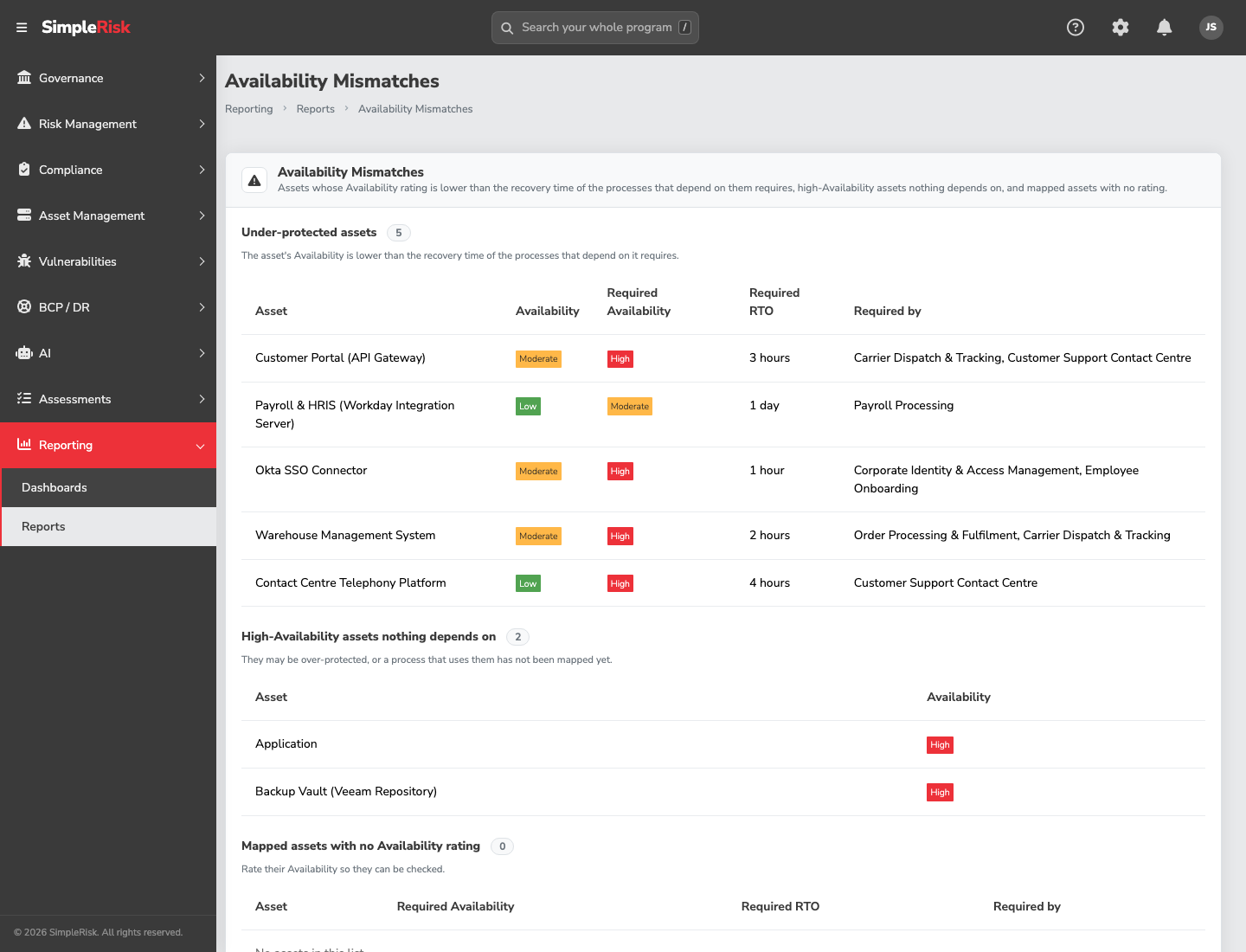
The Availability Mismatches report, next to it under the same BCP / DR filter, is a separate report. It has three lists comparing each asset's Availability rating with what depends on it:
- Under-protected assets: the asset's Availability is lower than the recovery time of the processes that depend on it requires. This is the list to take to the system owner.
- High-Availability assets nothing depends on: possibly over-protected, or a process that uses them hasn't been mapped yet.
- Mapped assets with no Availability rating: rate them so they can be checked.
5. Export it
On Business processes, Export to Excel downloads the BIA as a spreadsheet. The export is refused if any text can't be read, rather than producing a file with gaps.
The Extra also adds to the Core Asset Management → Availability page. Once it's active, and you hold the permission to read BCP/DR, the page shows a Recovery coverage column beside each asset's rating: how many business processes depend on the asset, directly or through an asset group, and the shortest RTO any of them requires. An Export to Excel button on the same page downloads those rows along with the names of the processes that map each asset, so you can hand the list to a system owner without opening SimpleRisk. It's refused on the same terms as the BIA export. The page itself still needs the Core Asset permission, and so does the export. Anyone without the Extra, or without BCP/DR access, sees the rating tiles and the asset list only.
Common pitfalls
- Weekend RTO left at the weekday value by habit. Blank means "same as weekday". If the batch job that matters runs Saturday night, say so.
- Mapping groups but not the assets in them that matter. A group counts as all its members, so a group that's too broad inflates the requirement on assets that don't need it.
- Dependencies entered on the wrong process. Record a dependency on the process that needs the other one. If order fulfilment needs the payment service, the dependency goes on order fulfilment; entering it the other way round tightens the wrong process.
- A BIA with no owner or review date. The BIA Completeness report counts both as incomplete. Only a missing owner leaves the review reminder with nobody to go to. A blank review date doesn't silence it: the reminder then falls due one review cadence after the process was last updated.