---
title: 09.02 Enabling Encryption
description: Activate the Encryption Extra to begin encrypting sensitive fields at rest. Activation snapshots the database inside SimpleRisk itself, generates the…
---
[Skip to content](https://support.simplerisk.com/kb/09-02-enabling-encryption#main-content)
English
Show submenu for translations
[Customer portal](https://support.simplerisk.com/tickets?hsLang=en)
[](https://www.simplerisk.com/)
Open main navigation
Close main navigation
- English
Show submenu for translations
- [Customer portal](https://support.simplerisk.com/tickets)
- [Contact us](https://www.simplerisk.com/about-us/contact-us)
[Contact us](https://www.simplerisk.com/about-us/contact-us)
How can we help you?
- There are no suggestions because the search field is empty.
1. [SimpleRisk Knowledge Base](https://support.simplerisk.com/kb?hsLang=en)
2. [Administrator Guide](https://support.simplerisk.com/kb/administrator-guide?hsLang=en)
3. [09 Encryption and Data Security](https://support.simplerisk.com/kb/administrator-guide?hsLang=en#09-encryption-and-data-security)
# 09.02 Enabling Encryption
## Activate the Encryption Extra to begin encrypting sensitive fields at rest. Activation snapshots the database inside SimpleRisk itself, generates the master key, and migrates existing plaintext data to ciphertext as a background job — the page that kicked it off shows a progress overlay and polls until the work finishes. If activation fails, the failure modal offers a Restore from backup option. Other users keep using SimpleRisk while activation runs; back up the master key file immediately after activation completes. To deactivate, navigate to admin/encryption.php from the Configure Hub tile and click Deactivate the Encrypted Database Extra; the same page also surfaces the pre-activation backup-status panel and a Restore from backup CTA.
> **Requires:** *Encryption Extra*
>
> Activation generates the per-install master key, encrypts existing data, and modifies the schema. The Extra is at `simplerisk/extras/encryption/`. See [The Encryption Extra Overview](https://support.simplerisk.com/kb/09-01-the-encryption-extra-overview?hsLang=en) for what the Extra does and why before reading the activation procedure.
## Why this matters
Activation is when encryption-at-rest actually starts protecting data. Before activation, every sensitive field is plaintext in the database; after activation, the same fields are AES-256-CBC ciphertext. The work runs as a background job; the page that kicked off activation shows a progress overlay and polls until the job finishes. Other users keep using SimpleRisk against the still-plaintext tables until the final atomic swap moment, at which point all encrypted tables flip into place together and the keystone flag turns on. If anything fails mid-flight, SimpleRisk surfaces a failure modal with a **Restore from backup** option that rolls the database back to the snapshot taken before encryption ran.
This article covers the activation procedure end-to-end, then the deactivation flow and the backup-status panel. Read [The Encryption Extra Overview](https://support.simplerisk.com/kb/09-01-the-encryption-extra-overview?hsLang=en) first if you haven't decided whether to activate.
## Before you start
Have these in hand:
- **Admin access** to the Settings Hub (Settings cog, top-right of any page) → **Extras** chip → **Encrypted Database Extra** tile (the renamed UI label for what older docs call the "Encryption Extra"; the underlying Extra is the same).
- **A confirmed low-traffic window**. Activation takes minutes for typical installs, longer for large databases (10,000+ risks plus assets, frameworks, etc.). Other users keep using SimpleRisk during the run, but writes that land between the per-table encrypt and the final atomic swap will not be carried into the encrypted tables. Schedule a window where active writes are minimal.
- **A current full database backup**, taken immediately before activation. Activation snapshots the database before it touches any data, but that snapshot lives *inside* SimpleRisk — so a separate fresh backup, taken outside it, is belt-and-suspenders. See [Database Backup and Restore](https://support.simplerisk.com/kb/02-05-database-backup-and-restore?hsLang=en).
- **Verified PHP OpenSSL extension**. The Extra requires `openssl` (legacy `mcrypt` is deprecated). Check via `php -m | grep openssl`.
- **`LOCK TABLES` privilege on the SimpleRisk schema** for the SimpleRisk database user. The activation job takes per-table write locks while it encrypts each table. Fresh installs and routine upgrades grant this privilege automatically. If your DBA enforces a stricter least-privilege grant and the upgrade couldn't self-grant, the activation page will refuse to start and surface the exact `GRANT` statement to run before retrying.
- **A secure off-server location** for backing up the master key file (e.g., a sealed envelope in a safe; a HashiCorp Vault entry; an encrypted entry in a corporate password manager). Plan this *before* activation; back up the file immediately after.
- **For multi-server deployments**: a deployment plan to copy the master key file to every app server.
## Step-by-step
### 1. Decide on activation timing
Coordinate with users:
- **Pre-announce**: notify users that activation is running so they can avoid heavy writes during the window.
- **Pick a low-traffic time**: typically off-hours or weekend; the migration should not run while users are actively submitting risks (uncommitted writes during migration can produce inconsistent encryption state).
- **Have a rollback plan**: if activation fails partway, the path is to restore from the pre-activation backup. Test the restore procedure in non-production before committing in production.
### 2. Create a fresh backup before activation
Don't rely on the activation job's in-database snapshot as your only safety net. That snapshot lives inside the SimpleRisk database itself — it's enough to back out a failed activation through the **Restore from backup** button, but it can't help you if the database becomes unreachable.
1. Take a fresh full database backup using your standard procedure (mysqldump, MySQL Enterprise Backup, etc.).
2. Verify the backup is restorable in a non-production environment.
3. Store the backup in your standard backup location.
### 3. Verify prerequisites
```
# Confirm OpenSSL is available
php -m | grep -i openssl
```
The activation page itself checks the `LOCK TABLES` privilege and refuses to start if it's missing — surfacing the exact `GRANT` statement to run. You don't need to pre-check from the shell, but if you want to confirm before clicking **Activate**:
```
-- Run as the SimpleRisk database user
SHOW GRANTS FOR CURRENT_USER;
```
The output should include `LOCK TABLES` (or `ALL PRIVILEGES`) on the SimpleRisk schema. If it doesn't, run the `GRANT` statement the activation page would have given you:
```
GRANT LOCK TABLES ON {simplerisk-schema}.* TO {simplerisk-user};
```
### 4. Activate the Extra
Settings cog → Settings Hub → **Extras** chip → **Encrypted Database Extra** tile → **Activate** (the older "Encryption Extra" label refers to the same Extra). What happens next:
1. SimpleRisk verifies the `LOCK TABLES` privilege and the OpenSSL extension are present. If either is missing, the activation refuses to start and the page surfaces the corrective action.
2. The Configure Hub replaces the tile area with a progress overlay reading **Encrypting your SimpleRisk database. Please do not close this page.** The overlay polls for status every few seconds until the work completes.
3. The activation job snapshots the database, splitting it into chunks so even a multi-gigabyte database stores cleanly. You don't need to take a separate dump for the rollback path; the snapshot the failure modal restores from is this one.
4. SimpleRisk generates a 256-bit master key from OpenSSL's secure random source, base64-encodes it, and writes it to `simplerisk/extras/encryption/includes/init.php`. That file is now the single most important thing to back up on the instance.
5. The job iterates the encryptable tables (~30 fields across risks, assets, frameworks, mitigations, audit logs, comments, and custom data) and builds an encrypted copy of each table in a `{table}_enc` temp table while leaving the live table intact. Other users keep reading and writing plaintext during this phase.
6. Once every table's encrypted copy is built, the job swaps them all into place in a single atomic operation, then switches the Extra on. Because the swap is atomic, anyone reading during it sees either all plaintext or all ciphertext — never a half-converted database. From that moment on, encrypted fields are decrypted on read and encrypted on write.
7. The progress overlay disappears and the page reloads to the Configure Hub.
Don't navigate away. If the browser tab closes mid-flight, the background job continues — but you'll lose the progress UI and the failure modal (if it fires), and you'll have to look at server logs to find out what happened.
### 4a. If activation fails
If the activation job hits an unrecoverable error, the polling page swaps the progress overlay for a failure modal titled **Encryption activation failed**. The body reads: *The activation could not complete and the database may be in an inconsistent state. The pre-activation backup is retained — use Restore from Backup to recover, or contact SimpleRisk support.*
Two buttons:
- **Restore from backup** — replays that snapshot, putting the database back in its pre-activation state. Wait for the restore overlay (*Restoring your SimpleRisk database from backup. This may take several minutes.*) to clear before retrying.
- **Contact support** — link to SimpleRisk Support. Use this when the failure modal recurs after a restore, when the restore itself reports an error, or when you need help diagnosing the original failure before deciding whether to retry.
Once a restore completes, SimpleRisk is back to its pre-activation, fully-unencrypted state. The snapshot is consumed by the restore; if you re-attempt activation, it creates a fresh one before it starts.
### 5. Immediately back up the master key file
This is the most important post-activation step. The master key at `simplerisk/extras/encryption/includes/init.php` is the *only* copy. Lose it and your encrypted data is unrecoverable.
```
# Copy to a secure off-server location
scp /var/www/simplerisk/extras/encryption/includes/init.php \
secure-vault@vault.internal:/secure/simplerisk/{environment}/init.php
# Or upload to your secrets manager
vault kv put secret/simplerisk/{environment}/encryption-key \
init_php=@/var/www/simplerisk/extras/encryption/includes/init.php
```
Patterns:
- **HashiCorp Vault, AWS Secrets Manager, Azure Key Vault** — store the file content as a secret.
- **Corporate password manager** (1Password, Bitwarden, etc.) — store the file content as a secure note.
- **Sealed envelope in a physical safe** — for highly-regulated programs.
The backup must be:
- **Off the SimpleRisk server**: a backup on the same disk as the original is no protection against disk failure.
- **Access-controlled**: restrict to operators authorized to recover the install.
- **Auditable**: log who accessed the backup and when, so you can detect unauthorized access.
### 6. (Optional) Clear the pre-activation snapshot
On success, the activation job leaves the pre-activation snapshot in place. That snapshot is plaintext — every field you just encrypted is sitting in the clear inside it — and it lives in the SimpleRisk database itself.
The default posture is to keep the snapshot so it's available for a later restore if you discover something wrong with the encryption a week or a month later. If your threat model treats the database as untrusted (the reason you encrypted in the first place), the snapshot defeats the purpose; clear it once you're satisfied activation succeeded:
```
-- As the SimpleRisk database user
TRUNCATE TABLE encryption_backup_chunk;
TRUNCATE TABLE encryption_backup;
```
The next activation or deactivation will repopulate the singleton snapshot before it starts touching encrypted data.
### 7. Verify the install works
Test that everything's still operational:
1. Log in as a non-admin test user.
2. Browse the risk register; confirm the risks display with decrypted content (subjects, descriptions all readable).
3. Open a risk; confirm the details (description, mitigation, etc.) are readable.
4. Submit a new risk; confirm it saves and re-opens correctly (round-trip encryption test).
5. Open the audit trail for a risk; confirm log messages are readable.
6. Run a report (e.g., the Dynamic Risk Report); confirm risk subjects appear.
If any data appears as encrypted ciphertext (a long base64 blob instead of readable text), the encryption layer isn't decrypting correctly. Possible causes: master key file is wrong / missing on the server handling the request; a record's encryption was corrupted during migration. Investigate.
### 8. Multi-server deployment: distribute the key
If your SimpleRisk runs on multiple app servers behind a load balancer:
1. Copy `simplerisk/extras/encryption/includes/init.php` from the activation server to every other app server.
2. Verify each server's file matches (e.g., compare hashes).
3. Test by hitting each server directly (bypass the load balancer) and confirming encrypted data displays.
The key file is configuration, not application code. Don't bake it into the deployment image; deploy as a runtime secret like any other credential.
### 9. Update operational documentation
After activation, document:
- **Where the master key backup is stored** and how to retrieve it.
- **The deactivation procedure** — see the [Deactivating the Extra](https://support.simplerisk.com/kb/09-02-enabling-encryption#deactivating-the-extra) section below if you ever need to undo.
- **The recovery procedure** for "we lost a server and need to restore from backup."
- **The key-file deployment procedure** for new servers added to the cluster.
This documentation prevents the inevitable "what's our process if this server dies?" question from becoming an emergency.
### 10. Plan for ongoing operations
Encryption is on; sensitive data at rest is protected. Subsequent operational considerations:
- **Backups**: standard backup procedures continue to work; backups now contain encrypted data, which is fine for storage but means restoring requires the matching master key.
- **Upgrades**: SimpleRisk upgrades preserve the encryption (the master key file isn't touched). Verify after each upgrade by checking that data still displays correctly.
- **Periodic algorithm check**: SimpleRisk runs a background check once per day that inspects the `encrypted_fields` table for any column whose stored encryption scheme has drifted from the current scheme — for example, a column that was missed by an interrupted activation, a new field added in a SimpleRisk upgrade that hasn't been backfilled yet, or a vendor data import that landed plaintext in an encrypted column. It enqueues one independent per-column task to migrate each affected column to the current scheme without operator intervention. Admins who need to run it immediately (after a known import, say) can trigger it via `POST /api/v2/encryption/algorithm-check/trigger`.
- **New encrypted fields**: future SimpleRisk versions may add new fields to the encryption set. The periodic sweep picks these up automatically on the next tick after the upgrade.
- **Key rotation**: not natively supported as a single operation; see [Key Management and Rotation](https://support.simplerisk.com/kb/09-03-key-management-and-rotation?hsLang=en).
## Deactivating the Extra
Deactivation reverses activation: every encrypted column is decrypted back to plaintext, the Extra-active flag is cleared, and the `init.php` master key file is left in place. The pipeline runs as a background job with the same crash-safe architecture as activation.
### How to deactivate
The activated **Encrypted Database Extra** tile on the Configure Hub links to `admin/encryption.php` rather than toggling a modal directly. That page shows the current encryption status and surfaces the two management operations: deactivation and backup restore.
1. Settings cog → Settings Hub → **Extras** chip → **Encrypted Database Extra** tile. Because the Extra is active, the tile navigates to `admin/encryption.php` instead of launching an activation flow.
2. On that page, click **Deactivate the Encrypted Database Extra**. A confirmation modal opens with title **Deactivate Extra** and the message: *Deactivate the Encrypted Database Extra? Your SimpleRisk database will be decrypted in place. A backup of the encrypted state is retained so you can roll back if needed.*
3. Click **Deactivate** to enqueue the decryption pipeline. The page shows a **Decrypting your SimpleRisk database. Please do not close this page.** overlay and polls for status.
4. When the pipeline finishes, the overlay clears and the page redirects to the Configure Hub. The tile returns to the inactive state.
Don't navigate away during deactivation for the same reason you don't navigate away during activation: the background job continues, but you lose the progress overlay and the failure modal. If deactivation fails after the tab is gone, recovery means checking server logs and calling the restore API by hand.
### If deactivation fails
The failure modal appears with title **Encryption deactivation failed** and the message: *The deactivation could not complete and the database may be in an inconsistent state. The encrypted-state backup is retained — use Restore from Backup to roll back to the encrypted state, or contact SimpleRisk support.*
Two buttons:
- **Restore from backup** — rolls the database back to the encrypted-state snapshot captured at the start of this deactivation run. Wait for the restore overlay to clear; the database will be encrypted again and the Extra-active flag will be set.
- **Contact support** — link to SimpleRisk Support.
!\[placeholder: admin/encryption.php deactivation failure modal with "Restore from backup" and "Contact support" buttons visible\]
### If activation or deactivation won't even start
SimpleRisk only lets one activation, deactivation, or restore run at a time — a second pipeline starting while the first is still touching tables would corrupt the encrypted data. Clicking **Activate** or **Deactivate** while that guard is up returns an error instead of starting the pipeline, and normally that's exactly what you want: the current run finishes, the guard clears, and your next click goes through.
Two things can go wrong with the guard itself, though, and both surface as an error message naming the pipeline as "stalled" rather than "in progress":
- **The message names a task** (something like `task #412, encryption_deactivate`). A pipeline actually started this task, so SimpleRisk won't touch it automatically — it could be partway through swapping tables. Confirm the background queue worker is running and scheduled, let it finish the task, then retry. If the worker had stopped and just needed a restart, retrying after it's back up usually clears this on its own.
- **The message doesn't name a task at all.** SimpleRisk has no queued work to point to, but the guard has still been up for over an hour. Usually this means a previous pipeline finished (or crashed) without correctly recording that it was done. Check the debug log for the most recent `encryption_activation_state transition` entries — they show the full history of what set this flag and when — before deciding whether it's safe to retry.
A task that was queued but never picked up by any worker at all — the case where the worker was never running in the first place — clears itself. SimpleRisk cancels a task like that automatically once it's sat untouched for more than an hour, and your next click goes straight through. The two stalled messages above are for the cases that can't be resolved that safely, where a human needs to look before SimpleRisk touches anything further.
## Backup status and restore
The `admin/encryption.php` page includes a **Pre-activation backup** panel below the deactivation CTA. It shows the current state of the single snapshot SimpleRisk took just before it encrypted anything.
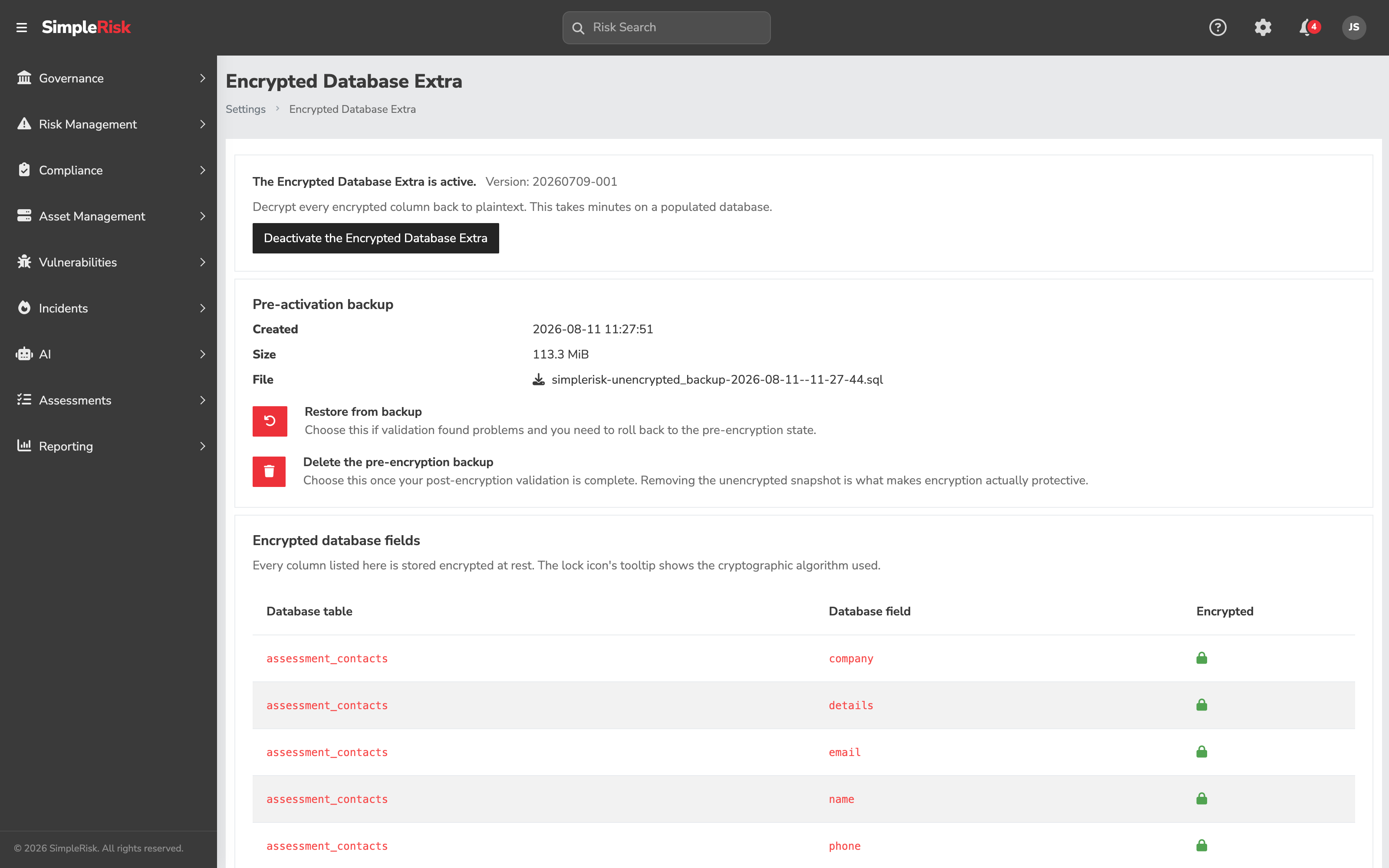
**When a backup exists**, the panel shows three metadata fields:
- **Created** — the timestamp when the snapshot was taken.
- **Size** — the total compressed size of the backup across all chunks.
- **File** — the original filename captured with the snapshot.
Below the metadata is a **Restore from backup** button and a note that any data written after the backup was created will be lost on restore.
**When no backup row exists**, the panel shows: *No pre-activation backup is currently stored. The backup is created at the start of every activation and overwritten by any subsequent activation or deactivation.* The **Restore from backup** button does not appear.
**When a restore is in progress**, the panel shows: *A restore is currently in progress.* The **Restore from backup** button is disabled to prevent a second concurrent restore.
### Restoring from backup
Clicking **Restore from backup** opens a confirmation modal titled **Restore from backup?** with the message: *This will replace the current database contents with the pre-activation backup. Any data written after the backup was created will be lost. Continue?*
Confirming enqueues a restore task. The page shows a **Restoring your SimpleRisk database from backup. This may take several minutes.** overlay. When the restore finishes, the Extra-active flag is cleared and the page redirects to the Configure Hub. The database is back to the state it was in when the backup was taken.
Use restore as the recovery path when activation or deactivation fails mid-flight and leaves the database in an inconsistent state. This operation is also the CTA in the activation-failure modal and the deactivation-failure modal — both contexts enqueue the same restore pipeline.
## Common pitfalls
A handful of patterns recur with activation.
- **Activating without a backup of the master key.** The single most common failure mode. Back up immediately after activation.
- **Activating without a fresh database backup taken outside SimpleRisk.** The pre-activation snapshot lives inside the SimpleRisk database. It is enough for the **Restore from backup** button to roll back from. It is *not* enough if the database itself is unreachable — disk failure, accidental schema drop, ransomware. A separate fresh `mysqldump` (or equivalent) covers the failure modes the in-database snapshot can't.
- **Activating on production without testing in non-production first.** Testing in non-production catches OpenSSL configuration issues, missing `LOCK TABLES` privileges, and timing assumptions before they hit users.
- **Closing the browser tab during activation.** The background job continues, but you lose the progress overlay and the failure modal. If activation fails after the tab is gone, recovery means consulting server logs and possibly calling the restore API by hand. Leave the tab open.
- **Trusting the Restore-from-backup button on a database you don't trust.** If the threat model that pushed you to encrypt includes a database attacker who could have tampered with the snapshot itself, it isn't a trustworthy rollback source. A separate out-of-database backup is your real rollback path in that scenario.
- **Not coordinating with the multi-server deployment process.** Forgotten app servers without the key file produce inconsistent behavior — some users see decrypted data, others see ciphertext. Confirm every server has the key.
- **Storing the master key file in source control.** Don't. Manage as a secret.
- **Activating during a heavy-write period.** Other users keep using SimpleRisk during activation, but writes that land between the per-table encrypt and the final atomic swap are not carried into the encrypted tables. Schedule a window where active writes are minimal.
- **Not verifying OpenSSL or `LOCK TABLES` before activating.** Activation refuses to start if either is missing. The activation page surfaces the corrective action, but discovering it mid-window costs time. Check first.
- **Skipping the post-activation verification step.** A successful-looking activation might still have produced corrupted data. Verify with real reads before considering the operation done.
- **Treating the Extra's activation as the only thing protecting the data.** Encryption-at-rest is one layer; web-server hardening, OS security, network segmentation, monitoring all matter too. See the rest of this chapter and [Securing the Database](https://support.simplerisk.com/kb/09-04-securing-the-database?hsLang=en).
## Related
- [The Encryption Extra Overview](https://support.simplerisk.com/kb/09-01-the-encryption-extra-overview?hsLang=en)
- [Key Management and Rotation](https://support.simplerisk.com/kb/09-03-key-management-and-rotation?hsLang=en)
- [Securing the Database](https://support.simplerisk.com/kb/09-04-securing-the-database?hsLang=en)
- [Securing the Web Server](https://support.simplerisk.com/kb/09-05-securing-the-web-server?hsLang=en)
- [Database Backup and Restore](https://support.simplerisk.com/kb/02-05-database-backup-and-restore?hsLang=en)
- [Installing Extras](https://support.simplerisk.com/kb/01-06-installing-extras?hsLang=en)
- [FAQs](https://support.simplerisk.com/kb/faqs?hsLang=en)
- [SimpleRisk Extras](https://support.simplerisk.com/kb/simplerisk-extras?hsLang=en#main-content)
- [Vulnerability Management Extra](https://support.simplerisk.com/kb/simplerisk-extras?hsLang=en#vulnerability-management-extra)
- [Team Separation Extra](https://support.simplerisk.com/kb/simplerisk-extras?hsLang=en#team-separation-extra)
- [Import-Export Extra](https://support.simplerisk.com/kb/simplerisk-extras?hsLang=en#import-export-extra)
- [Administrator Guide](https://support.simplerisk.com/kb/administrator-guide?hsLang=en#main-content)
- [00 About This Guide](https://support.simplerisk.com/kb/administrator-guide?hsLang=en#00-about-this-guide)
- [01 Installation and Deployment](https://support.simplerisk.com/kb/administrator-guide?hsLang=en#01-installation-and-deployment)
- [02 Upgrades and Maintenance](https://support.simplerisk.com/kb/administrator-guide?hsLang=en#02-upgrades-and-maintenance)
- [03 Users and Permissions](https://support.simplerisk.com/kb/administrator-guide?hsLang=en#03-users-and-permissions)
- [04 Authentication](https://support.simplerisk.com/kb/administrator-guide?hsLang=en#04-authentication)
- [05 Customization](https://support.simplerisk.com/kb/administrator-guide?hsLang=en#05-customization)
- [06 Configuring Risk and Compliance](https://support.simplerisk.com/kb/administrator-guide?hsLang=en#06-configuring-risk-and-compliance)
- [07 Integrations](https://support.simplerisk.com/kb/administrator-guide?hsLang=en#07-integrations)
- [08 The API](https://support.simplerisk.com/kb/administrator-guide?hsLang=en#08-the-api)
- [09 Encryption and Data Security](https://support.simplerisk.com/kb/administrator-guide?hsLang=en#09-encryption-and-data-security)
- [10 Workflows and Automation](https://support.simplerisk.com/kb/administrator-guide?hsLang=en#10-workflows-and-automation)
- [11 Reporting and Auditing](https://support.simplerisk.com/kb/administrator-guide?hsLang=en#11-reporting-and-auditing)
- [12 Operations](https://support.simplerisk.com/kb/administrator-guide?hsLang=en#12-operations)
- [13 Reference](https://support.simplerisk.com/kb/administrator-guide?hsLang=en#13-reference)
- [User Guide](https://support.simplerisk.com/kb/user-guide?hsLang=en#main-content)
- [00 Foundations of GRC](https://support.simplerisk.com/kb/user-guide?hsLang=en#00-foundations-of-grc)
- [01 Risk Management](https://support.simplerisk.com/kb/user-guide?hsLang=en#01-risk-management)
- [02 Compliance Management](https://support.simplerisk.com/kb/user-guide?hsLang=en#02-compliance-management)
- [03 Governance](https://support.simplerisk.com/kb/user-guide?hsLang=en#03-governance)
- [04 Asset and Data Inventory](https://support.simplerisk.com/kb/user-guide?hsLang=en#04-asset-and-data-inventory)
- [05 Threat and Vulnerability Management](https://support.simplerisk.com/kb/user-guide?hsLang=en#05-threat-and-vulnerability-management)
- [06 Assessments](https://support.simplerisk.com/kb/user-guide?hsLang=en#06-assessments)
- [07 Incident Management](https://support.simplerisk.com/kb/user-guide?hsLang=en#07-incident-management)
- [08 Audit and Reporting](https://support.simplerisk.com/kb/user-guide?hsLang=en#08-audit-and-reporting)
- [09 Day-to-Day SimpleRisk](https://support.simplerisk.com/kb/user-guide?hsLang=en#09-day-to-day-simplerisk)
- [10 Continuous Improvement](https://support.simplerisk.com/kb/user-guide?hsLang=en#10-continuous-improvement)
- [SimpleRisk User Guides](https://support.simplerisk.com/kb/simplerisk-user-guides?hsLang=en)
- [Troubleshooting](https://support.simplerisk.com/kb/troubleshooting?hsLang=en)
- [SimpleRisk Hosted](https://support.simplerisk.com/kb/simplerisk-hosted?hsLang=en)
- [How To videos](https://support.simplerisk.com/kb/how-to-videos?hsLang=en)
[](https://www.simplerisk.com)
Copyright © 2026, SimpleRisk, Inc.