
Requires: Incident Management Extra
Incident recording lives entirely in the Incident Management Extra — Core SimpleRisk has no incidents table, no recording form, and no incident status. For Core-only customers this article's workflow is unavailable; the "Before you start" section covers the interim alternative.
Why this matters
Recording an incident is the operational moment that transforms an event the team is reacting to into a tracked artifact the program can manage, share, and learn from. Before the record exists, the response is a Slack thread and somebody's notebook; after, it's a structured entry with a status, a phase, an owner, attached evidence, and a timeline that can be defended in front of an auditor or a board member who asks "what happened?"
The honest answer to "how do I record an incident in Core SimpleRisk?" is: you can't. The entire incident-management workflow is gated to the Incident Management Extra. The /incidents/ URLs in Core are stubs that redirect to either the Extra (if active) or to /admin/incidentmanagement.php to activate it. There's no Core-side incident table, no Core-side recording form, no Core-side status field. This is different from vulnerability management (where Core lets you track vulnerabilities-as-risks via convention) — for incidents, Core offers no fallback at all.
That said, the workflow once the Extra is active is well-defined. This article walks the recording step (NIST 800-61's Identification phase, branded "Identification" in the UI). The downstream response work (Containment, Eradication, Recovery, Lessons Learned) is in The Incident Management Extra. The conceptual relationship between incidents and the risk register is in From Incident to Risk and Back.
Before you start
Have these in hand before recording an incident:
- The Incident Management Extra activated. Settings cog (top-right of any page) → Settings Hub → Extras chip → Incident Management Extra tile → Activate. (Activation is admin-only and creates 35+ tables for the Extra's data model; once active, the Incidents sidebar menu becomes visible.)
- The Allow Access to Incident Management "Incidents" Menu permission (
im_incidents) for any view of the incidents area, plus Able to Submit New Incidents (im_submit_incidents) for the recording action specifically. The two are gated separately so a viewer-only role exists. (See Permission Reference.) - Configured lookup values that the form will reference: occurrence types, attack vectors, sources, source types, regions/countries/cities, functional/information impact scoring scales, and at least one playbook. Most installs ship with seeded values; if your install has been customized, confirm the lookups exist before recording — incomplete dropdowns make the form hard to use.
- Known facts about the incident. A summary, when it began, when it was detected, the affected systems, the suspected attack vector, the reporter, and a candidate owner. Recording an incident with mostly-blank fields is fine for the first capture (the Extra accepts updates), but the more facts you have at recording time, the better the downstream response goes. The two date fields both open pre-filled with the current date and time, so if the incident began before you're recording it, correct them now — a detection timeline nobody fixed later is one of the more common regrets in an incident review.
- For Core-only programs: an alternative tracking mechanism. Core has nothing to record into; if the program needs to track an active incident now and can't activate the Extra in time, use the standard risk register with a Risk Source value of "Incident" or similar, tag the risk
incident-2026-Q3-A, and treat it as a temporary record until the Extra is available. Migrate the data manually to a real incident record once the Extra is up. This isn't an ideal pattern but it preserves continuity when the Extra installation is deferred.
Step-by-step
1. Open the Identification page
Sidebar: Incidents → Identification opens /incidents/index.php?menu=identification. The Incidents menu carries one entry per phase of the response lifecycle — Preparation, Identification, Response, Lessons Learned, and Closed — and Identification is where a new incident enters.
If you don't see the Incidents menu in the sidebar at all, the Extra isn't activated. If you see it but the recording form doesn't appear on the Identification page, the Able to Submit New Incidents permission isn't on your account.
2. Work through the five tabs
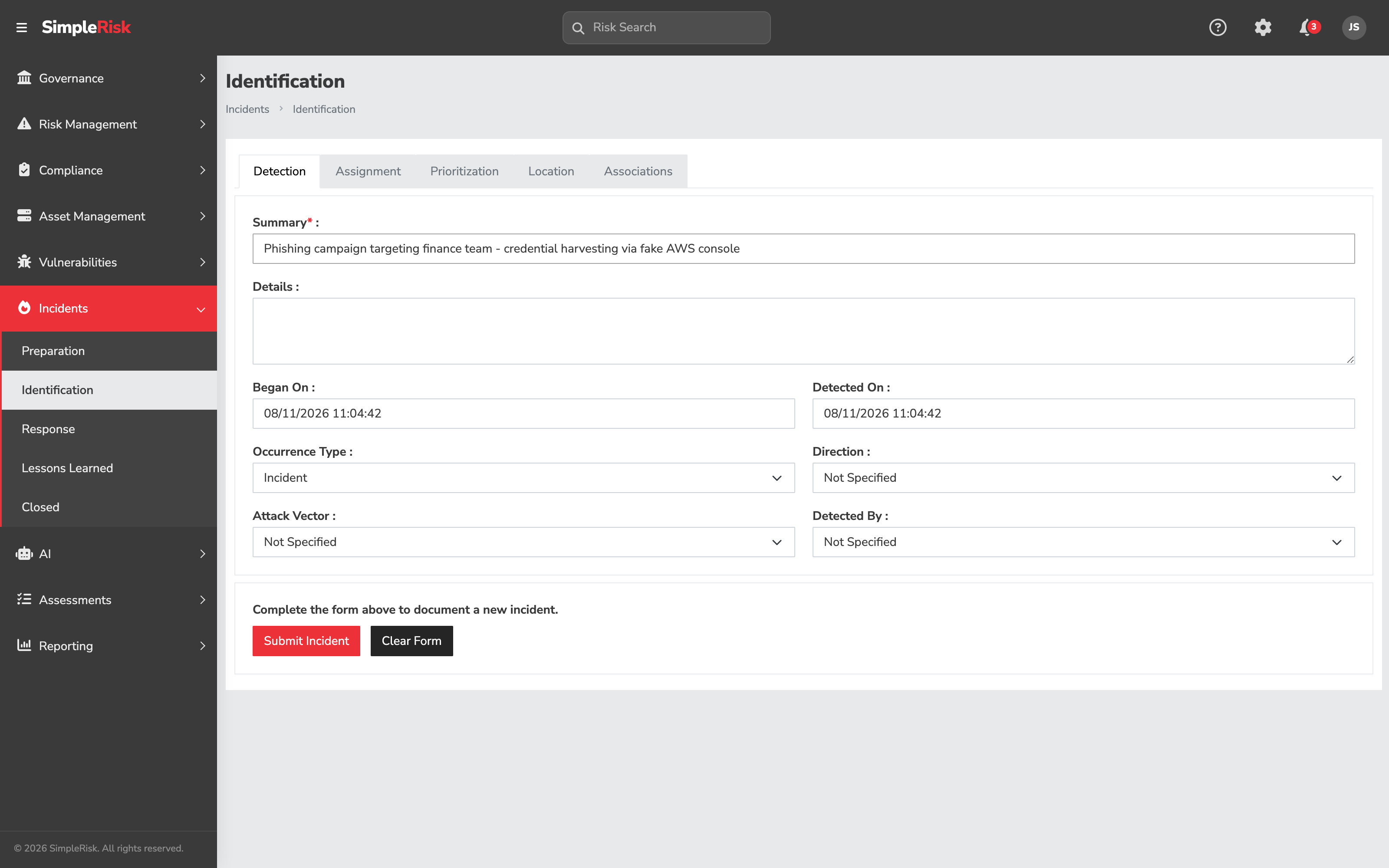
There's no "new incident" button to click. The Identification page is the recording form — it opens blank and ready, with the fields grouped into five tabs:
- Detection — what happened, when, and how it surfaced.
- Assignment — who's involved, on the response side and the stakeholder side.
- Prioritization — the impact scoring that drives the incident's priority.
- Location — where the incident is happening (region, country, city), useful for global organizations.
- Associations — what the incident links to (other incidents, risks, assets, tags).
The tabs aren't strictly sequential (you can fill them in any order) but the workflow tends to follow Detection → Assignment → Prioritization → Location → Associations because that's roughly the order the facts become known during the early response.
3. Fill in the Detection tab
The Detection tab captures what happened and how it was identified. Summary is the only required field on the entire form — everything else is optional, though a mostly-blank incident makes for a weak record.
- Summary — a short headline (max 300 characters), and the only required field. Treat it like the Subject field on a risk: this is what scrolling readers see, so be specific. "Phishing campaign targeting finance team — credential harvesting via fake AWS console" beats "Phishing."
- Details — a free-text box for the longer description. What was observed, when, by whom, what's known about the scope so far. This grows over the life of the incident; the initial entry can be brief.
- Began On — when the incident actually started. Opens pre-filled with the current date and time; click it to pick a different one.
- Detected On — when the team became aware of it. Also pre-filled with now. The gap between Began On and Detected On is your dwell time, and it's the number an auditor or a board member will ask about, so it's worth the extra minute to get both right at recording time rather than reconstructing them a week later.
- Occurrence Type — a dropdown distinguishing Incident from Event (and any other configured values). It defaults to Incident, which is exactly why the pitfall below bites. The distinction matters operationally: events are noteworthy occurrences that don't yet warrant a response, incidents are occurrences the team is responding to. Be deliberate; defaulting everything to Incident produces a noisy register.
- Direction — a dropdown classifying the incident as inbound (external attacker), outbound (internal-to-external), internal (insider or lateral), and so on. Defaults to Not Specified.
- Attack Vector — the method or channel involved (phishing, web exploit, supply chain, physical, and so on). Also defaults to Not Specified.
- Detected By — how the incident surfaced, chosen from your configured sources (each shown as "type - name"). The first option is Not Specified; leave it there rather than guessing when there's no clear detector.
4. Fill in the Assignment tab
The Assignment tab captures the people:
- Reported By — single-user picker. Who reported the incident (the person who first surfaced it, often not the responder). Pre-populated with you, the submitter — reassign it if someone else raised the incident.
- Owned By — single-user picker. The single accountable owner for the response. Also pre-populated with you; change it to the actual responder.
- Additional Stakeholders — multi-user picker. People who should be in the loop but aren't responsible for the response (managers, related teams, communications staff).
- Team(s) — multi-team picker. The team(s) involved in the response.
The owner is load-bearing — notification routing, status-change emails, and the responsibility for moving the incident through phases all flow to the owner. Because it defaults to you, the risk isn't a blank owner but a wrong one: leaving yourself as owner when the incident belongs to someone else.
5. Fill in the Prioritization tab
The Prioritization tab captures impact scoring through three dropdowns, each with its own scoring helper:
- Functional Impact — how the incident affects business operations (none, low, medium, high). The seeded values map to numeric scores that drive the overall incident severity.
- Information Impact — how the incident affects data confidentiality/integrity/availability (none, privacy breach, integrity loss, etc.).
- Recovery — how recoverable the incident is (regular, supplemented, extended, not recoverable). This shapes the Recovery-phase planning.
Each field is configurable in admin (Settings cog → Settings Hub → Incident Management tile → Functional/Information/Recovery scoring); the seeded values are based on NIST 800-61's impact-categorization guidance.
6. Fill in the Location tab
For global organizations, the Location tab lets you scope the incident geographically:
- Region — multi-select.
- Country — multi-select.
- City — multi-select.
For single-location organizations, leave these blank or set to your one site. The tab exists because incidents in multinationals frequently cross jurisdictional lines (regulatory reporting requirements, breach notification laws) and the geography drives those decisions.
7. Fill in the Associations tab
The Associations tab is where the incident links to the rest of SimpleRisk:
- Related Incidents — multi-select. Other incidents in the database related to this one (a phishing campaign hitting multiple teams might warrant separate incidents linked together).
- Related Risks — multi-select. Risks in the standard register that this incident relates to (the materializing risk, the risk newly surfaced by the incident). This linkage is what the bidirectional integration in From Incident to Risk and Back reads.
- Affected Assets — multi-select assets and asset groups, using the same widget as the Submit Risk form. The asset linkage feeds the asset-side incident reporting.
- Source Tags and Destination Tags — free-text tags categorizing the incident's source and target. Useful for cross-cutting reporting later.
8. Submit the incident
Click Submit Incident (there's also a Clear Form button that resets every field). The Extra records the incident with a status of 1 (Response/New) — meaning the incident is now recorded and ready to move into the Containment phase of the Response workflow. The reporter, owner, additional stakeholders, and team members all receive notifications based on the configured notification settings (the new event type).
The incident appears in the Identification list and (because status=1) also in the Response list at /incidents/index.php?menu=response (or in Closed once it's been moved to a closed status). Click the incident to open its detail view at /incidents/index.php?incident_id=X and continue with the response work — see The Incident Management Extra.
9. Programmatic recording via the v2 API
For automation (alerts from a SIEM that should auto-create incidents, integrations with ticketing systems, scripted bulk recording) the v2 API exposes the operation:
POST /api/v2/im/incident/details/update— create or update incident details (the Detection-tab fields).POST /api/v2/im/incident/summary/update— update the summary specifically.POST /api/v2/im/incident/status/update— change phase/status (also used to advance through Containment → Eradication → Recovery → Closed).GET /api/v2/im/incident/get/all— list all incidents.POST /api/v2/im/incident/get/incident/datatable— paginated list (DataTables-compatible).
A typical SIEM-integration pattern is: alert fires in the SIEM, a webhook posts to POST /api/v2/im/incident/details/update with the alert content as the Summary and Details, the resulting incident lands in Identification, the on-call responder picks it up. Pair with the notification settings so the right people get pinged at creation time.
Field reference
Every field on the Identification form, grouped by tab. All of it requires the Incident Management Extra. Summary is the only required field; everything else is optional. Multi-select fields let you choose more than one value.
Detection
Summary
- What it captures: The incident's one-line headline, shown on every list, notification, and audit entry.
- What you can enter: Free text, up to 300 characters. Required.
Details
- What it captures: The longer description — what was observed, when, by whom, scope so far.
- What you can enter: Free-form text.
Began On
- What it captures: When the incident started.
- What you can enter: A date and time, picked from the calendar. Pre-filled with now.
Detected On
- What it captures: When the team became aware of it.
- What you can enter: A date and time, picked from the calendar. Pre-filled with now.
Occurrence Type
- What it captures: Whether this is an Event or an Incident (or another configured type).
- What you can enter: One value from your configured occurrence types.
Direction
- What it captures: Inbound / outbound / internal classification.
- What you can enter: One value from your configured directions.
Attack Vector
- What it captures: The method or channel involved.
- What you can enter: One value from your configured attack vectors.
Detected By
- What it captures: How the incident surfaced.
- What you can enter: One source from your configured list (shown as "type - name"); defaults to Not Specified.
Assignment
Reported By
- What it captures: Who raised the incident.
- What you can enter: One user; pre-populated with you.
Owned By
- What it captures: The person accountable for the response.
- What you can enter: One user; pre-populated with you.
Additional Stakeholders
- What it captures: People to keep in the loop who don't own the response.
- What you can enter: One or more users.
Team(s)
- What it captures: The responding team(s).
- What you can enter: One or more teams.
Prioritization
Functional Impact
- What it captures: Effect on business operations.
- What you can enter: One value from the configured scale; each carries a score that feeds overall severity.
Information Impact
- What it captures: Effect on data confidentiality / integrity / availability.
- What you can enter: One value from the configured scale (scored).
Recovery
- What it captures: How recoverable the incident is.
- What you can enter: One value from the configured scale (scored).
The three scores combine into the incident's severity band (Sev 1–4).
Location
Regions
- What it captures: Affected region(s).
- What you can enter: One or more from your configured regions.
Countries
- What it captures: Affected country/countries.
- What you can enter: One or more from your configured countries.
Cities
- What it captures: Affected city/cities.
- What you can enter: One or more from your configured cities.
Associations
Related Incidents
- What it captures: Other incidents connected to this one.
- What you can enter: One or more open (non-closed) incidents.
Related Risks
- What it captures: Risks in the register this incident relates to — the link the incident↔risk integration reads.
- What you can enter: One or more open risks (team-separation-aware).
Affected Assets
- What it captures: Assets or asset groups the incident touches.
- What you can enter: One or more existing assets/asset groups (same widget as the Submit Risk form).
Source Tags
- What it captures: Free-form labels categorizing the incident's source.
- What you can enter: One or more tags.
Destination Tags
- What it captures: Free-form labels categorizing the incident's target.
- What you can enter: One or more tags.
Set automatically on submit (not on the form): status (New), the computed severity score, and the submitter.
Common pitfalls
A handful of patterns recur with incident recording.
-
Recording every alert as an incident. The single biggest failure pattern. A SIEM that fires hundreds of alerts per day, integrated with the Extra to auto-create incidents per alert, produces an incident register where 95% of the entries are routine alerts the SOC closed without doing anything. Use the Event occurrence type (or a SIEM-side filter) for the routine alerts; reserve Incident for the ones the team is actually responding to.
-
Wrong Owner left in place. Owner defaults to whoever is recording the incident, so it's rarely blank — the trap is the opposite: the submitter records the incident and forgets to reassign, so notification routing, status-change emails, and phase-progression responsibility all land on the person who merely filed it rather than the person actually responding. Set the owner to the real responder at recording time.
-
Leaving Began On and Detected On at their defaults. Both open pre-filled with the moment you're recording, which is almost never when the incident started and often not when it was detected either. Left alone, they collapse dwell time to zero and quietly overstate how fast the program caught the thing. It's a two-click fix at recording time and a painful reconstruction afterwards.
-
Vague Summary. "Server issue" tells future readers nothing. The Summary appears on every dashboard, in every notification, and in every audit-trail entry — it's the field that does the most work over the life of the incident. Spend the extra thirty seconds at recording time; "Production database connection-pool exhaustion causing 500-errors on /api/v2/risks endpoint" is much more useful than "Server issue."
-
Confusing Reporter and Owner. The Reporter is the person who raised the incident (often a user who saw something weird, or the SIEM if auto-recorded); the Owner is the person responsible for the response (typically a security engineer or SOC analyst). Conflating them produces an incident where the reporter is held accountable for the response work, which they didn't sign up for.
-
Skipping the Prioritization tab. A new incident with no Functional Impact, Information Impact, or Recovery scoring lands in the register without an inferred severity. The dashboards can't surface it as high-priority because there's no priority signal. Even rough scoring at recording time (everything as "Medium" if you don't know yet) is better than blank.
-
Linking to no risks at recording time. The risk-incident link is what makes the bidirectional integration work. An incident with no risk link is a closed-system incident that doesn't connect to the program's broader risk picture. At recording time, look for related risks already in the register and link them; if no related risk exists, that's a finding for the post-incident review (the program had no record of this exposure before the incident materialized).
-
Treating recording as the end. Recording is the start of the workflow, not the end. A program that records incidents diligently but doesn't move them through the response phases ends up with a register full of "New" incidents that never get worked. The Identification phase is the front door; the response work is what happens inside the building.
-
Auto-recording without notification routing. Setting up SIEM-driven auto-creation without configuring the Extra's notification settings produces incidents that arrive in the database and notify nobody. The on-call team finds out at the morning standup. Configure notification routing for the
newevent type before turning on auto-create.