---
title: 04.04 Configuring SAML SSO
description: Set up SAML 2.0 single sign-on against an external identity provider — configure metadata, attribute mapping, certificate handling, and the…
---
[Skip to content](https://support.simplerisk.com/kb/04-04-configuring-saml-sso#main-content)
English
Show submenu for translations
[Customer portal](https://support.simplerisk.com/tickets?hsLang=en)
[](https://www.simplerisk.com/)
Open main navigation
Close main navigation
- English
Show submenu for translations
- [Customer portal](https://support.simplerisk.com/tickets)
- [Contact us](https://www.simplerisk.com/about-us/contact-us)
[Contact us](https://www.simplerisk.com/about-us/contact-us)
How can we help you?
- There are no suggestions because the search field is empty.
1. [SimpleRisk Knowledge Base](https://support.simplerisk.com/kb?hsLang=en)
2. [Administrator Guide](https://support.simplerisk.com/kb/administrator-guide?hsLang=en)
3. [04 Authentication](https://support.simplerisk.com/kb/administrator-guide?hsLang=en#04-authentication)
# 04.04 Configuring SAML SSO
## Set up SAML 2.0 single sign-on against an external identity provider — configure metadata, attribute mapping, certificate handling, and the test-before-enforcing workflow for safe rollout.
> **Requires:** *Authentication Extra*
>
> SAML 2.0 single sign-on is provided by the Authentication Extra. Core SimpleRisk supports local username/password and API key authentication only. The Extra appears in the Settings Hub (Settings cog, top-right of any page) → Extras chip as **Custom Authentication** but the management page renders as **Custom Authentication Extra** — same Extra, two names. See [The Authentication Extra Overview](https://support.simplerisk.com/kb/04-03-the-authentication-extra-overview?hsLang=en) for the wider picture.
## Why this matters
Organizations that grow past their first ten SimpleRisk users hit the same pair of pain points: passwords nobody rotates, and accounts nobody disables when the holder leaves. SAML SSO solves both. Authentication moves to the IdP you already run for the rest of the corporate stack (Okta, Microsoft Entra ID, Google Workspace, ADFS, OneLogin), and SimpleRisk inherits its password policy, MFA enforcement, and offboarding behavior. When IT disables a leaver's IdP account on a Friday, that account stops logging into SimpleRisk on Monday. No second list to maintain.
NIST SP 800-63 *Digital Identity Guidelines* and SOC 2's Common Criteria 6.1 both expect an identity lifecycle: provisioned on hire, MFA-protected, deprovisioned on termination, reviewed periodically. Federating SimpleRisk onto the IdP is auditable; maintaining the lifecycle in twelve apps in parallel is theatre.
## Prerequisites
- The **Authentication Extra** activated from the Settings Hub → **Extras** chip → **Custom Authentication** tile. Activation auto-generates a per-install SP certificate and a SimpleSAMLphp `secretsalt`; both are reused across upgrades.
- An admin SimpleRisk account. The configuration page is gated by the `admin` permission.
- Admin access to the IdP you intend to federate with, with rights to register a new SAML application.
- **A test user with a working local SimpleRisk password.** This is the lockout-prevention key. SimpleRisk doesn't *replace* the local login form when SAML is on — both auth paths run side-by-side — but if you accidentally disable a misconfigured admin account, or treat the SSO link as your only entry point, you're stranded. Keep at least one human's local password working until the round-trip is confirmed end-to-end.
- An answer to "what role and team should new users land in?" if you intend to use just-in-time (JIT) provisioning. Without sensible defaults, JIT creates a thousand SimpleRisk accounts with read-only access and no team, and you spend the next month fixing them.
## Step-by-step
### 1. Open the SAML configuration tab
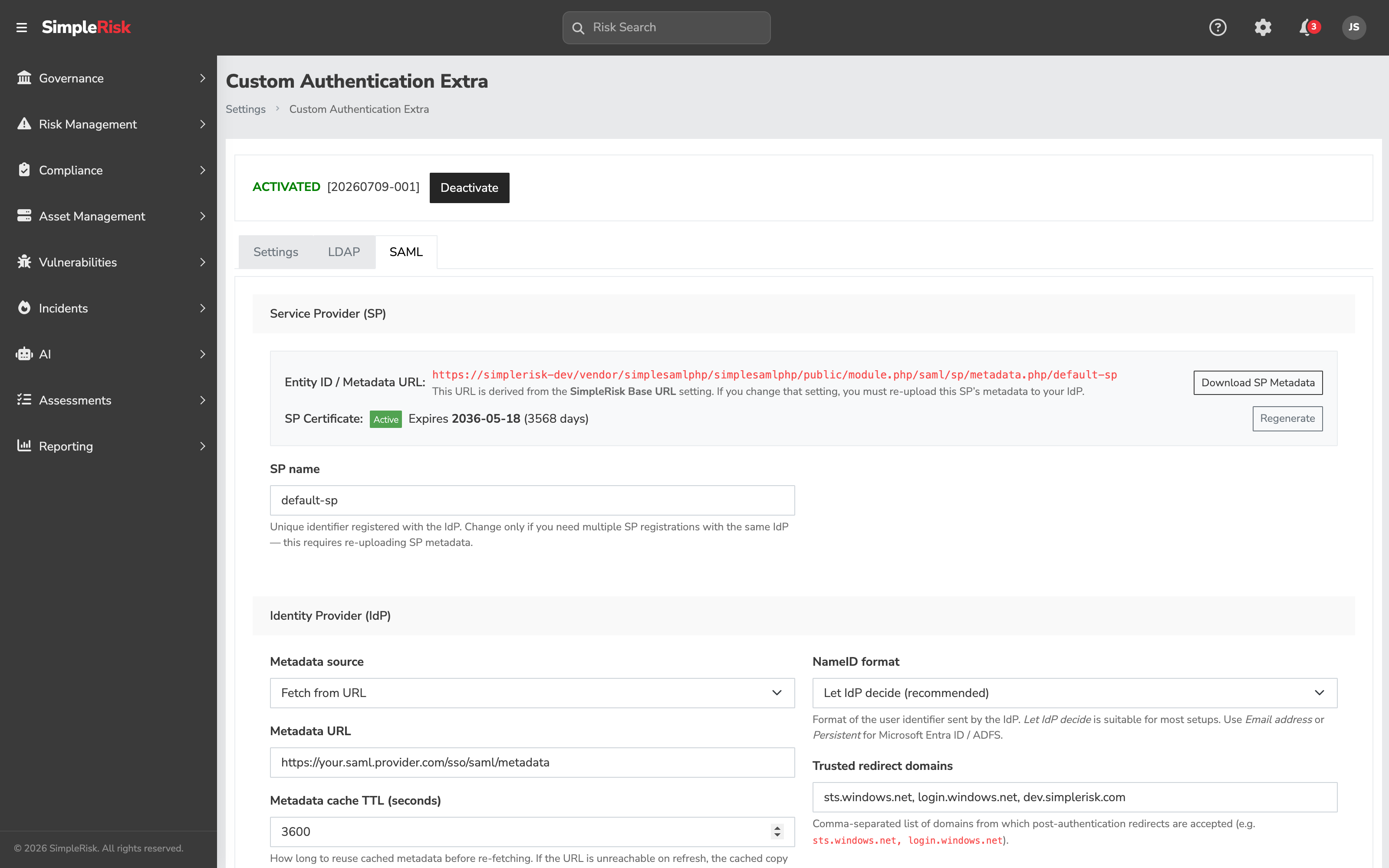
Sign in as an admin and open the Settings cog (top-right of any page) → Settings Hub → **Extras** chip. The catalog shows **Custom Authentication** as an Active tile — click it to open the management page (titled *Custom Authentication Extra* in the breadcrumb). Three tabs sit at the top: **Settings**, **LDAP**, **SAML**. Open the **SAML** tab.
### 2. Capture the SP metadata SimpleRisk hands to your IdP
The first card on the SAML tab is **Service Provider (SP)**. It shows the SP entity ID / metadata URL, the SP certificate status, and a **Download SP Metadata** button. The metadata URL is derived from the **SimpleRisk Base URL** setting and looks like:
```
https://{your-simplerisk-host}/vendor/simplesamlphp/simplesamlphp/public/module.php/saml/sp/metadata.php/default-sp
```
If **SimpleRisk Base URL** isn't set or is wrong, fix it first (Settings cog → Settings Hub → **Security** tile); every SAML round-trip depends on it. Click **Download SP Metadata** to save the XML, or copy the URL — most modern IdPs accept either form.
The **SP name** field defaults to `default-sp` and is part of the metadata URL. Leave the default unless you need multiple SP registrations against the same IdP. Changing the SP name after the IdP is configured invalidates the trust and forces a re-upload.
### 3. Register SimpleRisk as an application at your IdP
This half of the round-trip happens *outside* SimpleRisk. The pattern is consistent across IdPs: create a new SAML 2.0 application, upload SimpleRisk's SP metadata, then capture the IdP's metadata URL or XML for the next step.
A few IdP-specific notes:
- **Okta** — upload the SP metadata XML rather than entering ACS URL and audience by hand; the round-trip is more reliable that way.
- **Microsoft Entra ID / ADFS** — both reject AuthnRequests that include the `{Scoping}` element. You must tick **Disable scoping (ADFS / Entra ID compatibility)** in step 6. This is the single most common Entra-with-SimpleRisk gotcha.
- **Google Workspace** — set NameID format to **Email address** in step 4 and match SimpleRisk usernames to the IdP-side primary email.
Whichever IdP you're using, copy its SAML metadata URL (or download the XML) before moving on.
### 4. Paste IdP metadata back into SimpleRisk
In the **Identity Provider (IdP)** card, pick a **Metadata source**:
- **Fetch from URL** — paste the IdP's metadata URL into **Metadata URL**. SimpleRisk re-fetches on the schedule set by **Metadata cache TTL (seconds)** (default 3600). When the URL is unreachable on refresh, the cached copy keeps working. Use **Clear cached metadata now** to force the next login to re-fetch.
- **Paste XML** — paste the IdP's metadata XML directly. Useful when the IdP doesn't expose a public metadata URL.
- **Upload XML file** — same, from a file. SimpleRisk validates well-formedness and rejects DOCTYPE declarations as XXE hardening.
Set **NameID format** to match what the IdP issues. **Let IdP decide (recommended)** is the right starting point. **Email address** suits Google Workspace; **Persistent** is the right choice when you want SimpleRisk to map the same user across sessions regardless of email changes. Avoid **Transient** unless you specifically need it — transient NameIDs change every session and force attribute-based matching instead, which the page surfaces with an inline warning when you select it.
**Trusted redirect domains** is a comma-separated allow-list of domains SimpleRisk accepts as post-authentication redirect targets. It defaults to `sts.windows.net, login.windows.net, dev.simplerisk.com`. Add any IdP-side redirect domain not on the list.
### 5. Map IdP attributes to SimpleRisk fields
The **User Attribute Mapping** card is where most setups go wrong on the first try.
- **Username match** — pick **Authenticated username (NameID)** when the IdP's NameID *is* the SimpleRisk username. Pick **Authenticated attribute** when SimpleRisk should look at a specific SAML attribute instead (required for Transient NameID, or any opaque NameID). When you pick the attribute path, the **Username attribute** field appears — fill in the attribute name (commonly `mail`, `uid`, `userPrincipalName`, or `sAMAccountName`; the field has a datalist).
- **Display name attribute**, **Email attribute**, **Manager username attribute** — the SAML attribute names that populate those SimpleRisk user fields. Leave blank to skip. Names are case-sensitive: `displayName` is not the same as `displayname`.
- **Role attribute**, **Teams attribute** — the SAML attribute names whose *values* identify which SimpleRisk role and team(s) a user belongs to. After saving, the **Mapping** button next to each opens a modal where you map the *remote* role/team names from the IdP to SimpleRisk's local roles and teams. SimpleRisk doesn't auto-create roles; the modal is where the IdP-side `engineering-admins` group becomes the SimpleRisk-side **Engineering Admins** role.
For just-in-time (JIT) provisioning, the underlying flag is `AUTHENTICATION_ADD_NEW_USERS` on the **Settings** tab. Set it (along with default role and team) *before* going live or you'll churn through manual user fixups.
### 6. Set authentication behavior
The **Authentication Behavior** card carries the round-trip toggles:
- **Show the "Go to SSO Login Page" link on the main login page** — the visible *Go to SSO Login Page* link on `/index.php`. Leave this off until your test round-trip works.
- **Force authentication on every login** — sends `ForceAuthn=true` in every request, bypassing any existing IdP session. Useful for kiosks; otherwise leave off.
- **Logout terminates SimpleRisk session AND logs user out of the SAML Identity Provider (IdP)** — initiates SAML Single Logout (SLO) on logout. SLO is fragile; if you see logout loops, turn this off.
- **Require signed assertions** — recommended on. Virtually every production IdP signs assertions.
- **Disable scoping (ADFS / Entra ID compatibility)** — required for Microsoft ADFS and Entra ID, which reject requests with the `{Scoping}` element.
- **Sign authentication requests** / **Require encrypted assertions** — these only appear when the SP certificate is configured (auto-generated on Extra activation). Enable each only after the IdP-side change is in place; enabling early breaks login.
Click **Update** to save.
### 7. Test the round-trip without locking yourself out
SimpleRisk doesn't ship a discrete test/enforce toggle. The pattern is structural: leave the SSO link on the main login page **off** during testing, drive your test user to the SSO URL directly, and only flip the link on once the round-trip works. The SSO login URL is:
```
https://{your-simplerisk-host}/extras/authentication/login.php
```
Hand that URL to a test user with a matching IdP account. You should see a redirect to the IdP, IdP login (or session reuse), redirect back, and a landing on the SimpleRisk reports page. The debug log captures every step — `SAML user was successfully authenticated by the IdP.` confirms the IdP side worked. If you don't see that line, look immediately above for `SAML authentication failed:` or `SAML user was not authenticated by the IdP.`; the message after the colon is the IdP's complaint and the starting point for debugging.
Your own admin account stays on the main login form at `/index.php` with its local password while you test. That's the lockout-recovery path. Don't disable that account.
### 8. Activate SSO for production
When the test round-trip is clean (including role and team mapping if you use them), tick **Show the "Go to SSO Login Page" link on the main login page** and click **Update**. Users visiting `/index.php` now see a *Go to SSO Login Page* link below the password fields. The local form remains visible; SimpleRisk does not have an enforce-SSO mode that hides it.
## Verifying the configuration
Three signals confirm a healthy setup:
- A clean round-trip from `/extras/authentication/login.php` — IdP redirect, IdP sign-in, redirect back, landed on the SimpleRisk reports page as the right user with the right role and teams.
- The debug log shows `SAML user was successfully authenticated by the IdP.` followed by `Granting access for UID " " USERNAME "{name}".` (both at `info` level). If you see `Not a valid SAML user in SimpleRisk.` instead, either the user doesn't exist locally and JIT isn't on, or the username matching rule isn't picking up the right attribute.
- The audit log records `Custom Authentication Extra was toggled on by username "{admin}".` in the audit trail when activation happened — useful evidence in an access-management audit that the change is documented and dated.
## Troubleshooting
> **If you're locked out by a SAML misconfiguration:** SAML doesn't replace local auth in SimpleRisk. Go to `https://{your-simplerisk-host}/index.php` — the local login form is always shown, and SAML-on does not disable local password authentication. Sign in there with any local-password admin account and fix the SAML config. Database surgery on the `user` table is the last resort, only needed if every local password is gone.
When a SAML login dies on the SimpleSAMLphp error page — "Unhandled exception" plus a tracking number — the real reason is in the web server's error log, not on screen. Search the log for the tracking number; the `Caused by:` line names the actual exception. For example, `Received unencrypted assertion, but encryption was enabled.` means **Require encrypted assertions** is ticked but the IdP isn't encrypting. Releases after 20260519-001 log this detail automatically. On older versions it's suppressed: edit `simplerisk/vendor/simplesamlphp/simplesamlphp/config/config.php`, set `'backtraces' => true` inside the `'debug'` array, and reproduce the login once.
The handful of failure modes that drive most SAML support traffic.
- **Clock skew on assertion timestamps.** SAML assertions carry `NotBefore` / `NotOnOrAfter` timestamps signed by the IdP. SimpleRisk's host clock has to be inside that window. NTP drift of more than a few minutes produces "assertion is not yet valid" or "assertion has expired" errors. Fix the clock; never widen the tolerance.
- **Certificate format issues.** SAML certificates are PEM-encoded — base64 between `-----BEGIN CERTIFICATE-----` and `-----END CERTIFICATE-----` lines. If the IdP exports DER (binary), convert it: `openssl x509 -inform DER -in idp.cer -out idp.pem`. Pasting raw base64 without the PEM header lines produces opaque "could not parse certificate" errors.
- **Attribute mapping mismatches (case sensitivity).** SAML attribute names are case-sensitive at the wire level. `mail` and `Mail` are different attributes. To see exactly what the IdP sends, enable `debug` log level temporarily and look for the `SAML Attributes provided by the IdP:` line — the array dump shows the attribute names verbatim.
- **Circular redirect loops on Single Logout.** SLO is the most fragile part of SAML. If the IdP can't process an SLO request, the user bounces, SimpleRisk re-issues, the IdP rejects again, loop. The fix is to turn off **Logout terminates SimpleRisk session AND logs user out of the SAML Identity Provider (IdP)**. SimpleRisk-side logout still works; it just doesn't try to take down the IdP session as well.
- **Microsoft ADFS or Entra ID rejects AuthnRequests.** Tick **Disable scoping (ADFS / Entra ID compatibility)** and retest.
- **Missing PHP extensions on minimal or hardened builds.** SimpleSAMLphp needs PHP extensions that SimpleRisk Core does not: `tokenizer`, `openssl`, `simplexml`, `libxml`, `session`, `ctype`, `filter`, and `fileinfo`. A missing one fails every SAML request with a generic "Unhandled exception" page. SUSE is the usual culprit — it splits these into separate packages (`zypper install php8-tokenizer`), where Debian and RHEL bundle them. The **Health Check** page in the admin settings flags any missing extension once the Extra is installed.
- **The SP certificate is about to expire.** The page surfaces a colored badge with days remaining; under 30 days it goes red. Use **Regenerate** to issue a fresh self-signed cert (RSA-2048, 10-year validity), then re-upload SP metadata to the IdP. Logins fail in the window between regeneration and IdP pickup — schedule the change.
## Related
- [The Authentication Extra Overview](https://support.simplerisk.com/kb/04-03-the-authentication-extra-overview?hsLang=en)
- [Multi-Factor Authentication](https://support.simplerisk.com/kb/04-02-multi-factor-authentication?hsLang=en)
- [OIDC Setup](https://support.simplerisk.com/kb/04-05-oidc-setup?hsLang=en)
- [Local Authentication and Password Policies](https://support.simplerisk.com/kb/04-01-local-authentication-and-password-policies?hsLang=en)
- [FAQs](https://support.simplerisk.com/kb/faqs?hsLang=en)
- [SimpleRisk Extras](https://support.simplerisk.com/kb/simplerisk-extras?hsLang=en#main-content)
- [Vulnerability Management Extra](https://support.simplerisk.com/kb/simplerisk-extras?hsLang=en#vulnerability-management-extra)
- [Team Separation Extra](https://support.simplerisk.com/kb/simplerisk-extras?hsLang=en#team-separation-extra)
- [Import-Export Extra](https://support.simplerisk.com/kb/simplerisk-extras?hsLang=en#import-export-extra)
- [Administrator Guide](https://support.simplerisk.com/kb/administrator-guide?hsLang=en#main-content)
- [00 About This Guide](https://support.simplerisk.com/kb/administrator-guide?hsLang=en#00-about-this-guide)
- [01 Installation and Deployment](https://support.simplerisk.com/kb/administrator-guide?hsLang=en#01-installation-and-deployment)
- [02 Upgrades and Maintenance](https://support.simplerisk.com/kb/administrator-guide?hsLang=en#02-upgrades-and-maintenance)
- [03 Users and Permissions](https://support.simplerisk.com/kb/administrator-guide?hsLang=en#03-users-and-permissions)
- [04 Authentication](https://support.simplerisk.com/kb/administrator-guide?hsLang=en#04-authentication)
- [05 Customization](https://support.simplerisk.com/kb/administrator-guide?hsLang=en#05-customization)
- [06 Configuring Risk and Compliance](https://support.simplerisk.com/kb/administrator-guide?hsLang=en#06-configuring-risk-and-compliance)
- [07 Integrations](https://support.simplerisk.com/kb/administrator-guide?hsLang=en#07-integrations)
- [08 The API](https://support.simplerisk.com/kb/administrator-guide?hsLang=en#08-the-api)
- [09 Encryption and Data Security](https://support.simplerisk.com/kb/administrator-guide?hsLang=en#09-encryption-and-data-security)
- [10 Workflows and Automation](https://support.simplerisk.com/kb/administrator-guide?hsLang=en#10-workflows-and-automation)
- [11 Reporting and Auditing](https://support.simplerisk.com/kb/administrator-guide?hsLang=en#11-reporting-and-auditing)
- [12 Operations](https://support.simplerisk.com/kb/administrator-guide?hsLang=en#12-operations)
- [13 Reference](https://support.simplerisk.com/kb/administrator-guide?hsLang=en#13-reference)
- [User Guide](https://support.simplerisk.com/kb/user-guide?hsLang=en#main-content)
- [00 Foundations of GRC](https://support.simplerisk.com/kb/user-guide?hsLang=en#00-foundations-of-grc)
- [01 Risk Management](https://support.simplerisk.com/kb/user-guide?hsLang=en#01-risk-management)
- [02 Compliance Management](https://support.simplerisk.com/kb/user-guide?hsLang=en#02-compliance-management)
- [03 Governance](https://support.simplerisk.com/kb/user-guide?hsLang=en#03-governance)
- [04 Asset and Data Inventory](https://support.simplerisk.com/kb/user-guide?hsLang=en#04-asset-and-data-inventory)
- [05 Threat and Vulnerability Management](https://support.simplerisk.com/kb/user-guide?hsLang=en#05-threat-and-vulnerability-management)
- [06 Assessments](https://support.simplerisk.com/kb/user-guide?hsLang=en#06-assessments)
- [07 Incident Management](https://support.simplerisk.com/kb/user-guide?hsLang=en#07-incident-management)
- [08 Audit and Reporting](https://support.simplerisk.com/kb/user-guide?hsLang=en#08-audit-and-reporting)
- [09 Day-to-Day SimpleRisk](https://support.simplerisk.com/kb/user-guide?hsLang=en#09-day-to-day-simplerisk)
- [10 Continuous Improvement](https://support.simplerisk.com/kb/user-guide?hsLang=en#10-continuous-improvement)
- [SimpleRisk User Guides](https://support.simplerisk.com/kb/simplerisk-user-guides?hsLang=en)
- [Troubleshooting](https://support.simplerisk.com/kb/troubleshooting?hsLang=en)
- [SimpleRisk Hosted](https://support.simplerisk.com/kb/simplerisk-hosted?hsLang=en)
- [How To videos](https://support.simplerisk.com/kb/how-to-videos?hsLang=en)
[](https://www.simplerisk.com)
Copyright © 2026, SimpleRisk, Inc.