
Why this matters
The asset inventory in SimpleRisk is the substrate the rest of the program reads from: risks reference assets, controls protect assets, compliance evidence describes asset management. The work in this article is the operational hygiene that keeps the substrate honest — adding assets when systems land in production, retiring assets when systems are decommissioned, organizing assets into groups for the cases where they're naturally treated together, and verifying auto-discovered assets before they pollute the inventory.
The other thing worth knowing up front: SimpleRisk has a verified vs unverified split on assets that exists specifically to handle the auto-discovery case. When risks are submitted with an "Affected Asset" name that doesn't yet exist in the inventory (a common pattern with the Affected Assets widget on the Submit Risk form, which can create new assets inline), the new asset lands as unverified. An admin then reviews unverified assets and either verifies them (confirms they belong in the inventory) or discards them (rejects the auto-creation). The split keeps the inventory from filling up with typos, duplicates, and one-off mentions that aren't real assets.
The third thing: asset groups are how you organize assets that get treated together. A "Production Database Cluster" asset group containing the individual server assets lets a single risk linked to the group automatically affect all members; adding a new database server to the group later means existing risks linked to the group automatically include the new server. Groups are the abstraction that keeps maintenance work tractable as the environment changes.
Before you start
Have these in hand before opening the asset module:
- The Allow Access to "Asset Management" Menu permission on your account (the underlying permission key is
asset). Without it, the Asset Management section is hidden from the sidebar entirely. (See Permission Reference.) - A clear sense of what counts as an asset for your program. SimpleRisk's asset model is generic — anything that could be the subject of a risk or the target of a control can be an asset. Common categories: servers, applications, databases, network devices, cloud accounts, third-party services, physical locations, data stores. Pick the granularity that matches the risk-and-control work you're doing; one asset per server is overkill for some programs and exactly right for others.
- A naming convention. The asset name is what the rest of the program references; inconsistent naming ("DB-prod-east" vs "prod-east-db" vs "Production Database East") produces a search experience nobody can navigate. Pick a convention before populating the inventory; it's much easier than renaming hundreds of assets later.
- A read on whether your install has the Encryption Extra active. When encryption is enabled, the asset name, IP, and details fields are encrypted at the database level (visible in the UI to authorized users, opaque in raw database queries). Knowing this matters for any external tool that reads the database directly — those tools will see ciphertext, not plaintext, in the encrypted columns.
Step-by-step
1. Open the asset management page
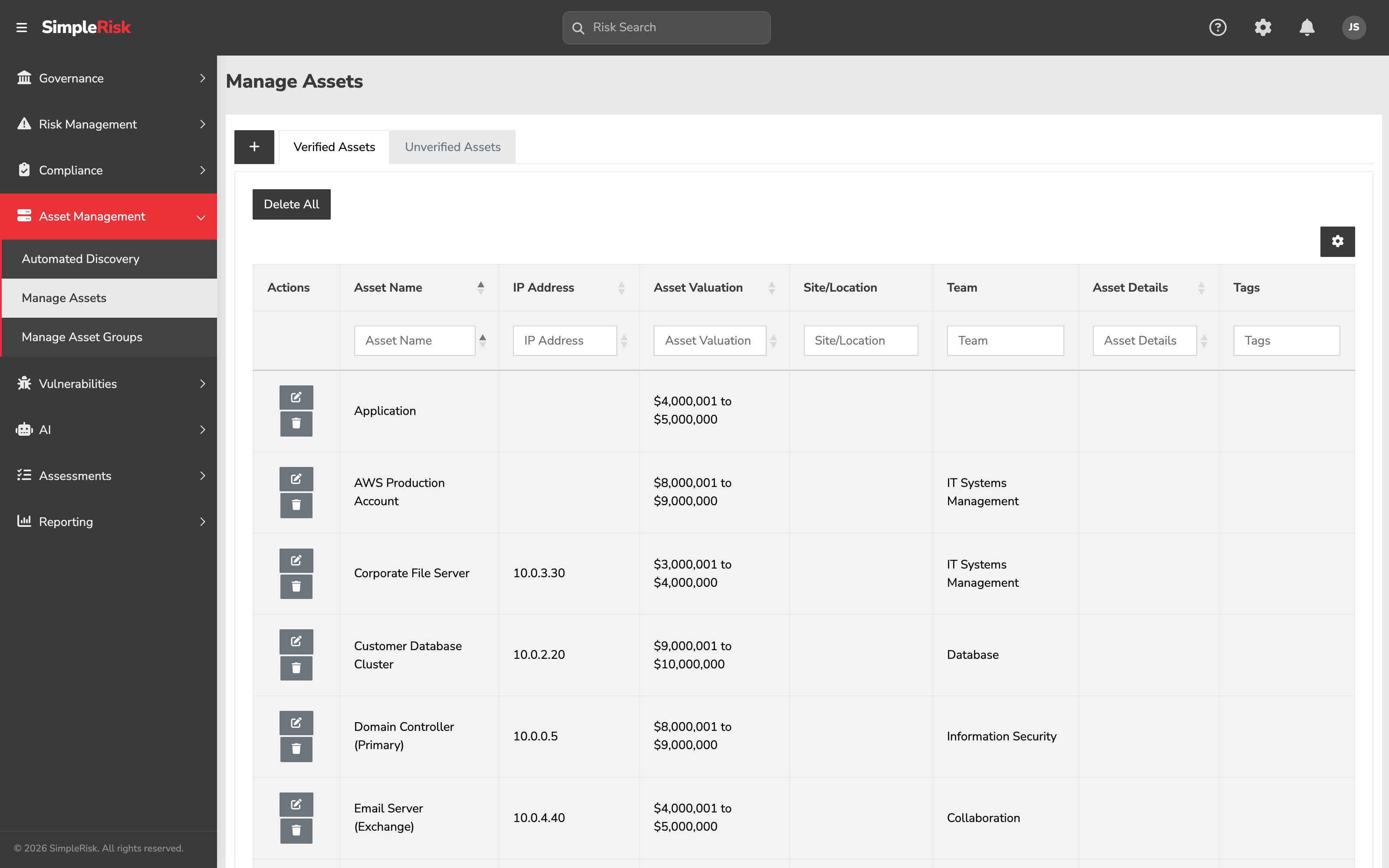
Sidebar: Asset Management → Manage Assets opens /assets/manage_assets.php. The page renders as a tabbed view with two tabs:
- Verified Assets — assets that have been confirmed as real and in scope.
- Unverified Assets — assets created by auto-discovery (typically through the Affected Assets widget on risk submission) that haven't yet been reviewed by an admin.
The Verified Assets tab is the working inventory; the Unverified Assets tab is the queue for cleanup.
2. Add a new asset
Click Add Asset at the top of the Verified Assets tab. The form fields:
- Asset Name — required. The display name for the asset. Pick a name that follows your convention.
- IP Address — optional. The asset's IP address (single IP, not a range). For non-network assets (cloud accounts, third-party services), leave blank.
- Asset Valuation — dropdown of valuation levels. Configurable per install (Settings cog → Settings Hub → Preferences tile → Asset Management tab); the default is a 10-level scale. Drives downstream risk-scoring math; spend the time to set this honestly.
- Site/Location — optional. Free-text or pick from a configured list, depending on install.
- Asset Team(s) — multi-team picker. The team(s) responsible for this asset. Used for permissions (when
AllowAllUsersToSeeAssetsNotAssignedToTeamis off, users only see assets for teams they belong to) and for routing notifications. - Tags — free-text labels for filtering and reporting. Useful for cross-cutting groupings that don't merit a full asset group.
- Asset Details — free-text textarea for any additional context about the asset (purpose, owner, dependencies, links to runbooks).
Click Save Asset. SimpleRisk adds the asset — already marked verified, since you created it from the verified side — and shows the success message Asset was added successfully.
3. Verify or discard auto-discovered assets
Click the Unverified Assets tab. The table lists assets that landed in the inventory through auto-creation (typically the Affected Assets widget on a risk-submission form). Each row offers per-asset Verify and Discard actions; the tab also exposes Verify All, Discard All, and Delete All for bulk operations.
For each unverified asset:
- Verify if it's a real asset that belongs in the inventory. The asset moves to the Verified Assets tab and becomes available for full asset-management operations (group membership, control linkage, the full edit form).
- Discard if it's a typo, a duplicate, or a mention that doesn't correspond to a real asset.
Working the unverified queue is the cleanup discipline that keeps the inventory honest. A backlog of unverified assets is a backlog of decisions about what counts as part of your program; when the backlog grows without being worked, the inventory starts to drift.
The behavior of new auto-discovered assets is controlled by the auto_verify_new_assets configuration setting. When on, new assets created via the Affected Assets widget land directly in the verified pool (the unverified-queue cleanup is skipped). When off (the safer default), they land in the unverified tab for review. Most programs leave the setting off for the cleanup discipline; turning it on is appropriate only when the upstream creation source is trusted.
4. Edit or delete an asset
Click any asset row in the Verified Assets tab to open its edit modal. The same form fields from creation are editable; Asset Details, Tags, and Asset Team(s) are the most commonly updated.
To delete an asset, use the per-row delete action or the Delete All bulk action on a filtered view. Deletion is hard — the asset is gone — and the risks and controls that referenced it are not automatically updated. Those links simply stop resolving; the affected risk or control still exists, without the deleted asset on its list. For programs that want a softer alternative, leaving a retired asset in place but renaming it (e.g., adding a [RETIRED] prefix and removing it from active asset groups) preserves the historical linkage while keeping the active inventory clean.
5. Manage asset groups
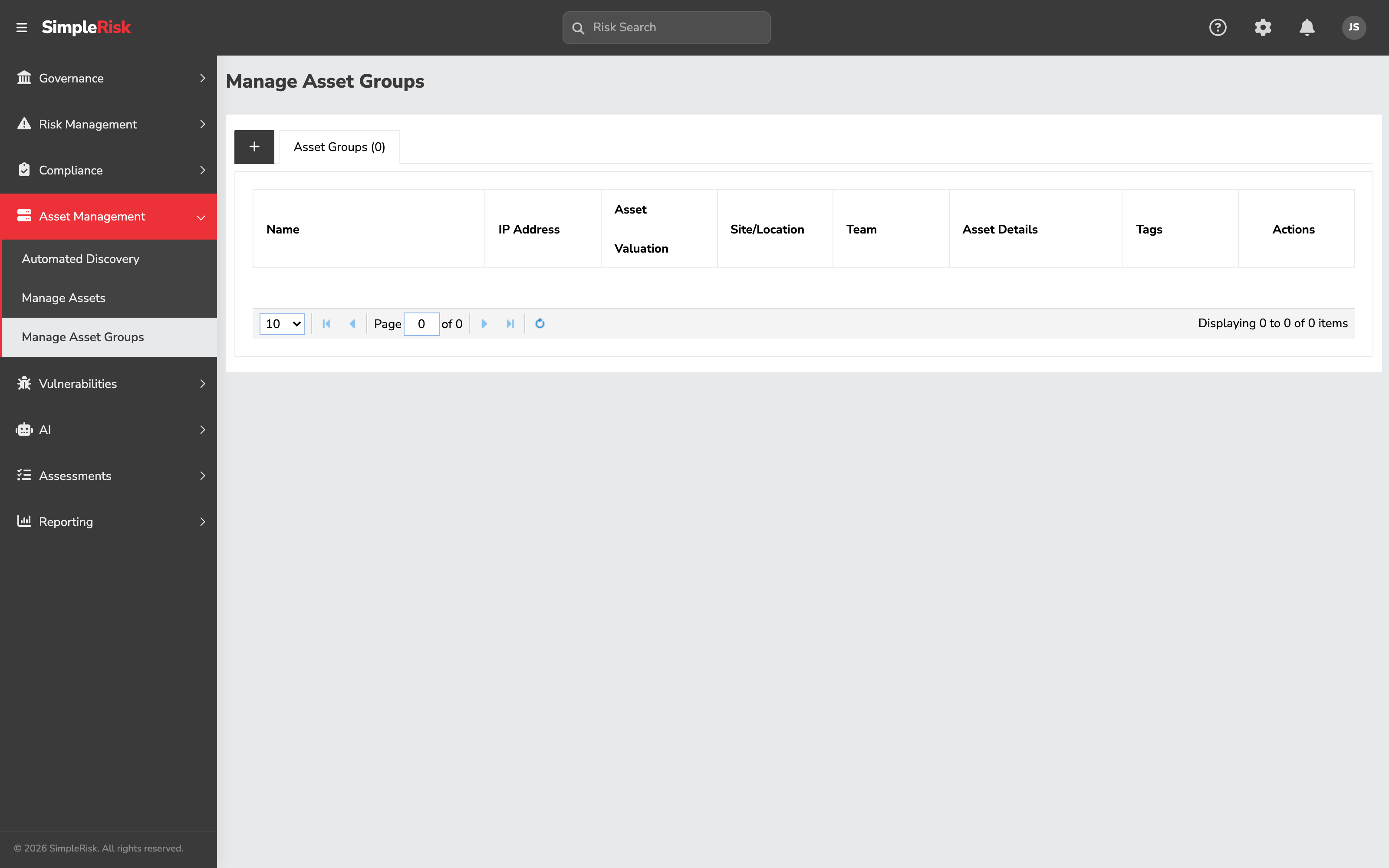
Sidebar: Asset Management → Manage Asset Groups opens /assets/manage_asset_groups.php. The page lets you create named groups of assets and manage the membership.
To create a group:
- Click Add Asset Group.
- Provide an Asset Group Name (e.g., "Production Database Cluster", "PCI Cardholder Data Environment", "Customer-Facing Web Tier").
- Pick the Available Assets to add to the group; they move to the Selected Assets column.
- Save.
Membership is many-to-many. An asset can belong to multiple groups (a single database server might be in "Production Database Cluster" and also in "PCI Cardholder Data Environment"); a group can hold any number of assets.
Asset groups are linkable from risks and controls the same way individual assets are. When you link a risk to an asset group, reporting expands the group at read time so the risk shows as affecting all current members; adding a new asset to the group later means risks linked to the group automatically include the new asset.
6. Programmatic asset management via the v2 API
For automation (bulk import from a CMDB, scheduled sync from a cloud-provider inventory, integration with an asset-discovery scanner) the v2 API exposes the asset operations:
Asset CRUD:
GET /api/v2/assets— list all assets (or pass?id={id}to fetch one).GET /api/v2/assets/{id}— fetch one asset by ID.POST /api/v2/assets— create a new asset.PATCH /api/v2/assets/{id}— update an existing asset.DELETE /api/v2/assets/{id}— delete an asset.
Asset metadata and helpers:
GET /api/v2/assets/options— fetch the asset dropdown options (used by widgets that pick assets).GET /api/v2/assets/associations— fetch the risk/compliance associations for an asset.GET /api/v2/assets/tags— list all asset tags.
Asset group CRUD:
GET /api/v2/asset-groups— list all asset groups.POST /api/v2/asset-groups— create a new group.GET /api/v2/asset-groups/{id}— fetch one group.PATCH /api/v2/asset-groups/{id}— update a group.DELETE /api/v2/asset-groups/{id}— delete a group.
Asset group membership:
GET /api/v2/asset-groups/{id}/assets— list the assets in a group.POST /api/v2/asset-groups/{id}/assets— add assets to a group.DELETE /api/v2/asset-groups/{id}/assets/{asset_id}— remove a specific asset from a group.
The CRUD endpoints are the building blocks for sync scripts. A typical pattern: fetch the upstream inventory (cloud console, CMDB, scanner), iterate the entries, and POST new ones / PATCH changed ones / DELETE retired ones. Pair the script with the verified-vs-unverified discipline — set the script to leave new assets unverified for human review, or trust the upstream source and set them verified directly via the verified field.
Common pitfalls
A handful of patterns recur when teams operate the asset inventory.
-
Unverified queue that never gets worked. A program with
auto_verify_new_assetsset to off and an unverified queue of two hundred assets nobody's touched in six months has effectively disabled the verification discipline by inattention. Either schedule a recurring queue-cleanup pass (weekly is reasonable for active programs), or accept that the discipline isn't operating and turnauto_verify_new_assetson so at least the queue isn't full of assets the program isn't acting on. -
Deleting assets the program still references. Deleting an asset that's linked to open risks or active control tests doesn't unlink the references; it leaves orphan rows in the join tables. The risk's view shows the dangling asset link as an unresolved entry, and the affected-asset count drops without the program noticing why. Before deleting, check the asset's associations (the
GET /api/v2/assets/associationsendpoint or the manual review of risks-and-controls views) and decide whether to delete-and-accept the orphans, or to retire the asset with a rename instead. -
Asset groups treated as static lists. A group named "Production Database Cluster" populated once and never updated drifts as the environment changes — new servers don't get added, decommissioned servers don't get removed. The whole point of the group abstraction is that the group's membership is the live list. Add the group-membership update to whatever change-management process governs the underlying environment.
-
Skipping the Asset Valuation field. A program that leaves every asset at the default valuation produces risk-scoring math where every linked risk inherits the same impact contribution from the asset, regardless of whether it's a developer's test laptop or the production database. Spend the time on the valuation calibration; it's the field that makes risk-impact-by-asset reporting meaningful.
-
Asset name as a dumping ground. The name field accumulates parenthetical notes ("Web1 (DR pair, decom Q3, owned by Sara)") because the program doesn't have a better place to put the metadata. Use the Asset Details field for context that doesn't fit in the structured fields; reserve the name for the canonical identifier other systems will reference.
-
Inventory built once and frozen. First-time inventory population usually completes in a few days of focused work. The inventory becomes a liability the moment it stops being updated — six months later, the inventory is a snapshot of what the program used to run, not what it runs now. Build a recurring sync mechanism (API-driven from the upstream source of truth, plus a cleanup pass on the unverified queue) before the first import is even complete.
-
Encryption Extra on, then querying the database directly. When the Encryption Extra is enabled, the asset name, IP, and details columns are encrypted at the database level. External tools that read the database directly will see ciphertext, not plaintext, in the encrypted columns. The fix is to read through the v2 API instead — the API decrypts on the way out — or to disable encryption for the columns you need plaintext access to (with the obvious caveats about why the encryption was on in the first place).
-
Asset Teams left blank. Empty Asset Team(s) combined with
AllowAllUsersToSeeAssetsNotAssignedToTeamset to off produces an asset visible to nobody. Combined with the same setting set to on, it produces an asset visible to everyone, which defeats the purpose of the team-based segregation. Pick the teams deliberately; the field is the access-control gate.