---
title: 01.12 Installing on Ubuntu 24.04
description: Install SimpleRisk by hand on Ubuntu Server 24.04 LTS with Apache, MySQL, and PHP 8.5 — every command the scripted installer runs, laid out so you can…
---
[Skip to content](https://support.simplerisk.com/kb/01-12-installing-on-ubuntu-24-04#main-content)
English
Show submenu for translations
[Customer portal](https://support.simplerisk.com/tickets?hsLang=en)
[](https://www.simplerisk.com/)
Open main navigation
Close main navigation
- English
Show submenu for translations
- [Customer portal](https://support.simplerisk.com/tickets)
- [Contact us](https://www.simplerisk.com/about-us/contact-us)
[Contact us](https://www.simplerisk.com/about-us/contact-us)
How can we help you?
- There are no suggestions because the search field is empty.
1. [SimpleRisk Knowledge Base](https://support.simplerisk.com/kb?hsLang=en)
2. [Administrator Guide](https://support.simplerisk.com/kb/administrator-guide?hsLang=en)
3. [01 Installation and Deployment](https://support.simplerisk.com/kb/administrator-guide?hsLang=en#01-installation-and-deployment)
# 01.12 Installing on Ubuntu 24.04
## Install SimpleRisk by hand on Ubuntu Server 24.04 LTS with Apache, MySQL, and PHP 8.5 — every command the scripted installer runs, laid out so you can run, review, or adapt each one.
## Why this matters
Most people should use the installation script. It does everything on this page in one run, it's tested on every release, and it's the quickest way to a working instance. This article is for the cases where you can't or won't run a script as root on a production server: your change process wants to review each command, your hardening baseline already owns Apache or MySQL, or you're building an image and need to know exactly what goes into it.
The steps here follow the script's own order and settings, and they were run start to finish on a clean Ubuntu 24.04 LTS server for this release. If something here and the script ever disagree, the script wins, because it's the thing CI exercises.
One decision up front. The script installs PHP 8.5 from the Sury package repository on every Ubuntu and Debian release it supports, and this guide does the same. Ubuntu 24.04's own repositories carry PHP 8.3, which meets SimpleRisk's minimum. If your policy forbids third-party package repositories you may be able to use it instead, but this guide only covers the tested setup. You'd skip Step 1, install `php` in place of `php8.5` in Step 2, and use the `php.ini` path that matches the version Ubuntu installs in Step 3.
## Before you start
- **An Ubuntu Server 24.04 LTS machine** with at least 2 GB of memory, a static address or a DNS name, and outbound internet access. Sizing guidance is in [System Requirements](https://support.simplerisk.com/kb/01-01-system-requirements?hsLang=en).
- **A user with `sudo`.** Every command below runs as root. If you're logged in as a normal user, start a root shell once with `sudo -i` and stay in it.
- **Ports 80 and 443 reachable** from the people who'll use SimpleRisk. Step 8 opens them on the server's own firewall. Cloud security groups and network firewalls are yours to adjust.
- **A hostname for the instance.** Throughout this article, replace `{your-simplerisk-host}` with your instance's hostname (for example, `grc.example.com`). It's a hostname only: no `https://`, no path.
- **A decision about the TLS certificate.** The steps below leave Ubuntu's self-signed "snakeoil" certificate in place so the site comes up on HTTPS right away. Browsers will warn about it. Replace it before real users arrive, using [HTTPS and TLS Configuration](https://support.simplerisk.com/kb/01-07-https-and-tls-configuration?hsLang=en).
## Step-by-step
### 1. Add the PHP repository
Install the tools needed to fetch and check the repository key.
```
apt-get update
apt-get install -y gnupg curl ca-certificates lsb-release
```
Download the repository's signing key and compare its fingerprint to the published one before you trust it.
```
mkdir -p /etc/apt/keyrings
curl -fsSL https://packages.sury.org/php/apt.gpg -o /etc/apt/keyrings/sury-php.gpg
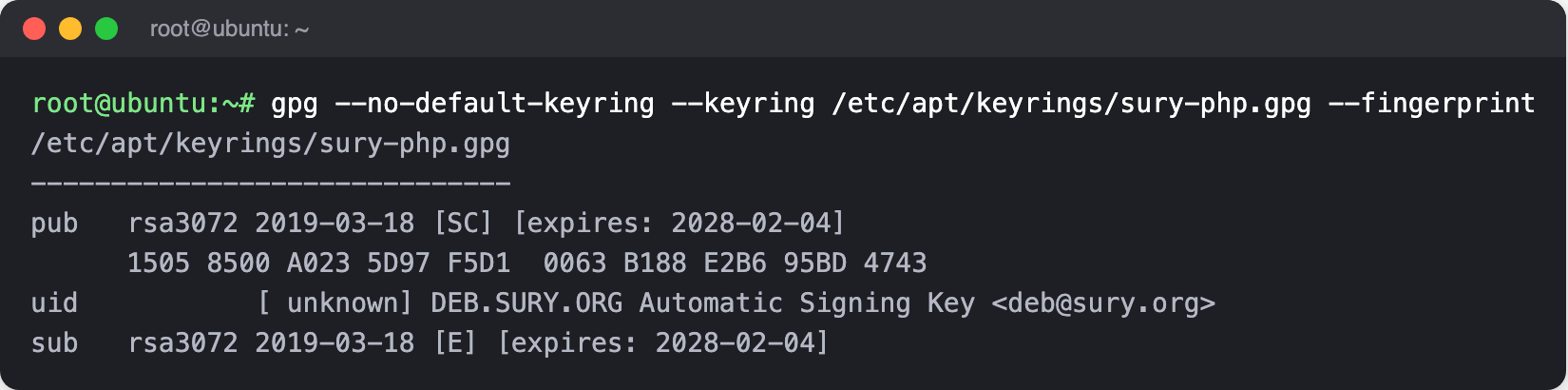
gpg --no-default-keyring --keyring /etc/apt/keyrings/sury-php.gpg --fingerprint
```
The fingerprint must read `1505 8500 A023 5D97 F5D1 0063 B188 E2B6 95BD 4743`. If it doesn't, stop and delete the file. Everything after this step installs software that this key vouches for.
```
echo "deb [signed-by=/etc/apt/keyrings/sury-php.gpg] https://packages.sury.org/php/ $(lsb_release -sc) main" \
> /etc/apt/sources.list.d/sury-php.list
apt-get update
```
### 2. Install Apache, MySQL, and PHP
```
apt-get install -y apache2 mysql-server \
php8.5 libapache2-mod-php8.5 php8.5-mysql php8.5-xml php8.5-mbstring \
php8.5-ldap php8.5-curl php8.5-gd php8.5-zip php8.5-intl php8.5-dev \
cron iputils-ping
phpenmod ldap
a2enmod rewrite ssl
a2ensite default-ssl
```
`cron` runs SimpleRisk's scheduled work in Step 7, and `iputils-ping` provides the `ping` command that asset discovery uses. The script also installs the PHP development headers (`php8.5-dev`), so this list does too. The `ldap` module is enabled whether or not you use directory sign-in, because SimpleRisk's requirements list it.
Check what you got. Ubuntu 24.04 supplies Apache 2.4 and MySQL 8.0; PHP comes from the repository you added.
```
apache2 -v | head -1
mysql --version
php -v | head -1
php -m | grep -E '^(ldap|mysqli|mbstring|gd|curl|zip|intl|xml)$' | tr '\n' ' '
```

### 3. Set the PHP limits
The script sets a 5 MB upload limit, a 256 MB memory limit, and room for 3,000 input variables. The last one matters on pages that post many fields at once, because PHP drops any field past the limit.
```
sed -i 's/^\(upload_max_filesize =\).*/\1 5M/; s/^\(memory_limit =\).*/\1 256M/; s/^;\?\(max_input_vars =\).*/\1 3000/' \
/etc/php/8.5/apache2/php.ini
grep -E '^(upload_max_filesize|memory_limit|max_input_vars) =' /etc/php/8.5/apache2/php.ini
```
The `grep` should print the three values you just set. If one is missing, the file has a different layout than expected and you'll need to set it by hand.

### 4. Download SimpleRisk and verify it
SimpleRisk publishes the current version and the checksum of each download in one small file. Read the version and both checksums from it, download, and check.
```
RELEASES=$(curl -fsSL https://updates.simplerisk.com/releases.xml)
VERSION=$(printf '%s' "$RELEASES" | grep -oP '
\K[^<]+' | head -n1) DB_SHA=$(printf '%s' "$RELEASES" | sed -n '/
/,/<\/en>/p' | grep -oP '
\K[^<]+' | head -n1) echo "Installing SimpleRisk $VERSION"
```
Download the application bundle, check it, and unpack it into `/var/www`.
```
cd /var/www
wget "https://simplerisk-downloads.s3.amazonaws.com/public/bundles/simplerisk-${VERSION}.tgz"
echo "${BUNDLE_SHA} simplerisk-${VERSION}.tgz" | sha256sum -c -
tar -xzf "simplerisk-${VERSION}.tgz"
rm "simplerisk-${VERSION}.tgz"
```
`sha256sum` must print `OK`. If it prints `FAILED`, delete the file and start again; don't unpack it. Download the English database file the same way.
```
wget -O /var/www/simplerisk/database.sql \
"https://github.com/simplerisk/database/raw/master/simplerisk-en-${VERSION}.sql"
echo "${DB_SHA} /var/www/simplerisk/database.sql" | sha256sum -c -
```
Both checks print `OK`, with the version you downloaded in the first filename.

Create the configuration file from the sample, and give the web server's account ownership of the application directory.
```
cp /var/www/simplerisk/includes/config.sample.php /var/www/simplerisk/includes/config.php
chown -R www-data: /var/www/simplerisk
```
### 5. Create the database and connect SimpleRisk to it
The script sets MySQL's SQL mode to `NO_ENGINE_SUBSTITUTION` only, which drops the strict defaults. Match it: SimpleRisk is built and tested against that setting.
```
echo 'sql-mode="NO_ENGINE_SUBSTITUTION"' >> /etc/mysql/mysql.conf.d/mysqld.cnf
systemctl restart mysql
```
Ubuntu's MySQL lets root in over the local socket without a password, so `mysql` works as-is from your root shell. Create the database and a dedicated user with a generated password, import the schema, and grant the user the permissions SimpleRisk needs.
```
DBPASS=$(openssl rand -hex 24)
mysql -e "CREATE DATABASE simplerisk"
mysql -e "CREATE USER 'simplerisk'@'localhost' IDENTIFIED BY '${DBPASS}'"
mysql simplerisk < /var/www/simplerisk/database.sql
mysql -e "GRANT SELECT, INSERT, UPDATE, DELETE, CREATE, DROP, REFERENCES, INDEX, ALTER ON simplerisk.* TO 'simplerisk'@'localhost'"
```
Write the connection details into the configuration file, then delete the schema file, which has no further use.
```
sed -i "s/\(DB_HOSTNAME', '\)__DB_HOSTNAME__/\1127.0.0.1/; s/\(DB_PORT', '\)__DB_PORT__/\13306/; s/\(DB_USERNAME', '\)__DB_USERNAME__/\1simplerisk/; s/\(DB_PASSWORD', '\)__DB_PASSWORD__/\1${DBPASS}/; s/\(DB_DATABASE', '\)__DB_DATABASE__/\1simplerisk/; s/\(USE_DATABASE_FOR_SESSIONS', '\)__USE_DATABASE_FOR_SESSIONS__/\1true/" \
/var/www/simplerisk/includes/config.php
grep -c -E "'__[A-Z_]+__'" /var/www/simplerisk/includes/config.php
rm /var/www/simplerisk/database.sql
```
The `grep -c` should print `0`, meaning no `__PLACEHOLDER__` value is left in the file. To confirm the schema went in, count the tables.
```
mysql -N -e "SELECT COUNT(*) FROM information_schema.tables WHERE table_schema='simplerisk'"
```
Any number above zero means the import ran (155 when this guide was verified).

The database password now lives only in `config.php`. If you want a copy for your password manager, print it with `echo "$DBPASS"` before you close the shell.
### 6. Point Apache at SimpleRisk
Replace the default HTTP site with one that serves SimpleRisk and sends every request to HTTPS.
```
cat > /etc/apache2/sites-available/000-default.conf <<'EOF'
DocumentRoot /var/www/simplerisk RewriteEngine On RewriteCond %{HTTPS} !=on RewriteRule ^/?(.*) https://%{SERVER_NAME}/$1 [R,L]
EOF
sed -i 's|/var/www/html|/var/www/simplerisk|g' /etc/apache2/sites-available/default-ssl.conf
```
SimpleRisk relies on `.htaccess` files to protect its own directories, so Apache has to honor them. This drop-in turns that on and switches off directory listings.
```
cat > /etc/apache2/conf-available/simplerisk.conf <<'EOF'
AllowOverride All Require all granted Options -Indexes
EOF
a2enconf simplerisk
```
Tighten two defaults: restrict Apache to TLS 1.2, and stop it announcing its version.
```
sed -i 's/\(SSLProtocol\) all -SSLv3/\1 TLSv1.2/' /etc/apache2/mods-enabled/ssl.conf
sed -i 's/\(ServerTokens\) OS/\1 Prod/; s/\(ServerSignature\) On/\1 Off/' /etc/apache2/conf-enabled/security.conf
apache2ctl configtest
systemctl restart apache2
```
`configtest` must end with `Syntax OK`. If it doesn't, read the message before restarting, because a failed restart takes the site down.

### 7. Create the log directory and the scheduled job
SimpleRisk writes its application log to `/var/log/simplerisk`. The directory belongs to the web server's account, with no access for anyone else.
```
mkdir -p /var/log/simplerisk
touch /var/log/simplerisk/simplerisk.log
chown -R www-data: /var/log/simplerisk
chmod 750 /var/log/simplerisk
chmod 640 /var/log/simplerisk/simplerisk.log
```
The scheduled job runs every minute as the web server's account, never as root. It's what sends notifications, runs queued background work, and takes backups, so a missing job shows up as features that quietly never fire. See [The Cron Jobs](https://support.simplerisk.com/kb/02-07-the-cron-jobs?hsLang=en) for what it does.
```
echo "* * * * * www-data $(which php) -f /var/www/simplerisk/cron/cron.php" > /etc/cron.d/simplerisk
chmod 644 /etc/cron.d/simplerisk
```
Confirm both are in place.
```
ls -l /var/log/simplerisk
cat /etc/cron.d/simplerisk
```

### 8. Open the firewall
Allow SSH first. Enabling the firewall without it cuts off your own session.
```
apt-get install -y ufw
ufw allow ssh
ufw allow http
ufw allow https
ufw --force enable
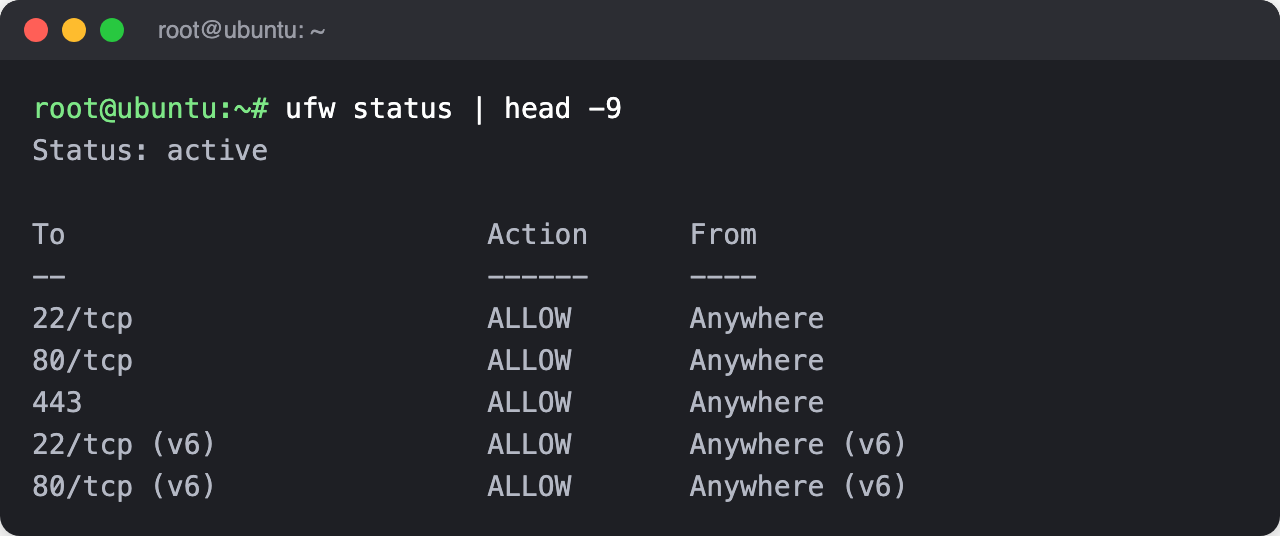
ufw status
```
The status should read `active`, with SSH (22), HTTP (80), and HTTPS (443) allowed.
### 9. Check the install, then finish in the browser
From the server, confirm both ports answer. The `-k` accepts the self-signed certificate.
```
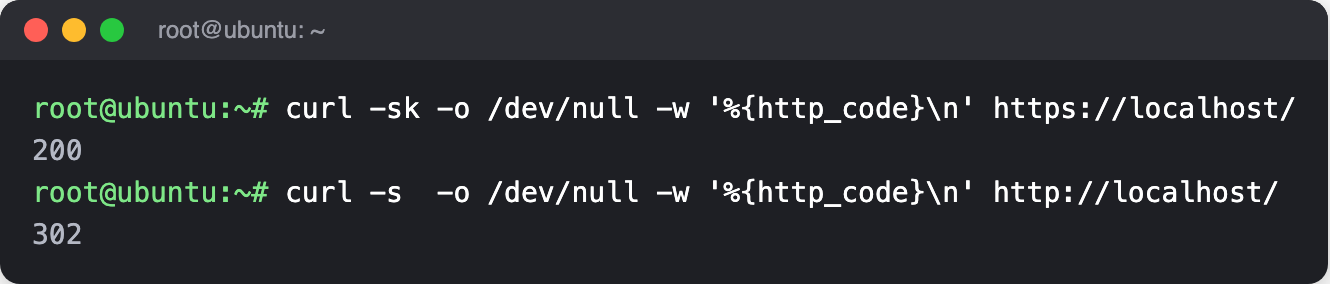
curl -sk -o /dev/null -w '%{http_code}\n' https://localhost/
curl -s -o /dev/null -w '%{http_code}\n' http://localhost/
```
The first should print `200` and the second a redirect code such as `302`.
Now open `https://{your-simplerisk-host}/` in a browser. It will warn that the certificate isn't trusted, because of the self-signed certificate; accept it for now and replace the certificate when you reach [HTTPS and TLS Configuration](https://support.simplerisk.com/kb/01-07-https-and-tls-configuration?hsLang=en).
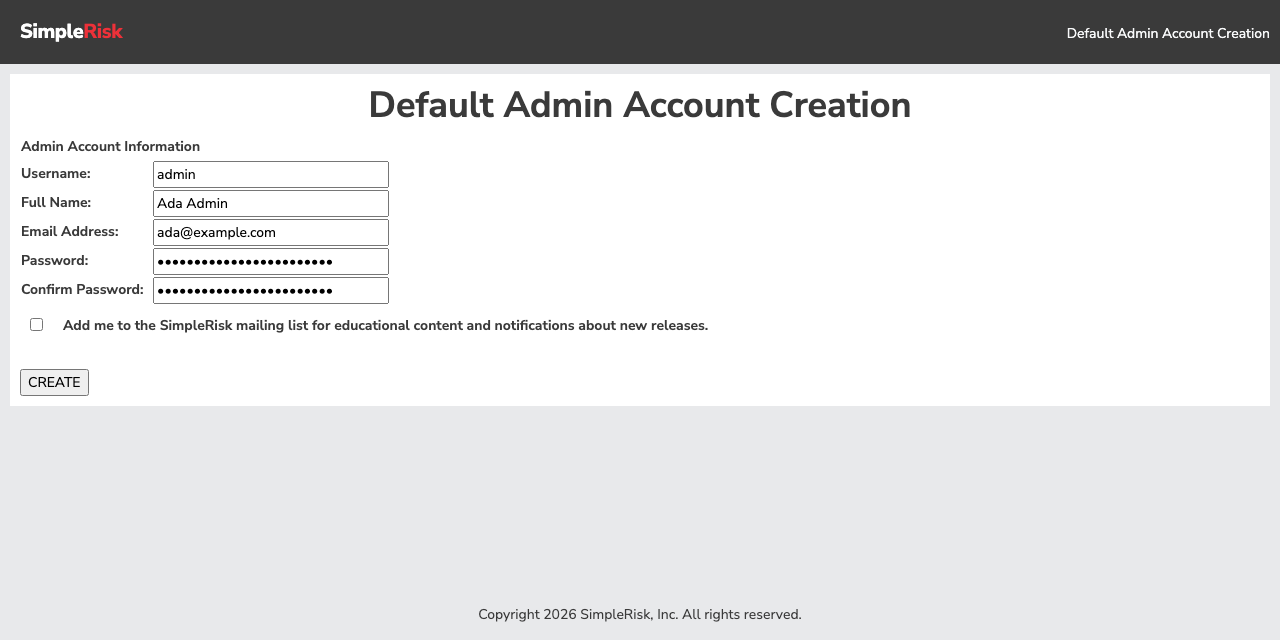
You won't see the installation wizard described in [The Initial Configuration Wizard](https://support.simplerisk.com/kb/01-05-the-initial-configuration-wizard?hsLang=en). The database and `config.php` are already in place, so SimpleRisk goes straight to creating the first administrator. Enter a username, your full name, an email address, and a strong password, twice. The mailing-list box is optional and starts unticked. Select **CREATE**.
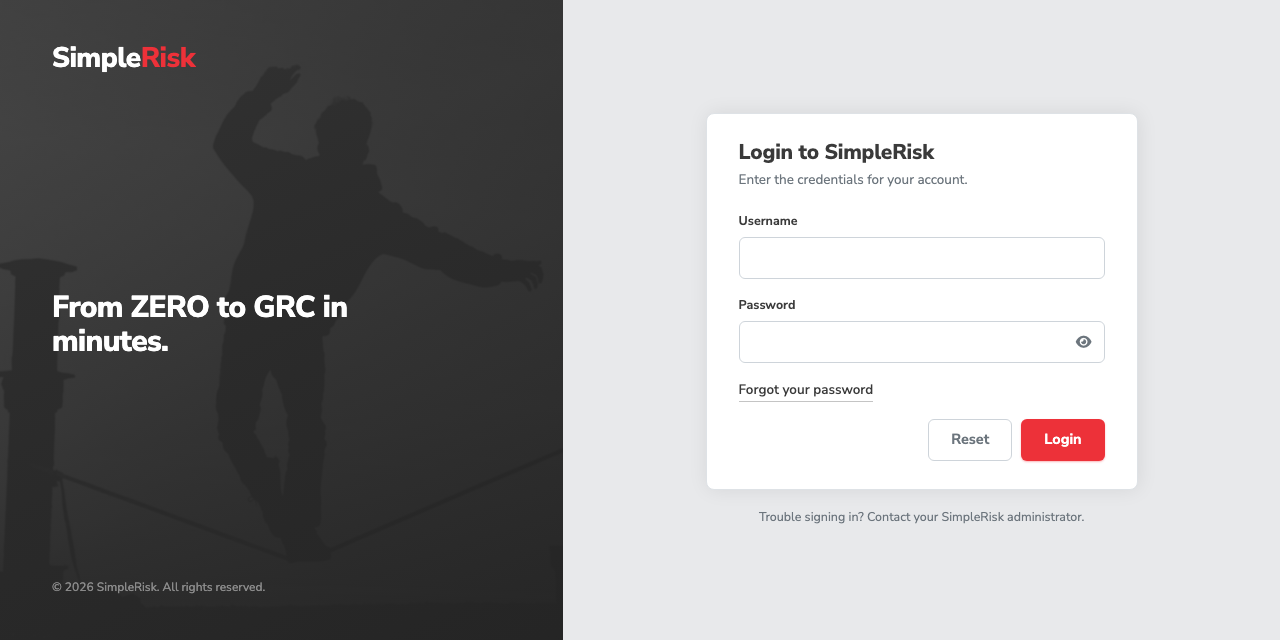
SimpleRisk then shows the login page. Sign in with the account you just created.
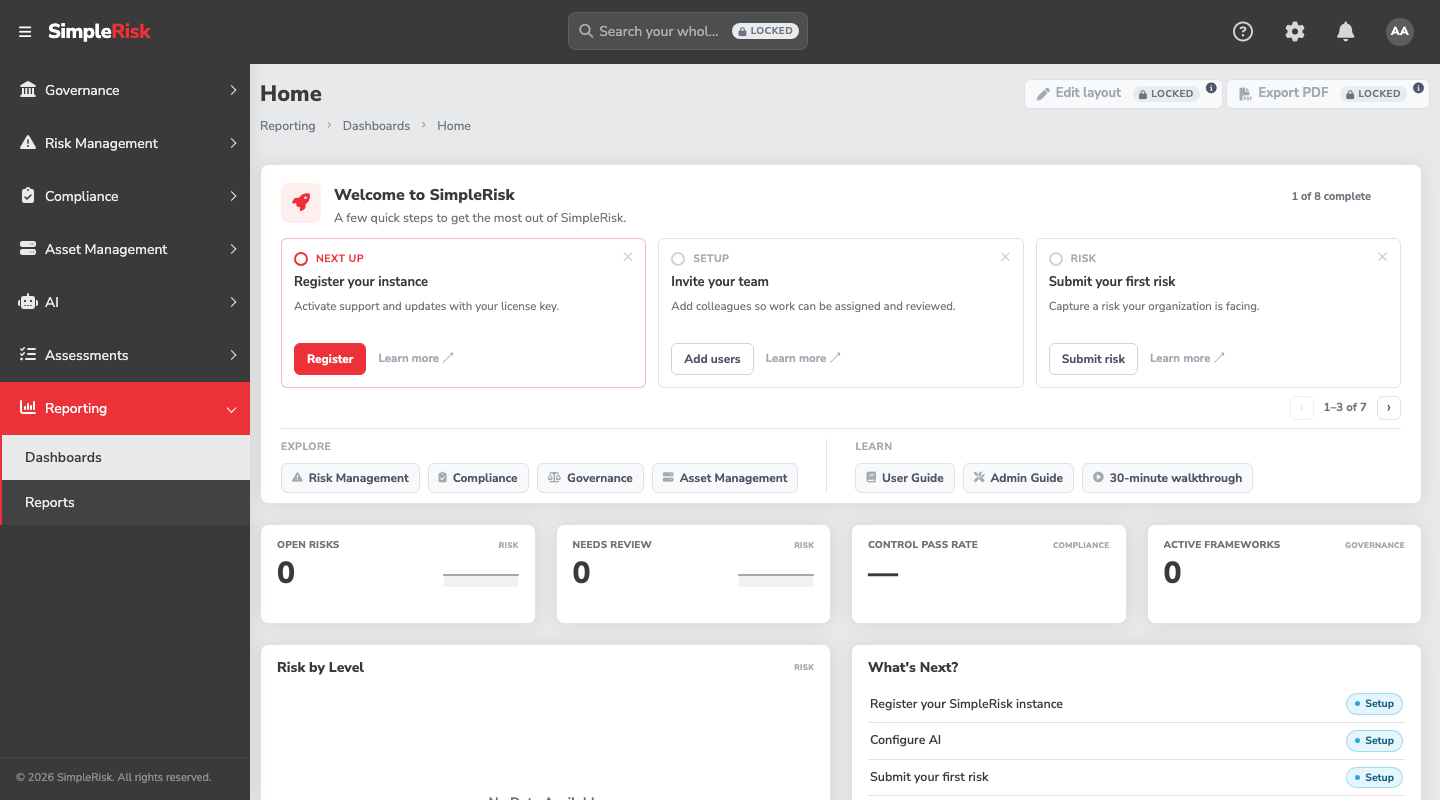
You land on the Home dashboard, with a Welcome to SimpleRisk card that lists the first steps. The counters read zero because nothing has been entered yet.
From here, register the instance so it can receive updates, following [Registration and Licensing](https://support.simplerisk.com/kb/01-10-registration-and-licensing?hsLang=en).
## Common pitfalls
- **Running the commands as a normal user with `sudo` in front of only some of them.** A redirect like `> /etc/apache2/...` happens in your shell, before `sudo` applies, and fails with "permission denied". Use one root shell for the whole article.
- **Skipping the fingerprint check in Step 1.** It's the only thing standing between a typo in a URL and a malicious PHP package on your server.
- **Leaving the database password only in your shell history.** `DBPASS` disappears when you close the shell. The copy that matters is the one in `config.php`; save a second one in your password manager now, not after a restart.
- **A site that loads but ignores its rules.** If Step 6's `AllowOverride All` didn't take, SimpleRisk still renders, but the directory protections its `.htaccess` files provide aren't in force. Confirm with `apache2ctl -S` and `apache2ctl -M` that the site is the one you edited and that `rewrite` is listed.
- **Looking for the installation wizard.** A manual install skips it, as the last step explains. The first thing you'll see is the administrator form.
- **Uninstalling by deleting `/var/www/simplerisk`.** The scheduled job from Step 7 keeps firing every minute and will recreate the log directory behind you. Remove `/etc/cron.d/simplerisk` first.
## Related
- [System Requirements](https://support.simplerisk.com/kb/01-01-system-requirements?hsLang=en)
- [Registration and Licensing](https://support.simplerisk.com/kb/01-10-registration-and-licensing?hsLang=en)
- [The Initial Configuration Wizard](https://support.simplerisk.com/kb/01-05-the-initial-configuration-wizard?hsLang=en)
- [HTTPS and TLS Configuration](https://support.simplerisk.com/kb/01-07-https-and-tls-configuration?hsLang=en)
- [The Cron Jobs](https://support.simplerisk.com/kb/02-07-the-cron-jobs?hsLang=en)
- [Installing on Linux](https://support.simplerisk.com/kb/01-02-installing-on-linux?hsLang=en)
- [FAQs](https://support.simplerisk.com/kb/faqs?hsLang=en)
- [SimpleRisk Extras](https://support.simplerisk.com/kb/simplerisk-extras?hsLang=en#main-content)
- [Vulnerability Management Extra](https://support.simplerisk.com/kb/simplerisk-extras?hsLang=en#vulnerability-management-extra)
- [Team Separation Extra](https://support.simplerisk.com/kb/simplerisk-extras?hsLang=en#team-separation-extra)
- [Import-Export Extra](https://support.simplerisk.com/kb/simplerisk-extras?hsLang=en#import-export-extra)
- [Administrator Guide](https://support.simplerisk.com/kb/administrator-guide?hsLang=en#main-content)
- [00 About This Guide](https://support.simplerisk.com/kb/administrator-guide?hsLang=en#00-about-this-guide)
- [01 Installation and Deployment](https://support.simplerisk.com/kb/administrator-guide?hsLang=en#01-installation-and-deployment)
- [02 Upgrades and Maintenance](https://support.simplerisk.com/kb/administrator-guide?hsLang=en#02-upgrades-and-maintenance)
- [03 Users and Permissions](https://support.simplerisk.com/kb/administrator-guide?hsLang=en#03-users-and-permissions)
- [04 Authentication](https://support.simplerisk.com/kb/administrator-guide?hsLang=en#04-authentication)
- [05 Customization](https://support.simplerisk.com/kb/administrator-guide?hsLang=en#05-customization)
- [06 Configuring Risk and Compliance](https://support.simplerisk.com/kb/administrator-guide?hsLang=en#06-configuring-risk-and-compliance)
- [07 Integrations](https://support.simplerisk.com/kb/administrator-guide?hsLang=en#07-integrations)
- [08 The API](https://support.simplerisk.com/kb/administrator-guide?hsLang=en#08-the-api)
- [09 Encryption and Data Security](https://support.simplerisk.com/kb/administrator-guide?hsLang=en#09-encryption-and-data-security)
- [10 Workflows and Automation](https://support.simplerisk.com/kb/administrator-guide?hsLang=en#10-workflows-and-automation)
- [11 Reporting and Auditing](https://support.simplerisk.com/kb/administrator-guide?hsLang=en#11-reporting-and-auditing)
- [12 Operations](https://support.simplerisk.com/kb/administrator-guide?hsLang=en#12-operations)
- [13 Reference](https://support.simplerisk.com/kb/administrator-guide?hsLang=en#13-reference)
- [User Guide](https://support.simplerisk.com/kb/user-guide?hsLang=en#main-content)
- [00 Foundations of GRC](https://support.simplerisk.com/kb/user-guide?hsLang=en#00-foundations-of-grc)
- [01 Risk Management](https://support.simplerisk.com/kb/user-guide?hsLang=en#01-risk-management)
- [02 Compliance Management](https://support.simplerisk.com/kb/user-guide?hsLang=en#02-compliance-management)
- [03 Governance](https://support.simplerisk.com/kb/user-guide?hsLang=en#03-governance)
- [04 Asset and Data Inventory](https://support.simplerisk.com/kb/user-guide?hsLang=en#04-asset-and-data-inventory)
- [05 Threat and Vulnerability Management](https://support.simplerisk.com/kb/user-guide?hsLang=en#05-threat-and-vulnerability-management)
- [06 Assessments](https://support.simplerisk.com/kb/user-guide?hsLang=en#06-assessments)
- [07 Incident Management](https://support.simplerisk.com/kb/user-guide?hsLang=en#07-incident-management)
- [08 Audit and Reporting](https://support.simplerisk.com/kb/user-guide?hsLang=en#08-audit-and-reporting)
- [09 Day-to-Day SimpleRisk](https://support.simplerisk.com/kb/user-guide?hsLang=en#09-day-to-day-simplerisk)
- [10 Continuous Improvement](https://support.simplerisk.com/kb/user-guide?hsLang=en#10-continuous-improvement)
- [11 Business Continuity and Disaster Recovery](https://support.simplerisk.com/kb/user-guide?hsLang=en#11-business-continuity-and-disaster-recovery)
- [SimpleRisk User Guides](https://support.simplerisk.com/kb/simplerisk-user-guides?hsLang=en)
- [Troubleshooting](https://support.simplerisk.com/kb/troubleshooting?hsLang=en)
- [SimpleRisk Hosted](https://support.simplerisk.com/kb/simplerisk-hosted?hsLang=en)
- [How To videos](https://support.simplerisk.com/kb/how-to-videos?hsLang=en)
[](https://www.simplerisk.com)
Copyright © 2026, SimpleRisk, Inc.